A person’s record will need to be made Active before an assessment is able to be added. Whether your person’s record is active or inactive is indicated in the top right side of the iAS screen.
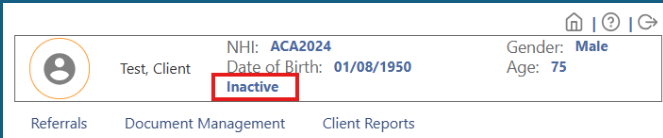
How to make a community or ACC record Active
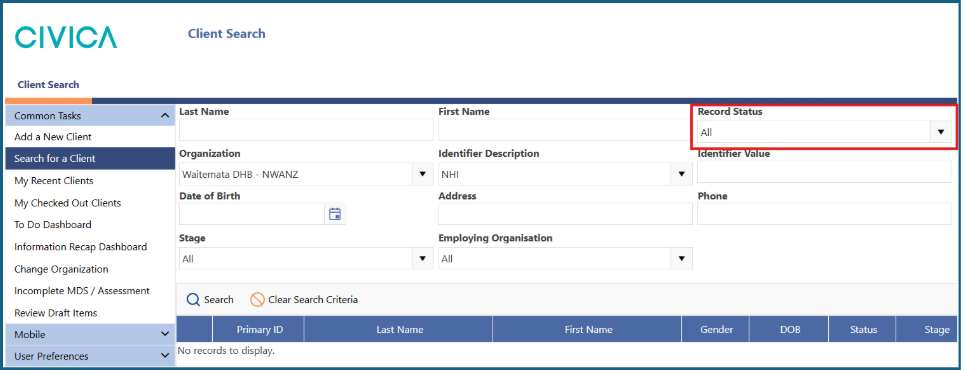
1: Search for your person’s record, making sure the 'Record Status' is set to 'All'.
2: Open the 'Case Activity' screen.
- Using the ribbon menu along the top
- Or using the left side menu
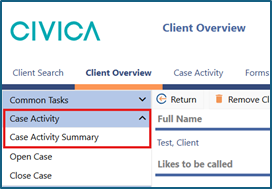
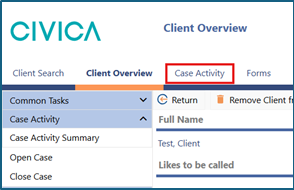
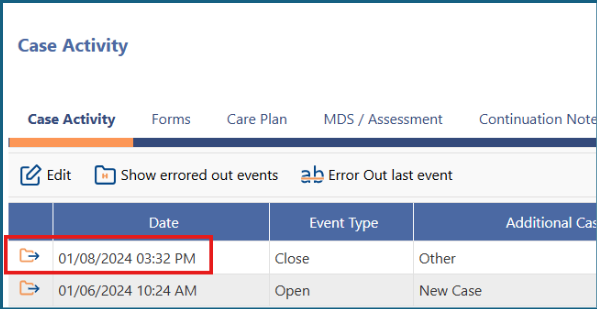
3: Note the date and time that the case was last closed as all entries must be chronological, so your open date and time must be after the previous one.
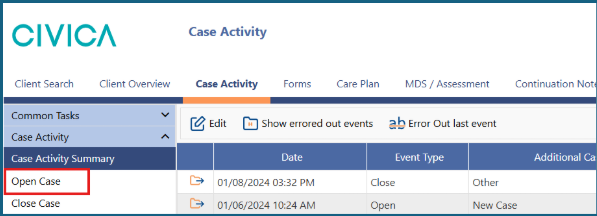
4: Select 'Open Case' in the left side menu.
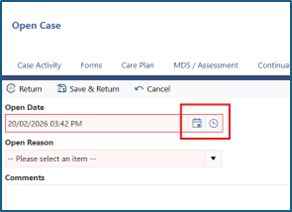
5: Use the date and time pickers to choose the date you want to open the case (this is often the date a referral was accepted)
Important Note: If it is the same date as the case was closed, you can pick a time after the time the case was closed.
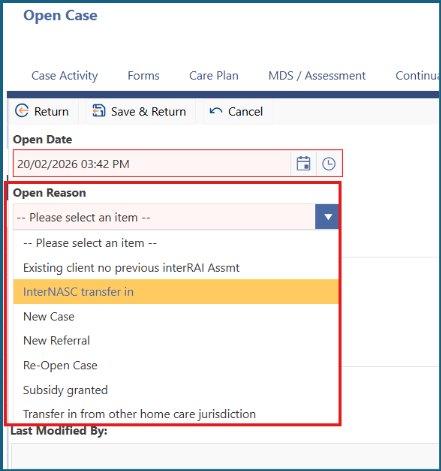
6: Select an 'Open Reason' from the dropdown list, choose the one that best matches your client.
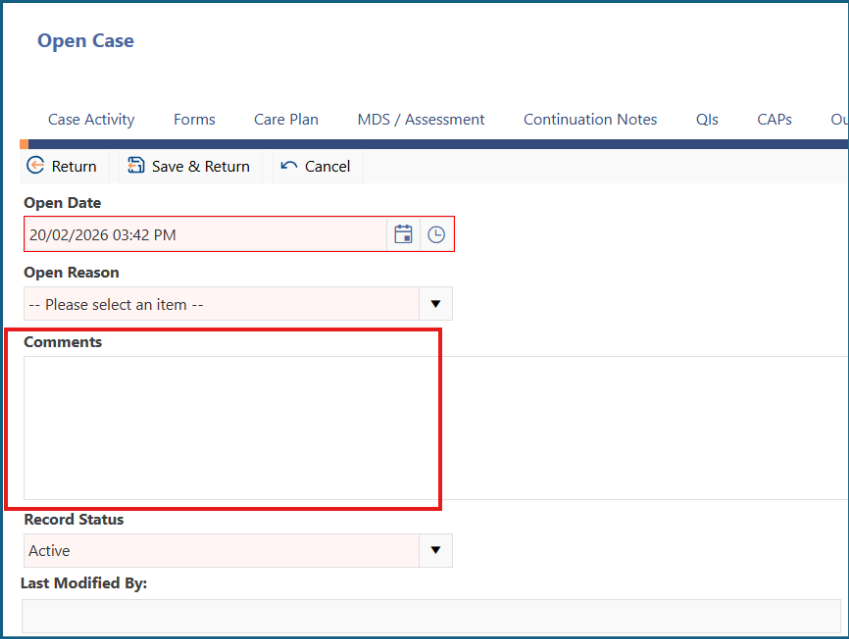
7: Add any relevant comments.
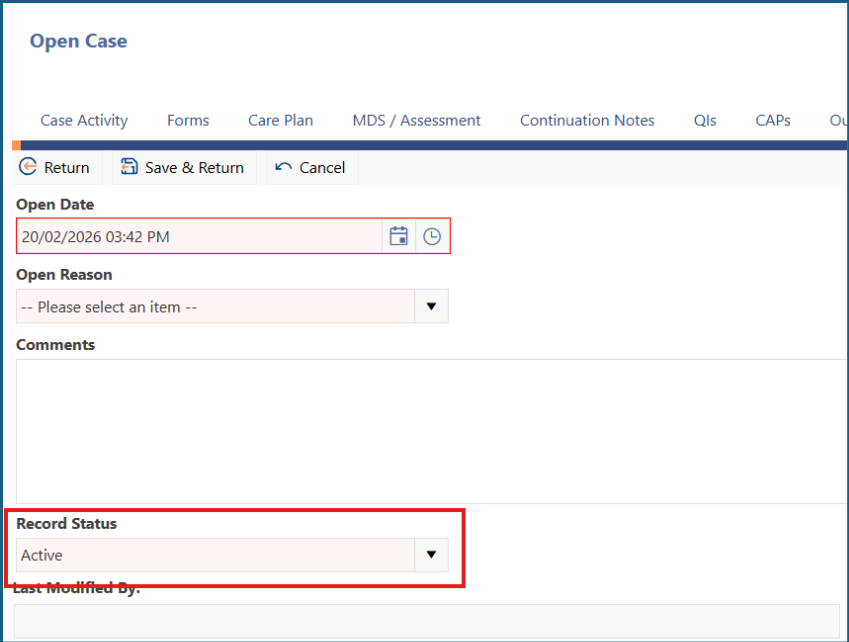
8: Leave the 'Record Status' as 'Active'.
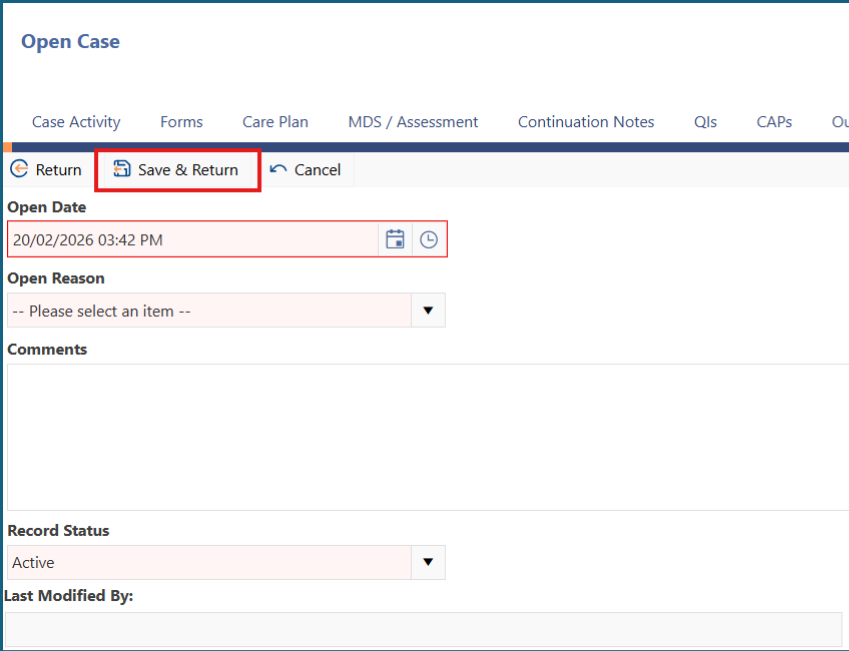
9: Click 'Save and Return'.
10: The information in the top right corner of the screen should update to ‘Active’.
Common Errors
Open date/time is before last case closed
The error message: The current event must occur after last event date/time.
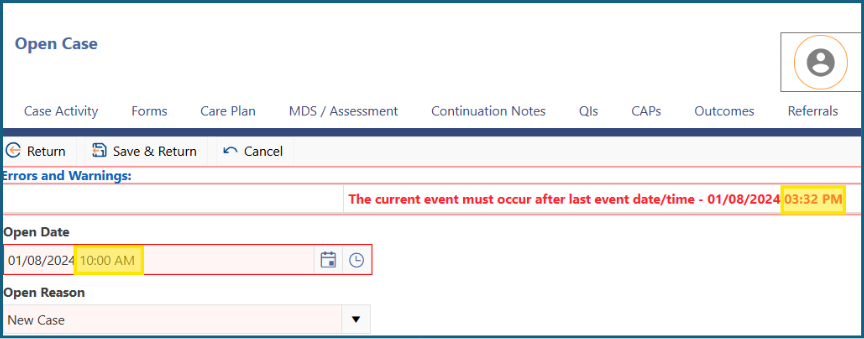
You will need to correct the date and/or time to be after the last closed date (which is displayed in the error message).
Was this article helpful?
That’s Great!
Thank you for your feedback
Sorry! We couldn't be helpful
Thank you for your feedback
Feedback sent
We appreciate your effort and will try to fix the article