Client is the term used in Community and ACC offices.

Resident is the term used in the ARC facility offices.

Although the terms differ, the process is the same.
TABLE OF CONTENTS
- Getting to the 'Add Client/Resident' screen
- Select the ‘Client/Resident Management’ tile on the Home page
- Searching for the person using National Health Index (NHI) lookup
- Alerts
Getting to the 'Add Client/Resident' screen
1: Select the ‘Client Management' or 'Resident Management’ tile on the Home page.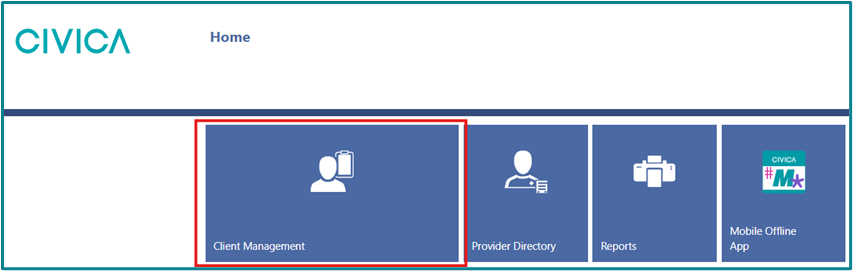
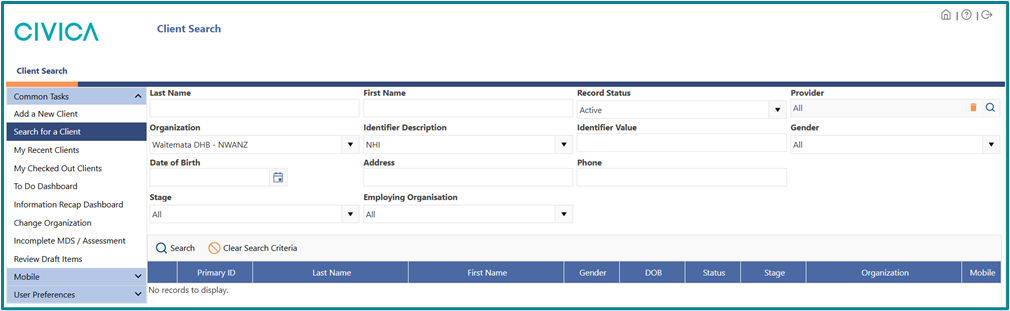
3: Select ‘Add a New Client/Resident’ from the left side menu.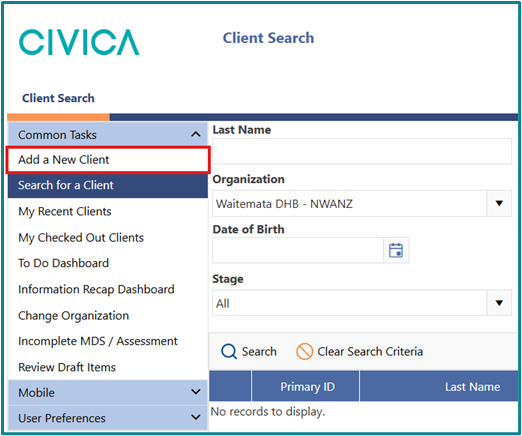
Searching for the person using National Health Index (NHI) lookup
1: Enter the persons NHI in the NHI field and then click on ‘Search NHI’.
- Make sure that you use the format of three uppercase letters and four numbers eg: ABC1234
- Make sure there are no spaces, before, after or within the NHI number entered
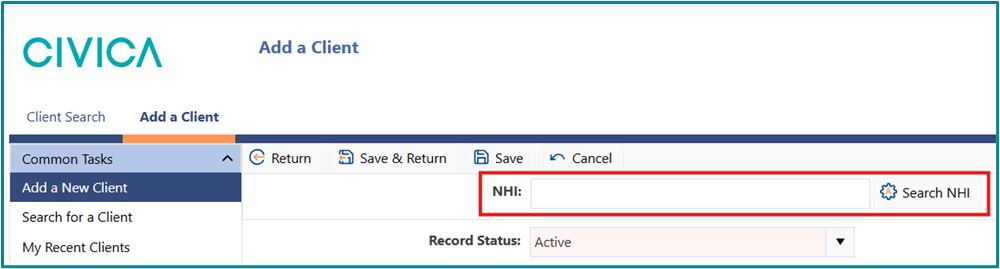
2: If the search is successful, the person’s details will automatically populate on the screen.
3: Check that all fields that are highlighted red have the person’s information in them.
- We recommend only completing these fields at this stage, all other information can be entered from the overview page once the file has been added.
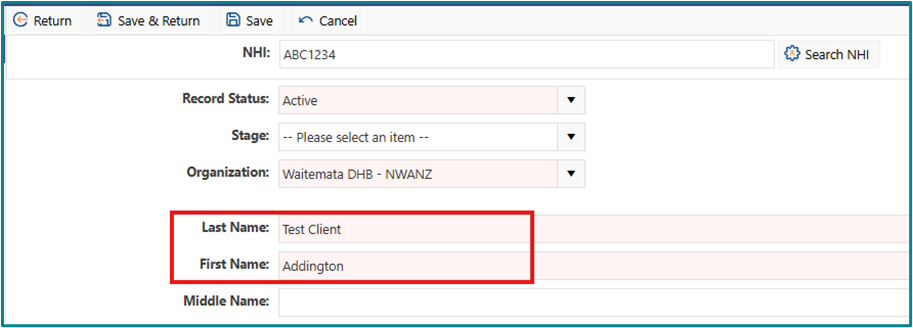
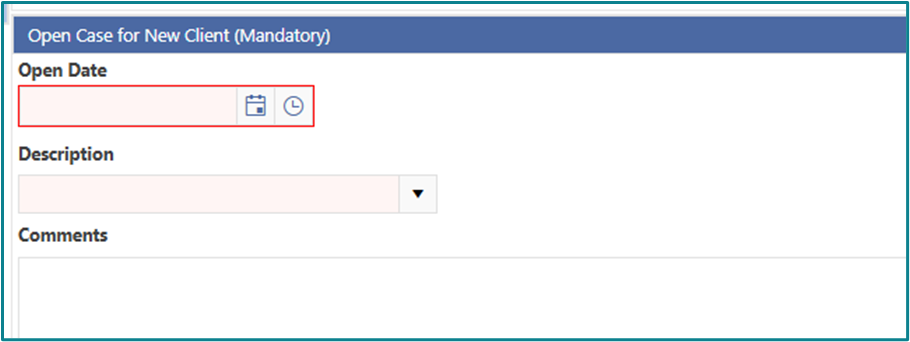
4: Additional step for community clients only:
- Scroll to the bottom of the screen and add the ‘Open Date’, generally the date of an accepted referral
- Use the drop-down menu to choose a description of the reason for opening the new case.
5: Click on ‘Save and Return’.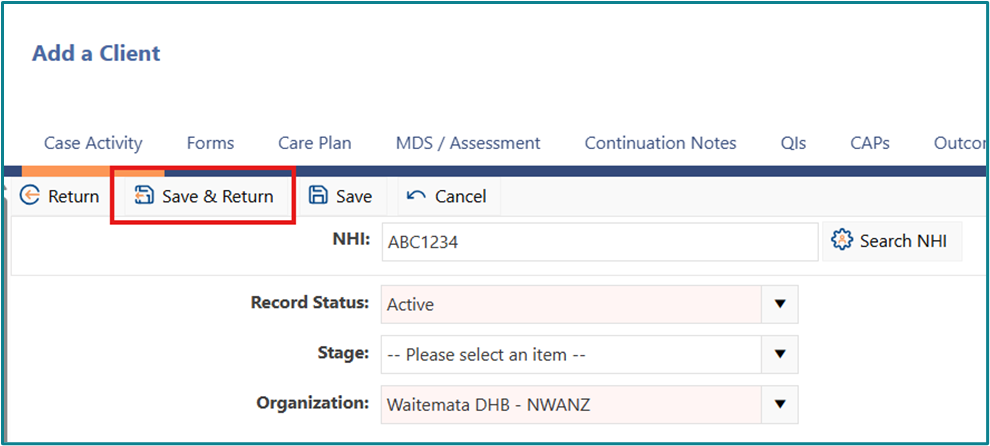
Alerts
Incorrect NHI number
What you see on the screen:
1: Errors and Warnings banner with a red error message.
2: The message ‘NHI number supplied cannot be found’ in the Errors and Warnings, as also in the box next to ‘Search NHI’.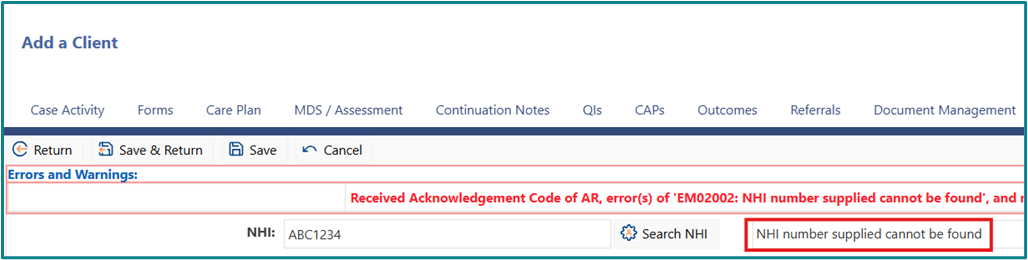
Meaning:
The NHI number that has been entered is not recognised by the NHI registry, connected via this search in the iAS software.
Action:
1: Check the NHI number provided is entered correctly.
2: Check the NHI provided is correct.
Incorrect NHI format is used
What you see on the screen:
1: Errors and Warnings banner with a red error message.
2: The message ‘Encountered Soap exception getting patient information from the HI Patient Identity web service’ in the Errors and Warnings.
3: The message ‘Encountered error(s) getting patient information from the HI Patient Identity web service’ in the box next to ‘Search NHI’.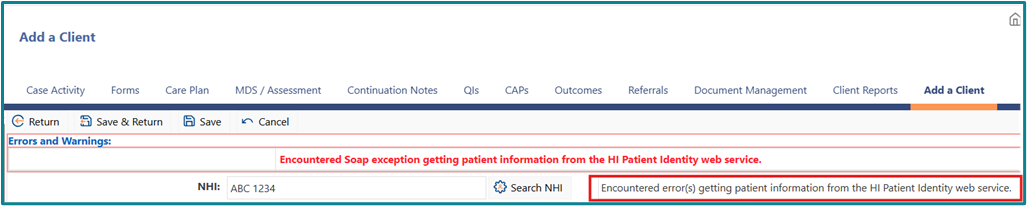
Meaning:
The NHI Registry search does not recognise the format that has been used to enter the NHI number
Action:
1: Make sure that uppercase letters have been used for the first three characters of the NHI.
2: Make sure there are no spaces in the NHI number, including checking before and after the entered number.
Duplicate Value - NHI or ACC NHI
What you see on the screen:
1: Errors and Warnings banner with a red error message.
2: The message ‘NHI is a duplicate value but must be unique’ in the Errors and Warnings.
3: ACC clients will have additional wording ‘ACC NHI number is a duplicate value in ZZ_Reference Office – ACC – National but must be unique within all Organisations…’.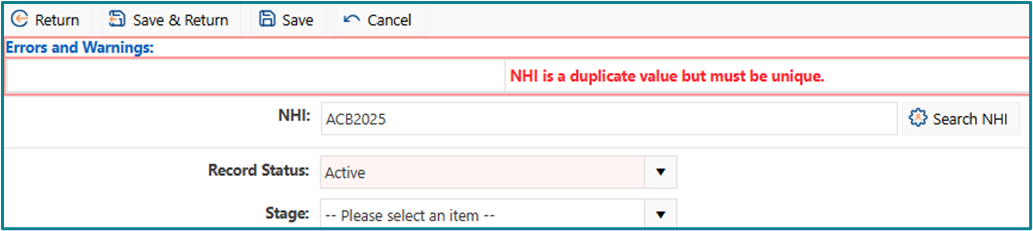
Meaning:
The person already had a file in the system. They cannot be added again.
Action:
1: Search for the client, more instructions here to help you.
Duplicate Value – Claim Number (ACC only)
What you see on the screen:
1: Errors and Warnings banner with a red error message.
2: The message ‘ACC Claim number is a duplicate value in ZZ_Reference Office – ACC – National but must be unique within all Organisations… ’ in the Errors and Warnings.
3: ACC clients will have additional wording including ZZ_Reference Office - ACC - National.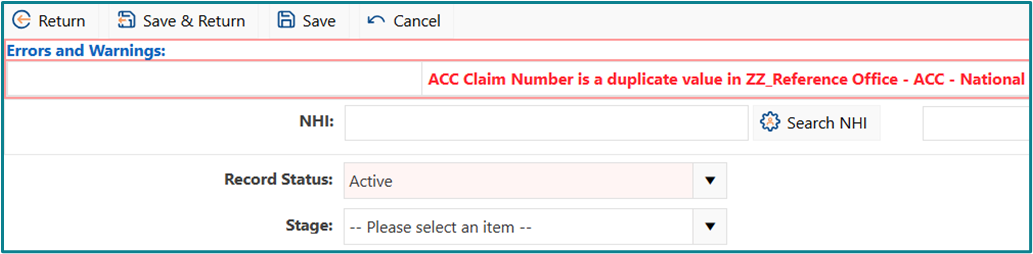
Meaning:
There is a file in the system already using that claim number. It cannot be added again.
Action:
1: Follow the ACC File Transfer Request process to get access to the client file if you haven't already.
2: Search for the client making sure the Record Status is set to All, more instructions here to help you.
3: The client file will need to be active to add an assessment. Go to Case Activity in the left side menu to do this from the Overview page. More help on making a file active can be found here: Making a community or ACC record active in the interRAI Assessment Software.
Was this article helpful?
That’s Great!
Thank you for your feedback
Sorry! We couldn't be helpful
Thank you for your feedback
Feedback sent
We appreciate your effort and will try to fix the article