TABLE OF CONTENTS
- Searching for a client/resident in the interRAI Assessment Software (iAS)
- Client/Resident search issues/errors
Client is the term used in Community and ACC offices.
Resident is the term used in the ARC facility offices.
Searching for a client/resident in the interRAI Assessment Software (iAS)
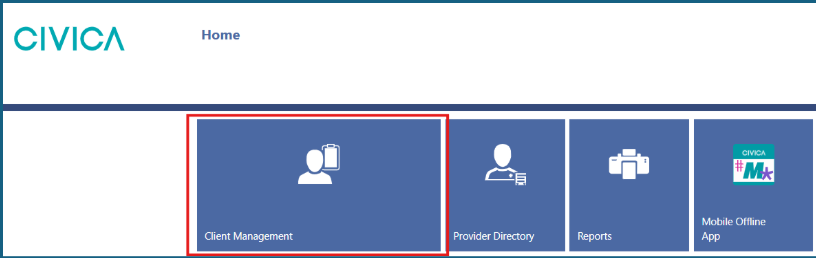
1: Select the ‘Client/Resident Management’ tile on the Home page.
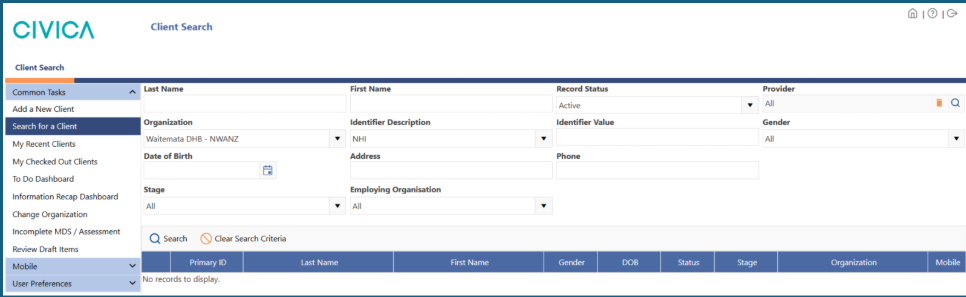
2: The ‘Client/Resident Search’ screen will open.
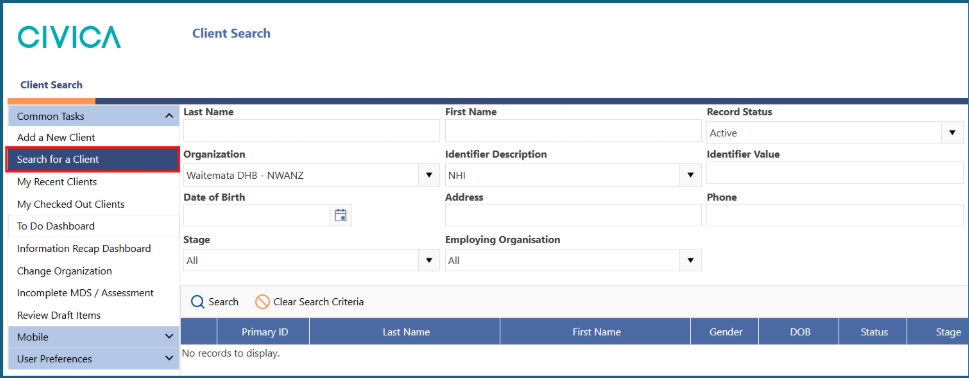
3: You can return to this page at any time using ‘Search for a Client/Resident’ in the left side menu.
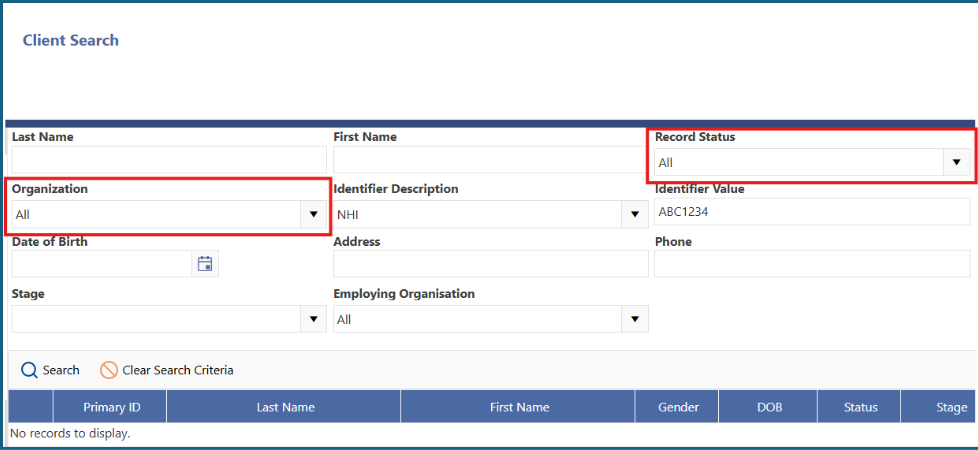
4: Add the person’s NHI to the ‘Identifier Value’ field.
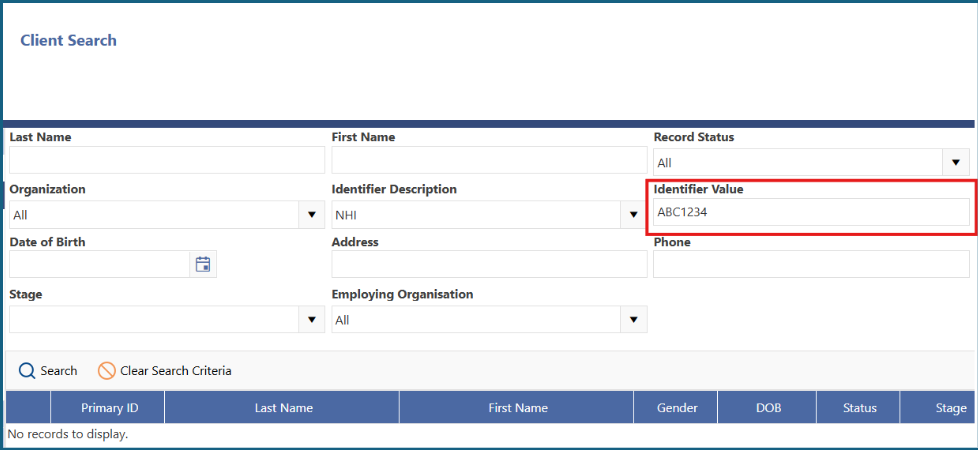
5: Set ‘Record Status’ to ‘All’ and ‘Organisation’ to ‘All’ if you have access to more than one office and want to search across them all.
Notes:
- The ‘Record Status’ by default is set to active. Files that have been transferred will always be inactive until they are admitted or a case opened. Changing the status to ‘All’ gives the best search
- The ‘Organization’ by default will be the office you are working in. Most users will only have access to a single office.
6: Click on ‘Search’.
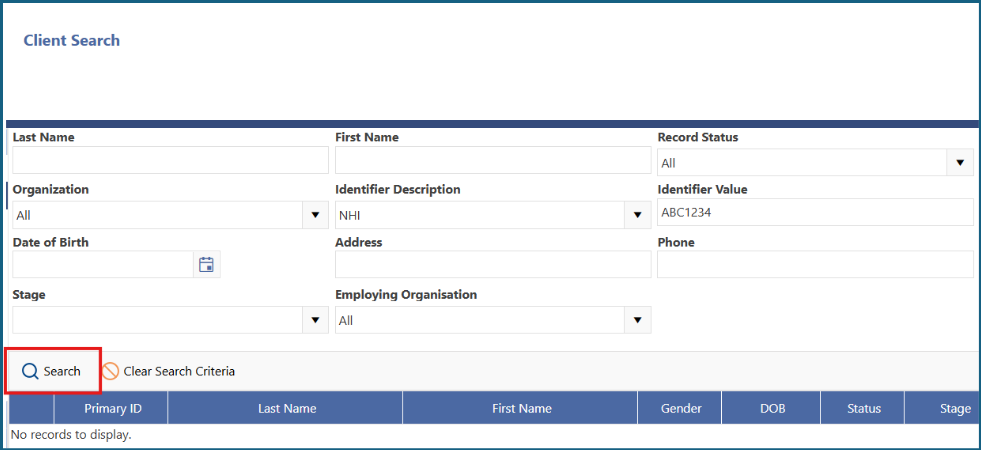
7: If your file is found, you will be taken to the ‘Client/Resident Overview’ page.
Client/Resident search issues/errors
1: No records to display.

- Check the NHI is correct, make sure there are no spaces.
- The client/resident file is not present in the system. You can add a new client/resident. See here for more instructions.
2: This record exists in an organization your account does not have security access to.
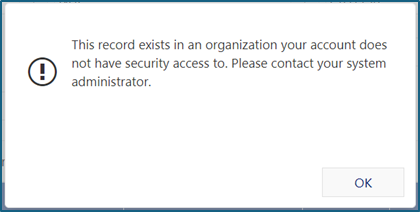
- The client/resident has a file in iAS, however it is in another office. If the file should be in your office, you will need to request for the file to be transferred.
- For community and ARC files find more instructions here.
- For ACC files find more instructions here.
Was this article helpful?
That’s Great!
Thank you for your feedback
Sorry! We couldn't be helpful
Thank you for your feedback
Feedback sent
We appreciate your effort and will try to fix the article