TABLE OF CONTENTS
- Accessing the Referrals Module
- Adding a new referral
- Adding referral comments
- Reviewing referral comments
- Making a referral active
Community clients only

Using this section of the interRAI Assessment Software is optional.
Accessing the Referrals Module
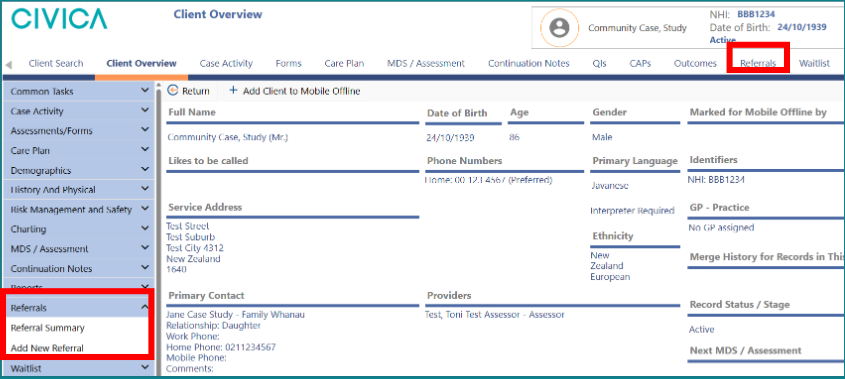
You can access the 'Referrals Module' in either of the following ways:
- click the 'Referrals' tab in the top menu
- click 'Referrals' in the left-hand men
Adding a new referral
1: Either click on 'Add New Referral' from the lefthand side menu or click on the 'Referrals' tab and click '+ Add'.
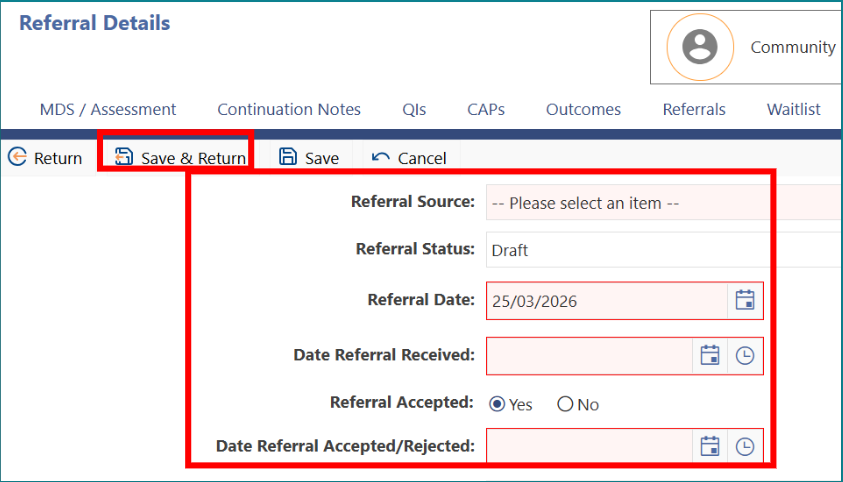
2: When the 'Referral Details' page opens, enter all the required referral information.
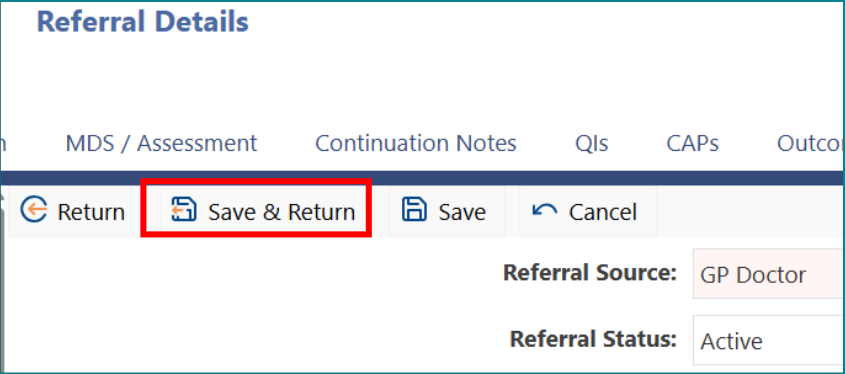
3: Click 'Save & Return'.
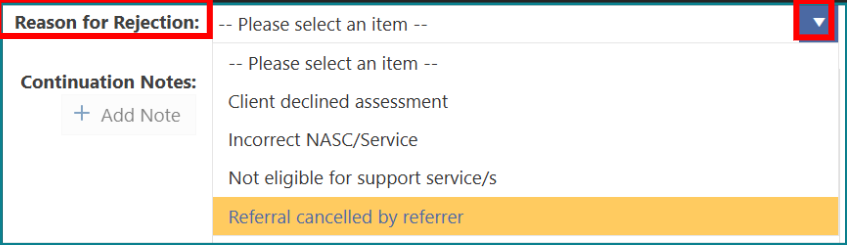
4: If the referral is rejected, please enter the 'Reason for Rejection' from the dropdown menu.
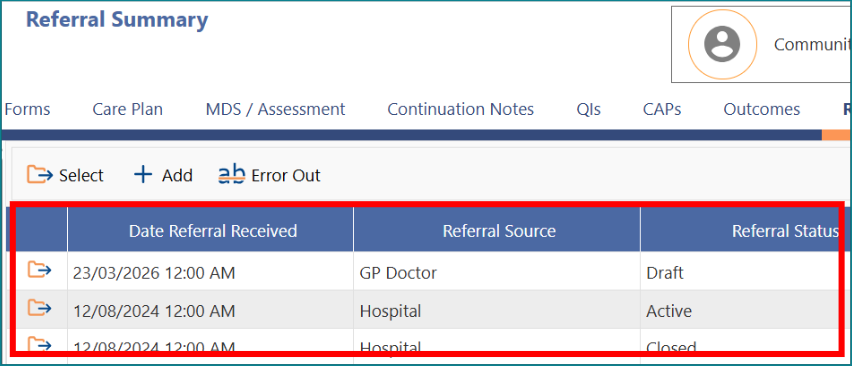
5: Once referral details are saved, you will be returned to the 'Referral Summary' page. Alternatively, you can select 'Referral Summary' from 'Common Tasks' menu under 'Referrals' to see the view below.
Adding referral comments
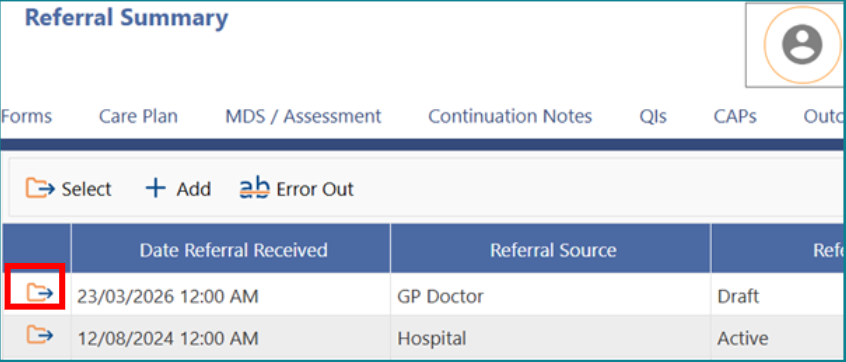
1: On the 'Referral Summary' page, click on the folder of the referral.
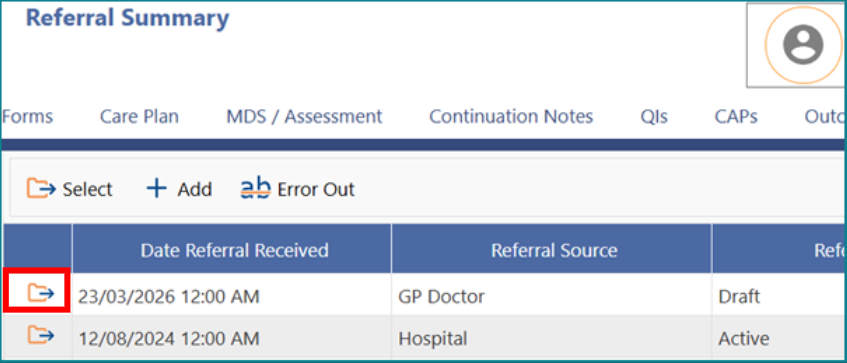
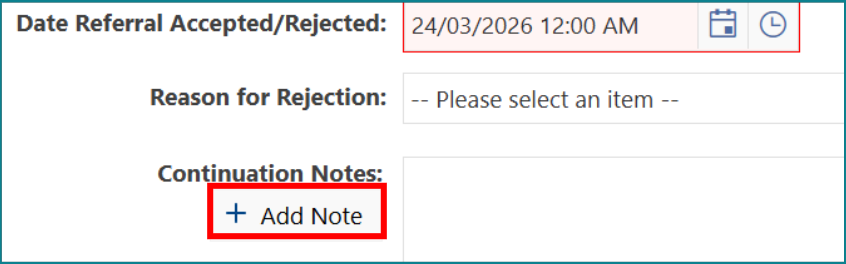
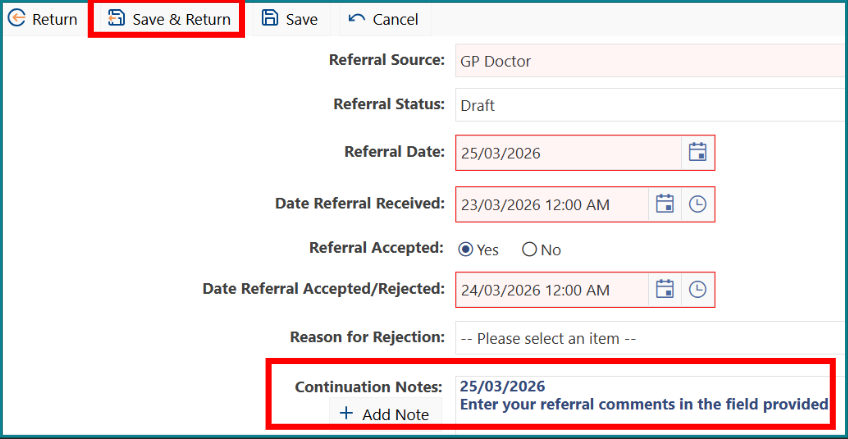
2: Click on '+ Add Note'.
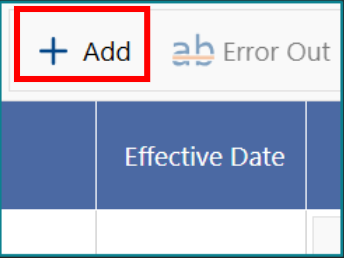
3: Click on '+ Add'.
4: Add the required comments (you can use the Spell Check to check your spelling).
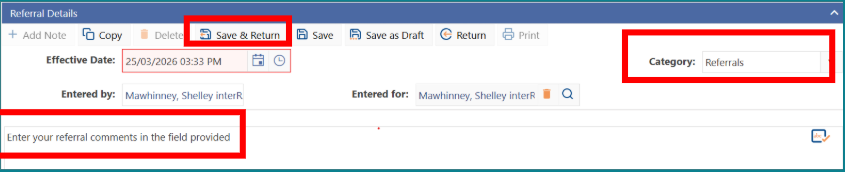
5: Click on the 'Category' dropdown list and choose 'Referrals'.
6: Click 'Save & Return'.
7: When you return to the original referral page, note that your comments have been added, click 'Save & Return'.
Reviewing referral comments
1: To review all comments related to referrals:
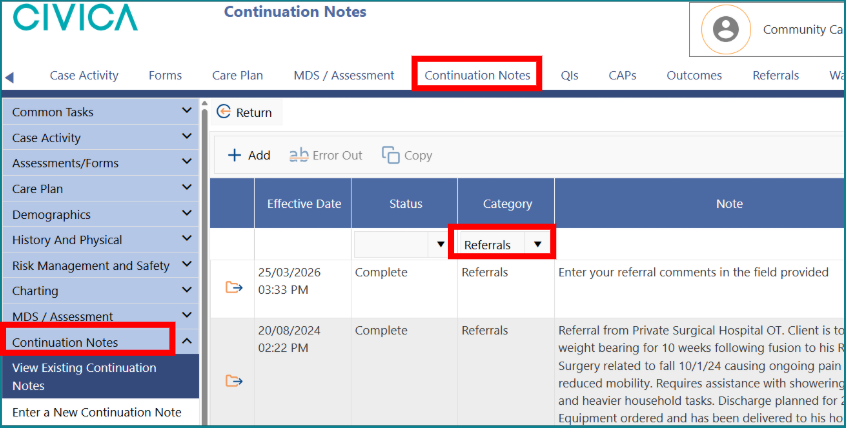
- Click the 'Continuation Notes' tab in the top ribbon,
- Or click 'Continuation Notes' in the left-hand menu.
2: Click the 'Category' drop-down list.
3: Select 'Referrals'.
4: All notes recorded under the 'Referrals' category will then be displayed.
Making a referral active
To make a referral active so it will populate into your community assessment, follow these steps:
1: On the 'Referral Summary' page, click on the folder of the referral.
2: Click on the 'Referral Status' drop-down menu list and choose 'Active'.
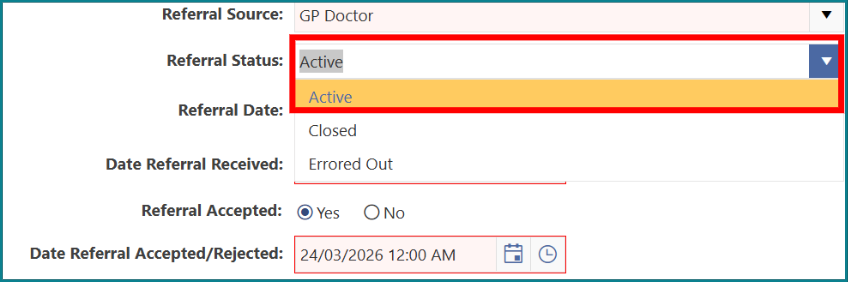
3: Click 'Save & Return'.
Important Note: If there are any previous Active referrals, these will automatically be closed when a new referral is made active.
Now that you have an Active referral in the software, when you create your community assessment, the referral information of date and source will populate to the appropriate referral question in the assessment – HC example below. 
Was this article helpful?
That’s Great!
Thank you for your feedback
Sorry! We couldn't be helpful
Thank you for your feedback
Feedback sent
We appreciate your effort and will try to fix the article