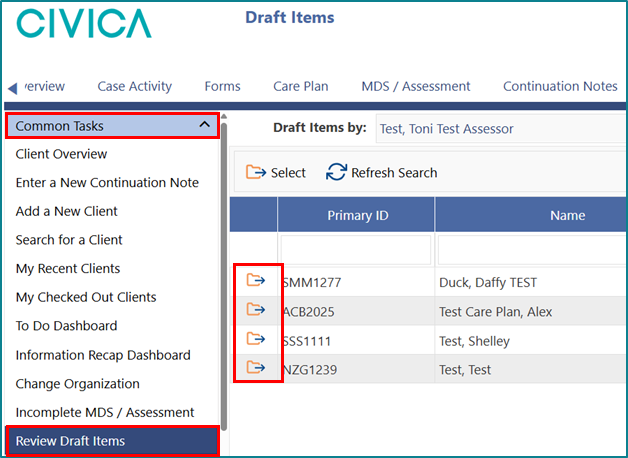
The Draft Items screen displays all draft assessments and draft notes for the logged-in user.
Draft items are listed by:
- Client Primary ID (NHI number)
- Name
- Item Type
- Item Name
- Entered by (this will be the logged in user)
- Last Modified Date
How to review and manage your draft assessments and notes
1: Click on 'Review Draft Items' under the 'Common Tasks' left hand menu.
2: Click on the folder icon next to the person’s primary ID – this will take you to the draft item.
3: Once you are reviewing the draft item, you can decide how to proceed, to discontinue or complete the draft item.
Important Note: The Draft Items screen displays the draft items for the logged-in user. It does not display draft care plans, draft forms or draft referrals.
Was this article helpful?
That’s Great!
Thank you for your feedback
Sorry! We couldn't be helpful
Thank you for your feedback
Feedback sent
We appreciate your effort and will try to fix the article