TABLE OF CONTENTS
- Adding a new wound
- Adding Wound Assessment Reviews and Updates
- Adding notes
- Adding photos
- Wound history
- To error out wounds
- To resolve a wound
- Printing the Wound Management Report
Using this section of the interRAI Assessment Software is optional.This section can be used to:
- record active and recent wounds
- add wound assessments and updates
- upload wound photos
- view wound history
- resolve or error out wounds
- print wound management reports
Adding a new wound
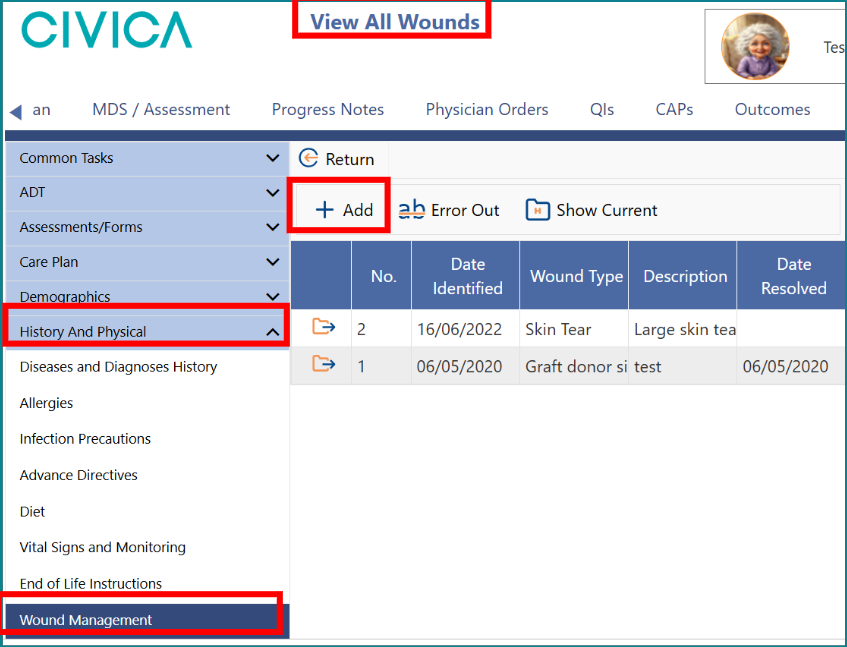
1: Go to the 'Client' or 'Resident Overview' page.
2: In the left-hand menu, click 'History and Physical'.
3: Click on 'Wound Management'.
4: The 'View All Wounds' screen will open.
5: Click '+ Add'.
6: On the 'Wound Details' page, select the relevant details for the wound from the dropdown lists.
7: Click on the body diagram where the wound is situated, you will see a red target appear.
8: Enter a description of the wound in the field provided.
9: Click on 'Save & Return'.
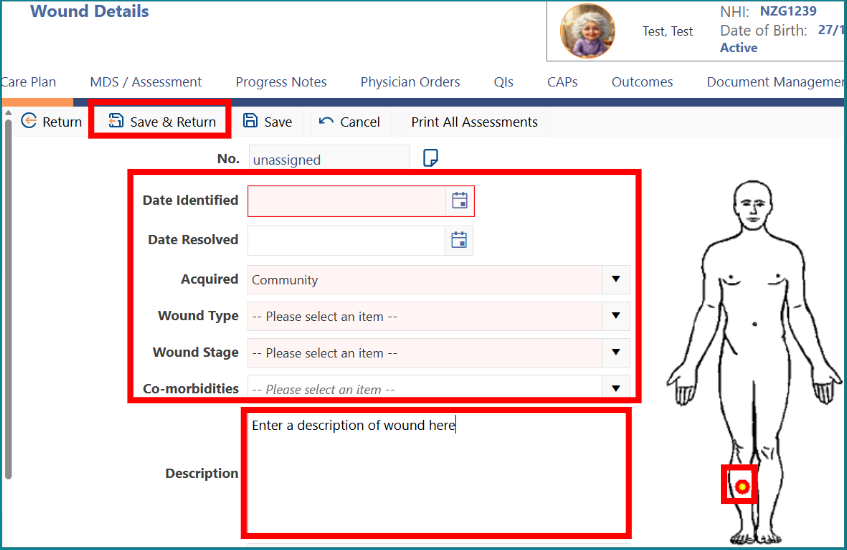
Important Note: Your wound will automatically be allocated a number.
Adding Wound Assessment Reviews and Updates
1: Click the folder icon next to the wound number.

2: Scroll down the 'Wound Details' page to find the sub heading 'Wound Assessments'.
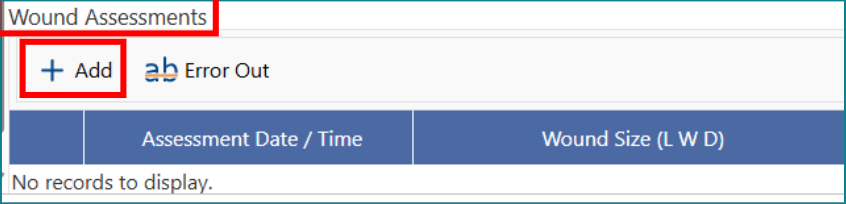
3: Click '+ Add'.
4: The 'Edit Wound Assessment' screen will open, enter the 'Assessment Date/Time', 'Wound size' and any other wound assessment details.
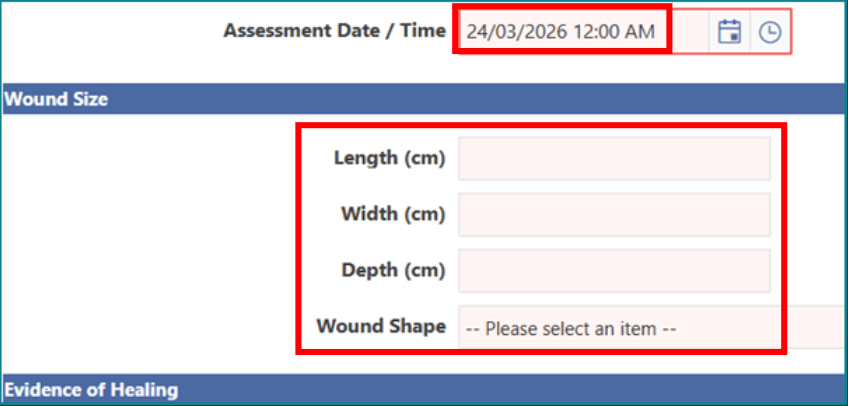
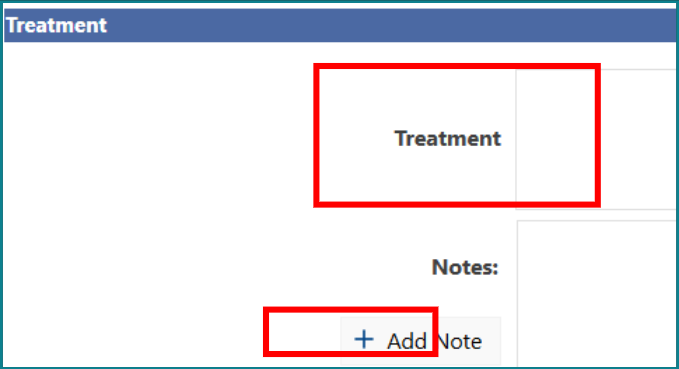
5: Under the 'Treatment' section, add dressing and treatment details and further notes as required.
Adding notes
1: Click on '+ Add Note'.
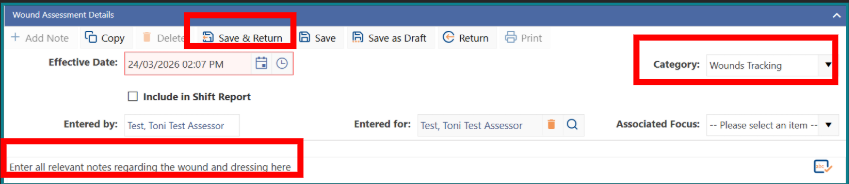
2: Enter all relevant notes regarding the wound and dressing.
3: Select 'Wound Tracking' from the 'Category' dropdown list.
4: Click 'Save & Return'.
Adding photos
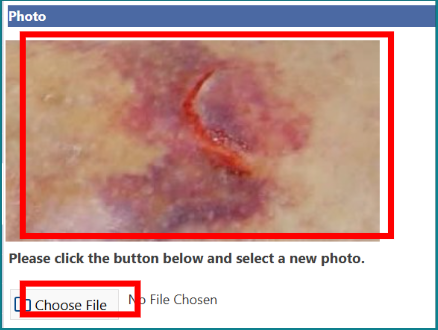
1: Under the 'Photo' section, click 'Choose File'.
2: Locate your photo/s in your file directory, click on the photo file, click 'Open' – this will upload the photo file to the software.
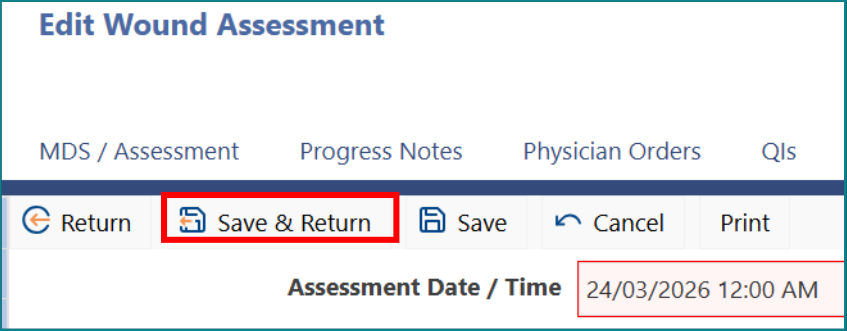
3: When you have all details entered to the 'Edit Wound Assessment' screen, you can click 'Save & Return'.
Wound history
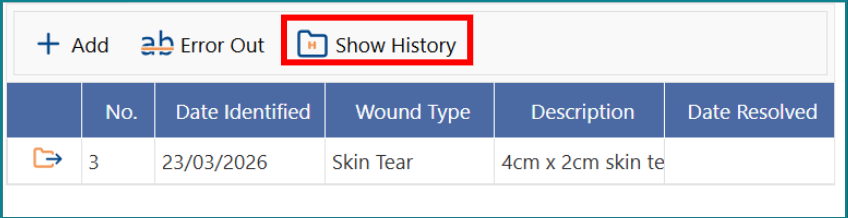
A resident may have several wounds entered over time. To view the history of wounds that are resolved or have been errored out, click on 'Show History'.
To error out wounds
If a wound has been entered by mistake, highlight the wound in the list you want to error and click on 'Error Out'.
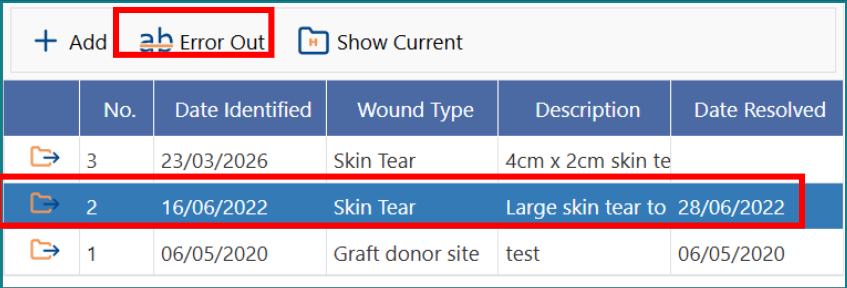
If you have designated a wound site on the diagram, it will no longer appear on the diagram. Any notes that have been created for this episode will be displayed with a strikethrough in the entry and in the Continuation Notes or Progress Notes section.
Important Note: The errored-out wounds will appear in the list when you click 'Show History'.
To resolve a wound
To resolve a wound when it has healed, follow these steps.
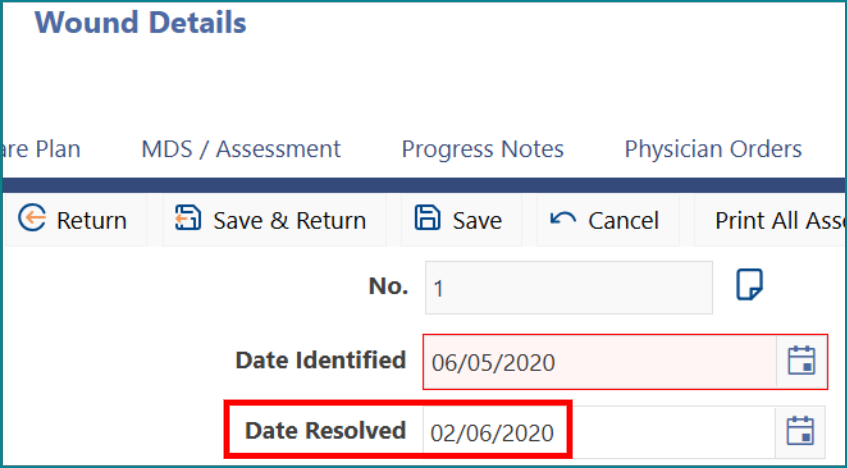
1: Select the folder icon next to the wound number.
2: The 'Wound Details' screen will open, enter the date resolved.
3: Click on 'Save & Return'.
Printing the Wound Management Report
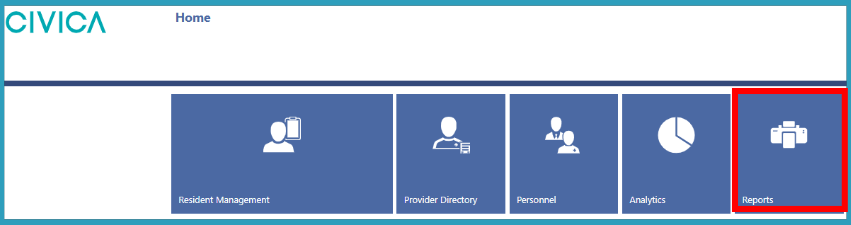
1: On the 'Home' screen, click on 'Reports'.
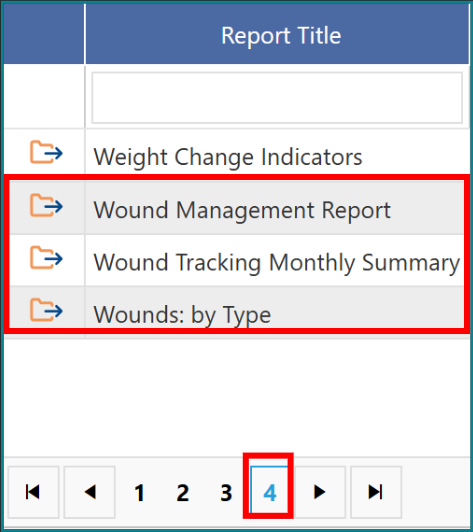
2: Select the report you want to view or print. The Wound Management Report (page 4), the Wound Tracking Monthly Summary (page 4) or the Wounds: by Type reports (also page 4).
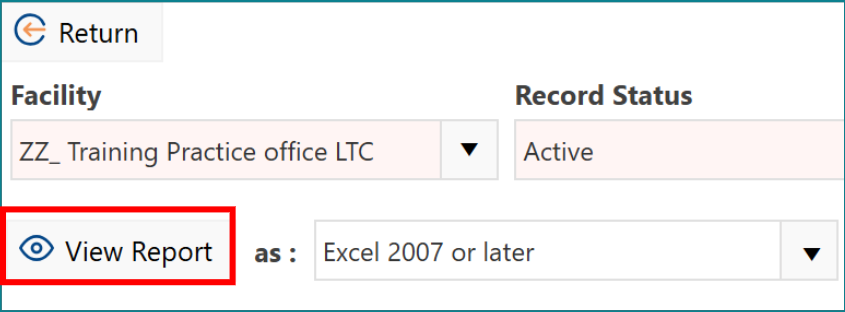
All reports can be printed as required. Click on the 'View Report' button when your criteria have been added.
Was this article helpful?
That’s Great!
Thank you for your feedback
Sorry! We couldn't be helpful
Thank you for your feedback
Feedback sent
We appreciate your effort and will try to fix the article