TABLE OF CONTENTS
- How to add details of a recent infection
- Adding notes to an infection entry
- Viewing an infection tracking report
Using this section of the interRAI Assessment Software is optional.How to add details of a recent infection
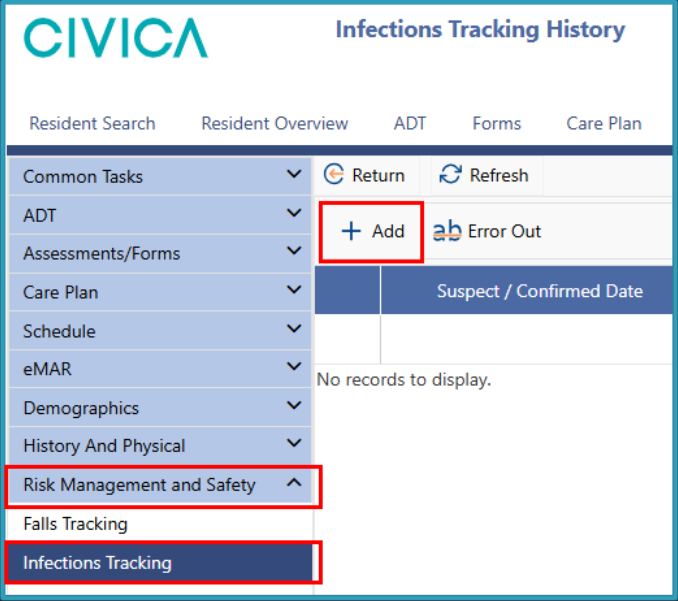
2: Click on 'Infections Tracking'.
3: The 'Infections Tracking History' screen will open.
4: Click on '+ Add'.
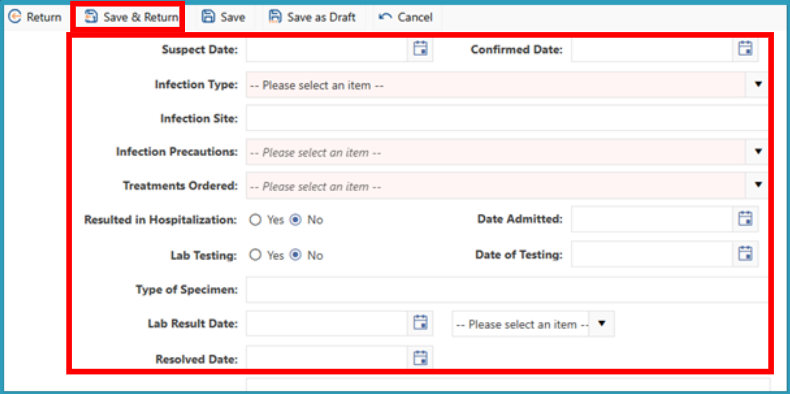
5: Enter the details of the infection.
6: Select the various assessment parameters from the dropdown lists (Please note that you are unable to add notes until the details are saved).
7: Click 'Save & Return'.
Adding notes to an infection entry
Once the infection details have been saved, you can add notes to the entry.
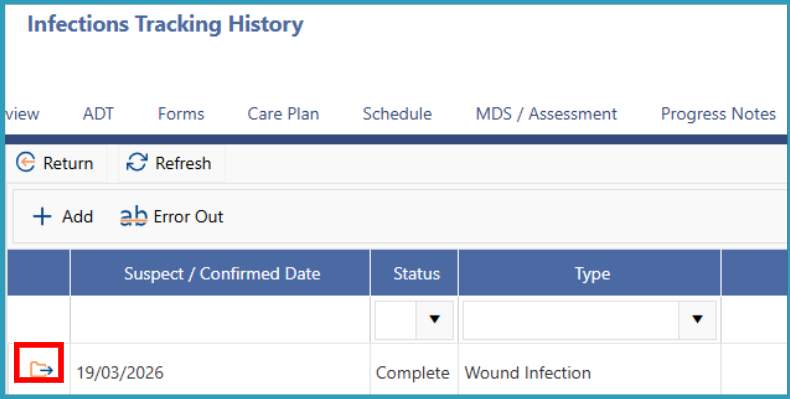
1: On the 'Infections Tracking History' screen, click the folder icon next to the recorded infection, or double-click the entry.
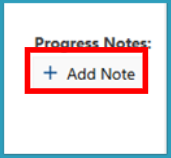
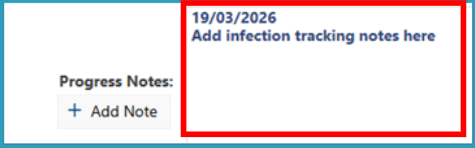
2: Click '+ Add Note'.
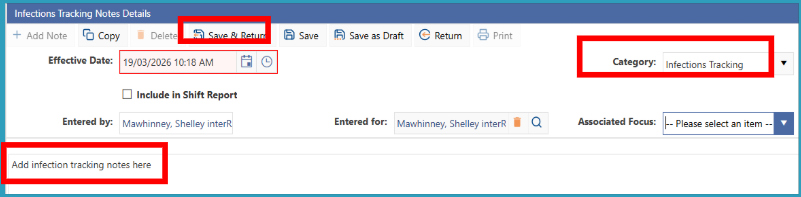
3: The 'Infection Tracking Notes' screen will open.
4: Enter the infection tracking note in the space provided.
5: Select a 'Category' from the drop-down list.
6: There is an 'Infections Tracking' category available.
7: Click 'Save & Return'.
Viewing an infection tracking report
To view or print a report about recent infections, follow these steps.
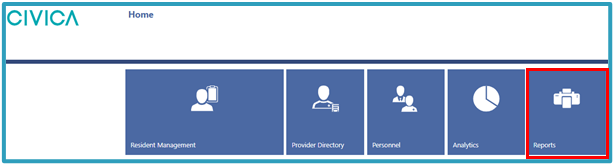
1: On the 'Home' screen, click on 'Reports'.
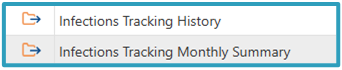
2: Select the report you want to view or print. Available reports include:
- Infections Tracking History for an individual
- Infections Tracking Monthly Summary for a group of clients or residents
- These reports are located on page 2 of the reports area.
Reports are available in:
- Excel
Was this article helpful?
That’s Great!
Thank you for your feedback
Sorry! We couldn't be helpful
Thank you for your feedback
Feedback sent
We appreciate your effort and will try to fix the article