TABLE OF CONTENTS
Using this section of the interRAI Assessment Software is optional.
Adding details of a recent fall
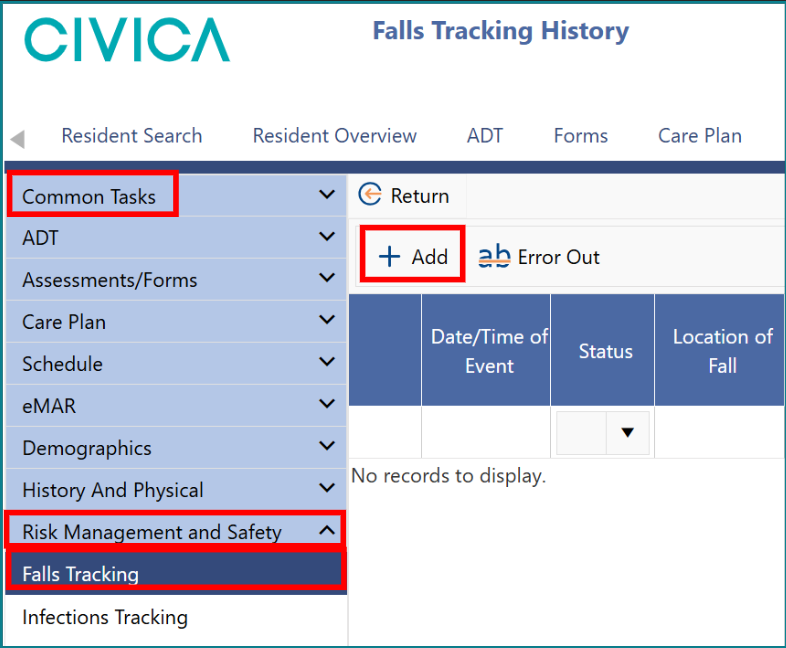
To add details of a recent fall, on the 'Client' or 'Resident Overview' page, click on 'Risk Management and Safety' under the 'Common Tasks' menu.
1: Click on 'Falls Tracking'.
2: The 'Falls Tracking History' screen will open.
3: Click on '+ Add'.
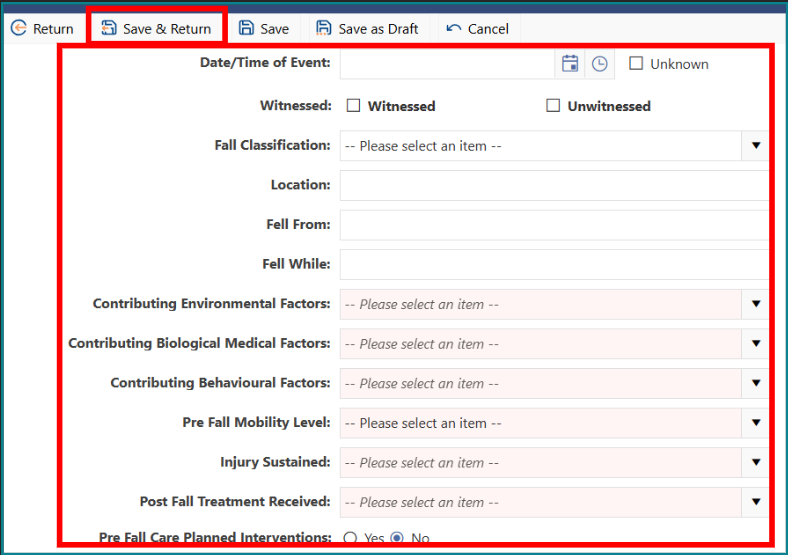
4: Enter details of the fall.
5: Select the various assessment parameters from the drop-down lists 'Click Save & Return'.
Important note: You cannot add notes to a fall entry until the fall details have been saved.
Adding notes to a fall entry
Once the fall details have been saved, you can add notes to the entry.
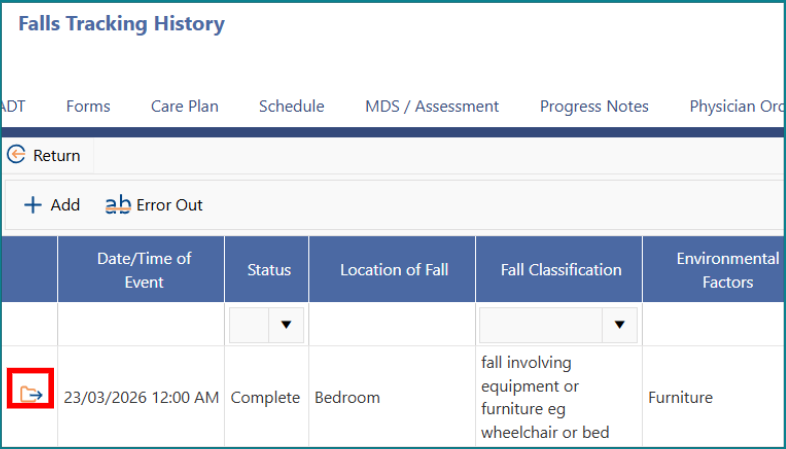
1: On the 'Falls Tracking History' screen, click the folder icon next to the recorded fall, or double-click the entry.
2: Click '+ Add Note'. 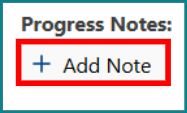
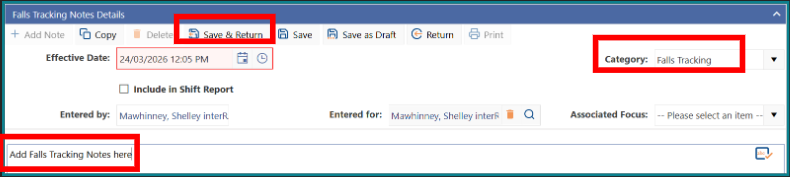
3: The 'Falls Tracking Notes' screen will open.
4: Enter the fall tracking notes in the space provided
5: Choose a 'Category' from the dropdown menu by clicking on the down arrow (there is a Falls Tracking option)
6: Click 'Save & Return'.
7: The most recent saved note will then appear on screen.
Viewing a fall tracking report
To view or print a report about recent falls, follow these steps:
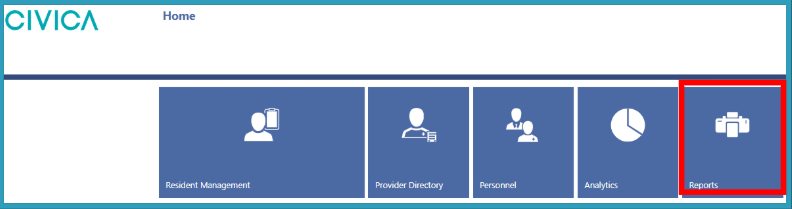
1: On the 'Home' screen, click on 'Reports'.
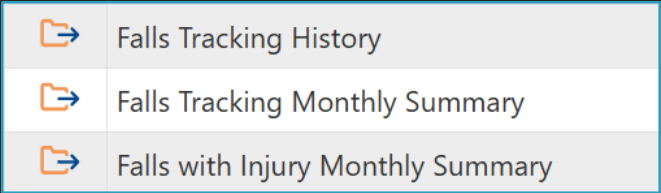
2: Select the report you want to view or print.
Available reports include:
- Falls Tracking History for an individual.
- Falls Tracking Monthly Summary for a group of clients or residents.
- Falls with Injury Monthly Summary for a group of clients or residents.
These reports are located on page 2 of the reports area.
Was this article helpful?
That’s Great!
Thank you for your feedback
Sorry! We couldn't be helpful
Thank you for your feedback
Feedback sent
We appreciate your effort and will try to fix the article