TABLE OF CONTENTS
- How to make changes to an assessment
- Important note about the Assessment Reference Date and Reason for Assessment
- Key points to remember
You can make changes to an assessment after it has been started. However, the steps you need to follow depend on whether sections of the assessment have been marked as complete.
When working in an assessment, you should first check the status of the Assessment Summary section.
Important:
Some assessments (such as Contact, ACC Contact, and Acute Care) do not have an Assessment Summary section. In these cases, you can work directly within each section.
The section colour indicates its status:
Orange = Draft
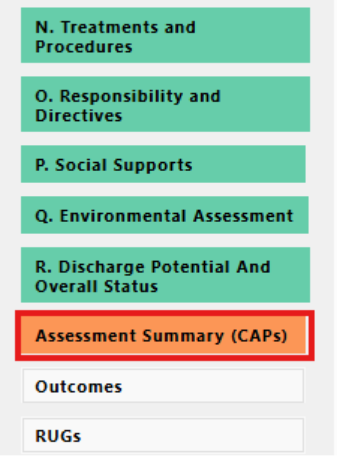
Green = Complete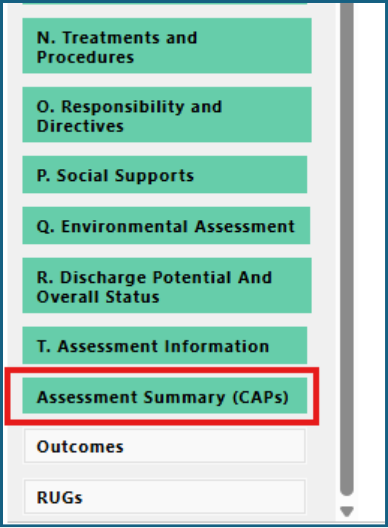
How to make changes to an assessment
1: Open the assessment
1: Open the client or resident record.
2: Go to MDS / Assessment.
3: Open the assessment you want to change.
2: Check the status of the Assessment Summary
Look at the colour of the Assessment Summary section:
- If it is orange, the section is still in draft.
- If it is green, the section has been marked complete.
3: Make your changes
If the Assessment Summary is in draft (orange) or no assessment summary
You can:
1: Go to the section you want to change.
2: Open the section.
3: Update the information as required.
If the Assessment Summary is complete (green)
You must reopen the Assessment Summary before making changes.
1: Go to Assessment Summary.
2: Click Reopen.
3: Go to the section you want to change.
4: Click Reopen.
5: Update the information as required.
Important note about the Assessment Reference Date and Reason for Assessment
If you need to change the following items:
- Assessment Reference Date
- Reason for Assessment
You must reopen Section A or Section B before making changes to these fields.
Key points to remember
- Always check the Assessment Summary status first.
- You cannot change completed sections until they are reopened.
- Reopening the Assessment Summary allows other sections to be reopened.
- Section A must be reopened before changing the Assessment Reference Date or Reason for Assessment.
Was this article helpful?
That’s Great!
Thank you for your feedback
Sorry! We couldn't be helpful
Thank you for your feedback
Feedback sent
We appreciate your effort and will try to fix the article