TABLE OF CONTENTS
- Starting a new MDS / Assessment
- What to do if you get an error message
- Save and return to a draft assessment
- Checking pre-populated information
- Completing the assessment
- Completing all sections
- What the Assessment Summary does
- Viewing CAPs from previous assessments
- Using the Client Summary Report
- Viewing triggered Outcome Scales
- Viewing Outcome Scales from previous assessments
- Completing the Assessment Summary
Once you have finished entering or updating information on the 'Overview' page, you are ready to complete any of these assessments that you are trained in:
- Acute Care Assessment (AC)
- Community Health Assessment (CHA)
- Contact Assessment (CA)
- ACC Contact Assessment (ACC CA)
- Home Care Assessment (HC)
- Long-Term Care Facilities Assessment (LTCF)
- Palliative Care Assessment (PC)
MDS stands for minimum data set. It is the minimum information an interRAI assessment needs to trigger assessment algorithms, which formulate outcomes.
Starting a new MDS / Assessment
To start a new Assessment, find the client or resident you want to open a new assessment for:
1: On the 'Overview' page, click on 'MDS/Assessment'.
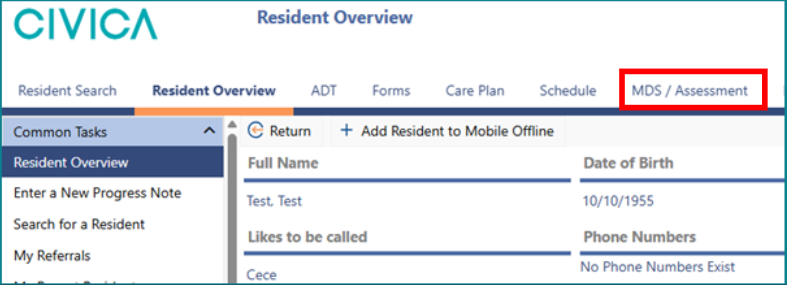
2: Click on '+ New'.
- If you have a single assessment competency, your new assessment will open into the new 'Single Page Application (SPA)' format.
- If you have more than one assessment competency, you will need to click on the folder icon next to the type of assessment you wish to complete.
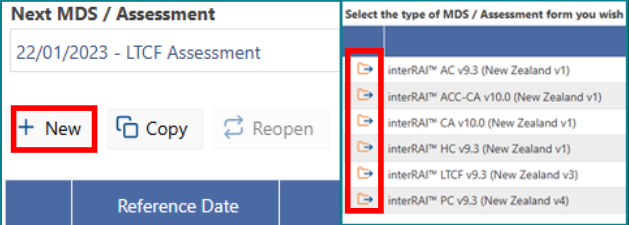
For all Assessments except those completing CHA assessments you will be taken to the new Single Page Application (SPA) format.
4: You need to complete the first two items before the rest of the assessment will load and you can proceed. Click on the most appropriate option for the Primary Reason for assessment, use the date-picker to select the Assessment Reference Date.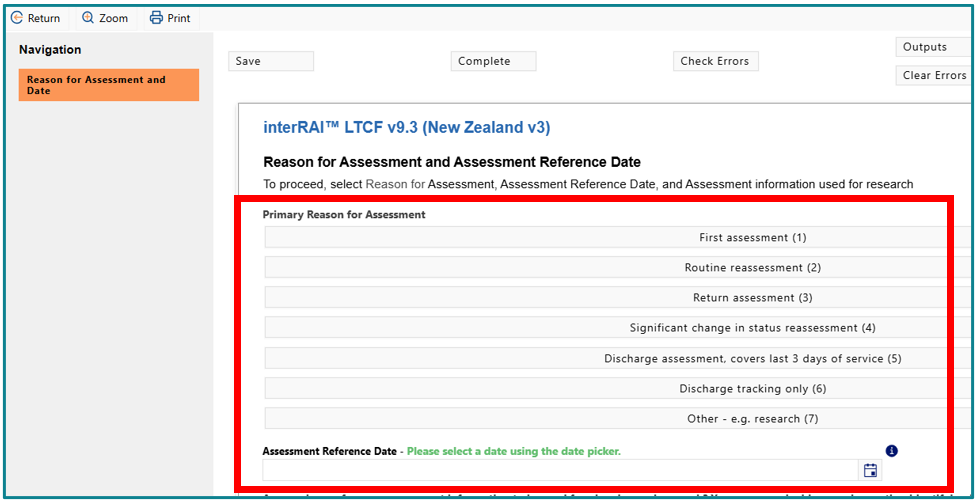
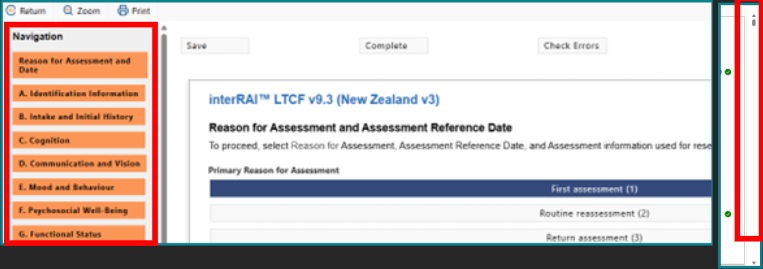
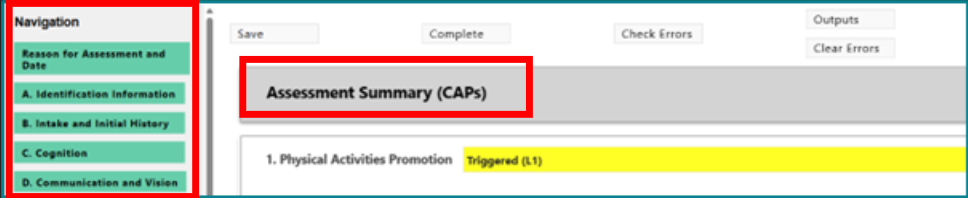
5: Once the first two items have been answered, all other sections for the assessment will load as shown below – you can either scroll through the sections using the right-hand scroll or choose them by clicking on each from the Navigation panel.
What to do if you get an error message
If you try to start a new assessment on a person whose record is ‘inactive’, you will see this error message:


Ensure you have either admitted the resident into a bed (residential care settings) or opened a new case (community settings) before attempting to start an assessment.
Save and return to a draft assessment
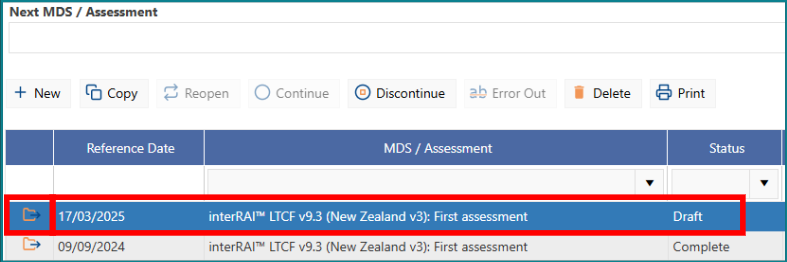
Once you have opened a new assessment, if you click Return the assessment will be assigned draft status. You can leave the assessment as a draft and return to it later by following this step.
1: Go to 'MDS/Assessment' from the 'Overview' page, click on the folder icon to the left of the draft assessment or double click on the assessment to open it.\

Checking pre-populated information
If the client or resident has been assessed before with the same assessment type, the new assessment will be pre-populated with coding and notes from the previous assessment. Make sure you check these notes, and delete or update any that have changed, except those in Section B.
Completing the assessment
Assessment Navigation
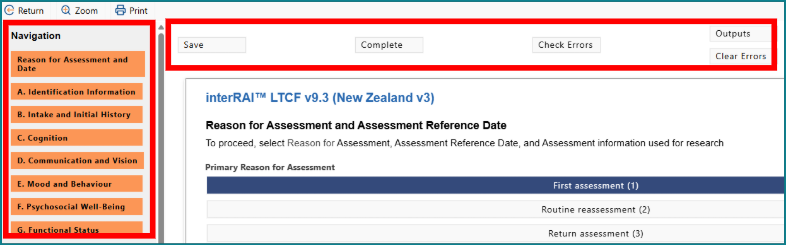
There are the 5 action buttons at the top of the assessment, and section piano keys on the left-hand side to navigate through sections.
The action button functions are:
- Save – saves the assessment as draft
- Complete – marks the assessment complete
- Outputs – opens an Outcomes and CAPs window on the right-hand side of the assessment window. These outputs update in real time as the assessment is completed
- Check Errors – checks the entire assessment for errors. The view of the assessment changes to show only those items that need correcting
- Clear Errors – clears the red arrow cross from errors that have been corrected and returns the assessment to the standard view showing all assessment items
Section status colours
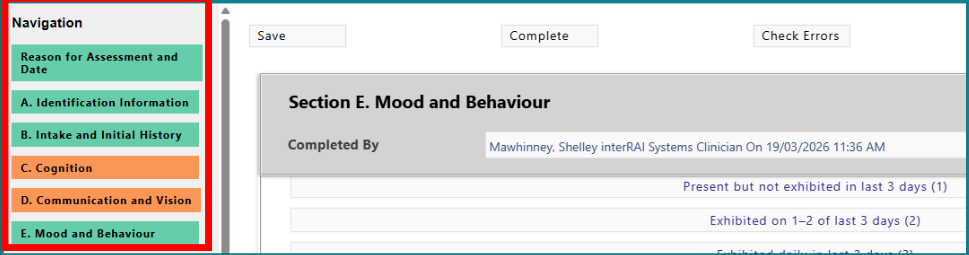
The piano keys appear:
- orange when the section is in draft
- green when the section has been marked complete
Moving through sections
The assessment opens at the top of the first section. You can:
- scroll through sections using the side scroll bar, or
- use the navigation keys to move to a specific section
Sections can be completed in any order.
Conditional logic in the assessment
The software uses conditional logic to show or hide some sections based on your coding. For example, if Question C1 is coded as 5 — no discernible consciousness, sections D, E, and F are hidden from the navigation panel.
Section header controls
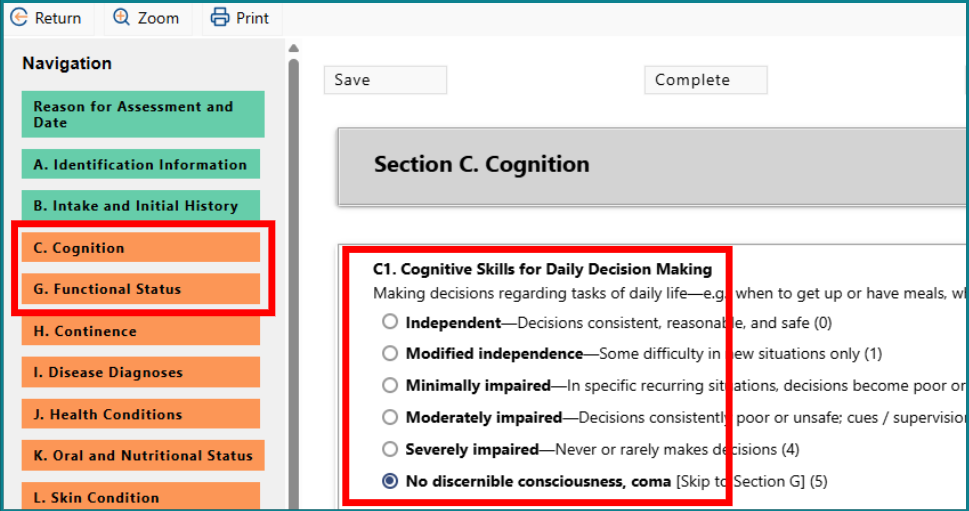
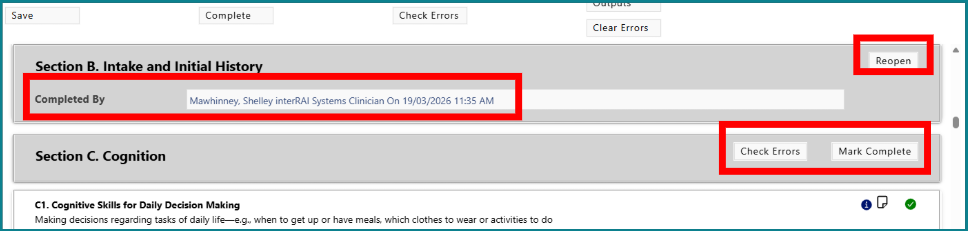
While a section is in draft, action buttons such as Mark Complete, Check Errors, and Clear Errors appear beside the section header.
Once the section is completed, these are replaced by a 'Reopen' button.
The section header also displays:
- the name of the person who completed the section
- the completion date
Coding within the assessment
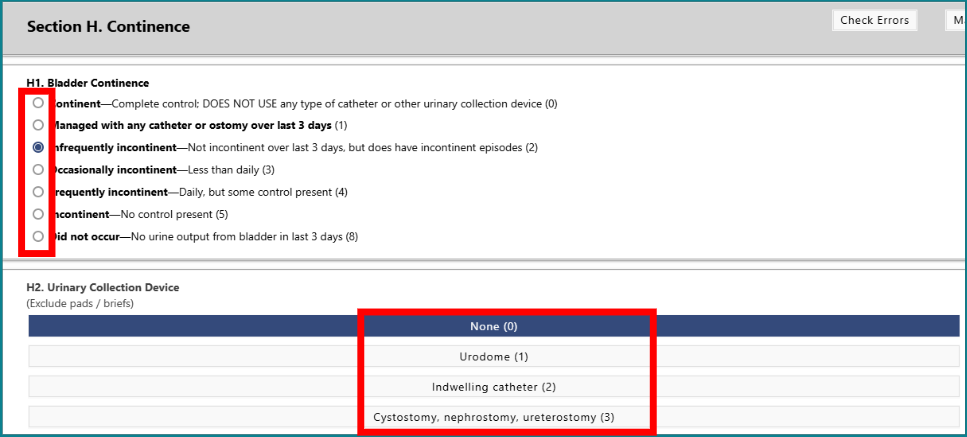
Coding is completed in two ways:
- by selecting radio buttons
- by choosing an option from the available fields or lists
Error checking
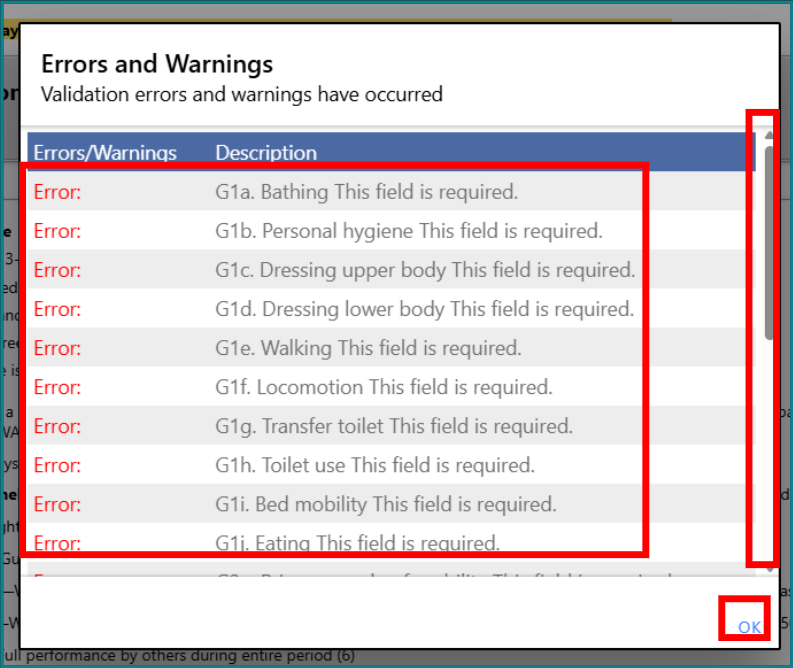
When Check Errors is selected, a pop-up window opens showing the section’s errors and warnings. If there are several, you can use the scroll bar to review them. Click OK to close the pop-up.
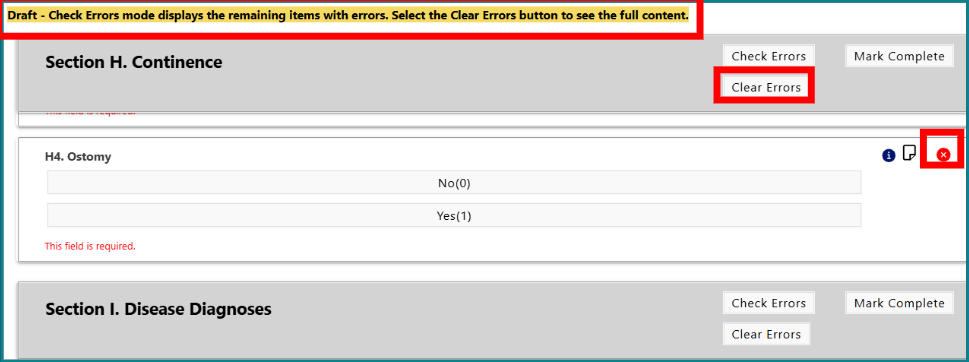
When a section is in Check Errors mode:
- items without warnings or errors are hidden
- only items needing coding or failing validation remain visible
- a red X appears beside items that still need correction
- a yellow message bar appears at the top of the assessment
Click Clear Errors to return to the standard view showing all items.
Help and comments
Help is available for each section item. Select the information icon for the question to open a pop-up section help with the relevant guidance.

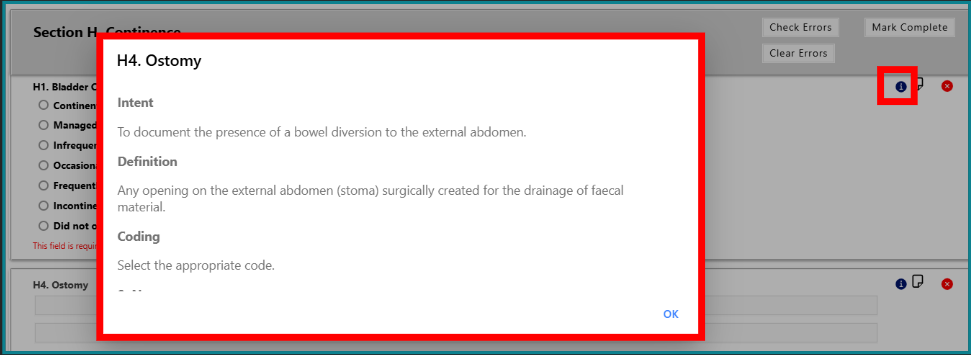
To add a comment:
1: Click the page icon next to the item.
2: Enter the comment in the text field that opens below the item.
Comments are displayed alongside the coding they support.
The icon:
- is white when no comment has been entered
- turns yellow once a comment has been added
Validation indicators
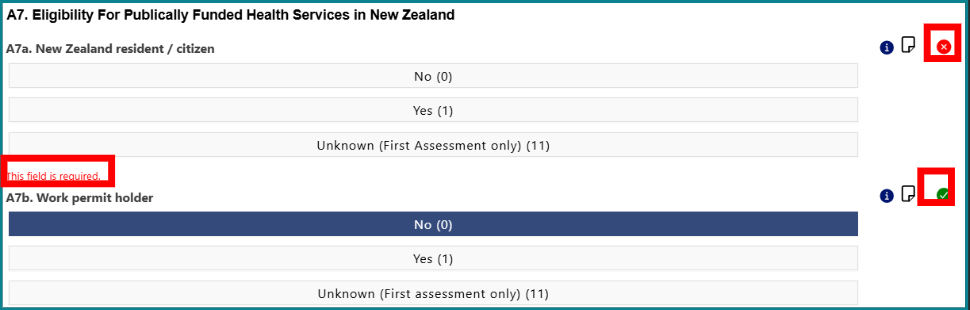
Required items that are uncoded, or items that do not pass validation, are shown with a red X on the right. Red text below the item explains why it does not pass validation.
A required item that has been coded correctly and passes validation is shown with a green tick.
Completing all sections
You can complete sections in any order.
Once all sections from A to Q are complete and all section indicators are green, you are ready to begin the Assessment Summary.
Working with the Assessment Summary, CAPs, and Outcomes
What the Assessment Summary does
The Assessment Summary uses information from triggered Collaborative Action Plans (CAPs) and elevated Outcome Scales to help identify the person’s care planning needs.
It will:
- help you identify and prioritise issues to address in the person’s care plan
- give you and other readers an overview of the person’s clinical and social issues at the time of assessment
Important note: Each Assessment Summary comment box allows 270 characters only, so comments need to be brief and summarised.
Viewing triggered CAPs
The example in the source material uses an LTCF assessment. Refer to the individual workbooks for each assessment type for assessment-specific guidance.
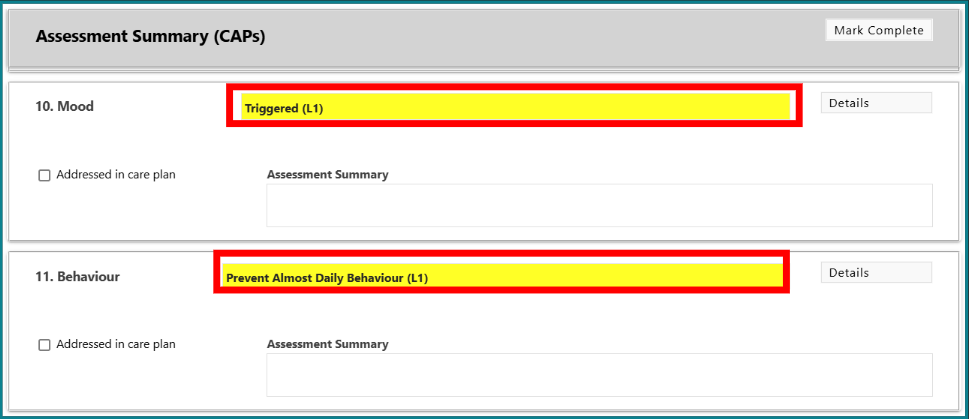
To view the person’s triggered CAPs, Click on Assessment Summary (CAPs), the triggered CAPs will be highlighted in bright yellow:
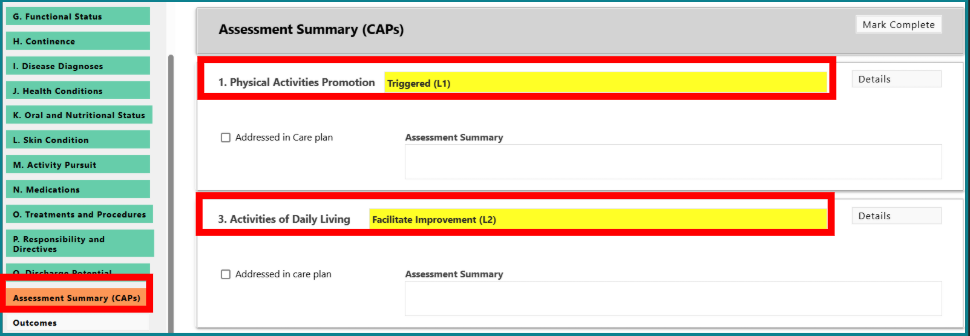
1: Note the trigger level at the top of the CAP.
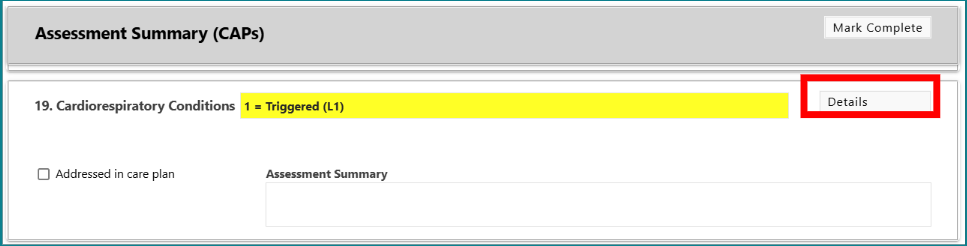
2: Click on 'Details' to see the assessment items that caused the CAP to trigger.
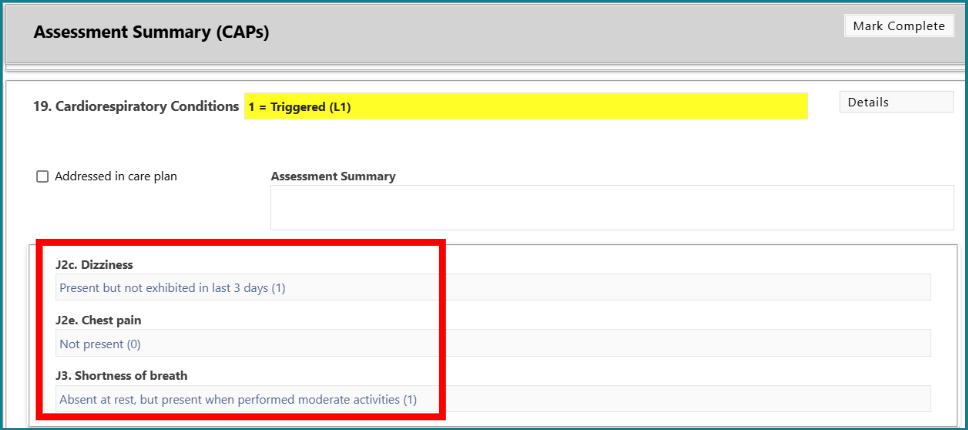
3: View the items coded in the assessment that contribute and cause the CAP to trigger.
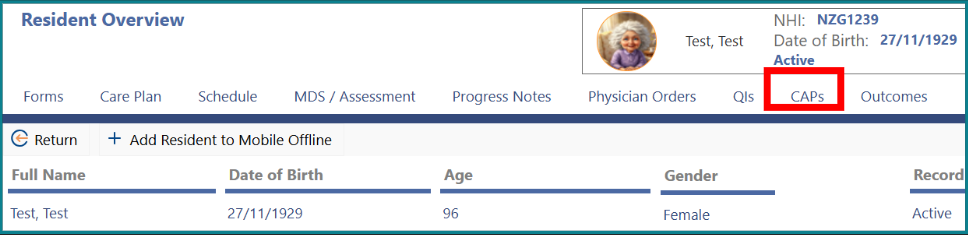
To view CAPs from previous assessments:
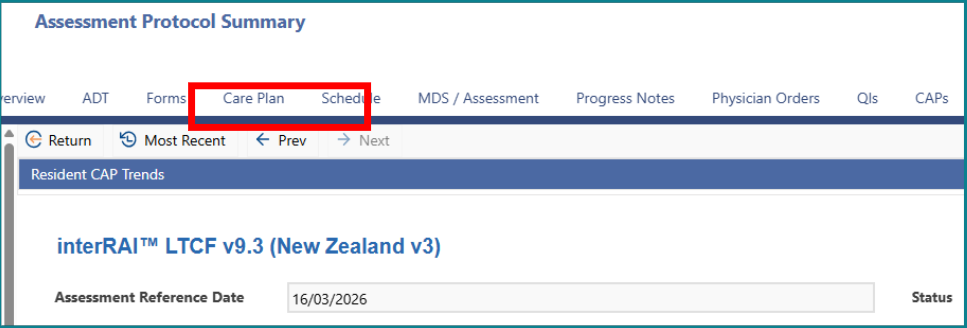
1: Click the 'CAPs' tab at the top of the 'Overview' page.
2: Use 'Prev' or 'Next' to move between assessments.
3: Review and compare previously triggered 'CAPs'.
Using the Client Summary Report
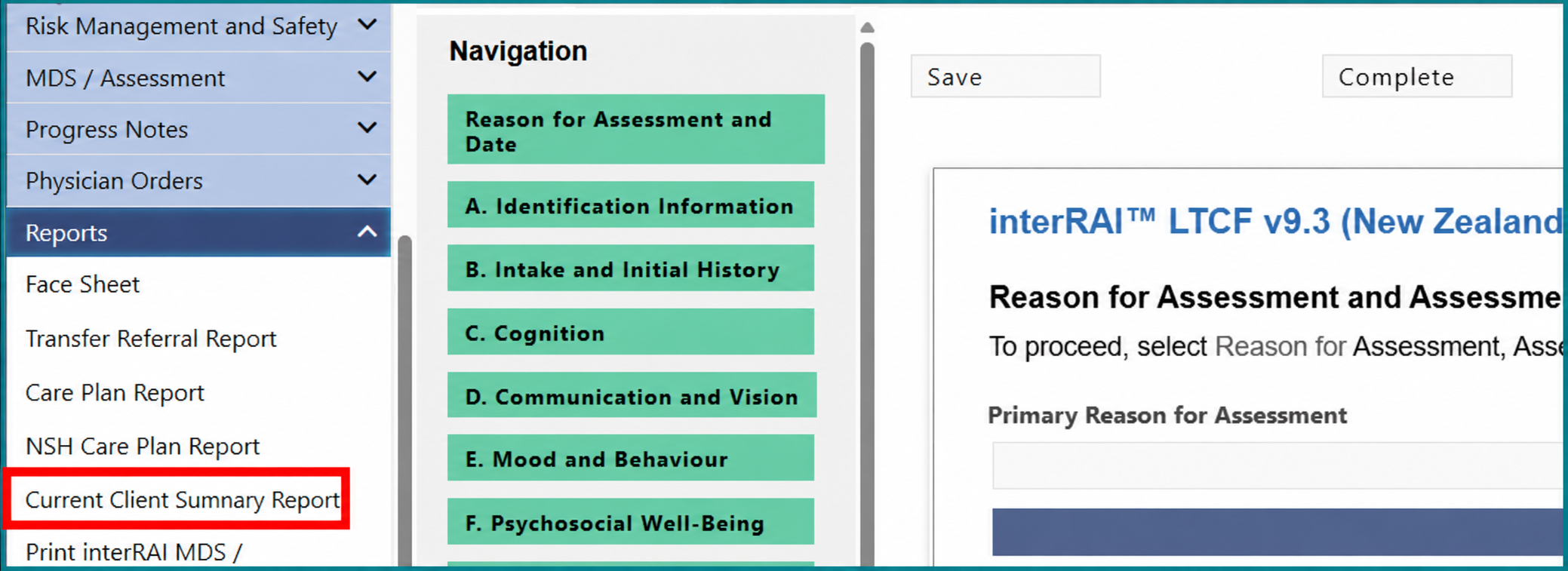
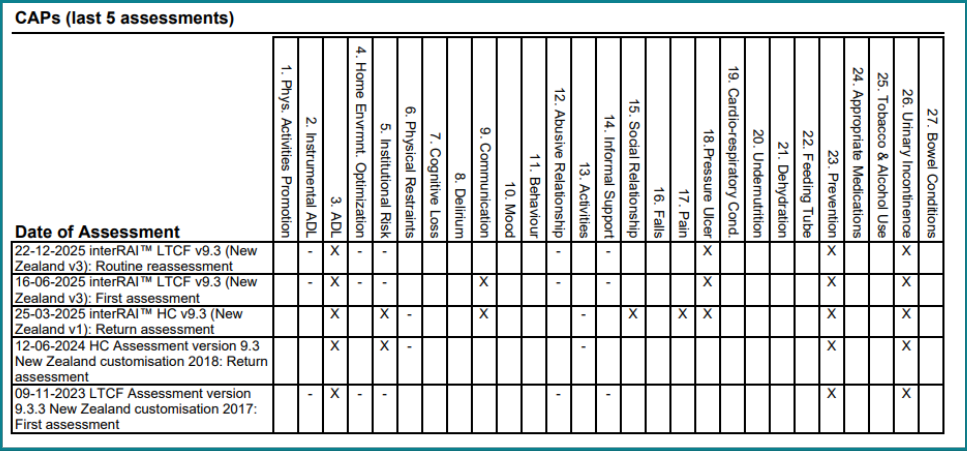
The Client Summary Report shows a person’s triggered CAPs from the last five interRAI assessments.
Click 'Current Client Summary Report' to view and compare triggered CAPs.
Viewing triggered Outcome Scales
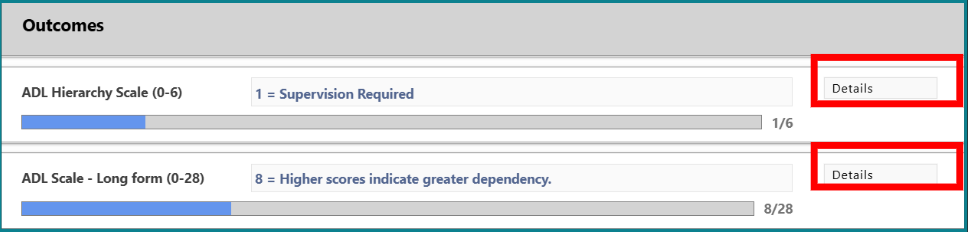
Outcome Scales provide an overall picture of the person and help guide person-centred care planning.
To view triggered Outcome Scales in the assessment:
1: Go back to the 'MDS / Assessment'.
2: Click 'Outcomes' at the bottom of the 'Navigation' panel.
3: Triggered Outcome Scores will appear in blue on the highlighted rating bar.
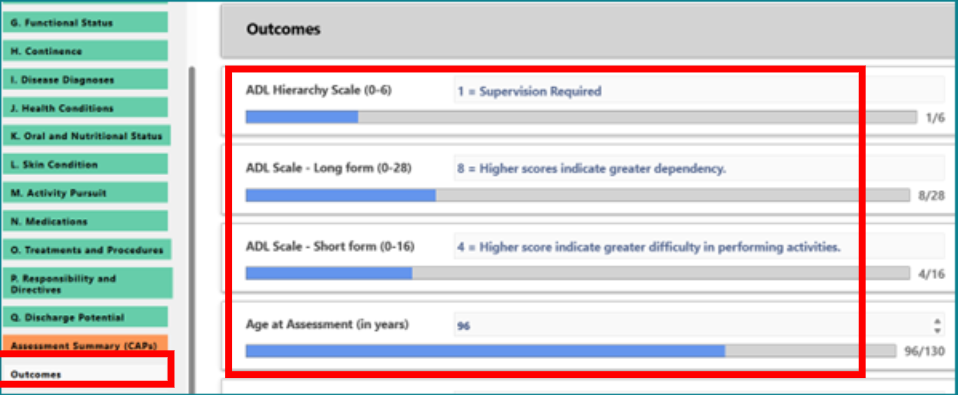
4: Click 'Details' to reveal the assessment items that contributed to each Outcome score.
Viewing Outcome Scales from previous assessments
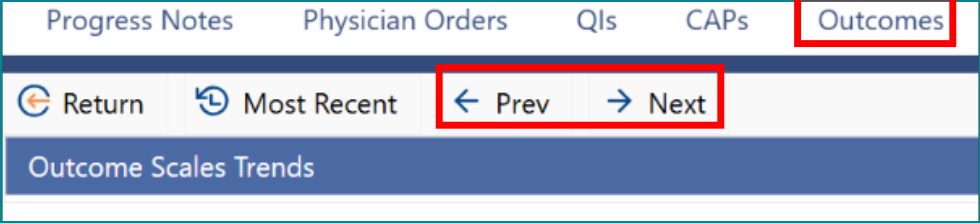
You can also review Outcome Scales from earlier assessments in a similar way to CAPs:
1: Click the 'Outcomes' tab at the top of the 'Overview' page.
2: Use 'Prev' or 'Next' to move between assessments.
Completing the Assessment Summary
Once you have reviewed both the CAPs and Outcomes, you can complete the Assessment Summary. This is a summary of the person's identified problems or issues identified from the completed interRAI assessment. The Assessment Summary will:
- help you to identify and prioritise issues to address in a person's care plan (this could be services, referrals or informal support).
- give you, and other readers of the assessment, an overview of a person's clinical and social issues at the time of their assessment.
Was this article helpful?
That’s Great!
Thank you for your feedback
Sorry! We couldn't be helpful
Thank you for your feedback
Feedback sent
We appreciate your effort and will try to fix the article