TABLE OF CONTENTS
- Important information before you begin
- Checking whether an installation is registered
- Deregistering an installation
- Installing the Mobile app
- Before going offline: prepare the record in web iAS
- Checking which clients or residents you have marked for offline use
- Example offline workflow
- How synchronisation works
- Navigating the app
- Working with assessments and forms
- Adding a new assessment or form
- Good practice tips
The interRAI Mobile App supports offline use with interRAI assessments.
It can be used with the following assessment types:
- Home Care
- Contact
- ACC Contact
- Palliative Care
- LTCF
- Acute Care
The mobile app allows you to continue working when you are not connected to the internet. When you reconnect and log back in, your work will synchronise with the web-based interRAI Assessment Software (iAS).
Important information before you begin
Users are allowed to have only one registered installation of the mobile app at any time.
Only a registered installation can be used for offline work.
If you already have an existing installation, you do not need to deregister it unless:
- you want to use a different device or installation for offline work, or
- the existing registered installation is no longer needed
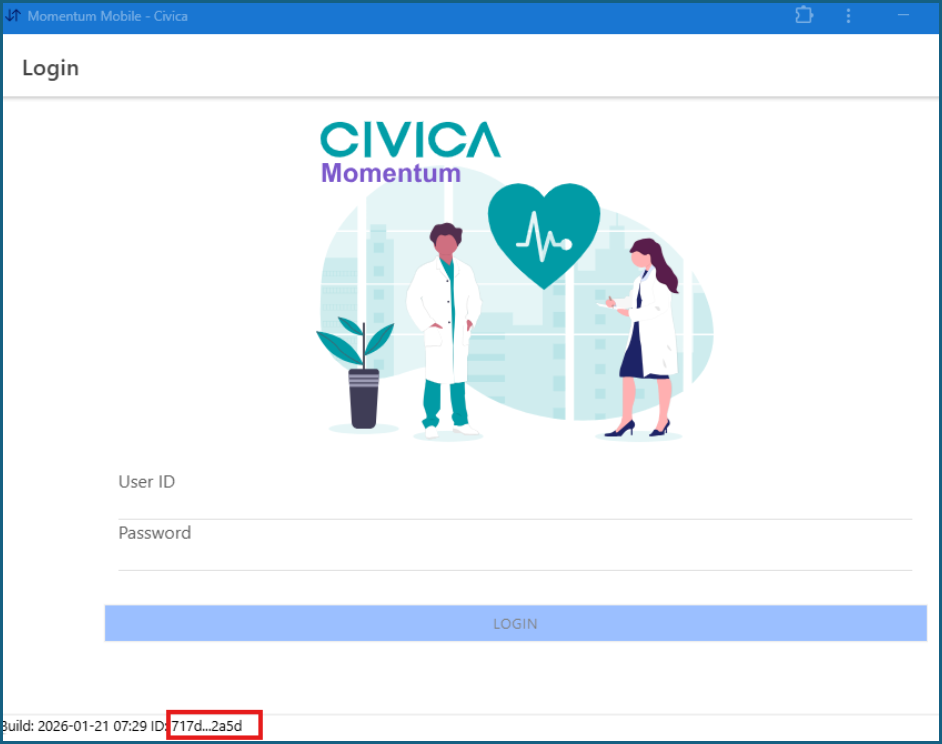
If you are not sure whether your installation is registered, check the App ID.
The App ID can be found:
- in the left-hand corner of the mobile app
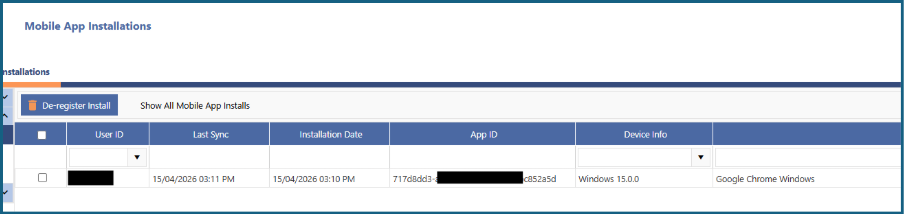
- under Mobile App Installations under Mobile on the left side menu
Checking whether an installation is registered
1: In the left-hand menu, click Mobile.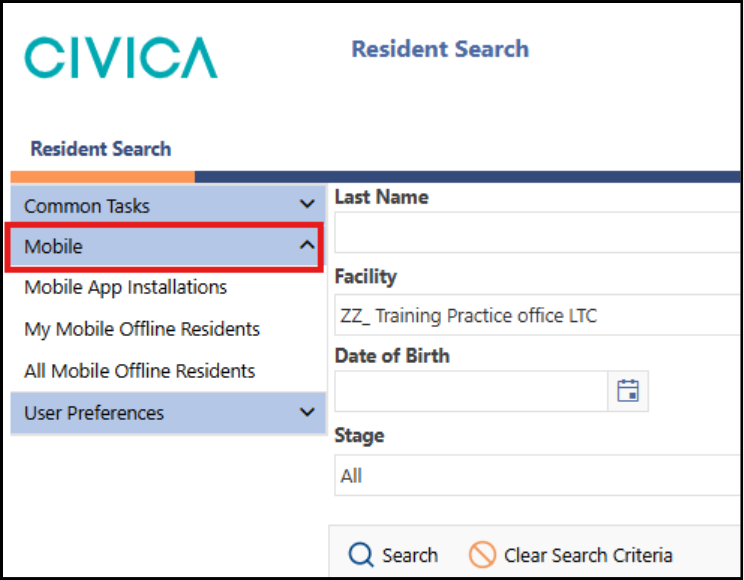
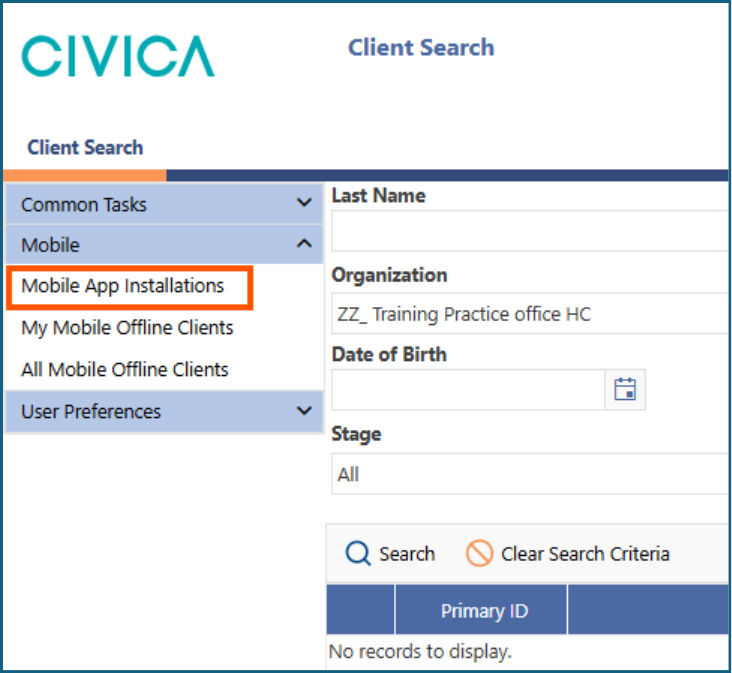
2: Select Mobile App Installations.
.
2: A list of existing registered installations will be displayed.
Deregistering an installation
Only deregister an installation if it is no longer needed and you want to replace it with a different one.
- In Mobile App Installations, tick the checkbox next to the installation you want to remove.
- Click Deregister Install.
Installing the Mobile app
Before installing the app, make sure your device is connected to the internet.
Step 1: Open the app from iAS
1: Open the interRAI Assessment Software and log in.
2: If you have access to more than one organisation, select your working organisation.
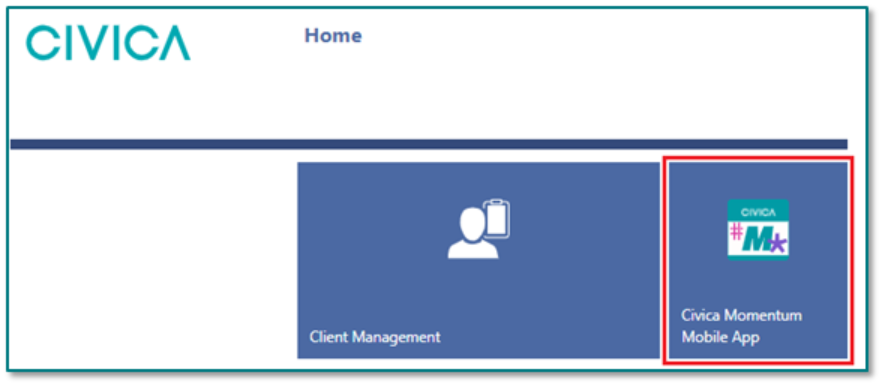
3: Click the Civica Momentum Mobile App tile.
A new browser tab will open.
Step 2: Install the app in your browser
Google Chrome
If this is your first time opening the app in Chrome:
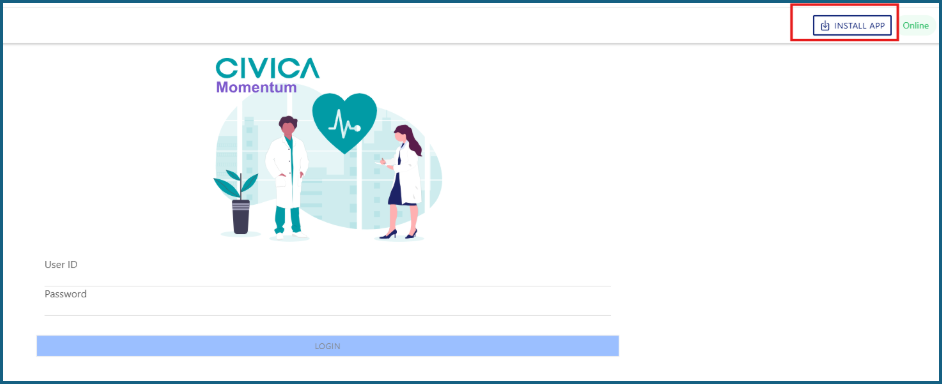
1: Click Install App in the top right corner of the browser.
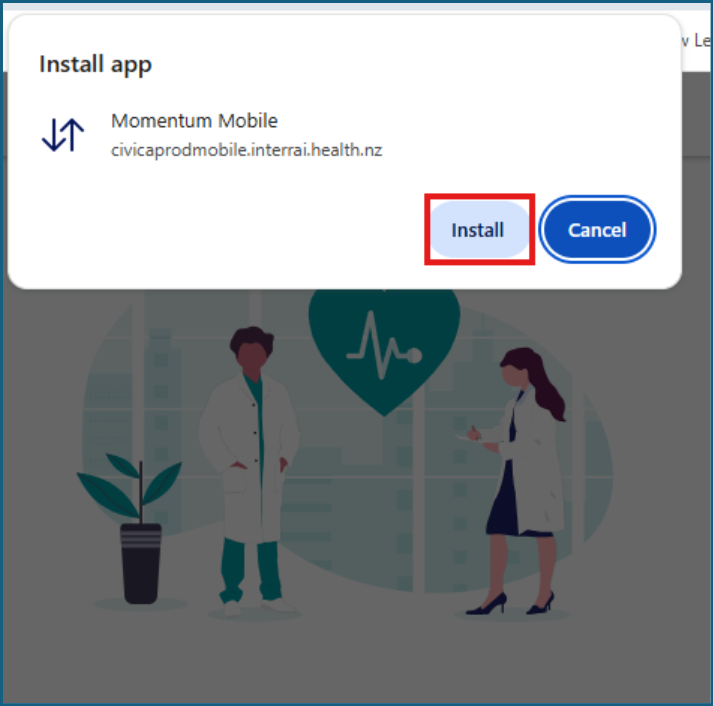
2: Click Install in the pop-up window.
Once installed, the app should open separately from your browser.
We recommend pinning the app to your taskbar so it is easy to find.
Microsoft Edge
If this is your first time opening the app in Edge:
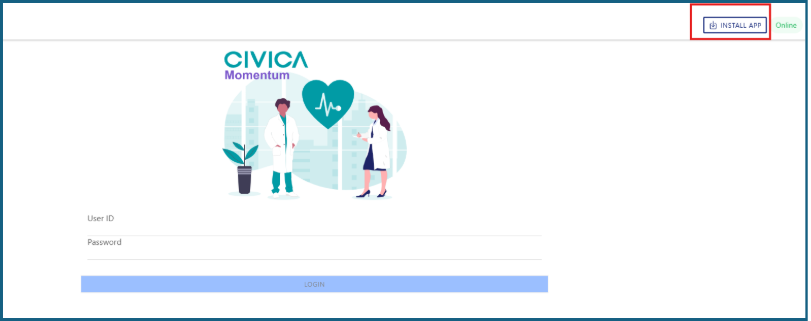
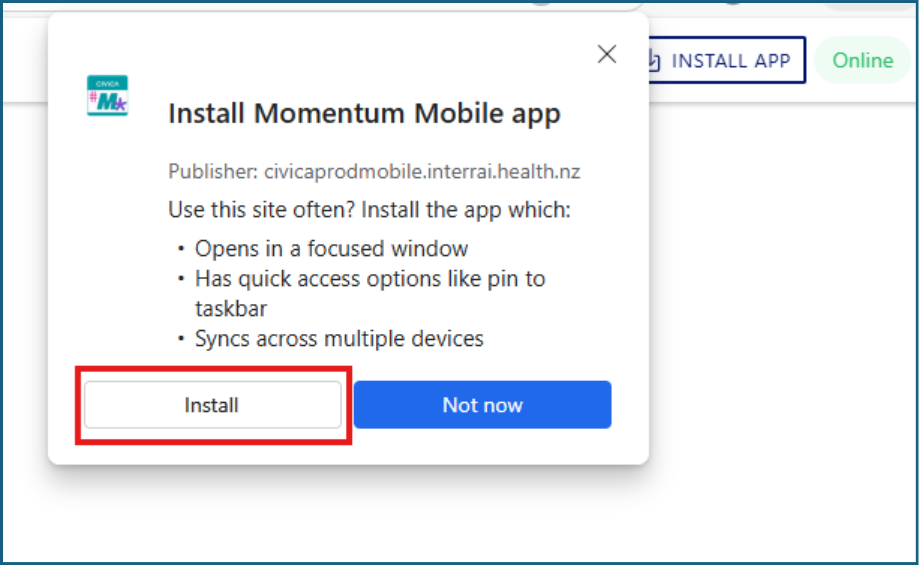
1: Click Install App in the top right corner of the browser.
2: Click Install in the pop-up window.
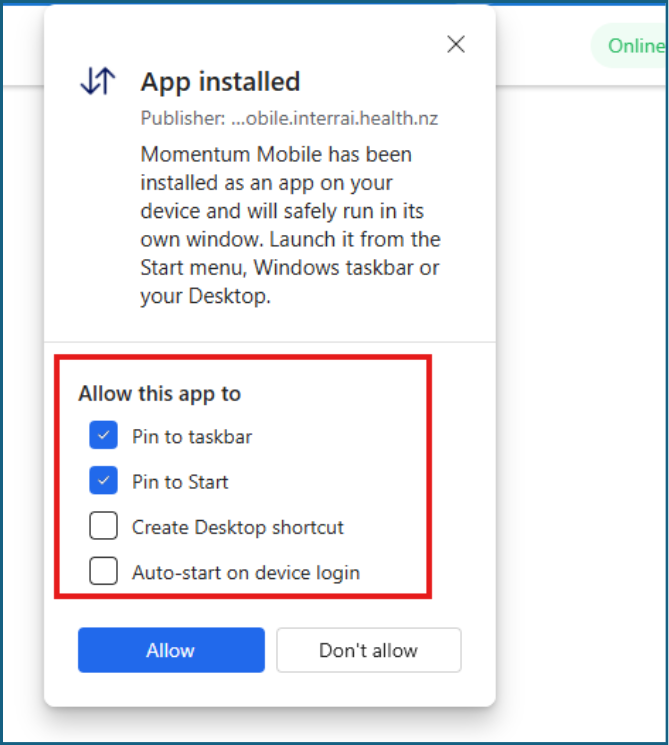
3: Choose your preferred options for shortcuts and taskbar access.
4: Click Allow.
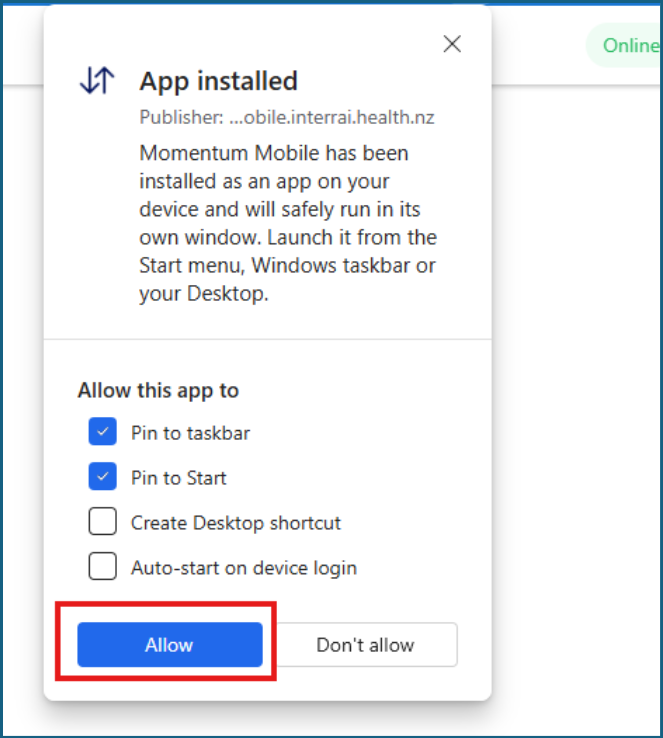
Once installed, the app should open separately from your browser
Step 3: Log in to the mobile app
1: Open the mobile app.
2: Enter your UserID and password.
3: Click Login.
The first time you open the app, it may take a little longer to synchronise.
Step 4: Register for local data synchronisation
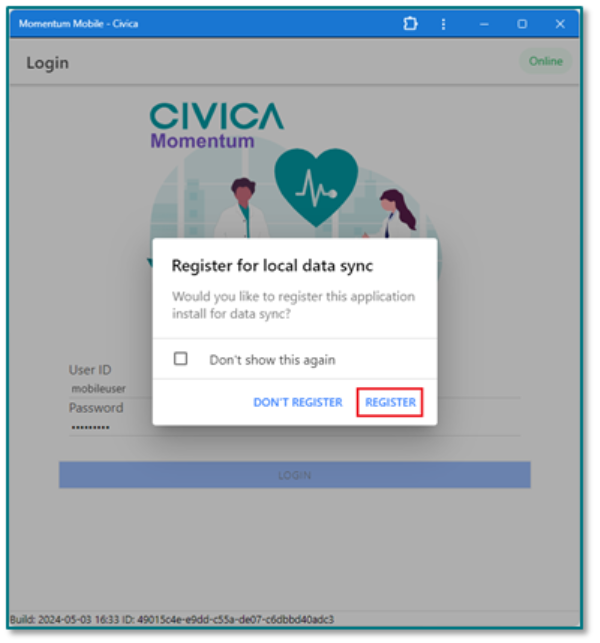
If you do not already have an existing registration, the first time you log in you will be asked to register for local data synchronisation.
1: Click Register in the pop-up window.
2: Tick Don’t show again if appropriate.
Once registration and synchronisation are complete:
- Users with access to multiple organisations will see the Select Organisation page
- Users with access to one organisation only will go directly to the Select Client/Resident page
Before going offline: prepare the record in web iAS
Before you can work on a client or resident record offline, you must first mark that record for mobile offline use in the web-based version of iAS at Production (interrai.health.nz).
There are two ways to do this.
Method 1: From the client or resident overview page
1: Search for the client or resident.
2: Open their Overview page.
3: Click Add Client to Mobile Offline.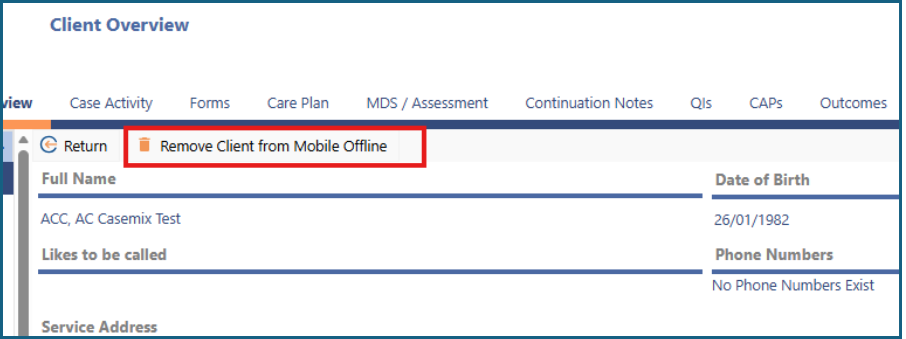
4: The record will then be marked for offline use.
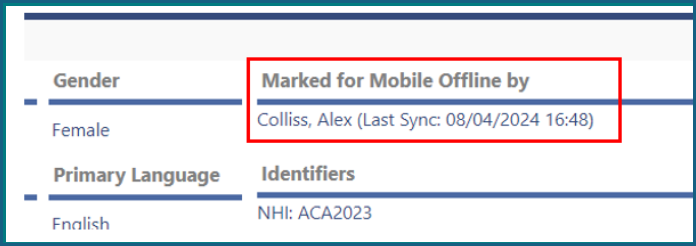
5: On the right side of the overview page, the name of the user who marked the record for mobile offline use will be displayed.
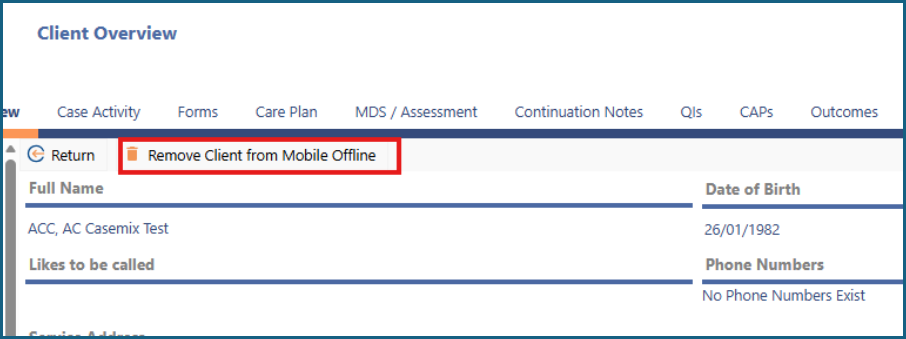
To remove a record from offline use
- Go to the same Overview page.
- Click Remove Client from Mobile Offline.
Method 2: From My Mobile Offline Clients
1: In the left-hand menu, click Mobile.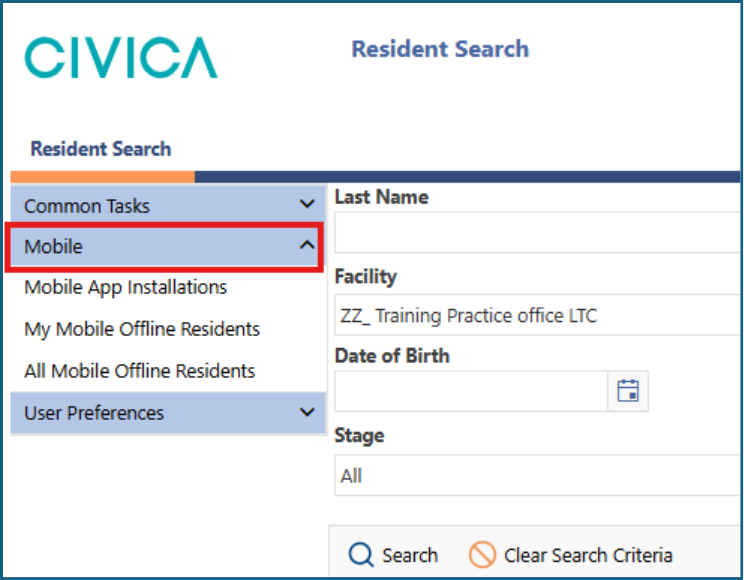
2: Select My Mobile Offline Clients.
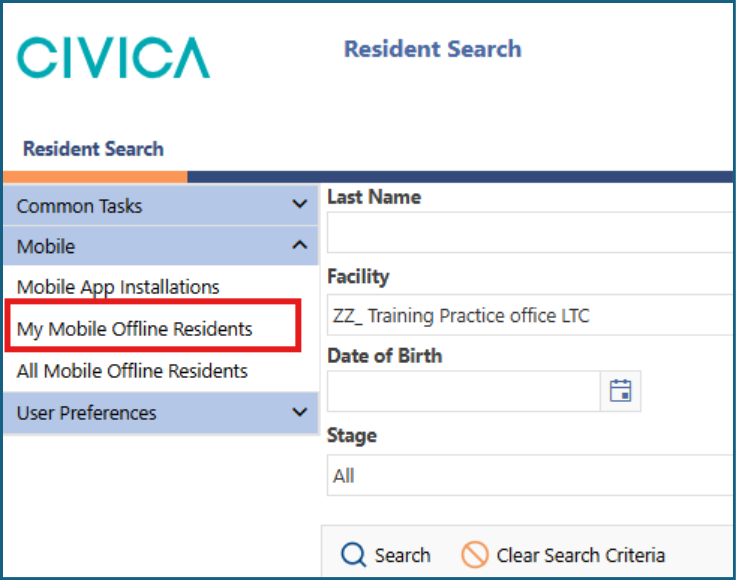
3: Enter the person’s NHI or other search criteria.
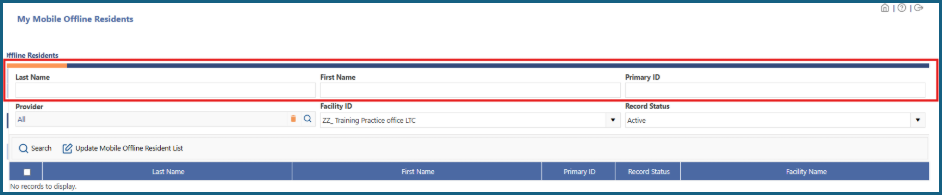
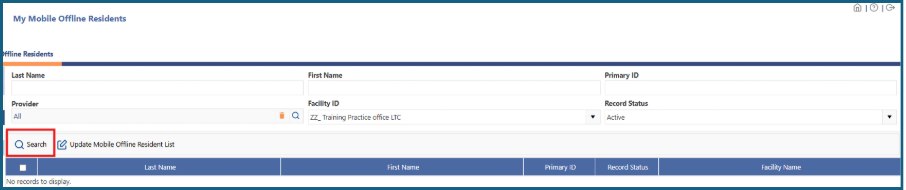
4: Click Search.
5: A list of matching clients or residents will be displayed.
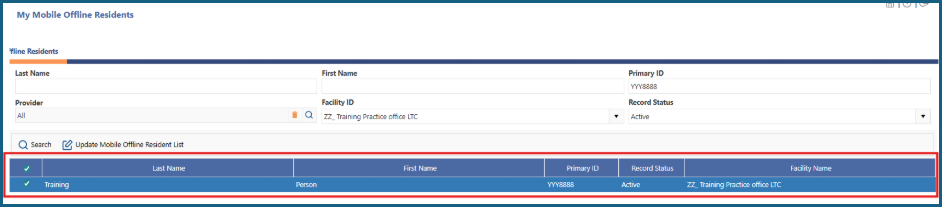
To add records for offline use
1: Tick the checkbox next to the required client or clients.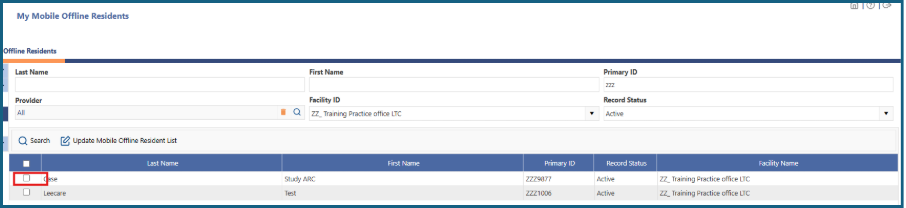
2: Click Update Mobile Offline Client List.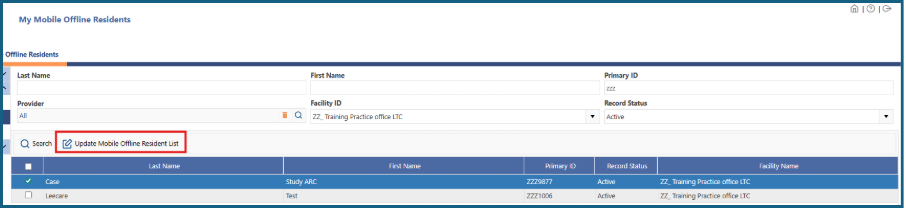
To remove records from offline use
1: Search for the client again under My Mobile Offline Clients.
2: Untick the checkbox next to their name.
3: Click Update Mobile Offline Client List.
Checking which clients or residents you have marked for offline use
To view the records you have marked for offline use:
1: Go to All Mobile Offline Clients.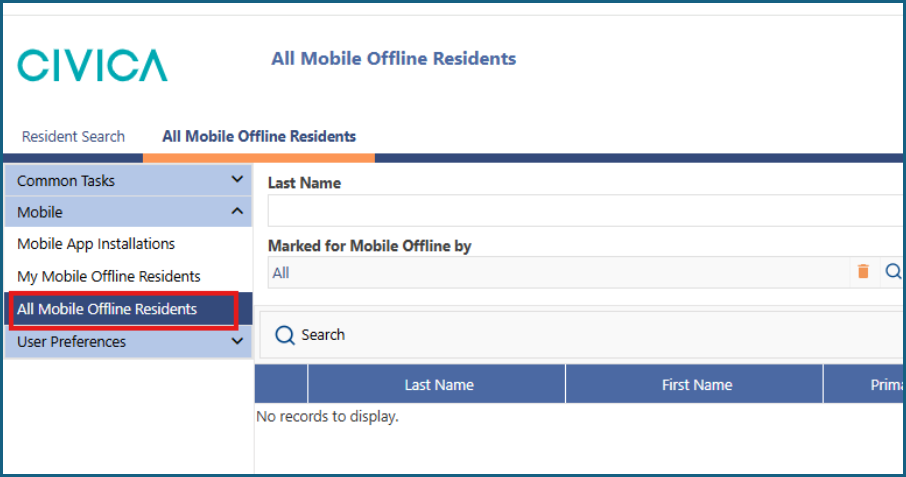
2: Use the magnifying glass icon beside Marked for Mobile Offline by.
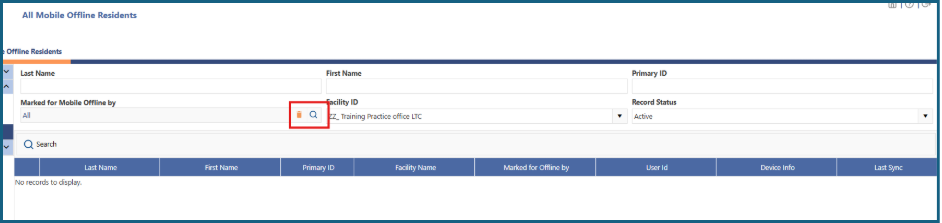
3: Search for your name.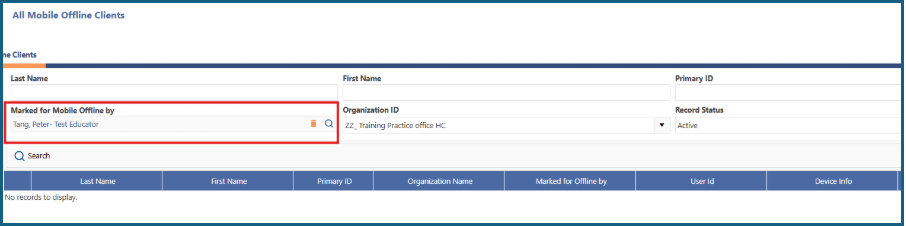
4: Click Search.
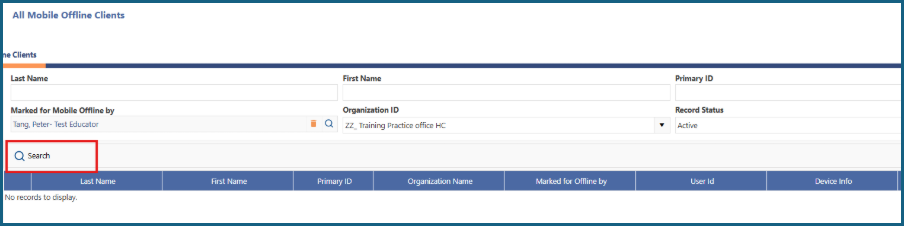
5: A list of the clients or residents you have marked for offline use will be displayed.
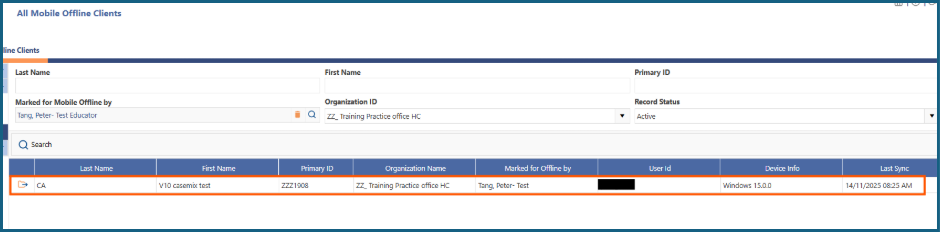
You can use the file icon beside the person’s name to open their record and make changes.
Example offline workflow
This is the clearest way to use the mobile app for an offline assessment.
1: In web iAS, mark the client or resident for mobile offline use.
2: While still connected to the internet, open the mobile app.
3: Allow the app to synchronise.
3: Confirm the required client or resident record is available.
4: Close the app if needed and travel to the assessment location.
5: Open the app again when you are offline.
6: Open the marked client or resident record.
7: Complete or update the assessment.
8: When you return to an internet connection, open the app again.
9: Allow the app to synchronise back to the web-based application.
10: Check in web iAS that the assessment has updated correctly.
11: Remove the client or resident from mobile offline use if no longer needed.
How synchronisation works
While connected to the internet
When you are using the mobile app while connected to the internet, the client record and assessments synchronise continuously.
While offline
When you are not connected to the internet, you can still:
- view records that have been marked for offline use
- continue working on assessments
- create new assessments
Your work is automatically saved to your device’s local storage.
When you reconnect
When you reconnect to the internet and log back in to the mobile app, the records marked for synchronisation will automatically update in the web-based application.
Important note: If a client or resident was not marked for offline use before you disconnected, that record will not be available offline.
Navigating the app
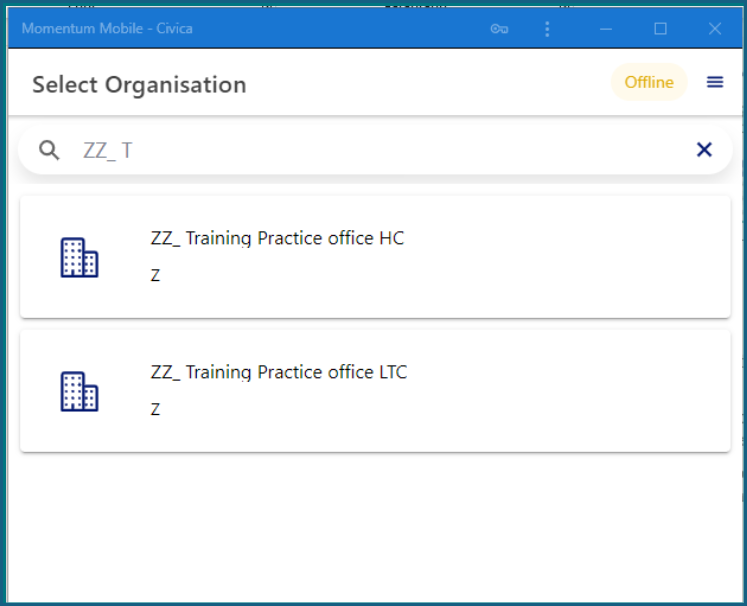
Selecting an organisation
If you have access to more than one organisation, only the organisations you are authorised to access will be displayed.
1: Select the organisation you want to work with.
Selecting a client or resident record
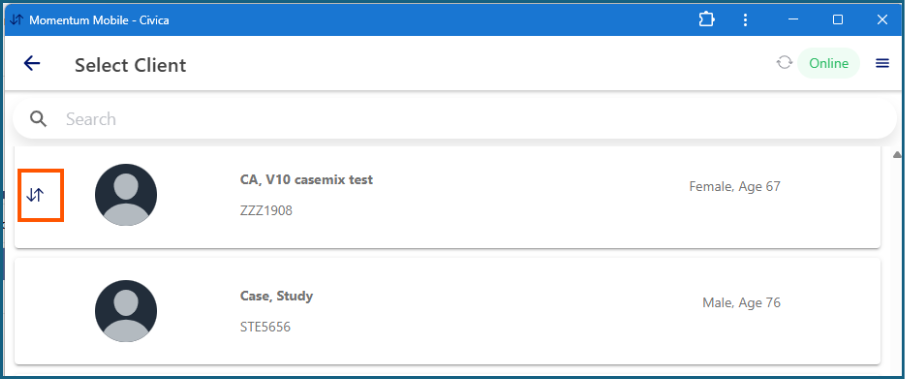
When the mobile app is online
- All client or resident records within the organisation are visible.
- You can search for a person by name.
- Those who have been synchronised for offline use will display an arrow icon next to their name.
When the mobile app is offline
Only the client or resident records that you have previously marked for offline use will be displayed.
1: Click once on the required record to open it.
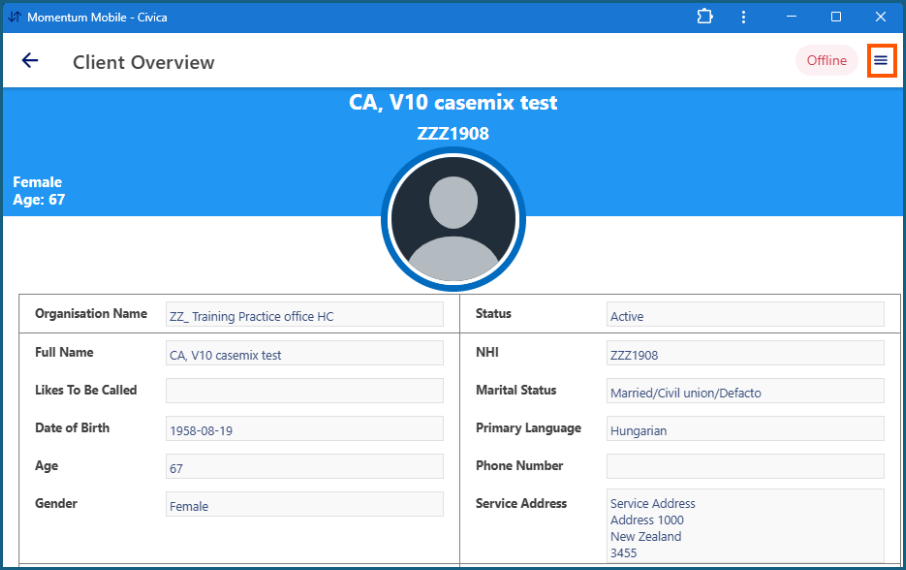
The record will open to the Overview page.
Please note:
- the information on the Overview page is display only
- it cannot be edited in the mobile app
- changes to overview information must be made in the web-based application
Working with assessments and forms
Opening an existing assessment or form
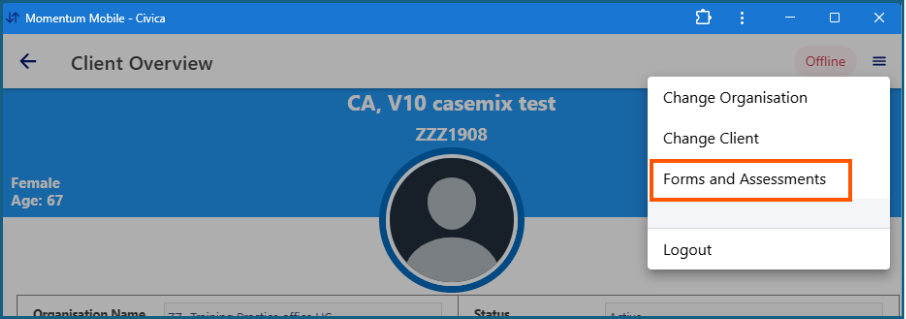
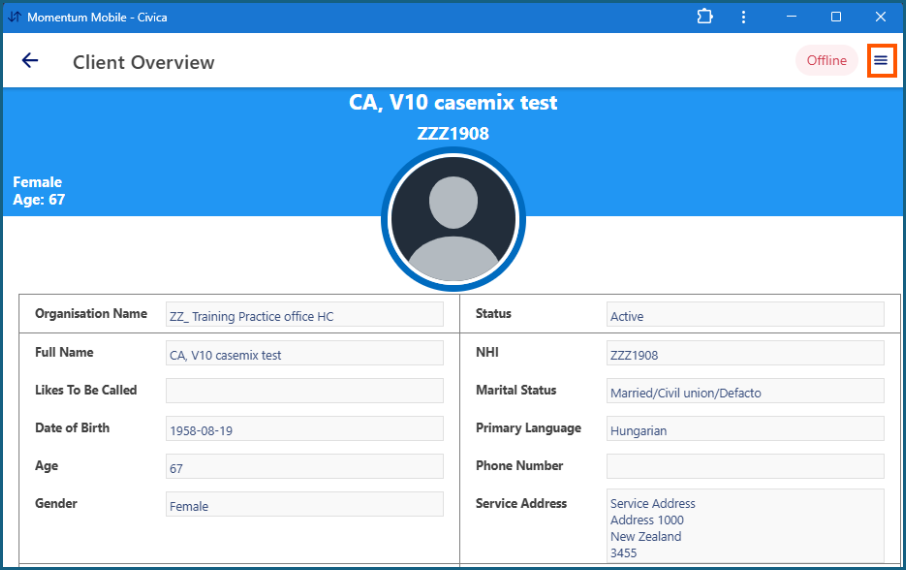
1: On the client or resident Overview page, click the three-line menu at the top of the screen.
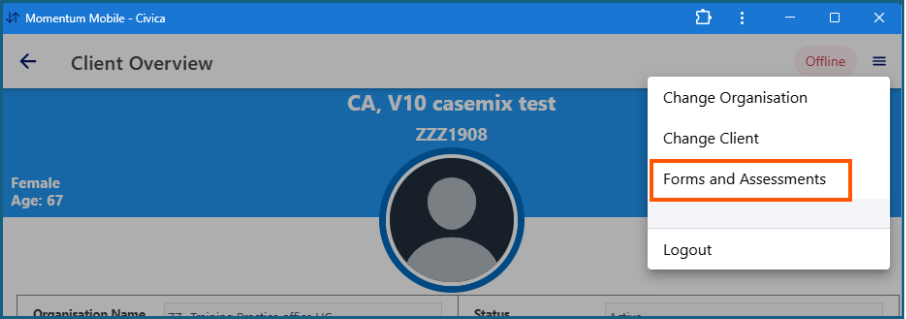
2: Select Forms and Assessments.
3: A list of completed and draft assessments or forms will be displayed.
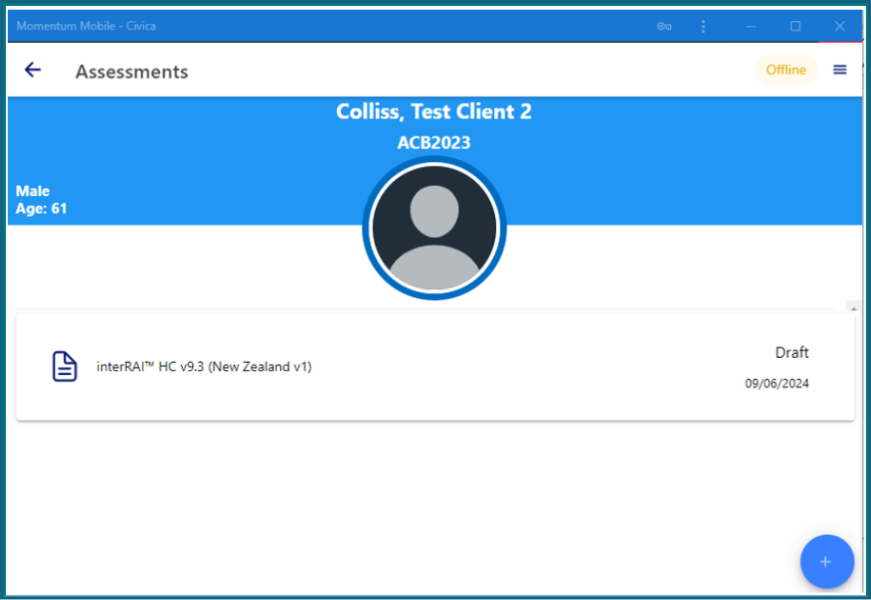
4: Click the required assessment or form to open it.
The assessment will display in the same format as the web-based version and can be navigated in the same way.
Adding a new assessment or form
1: On the client or resident Overview page, click the three-line menu in the top right-hand corner.
2: Select Forms and Assessments.
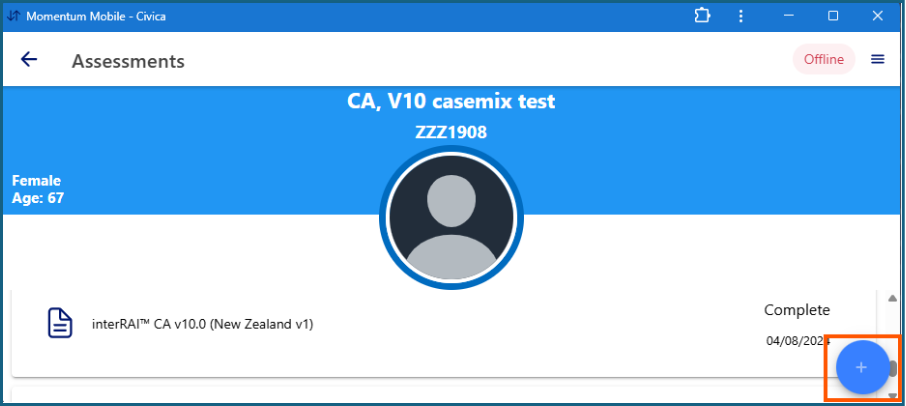
3: Click the blue circle with the plus sign.
4: Select the required assessment or form from the list.
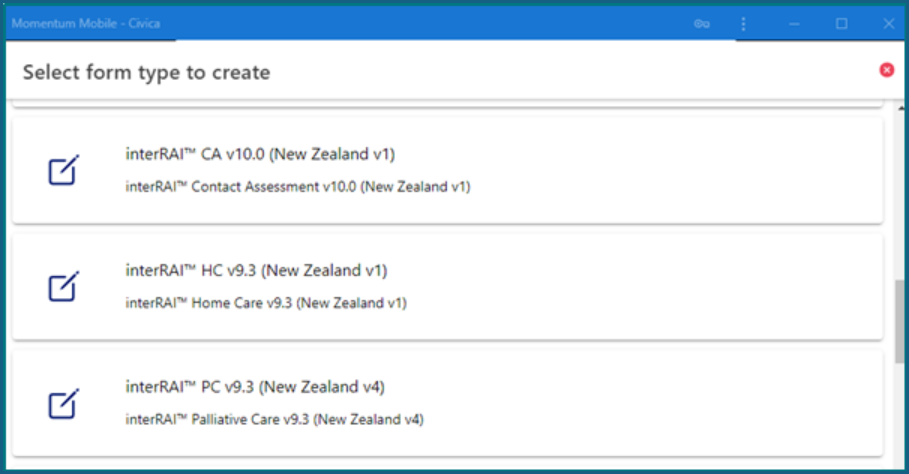
The new assessment or form will open in the same format as the web-based version and can be completed in the same way.
Good practice tips
- Make sure the device is connected to the internet when installing the app.
- Only one mobile app installation can be registered per user at a time.
- Mark client or resident records for offline use before going offline.
- Remember that overview information is view-only in the app.
- Reconnect to the internet and log back in to allow your work to synchronise.
This video is also available to help introduce the Mobile app for interRAI assessments.
Was this article helpful?
That’s Great!
Thank you for your feedback
Sorry! We couldn't be helpful
Thank you for your feedback
Feedback sent
We appreciate your effort and will try to fix the article