Why this step matters
Before a user can work on a client or resident record offline, the record must first be marked for mobile offline use in the web-based version of iAS at Production.
Important limits and removal rules
- Each user can have up to 5 clients or residents marked for mobile offline use at any time.
- Remove the record from mobile offline use once the offline work has synchronised and the record is no longer needed.
- Leaving a record marked for mobile offline use can block some actions, including transfers.
- Only the user who marked the record for mobile offline use can remove that offline marking.
- If that user is unavailable, escalate through the usual support process.
Important: If the record is not marked for offline use before the user disconnects from the internet, it will not be available in the Mobile App while offline. |
Method 1: From the client or resident overview page
1. Search for the client or resident.
2. Open their Overview page.
3. Click Add Client to Mobile Offline.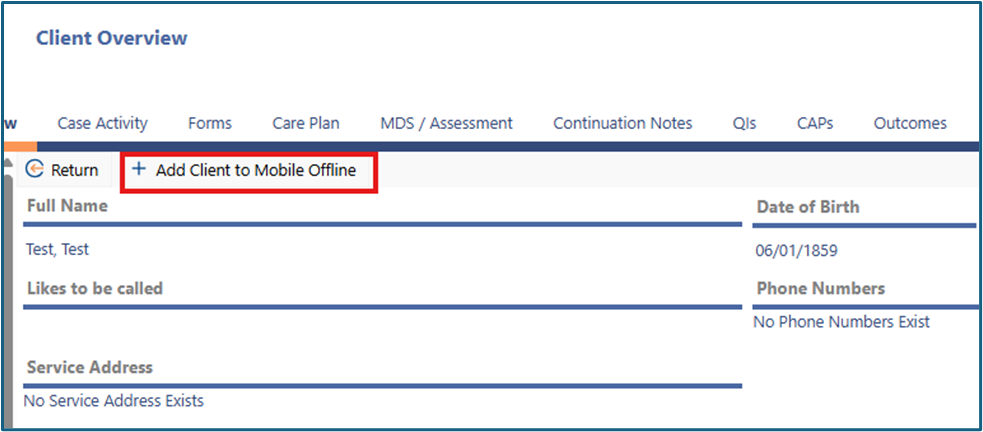
4. The record will be marked for offline use.
5. The right side of the overview page will show the name of the user who marked the record for mobile offline use.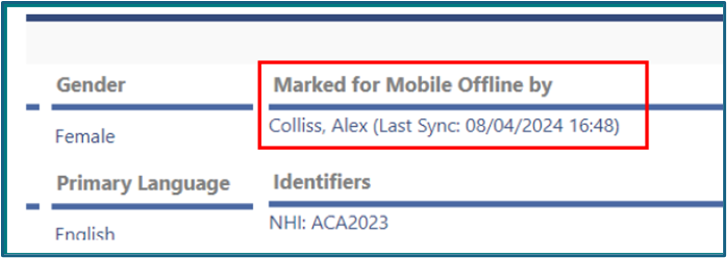
Remove a record from offline use from the overview page
1. Go to the same Overview page.
2. Click Remove Client from Mobile Offline.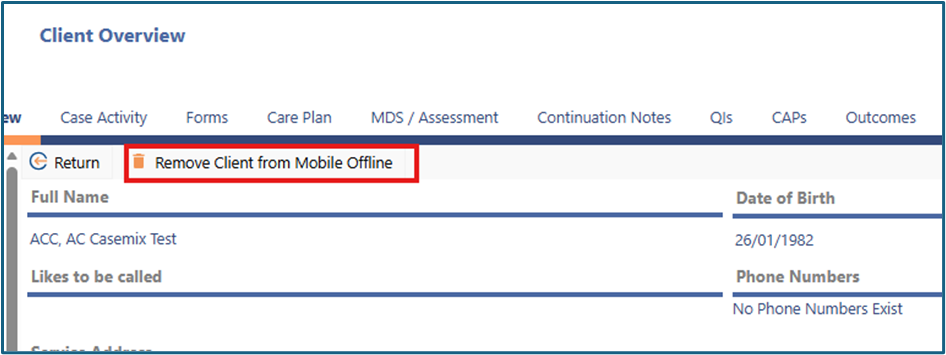
Method 2: From My Mobile Offline Clients
1. In the left-hand menu, click Mobile.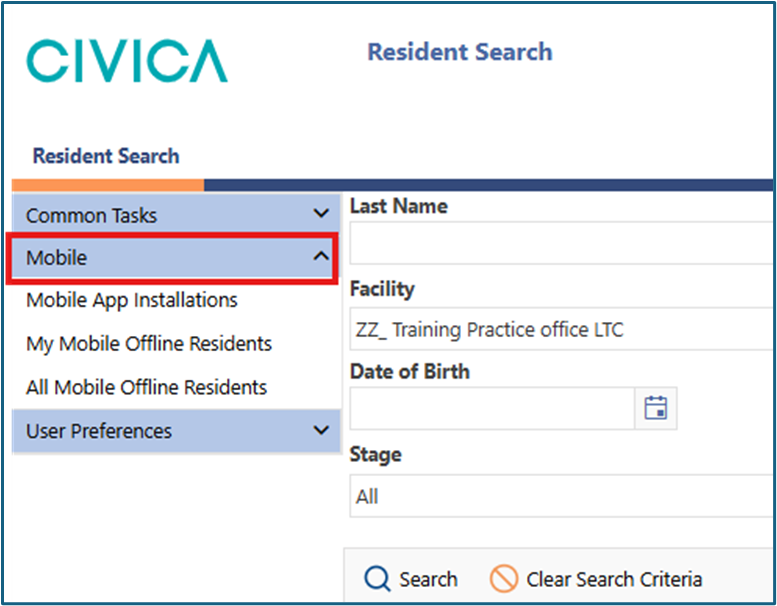
2. Select My Mobile Offline Clients.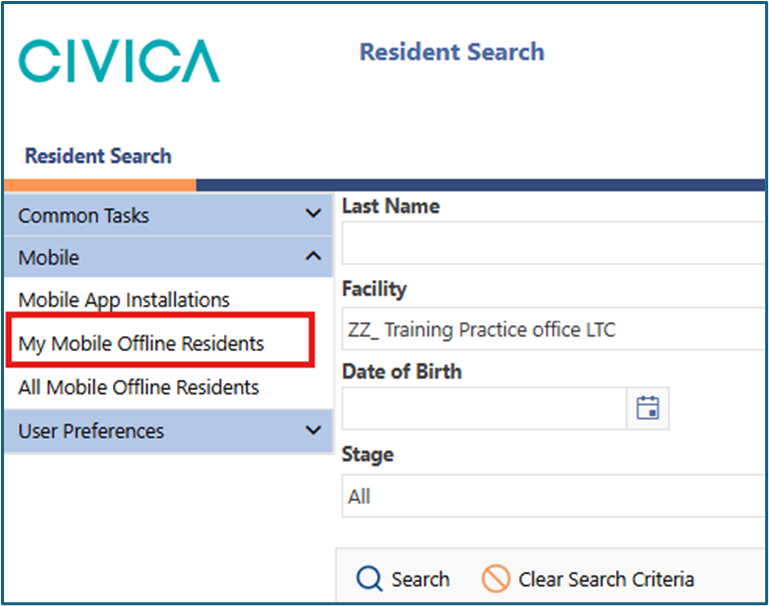
3. Enter the person’s NHI or other search criteria.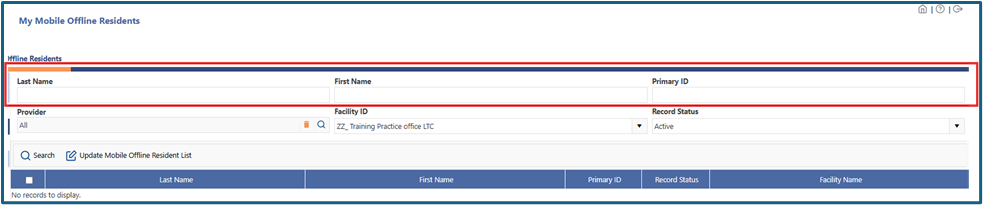
4. Click Search.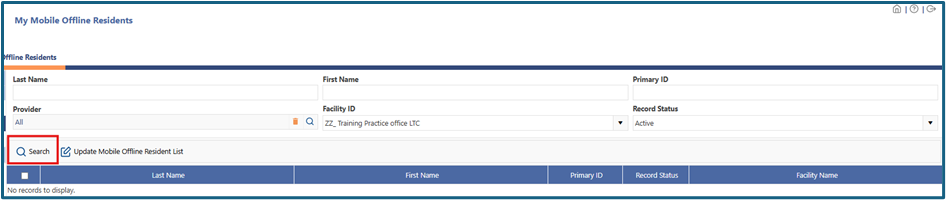
5. Tick the checkbox next to the required client or clients.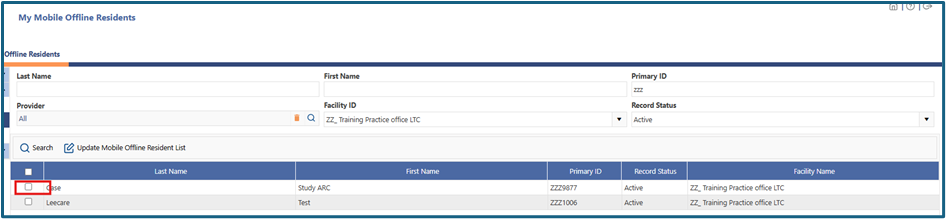
6. Click Update Mobile Offline Client List.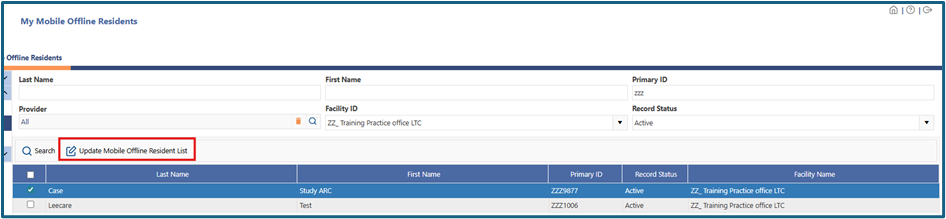
Remove a record from offline use from My Mobile Offline Clients
1. Search for the client again under My Mobile Offline Clients.
2. Untick the checkbox next to their name.
3. Click Update Mobile Offline Client List.
Check which records you have marked for offline use
1. Go to All Mobile Offline Clients.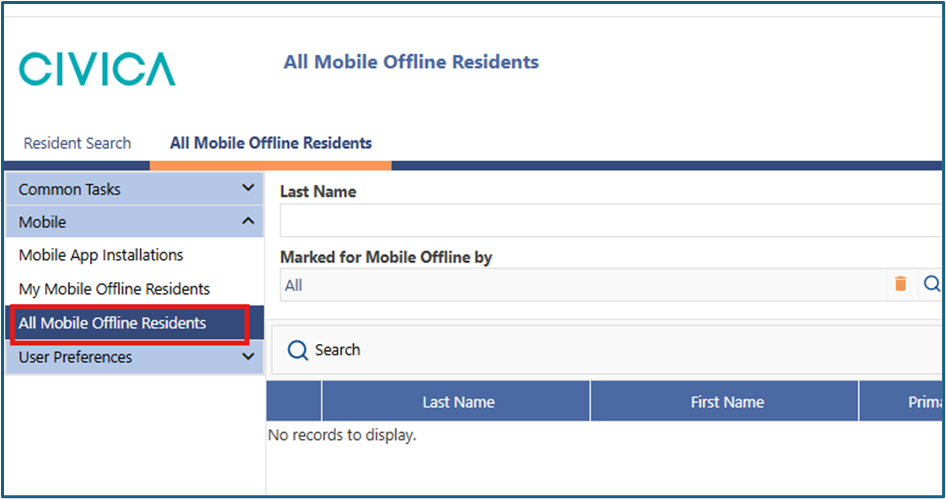
2. Use the magnifying glass icon beside Marked for Mobile Offline by.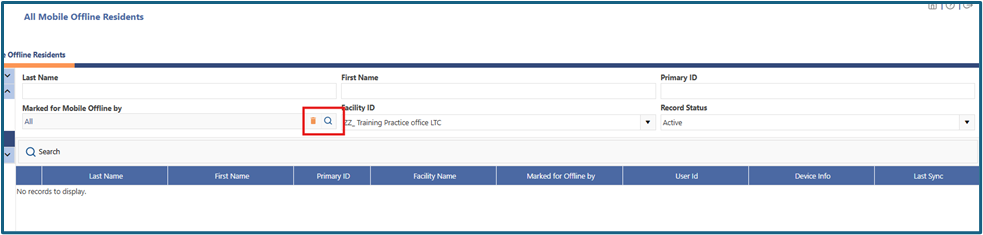
3. Search for your name.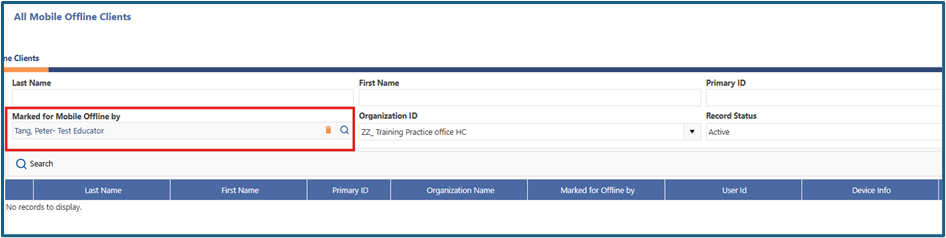
4. Click Search.
5. Review the list of clients or residents you have marked for offline use.
Tip: You can use the file icon beside the person’s name to open their record and make changes. |
Was this article helpful?
That’s Great!
Thank you for your feedback
Sorry! We couldn't be helpful
Thank you for your feedback
Feedback sent
We appreciate your effort and will try to fix the article