TABLE OF CONTENTS
- Before transfer - Receiving NASC
- Before transfer - Sending NASC
- Transfer process - sending NASC
- Privacy and Security
Definitions:
- Sending NASC – the NASC for the district where the record is located
- Receiving NASC – the NASC making the request
- In ARC offices the terms Resident and Facility are used
- In District offices the terms Client and Organisation are used
Important Process notes:
- All record transfers are completed by the sending NASC
- The receiving NASC does not pull records from another District
- Records in Aged Residential Care (ARC) offices are made ready by the facility staff. Records are not transferred from ARC facilities without their knowledge
- Records are not transferred out of ARC facility offices to complete interRAI Acute Care assessments in hospital
- Sending NASCs only have access to the main community office in other Districts - records are transferred to this office, and the receiving NASC will need to transfer these on where required
- Transfers should be planned, do not wait until the last minute
Before transfer - Receiving NASC
A request for transfer is sent to the sending NASC including:
1: Current location of record.
- The 'File Location Report' in iAS can be used to see where the record is located
2: District the record is to be transferred into.
3: Two client identifiers - NHI and date of birth.
4: Person making the request and their designation.
If any of the above information is missing, the Administrator may return requesting more information.
Before transfer - Sending NASC
On receipt of a transfer request, the following checks are required by the sending NASC.
1: All assessments are marked complete.
- Requests to mark the assessment complete or be discontinued need to go back to the assessor
- If the assessor is not available, then the assessment should be referred to the most appropriate person in that service.
2: All care plans, forms and continuation/progress notes are marked complete.
- Any work that is not complete is to be completed or discontinued by the person that started it. If they are not available, the most appropriate person from that service should be contacted to complete this.
3: The record is not marked for offline use.
- If the record is 'Marked for Mobile Offline', this information can be found in the top right of the 'Overview' page.
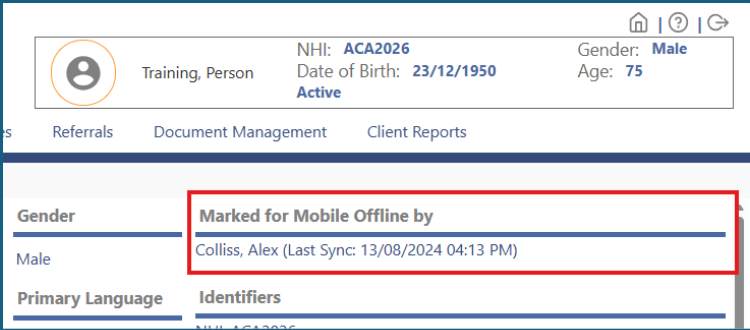
- The person that has the record 'Marked for Mobile Offline' needs to be contacted to remove this.
4: The 'Record Status' is 'Inactive'.

- Residents in ARC facilities are discharged by the facility staff to make them inactive
- To make a community file inactive, follow the instructions here.
Transfer process - sending NASC
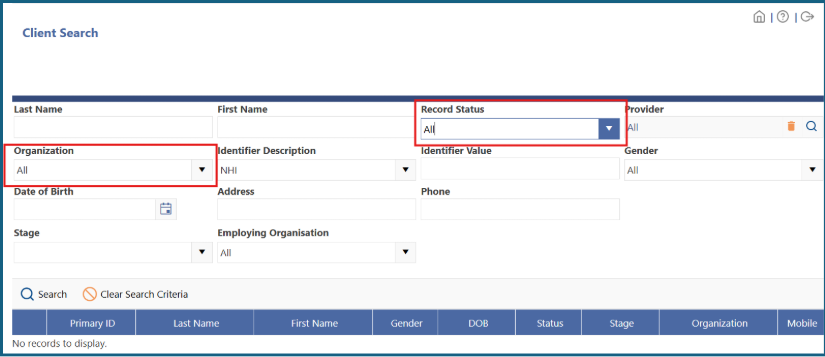
1: Search for the person, making sure the 'Organisation' and 'Record Status' are both set to 'All'.
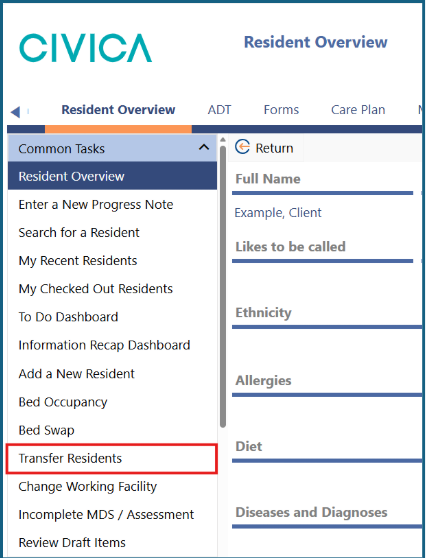
2: In the left side menu select 'Transfer Residents/Transfer Clients'.
3: On the transfer screen, change the 'Record Status' to 'All'.
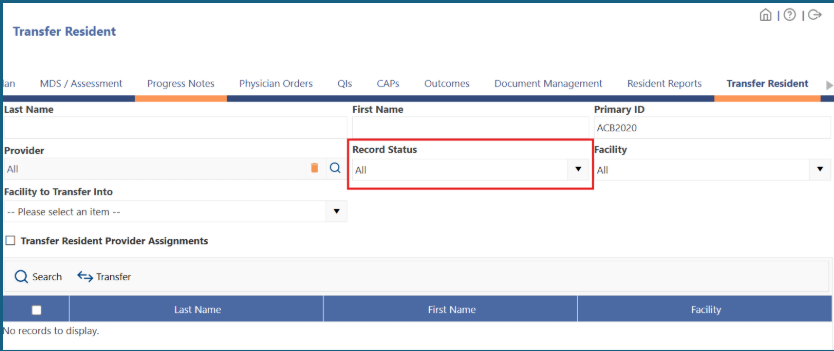
4: Add the person’s 'NHI' to the 'Primary ID' field.
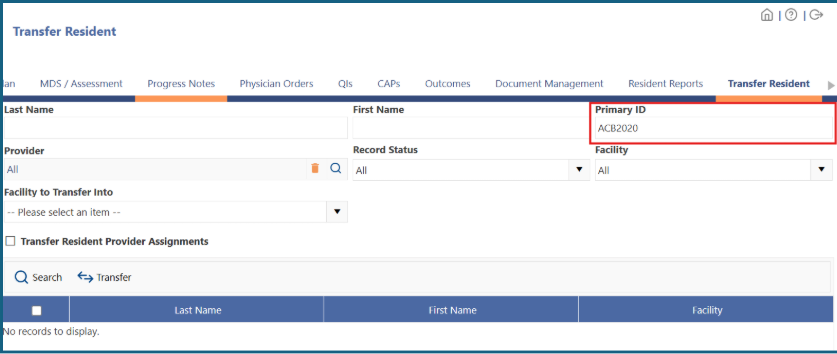
5: Click on 'Search'.
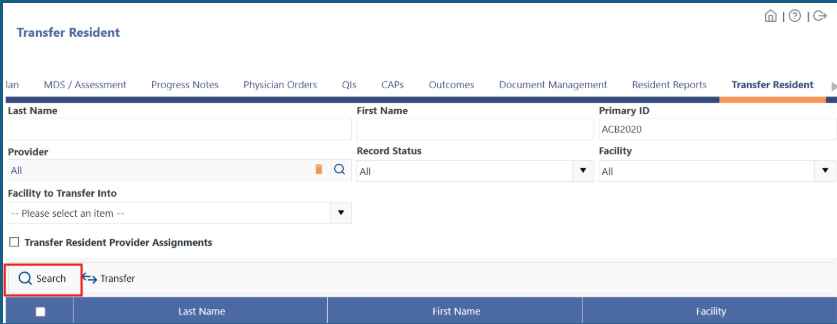
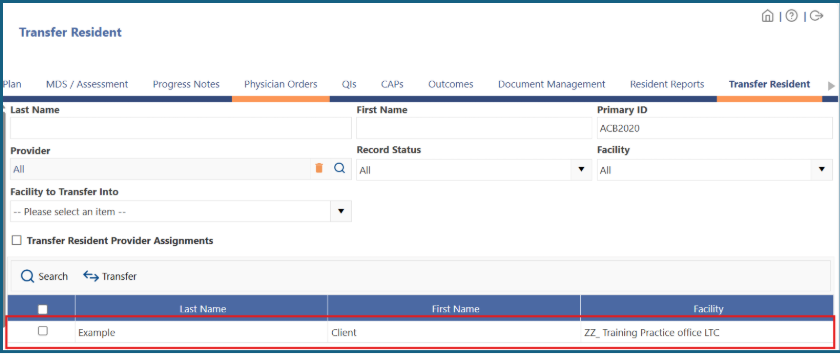
6: The record will be displayed in the grid below.
7: Mark the record to be transferred using the check box beside their name. 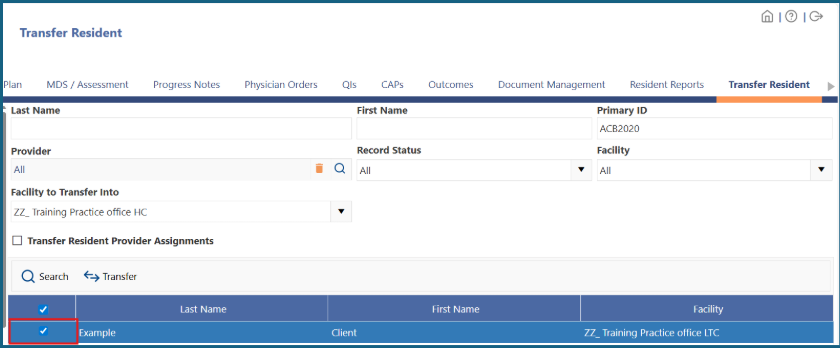
8: Use the 'Facility/Organisation' to 'Transfer Into' dropdown menu to choose where the record will be transferred to.
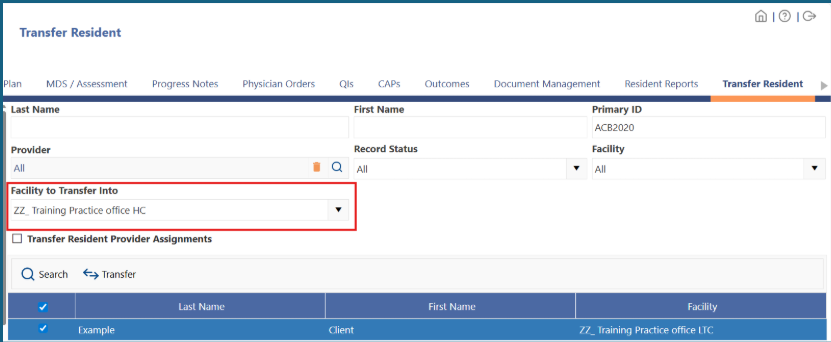
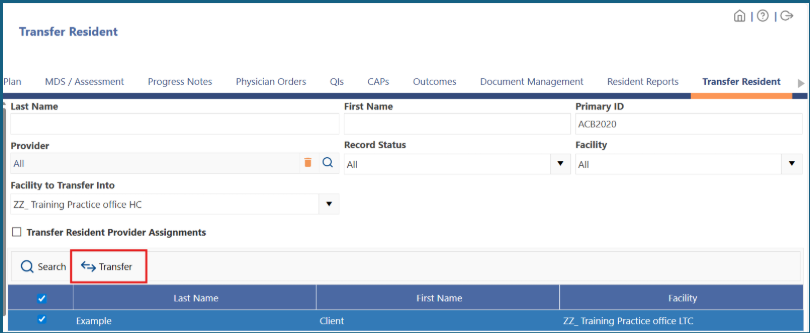
9: Click on 'Transfer'.
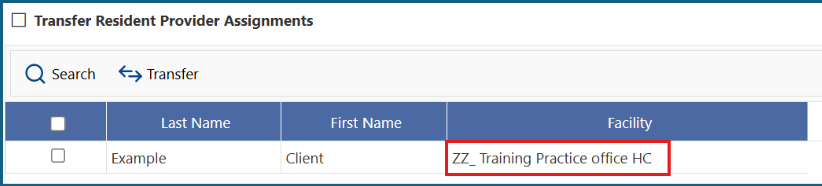
10: The transfer has been successful if the 'Facility/Organisation' is now updated in the grid to the selected office.
11: Once the record has been transferred a Continuation/Progress Note should be added in the record with details of who requested the transfer, the name and office receiving the transfer e.g., File transferred from (previous office) to (current office) by (person completing transfer).
12: The sending NASC then advises the receiving NASC that the file has been transferred to their main District office
13: The receiving NASC will then transfer the file on as required.
Privacy and Security
If you are given additional security rights to support interRAI record transfers, you have a privileged level of access to organisations/facilities on the system.
You are reminded that your use of the interRAI software may be subject to audit and that the software keeps a full audit trail of your access. Therefore, remember to only access records that are necessary for the performance of your duties. If by audit this is found not to be the case, your access to interRAI may be suspended pending further investigation and any inappropriate access may result in a disciplinary process.
Please ensure that you understand your obligations when accessing health related information, especially regarding the Privacy Act of 2020, the Health Information Privacy Code of 2020, and all subsequent amendments thereof.
Was this article helpful?
That’s Great!
Thank you for your feedback
Sorry! We couldn't be helpful
Thank you for your feedback
Feedback sent
We appreciate your effort and will try to fix the article