A person’s file should be made inactive if they are no longer require assessments or support services. A new case is added when that changes to make the file active again.
A person’s file should be marked as deceased when they have died.
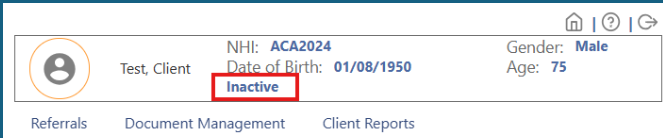
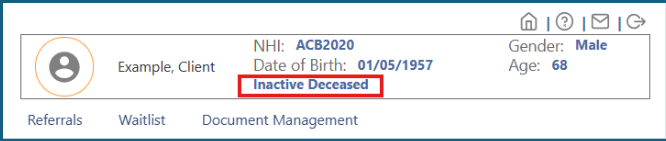
Whether your client’s file is active or inactive is indicated in the top right side of the iAS screen.
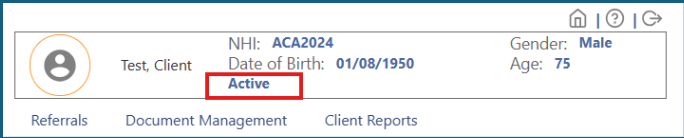
Before making a file inactive
1: All assessments are marked complete.
- Requests to mark the assessment complete or be discontinued need to go back to the assessor.
- If the assessor is not available, then the assessment should be referred to the most appropriate person in that service.
2: All care plans, forms and continuation/progress notes are marked complete.
- Any work that is not complete is to be completed or discontinued by the person that started it. If they are not available, the most appropriate person from that service should be contacted to complete this.
3: The file is not marked for offline use.
- If the file is Marked for Mobile Offline, this information can be found in the top right of the overview page.
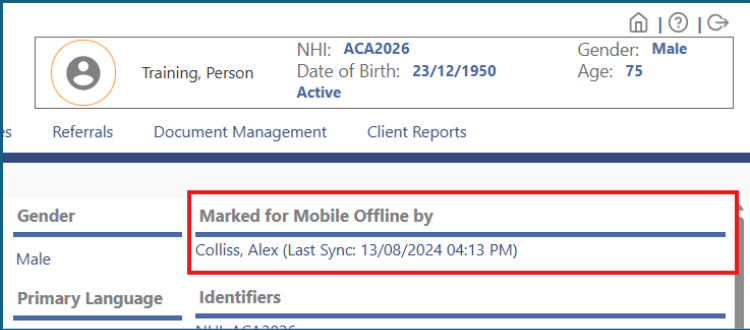
- The person that has the file Marked for Mobile Offline needs to be contacted to remove this.
Making the file inactive
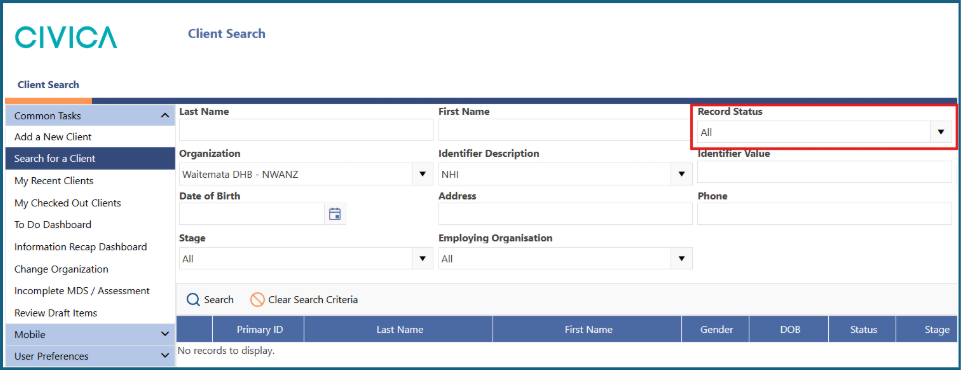
1: Search for your client, making sure the ‘Record Status’ is set to ‘All’.
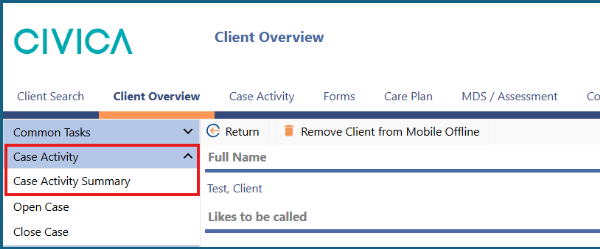
2: Open the ‘Case Activity’ screen.
- Using the ribbon menu along the top
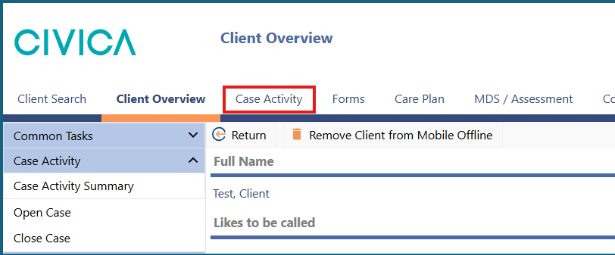
- Or using the left side menu
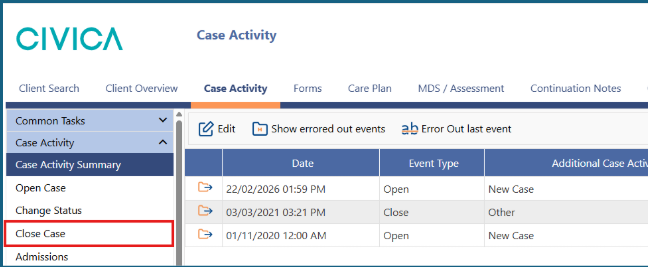
3: Select ‘Close Case’ in the left side menu.
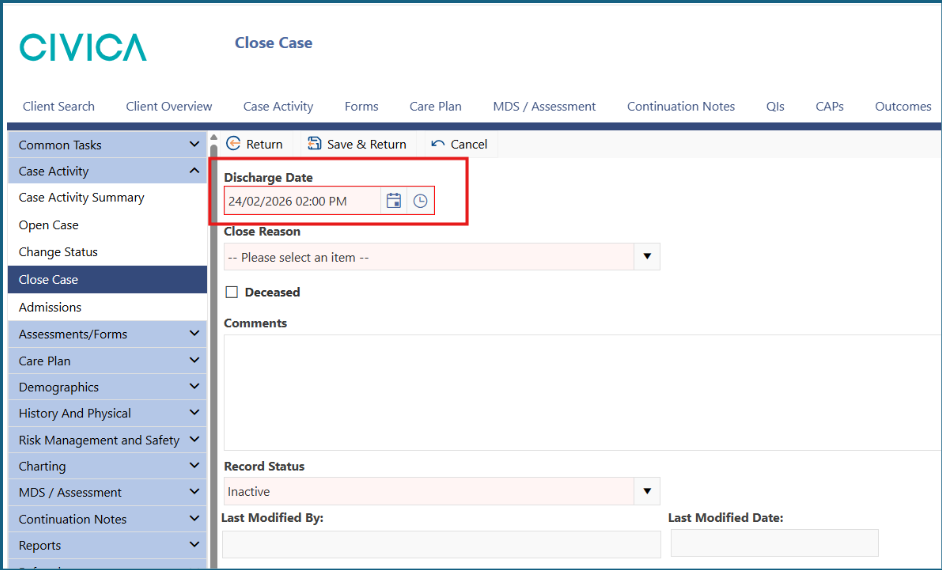
4: Use the date and time pickers to choose the ‘Discharge Date’.
- If a person’s file is being transferred to an ARC facility, the ‘Discharge Date’ should be on or before the admission date to the facility. Note: ARC facilities have specific time frames for assessment based on the admission date. Facilities cannot admit a resident before a discharge date, so their assessment dates in the software will be incorrect if the date here is wrong.
- If the person has died, their date of death should be entered here.
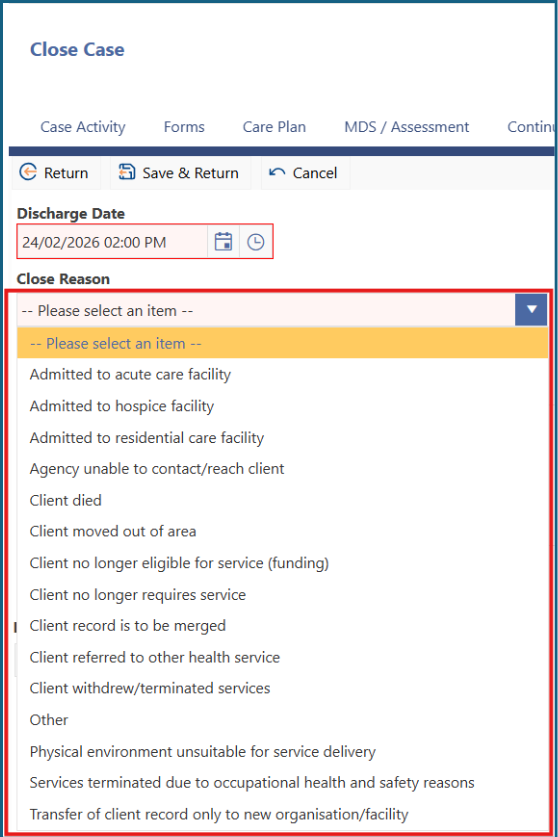
5: Select a ‘Close Reason’ from the dropdown list, choose the one that best matches your client.
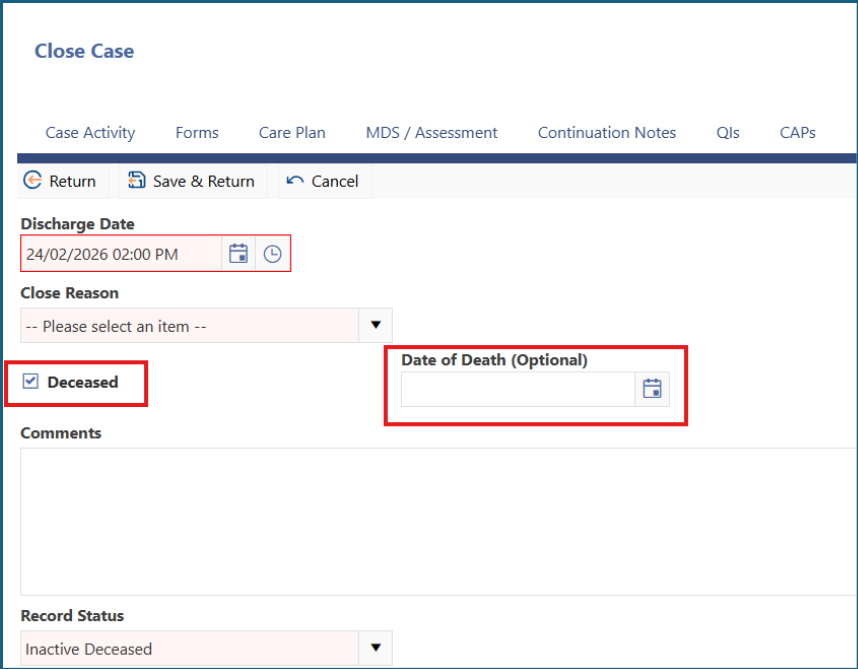
6: If the person has died, check the ‘Deceased’ box and add the ‘Date of Death’.
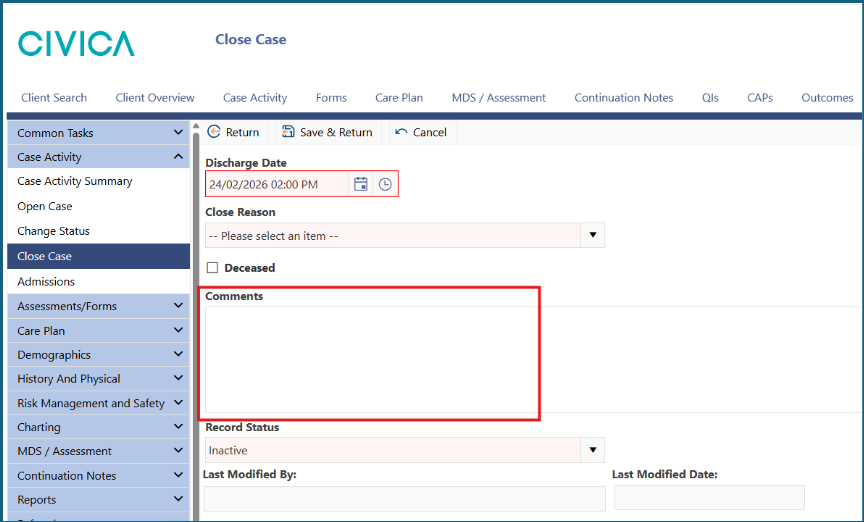
7: Add any comments that might be important.
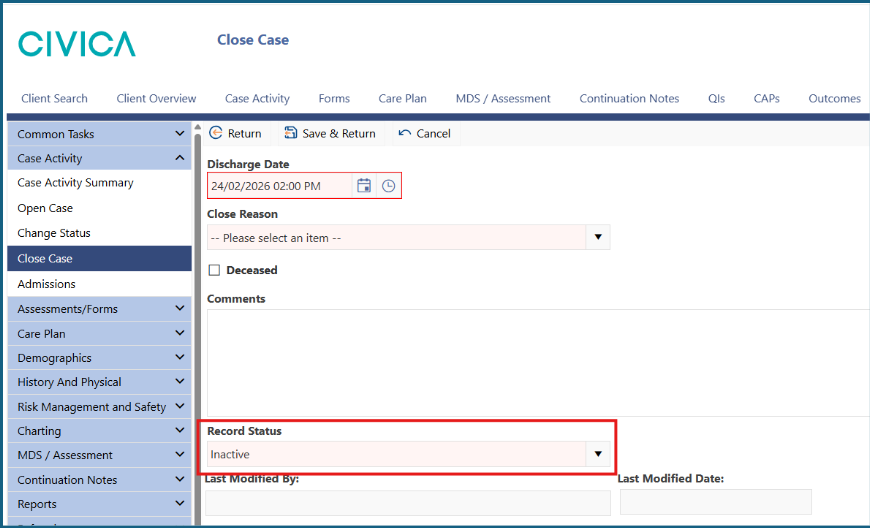
8: Leave the ‘Record Status’ on ‘Inactive’ or ‘Inactive Deceased’.
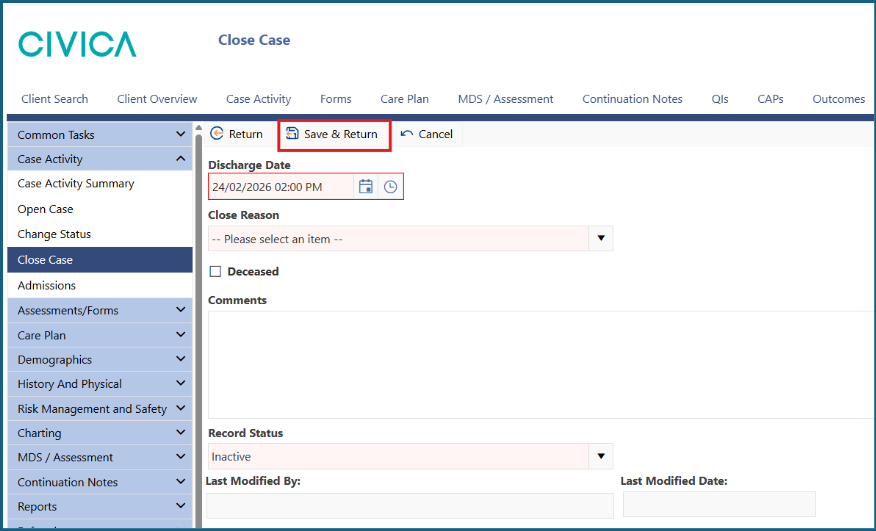
9: Click ‘Save and Return’.
10: The information in the top right corner of the screen should update to ‘Active’ or ‘Inactive Deceased’.
Was this article helpful?
That’s Great!
Thank you for your feedback
Sorry! We couldn't be helpful
Thank you for your feedback
Feedback sent
We appreciate your effort and will try to fix the article