A resident’s record should be discharged and made inactive if they are no longer residing in your facility and the record is to be transferred. A resident’s record should be marked as Inactive Deceased when they have died.
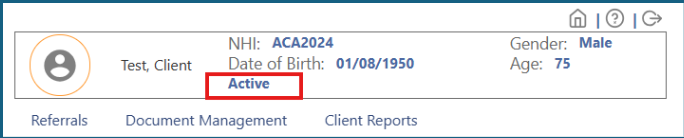
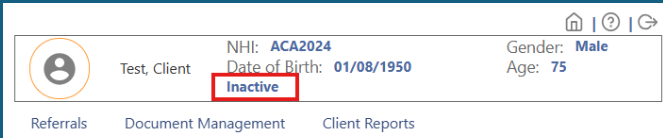
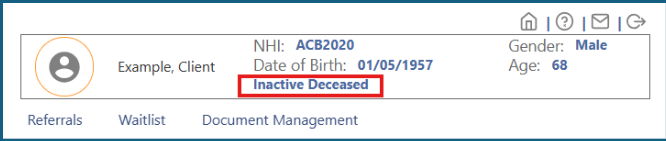
Whether your resident’s record is active or inactive is indicated in the top right side of the iAS screen:
How to discharge and/or decease your resident
1: Search for your resident, making sure the 'Record Status' is set to 'All'.
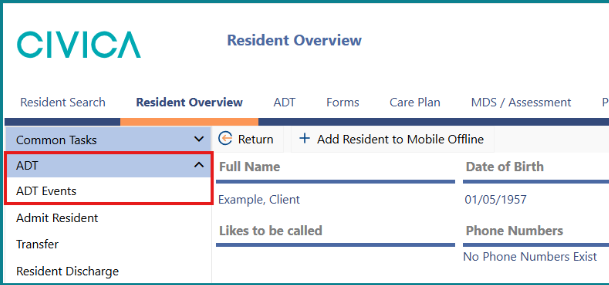
2: On the 'Resident Overview' page, open the 'ADT Events' screen by clicking on:
a: 'ADT' from the ribbon menu along the top
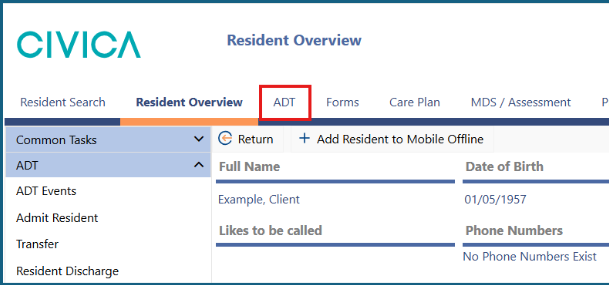
b: Or clicking on 'ADT' from the left side menu
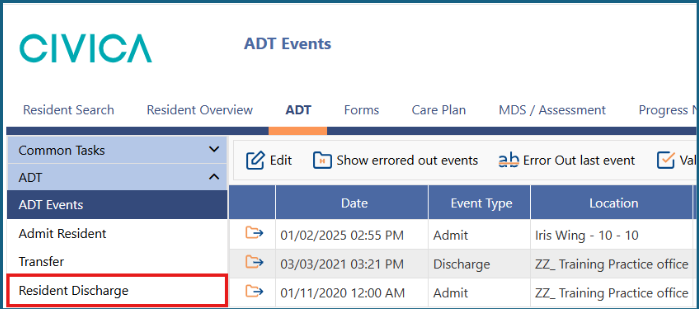
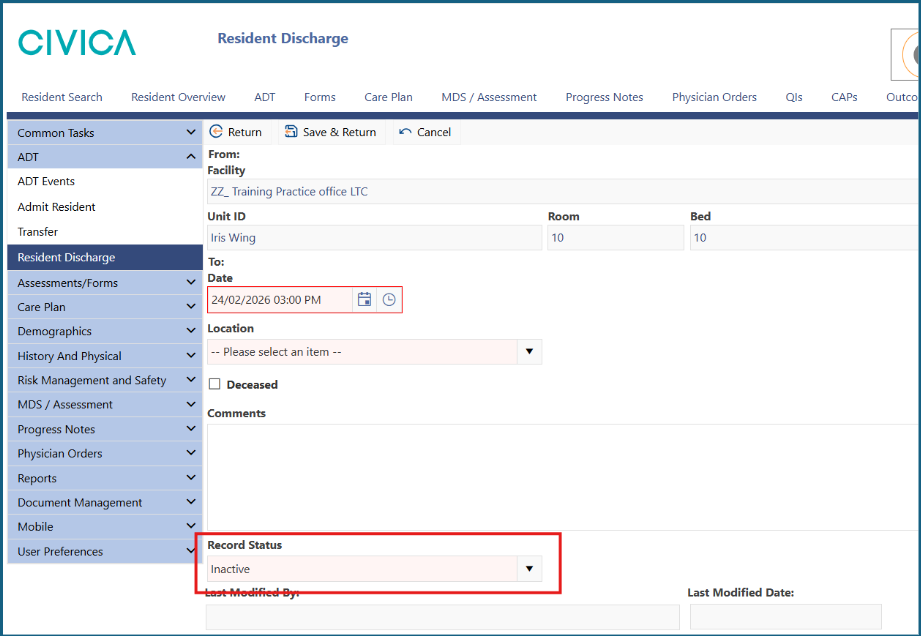
3: Select 'Resident Discharge' in the left side menu.
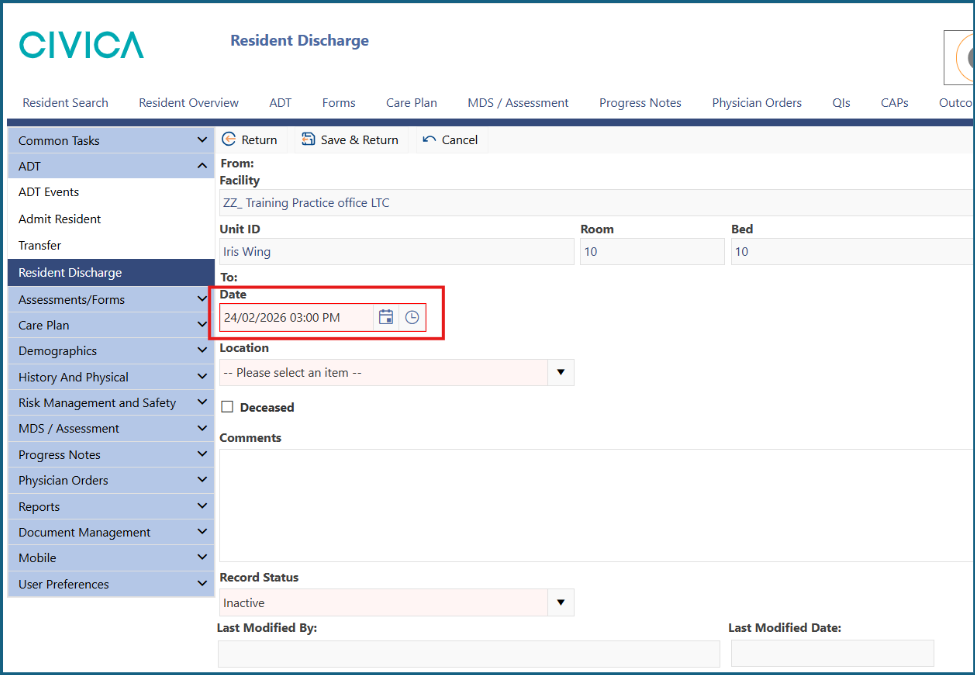
4: Use the date and time pickers to choose the 'Date'.
a: If a person’s record is being transferred to another facility, the 'Date' should be the last day of their stay in your facility
b: If the person has died, their date of death should be entered
Important Note: You must use the correct date of discharge as this allows the bed they are in to become available again in the software for your next resident. It also ensures when the file is transferred to the other facility, that they can admit the person on the correct date.
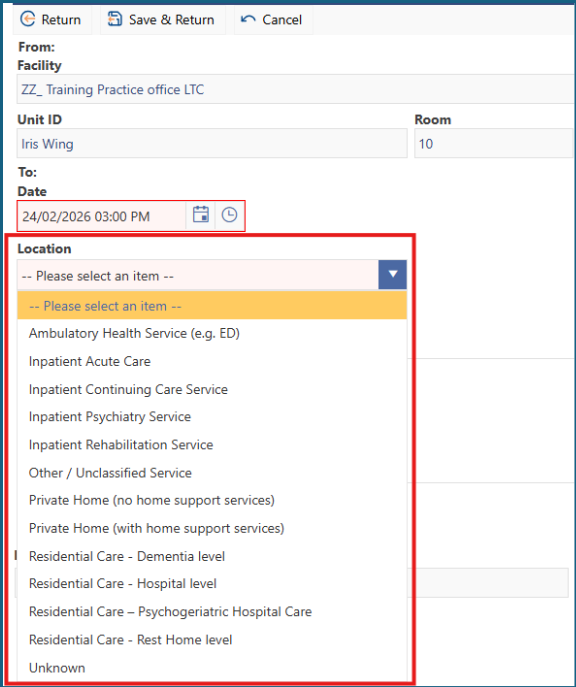
5: Select a 'Location' from the dropdown list. The choice should be where the person was at the time of their discharge/death.
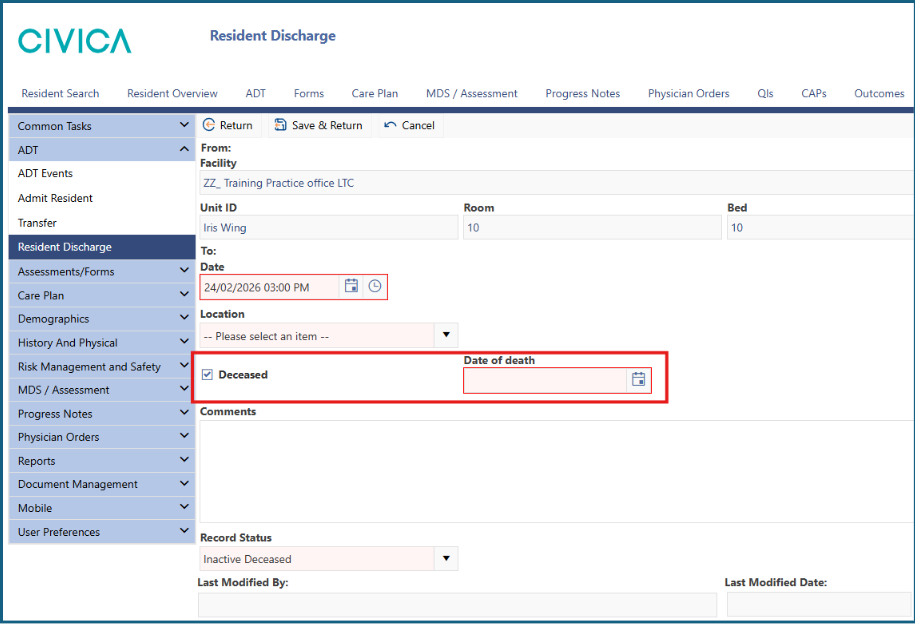
6: If the person has died, check the 'Deceased' box and add the 'Date of Death'.
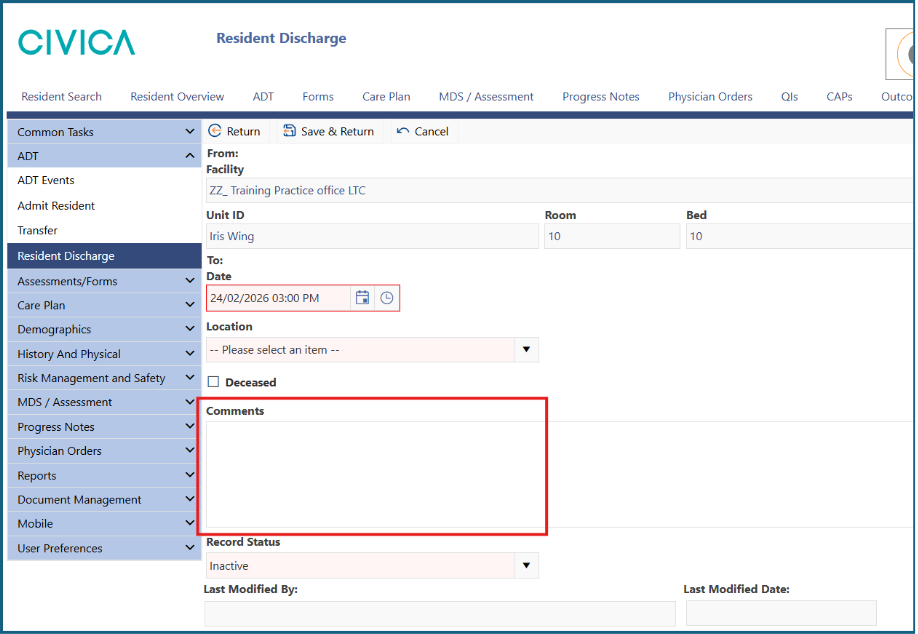
7: Add any relevant comments.
8: Leave the 'Record Status' as 'Inactive' or 'Inactive Deceased'.
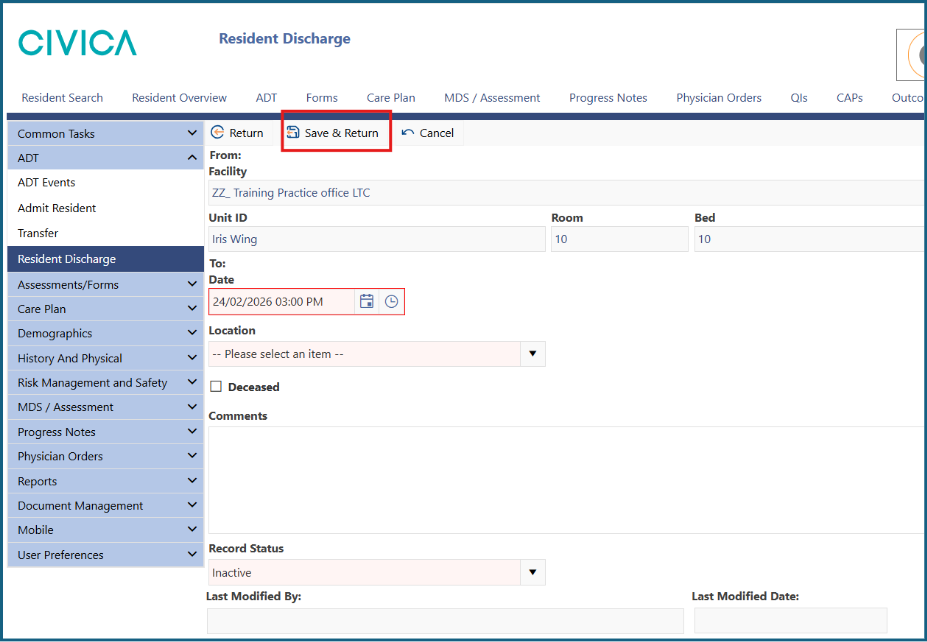
9: Click 'Save and Return'.
10: The information in the top right corner of the screen will update to 'Inactive' or 'Inactive Deceased'.
Was this article helpful?
That’s Great!
Thank you for your feedback
Sorry! We couldn't be helpful
Thank you for your feedback
Feedback sent
We appreciate your effort and will try to fix the article