How to log into interRAI Learning and Development (iL&D) for Learners
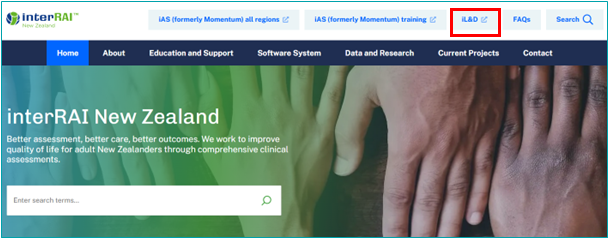
1: Log in to the interRAI Learning and Development (iL&D) system by launching your browser (Chrome or Edge) then go to www.interrai.co.nz and click on iL&D:
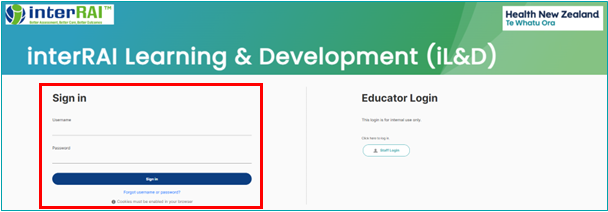
2: Enter your username and the temporary password provided in the covering email on the left side of the screen and click the dark blue Sign In button:
3: The first time you log in, the Change Password screen will be displayed. Re-enter your temporary password then choose and enter a new password that you will remember. Your new password must have at least 8 characters and must include at least 1 digit, 1 lower case letter, 1 upper case letter and 1 non-alphanumeric character (e.g. * or # etc.). Then click the dark blue Save changes button.
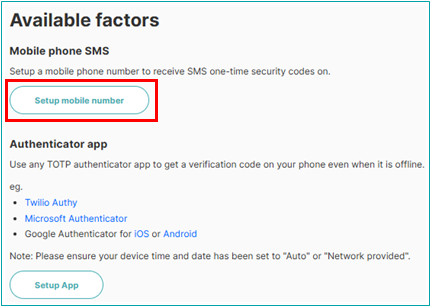
4: The multi-factor authentication (MFA) preferences screen will be displayed. This is an added security feature to confirm your identity and prevent anyone else from accessing your iL&D account and personal information. Click the Setup mobile number button:
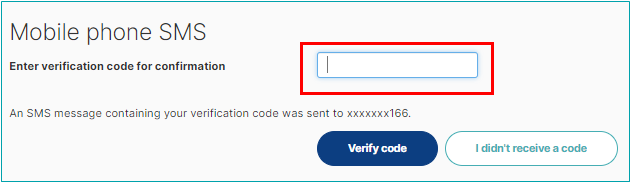
You will receive a text with the following message. “XXXXXX is your interRAI Learning and Development one-time security code.”.
Enter the 6-digit verification code to confirm your identity and complete the MFA process.
Once you have entered the correct code and it has been verified, you will see a confirmation message confirming your mobile phone number has been successfully set up.
Important – each time you log in to the iL&D system you will need to have your mobile phone with you to authenticate your identify. If you have lost your phone or changed your mobile phone number, please contact interRAI on 0800 10 80 44 option 3.
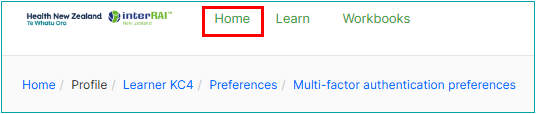
5: Click the Home link at the top of the screen to display your dashboard.
On the day of your directed learning session:
Please ensure you join the Zoom session at least 15 minutes before the scheduled start time. This allows our educator to help resolve any technical difficulties before the training begins.
1: Log in to the iL&D site.
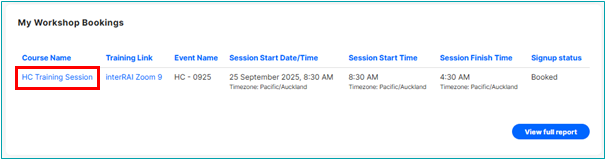
2: Go to My Workshop Bookings on your dashboard.
3: Click the link under the Course Name subheading (note that your course details will be different from the example below).
4: Click the Join Now button (which will be displayed 30 minutes before the session start time).
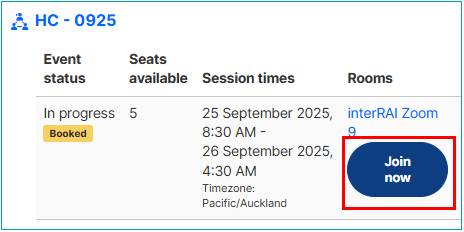
You will be placed in a virtual waiting room until your interRAI Educator admits you to the Zoom session.
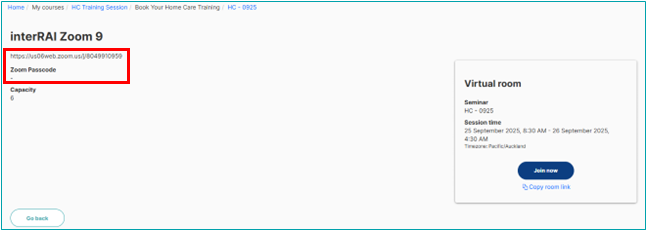
If the Join Now button does not work, click the blue link under the Rooms subheading and a screen like the example below will be displayed. You can then copy and paste the Zoom link displayed directly into your web browser.
NB: if your Zoom link requires a passcode, this will be displayed under the Zoom link (NB: in the example below, there is no passcode required) e.g:
Important: If you have any trouble logging on to the iL&D or joining your educator via Zoom, please phone 0800 10 80 44 option 3.
Was this article helpful?
That’s Great!
Thank you for your feedback
Sorry! We couldn't be helpful
Thank you for your feedback
Feedback sent
We appreciate your effort and will try to fix the article