TABLE OF CONTENTS
Getting to the log in page
1: Go to the interRAI New Zealand website (www.interRAI.co.nz) and click on ‘iAS (formerly Momentum) all regions’.

2: Your organisation may also have a saved shortcut on the desktop with the link to the site. The icon will look similar to his one: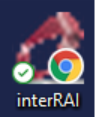
3: When you click on the link you will see a pop-up box asking you to select a certificate.
- Chrome – the certificate should already be highlighted, just click on OK.
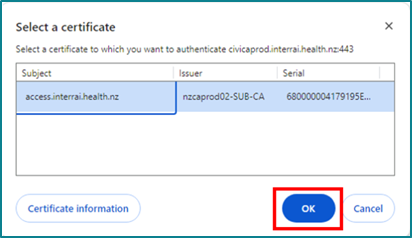
- Edge – click on the certificate name first, and then click on OK.
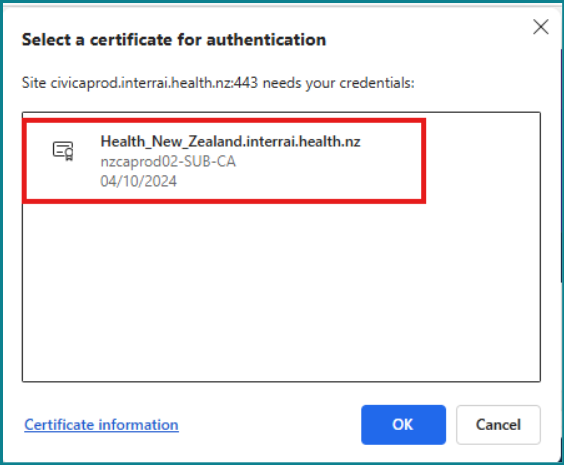
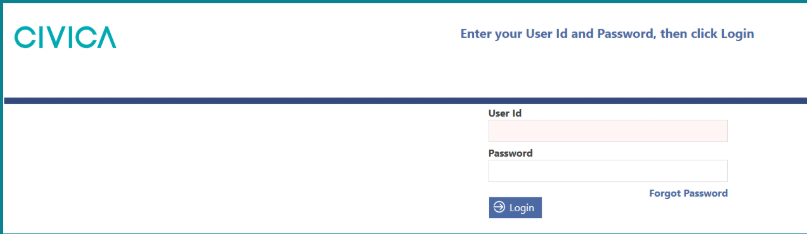
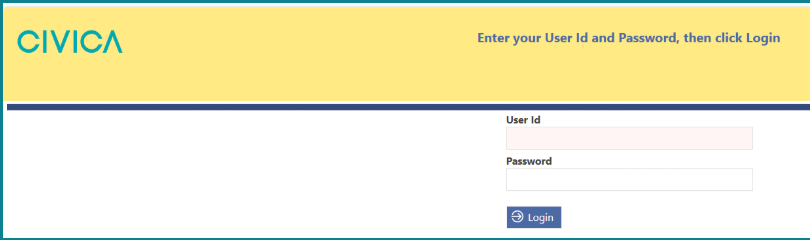
4: The site log in page should then be visible.
5: If you do not get the ‘Select a certificate’ pop-up and a ‘400 Bad Request’ message is displayed, please follow these instructions.
6: If the log in page is yellow across the top, you are on the training site, and need to go back to the interRAI website and select ‘iAS (formerly Momentum) all regions’.
UserID and Password
Your UserID and temporary password will be provided to you during training if you are attending training with an interRAI Educator or Accredited Educator.

If you have completed online learning only, your userID will be emailed to you and the temporary password will be sent via text message.
First Log In
1: Enter the provided UserID and temporary password on the log in page
2: At first log in you will be asked to create a password.
- You will be taken to a new page to enter your new personalised password.
- Put the temporary password in the top box ('Current Password') and then your new password in the second and third boxes.
- Click ‘Save’.
- Note: The new password must be 14 characters long, and we suggest using an easy to remember passphrase such as 'my1stcarwasaToyota' or 'popcornisbetterwithbutter'.
Security Questions
Once you have changed your password, you will be asked to set up personal security questions for using the Forgot Password option and verifying your identity when you call us for assistance.
1: Click on the dropdown icon on the right side of the question bar and select a question.

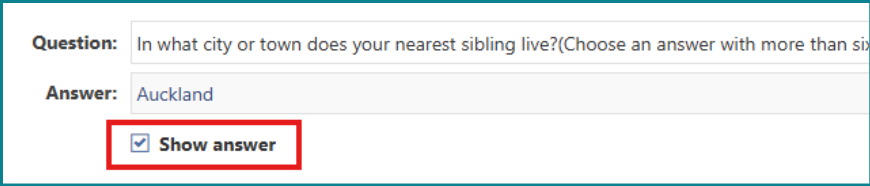
2: Tick the box for ‘Show answer’ below the question to see what you are typing. This will help you check spelling, capital letters and spaces before saving.
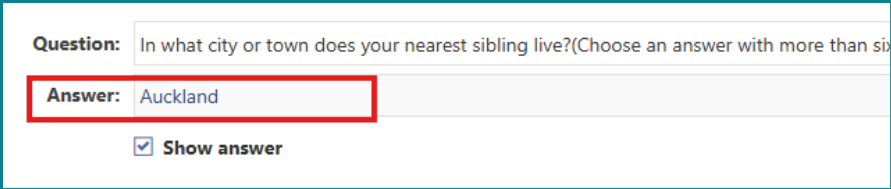
3:Type your answer.
4: Repeat for each question you want to change.
5: Click ‘Save and Return’.
Important points when changing your security questions
- The Forgot Password option requires the answers to be entered exactly as originally saved including capital letters and spacing.
- Choose questions where the answer is more than 6 characters. For example: A question about your grandmothers name would not be suitable if the answer is Eva or Anne.
- Enter them as you would normally write them using capital letters and spaces where appropriate. For example: If using an address, type '123 Test Street' not '123teststreet' or for a place, type 'New Zealand' not 'new zealand'.
- Your answer should directly answer the question being asked. For example: If the question is ‘In what city or town does your nearest sibling live?’ A suitable answer would be Auckland. Don’t answer New Zealand (country name).
Following these tips will make resetting your own password easier in the future.
Choosing an Organisation
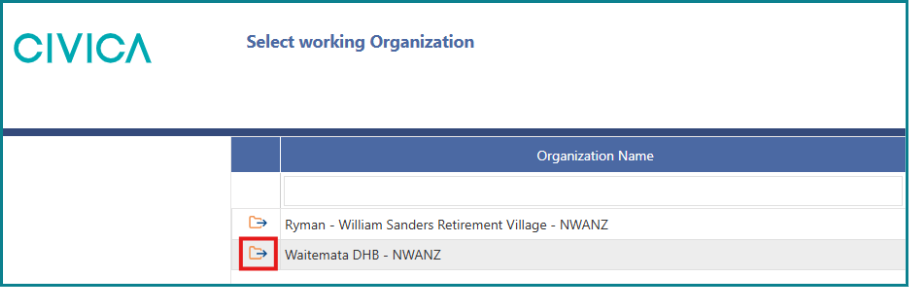
If you have access to more than one organisation or facility in the software the page ‘Select working Organisation’ will appear.
1: To select an organisation either double click on it’s name, or click on the file icon once beside it’s name.
2: The ‘Home’ page will then be displayed.
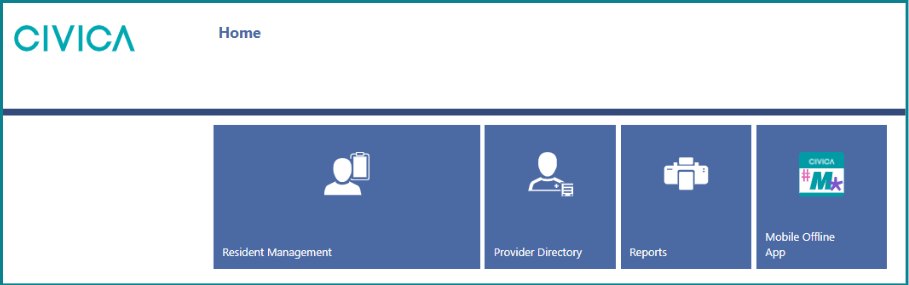
.
Was this article helpful?
That’s Great!
Thank you for your feedback
Sorry! We couldn't be helpful
Thank you for your feedback
Feedback sent
We appreciate your effort and will try to fix the article