TABLE OF CONTENTS
- Getting to the log in page
- Logging In
- Choosing an Organisation
- Common Issues or Alerts when logging in
Getting to the log in page
1: Go to the interRAI New Zealand website (www.interRAI.co.nz) and click on ‘iAS (formerly Momentum) all regions’.

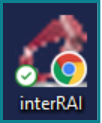
- Your organisation may also have a saved shortcut on the desktop with the link to the site. The icon will look similar to this one:
- You may also have the link saved as a bookmark in your browser or on your desktop.
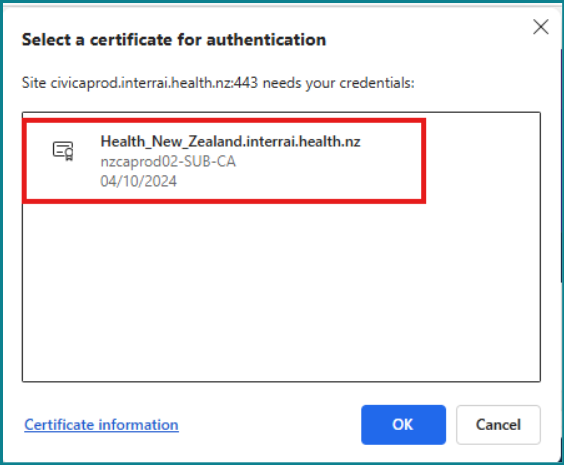
2: When you click on the link you will see a pop-up box asking you to select a certificate.
- Chrome – the certificate should already be highlighted, just click on OK.
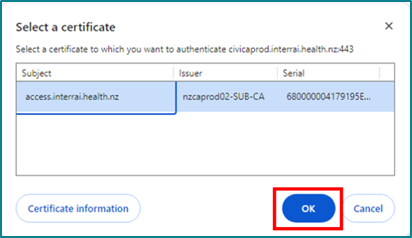
- Edge – click on the certificate name first, and then click on OK.
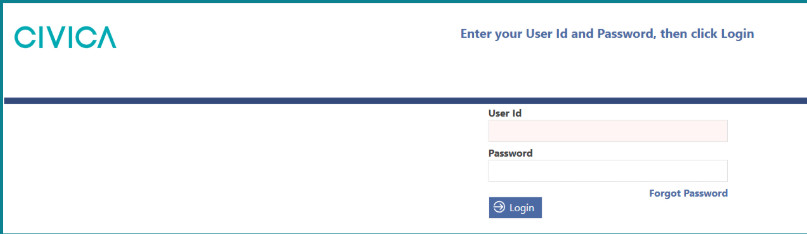
3: The site log in page should then be visible.
Logging In
1: Enter your UserID and password on the log in page.
2: Click ‘Login’.
3: If you have forgotten your password, follow the instructions here.
Choosing an Organisation
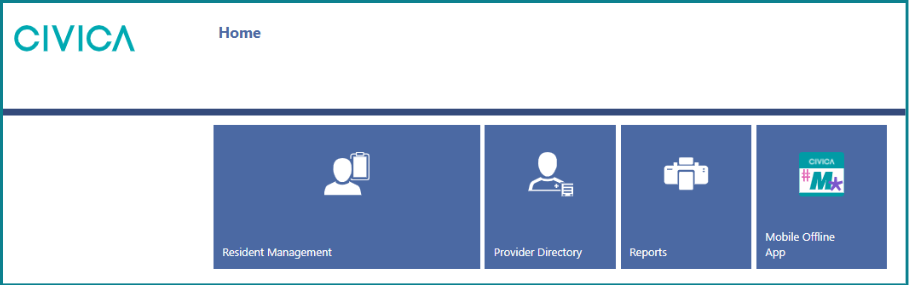
If you have access to only one organisation, you will be taken straight to the ‘Home’ page.
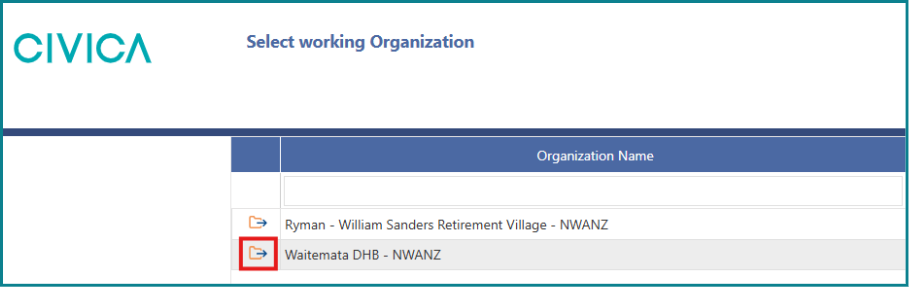
If you have access to more than one organisation or facility in the software the page ‘Select working Organisation’ will appear.
1: To select an organisation either double click on its name, or click once on the file icon beside its name.
2: The ‘Home’ page will then be displayed.
Common Issues or Alerts when logging in
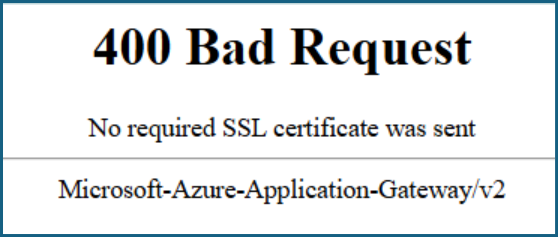
400 Bad Request
What you see on the screen:
A white page with ‘400 Bad Request, no required SSL certificate was sent’.
Meaning:
1: The certificate wasn’t selected from the ‘Select a Certificate’ pop-up
2: Cached data is impacting on the browsers ability to access the certificate
3: There isn’t a client-side security certificate applied to your user profile that allows access to the site
Action:
1: Restart your device to clear the cached data.
2: Make sure a certificate is highlighted and selected (see step 2 above).
3: If not successful, contact your IT support or Manager to make sure the certificate has been installed to the user profile that you are using to access the site.
Note: You cannot use the interRAI Assessment Software on personal devices, it is only to be used on devices that are owned and managed by your workplace.
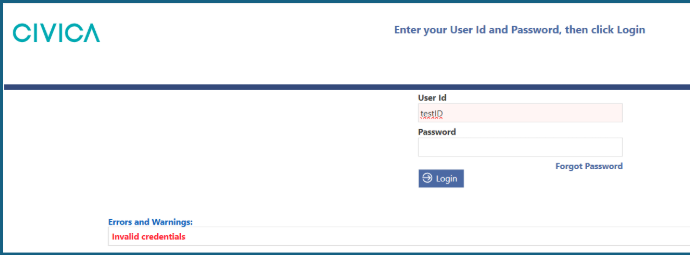
Invalid Credentials
What you see on the screen:
‘Invalid Credentials’ alert in red.
Meaning:
1: The password doesn’t match the User ID used.
2: You may be trying to log in to the training site.
Action:
1: If the log in page is yellow across the top, you are on the training site, and need to go back to the interRAI website and select ‘iAS (formerly Momentum) all regions’.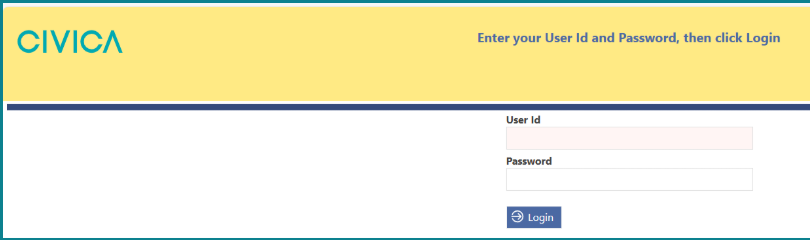
2: Check the UserID and password used and try again.
User not configured to login with this method
What you see on the screen:
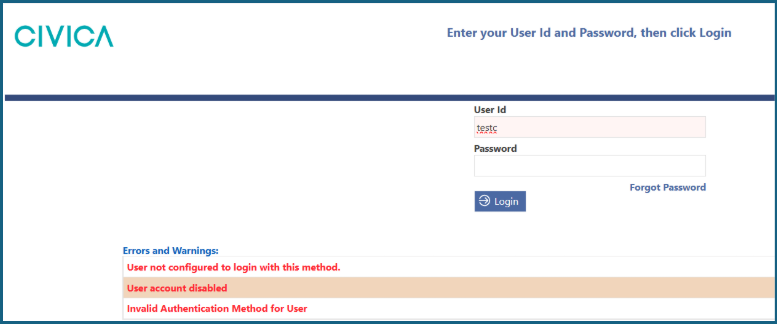
Three alerts in red – User not configured to login with this method, User account disabled, Invalid Authentication Method for this User.
Meaning:
1: The UserID is not recognised by the site.
2: You may be trying to log in to the training site.
3: Your iAS account has been deactivated.
Action:
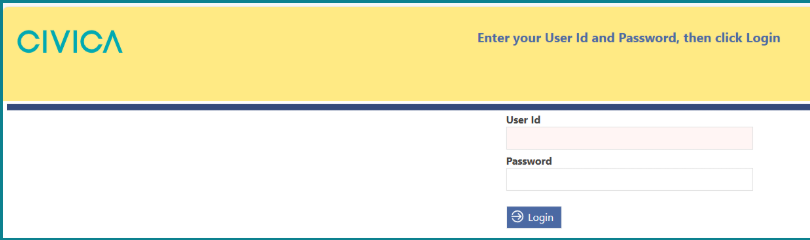
1: If the log in page is yellow across the top, you are on the training site, and need to go back to the interRAI website and select ‘iAS (formerly Momentum) all regions’.
2: Check the UserID and password used and try again.
- Note: your UserID and password for iAS are not the same as the interRAI Learning and Development site (iL&D).
3: If you are still not able to log in, email us at interrai@tas.health.nz for assistance.
Logged out after incorrectly entering security question answers
What you see on the screen:
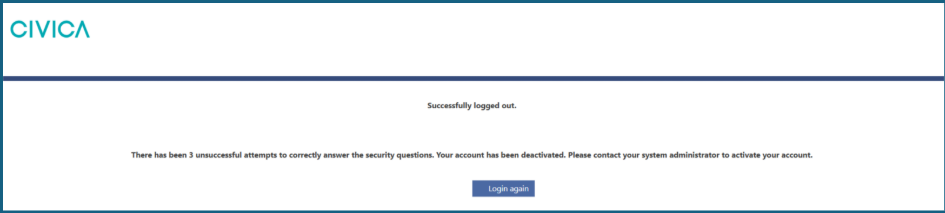
‘Successfully logged out. There has been 3 unsuccessful attempts to correctly answer the security questions. Your account has been deactivated. Please contact your system administrator to activate your account.’
Meaning:
1: You have not entered your security questions correctly; your account has been disabled.
Action:
1: You will need to contact us via email at interrai@tas.health.nz or on 0800 10 80 44 (option 1) to have your access reactivated.
Was this article helpful?
That’s Great!
Thank you for your feedback
Sorry! We couldn't be helpful
Thank you for your feedback
Feedback sent
We appreciate your effort and will try to fix the article