Security questions are used to:
                      - Complete a password self-reset
                      - Verify your identity when calling the interRAI Software Service Desk

Your security questions were set up when you logged in to the software for the first time.

For security reasons:
                      - Only you can set or change your security questions
                      - They cannot be entered or changed by anyone else
TABLE OF CONTENTS
- Accessing the security questions
- Changing your security questions
- Important points when changing your security questions
Accessing the security questions
1. From the Home page, select:
- Resident Management if you work in ARC
- Client Management if you work in Community or Acute Care
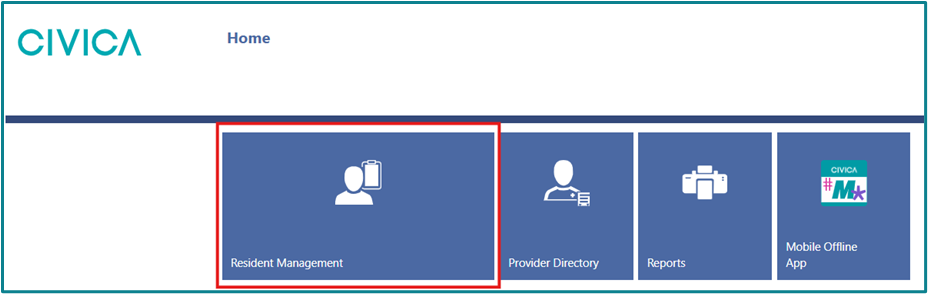
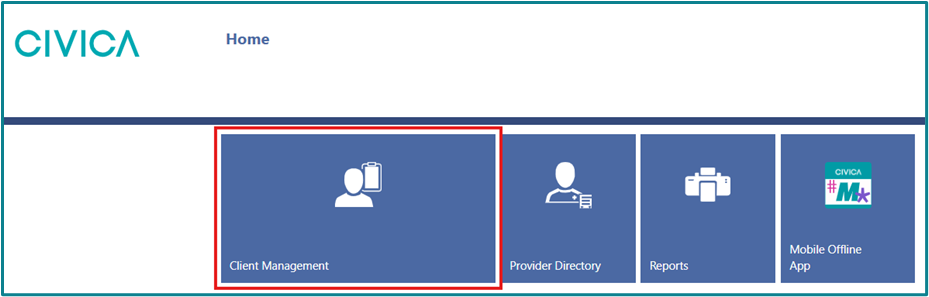
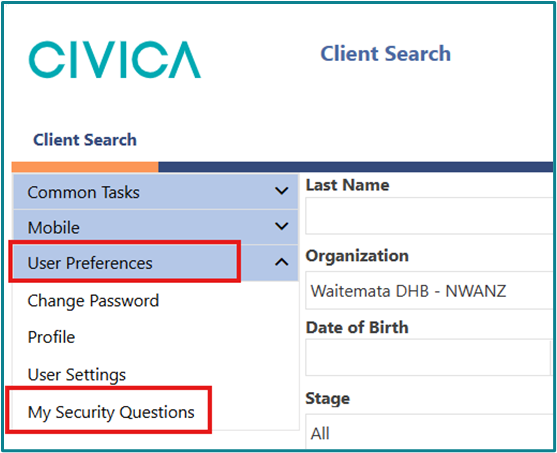
2. In the left side menu, select 'User Preferences' and then 'My Security Questions'
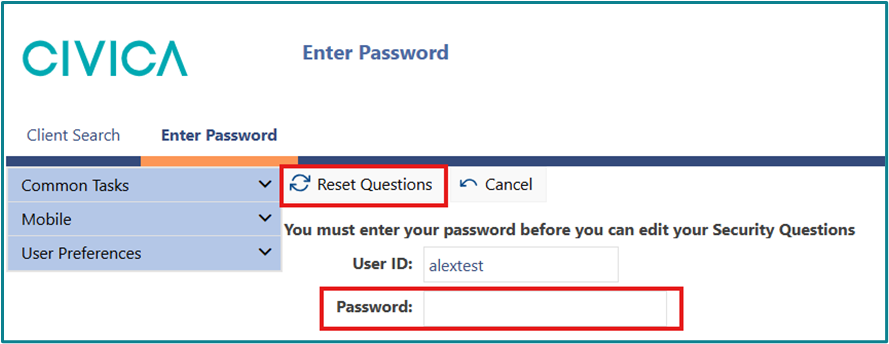
3. Enter your password in the 'Password' field
4. Click on 'Reset Questions'
Changing your security questions
1. Click on the dropdown icon on the right side of the question bar and select a question.

2. Tick the 'Show answer' box below the question to see what you are typing. This will help you check spelling, capital letters and spaces before saving.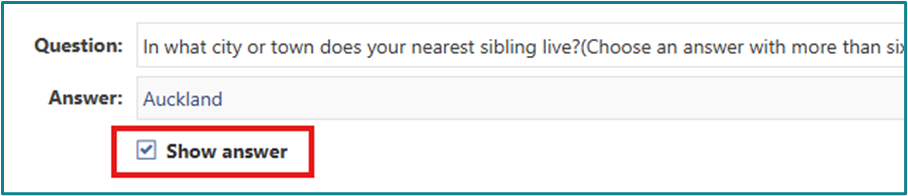
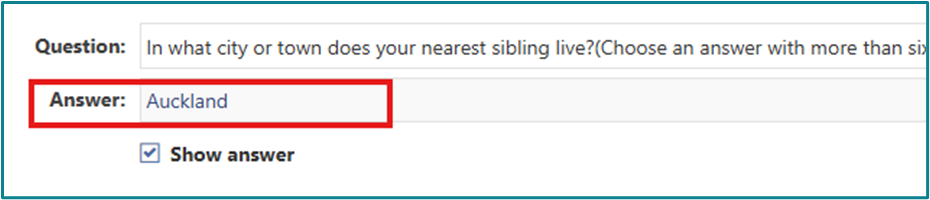
3. Type your answer.
4. Repeat for each question you want to change.
5. Click 'Save' and return.
Important points when changing your security questions
The Forgot Password option requires the answers to be entered exactly as originally saved including capital letters and spacing.- Choose questions where the answer is more than 6 characters.
For example: A question about your grandmothers name would not be suitable if the answer is Eva or Anne.
- Enter them as you would normally write them using capital letters and spaces where appropriate.
For example: If using an address, type '123 Test Street' not '123teststreet' or for a place, type 'New Zealand' not 'new zealand'.
- Your answer should directly answer the question being asked
For example: If the question is ‘In what city or town does your nearest sibling live?’ A suitable answer would be Auckland. Don’t answer New Zealand (country name).
Following these tips will make resetting your own password easier in the future.
Was this article helpful?
That’s Great!
Thank you for your feedback
Sorry! We couldn't be helpful
Thank you for your feedback
Feedback sent
We appreciate your effort and will try to fix the article