TABLE OF CONTENTS
The certificates are only to be installed on business computers/devices. Users are not able to access interRAI on personal devices to ensure the privacy and security of the health information in the system.- These instructions are for single installations only.
- Larger organisations will usually handle the installation of the certificate for their users and should be the first point of contact for all questions.
- If you need assistance with installing the certificate, please contact your IT Support first. If they are unsure, they can email interrai@tas.health.nz for additional support.
- Once the new certificate has been successfully installed and you have confirmed you can access iAS, the existing certificate on your profile can be removed.
Windows Operating System – single installation
Download the certificate
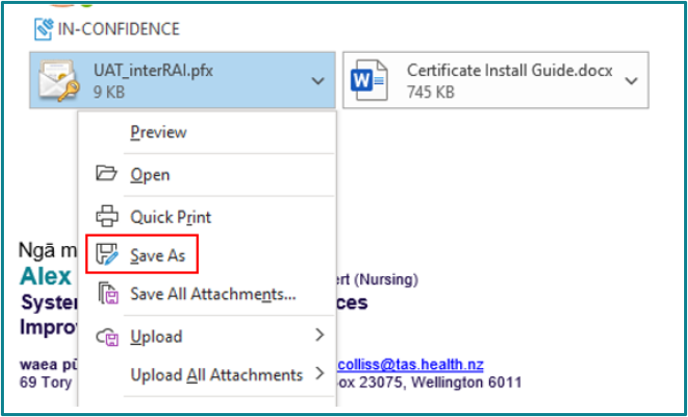
- In the email, right-click on the certificate file ending in .pfx and select Save As
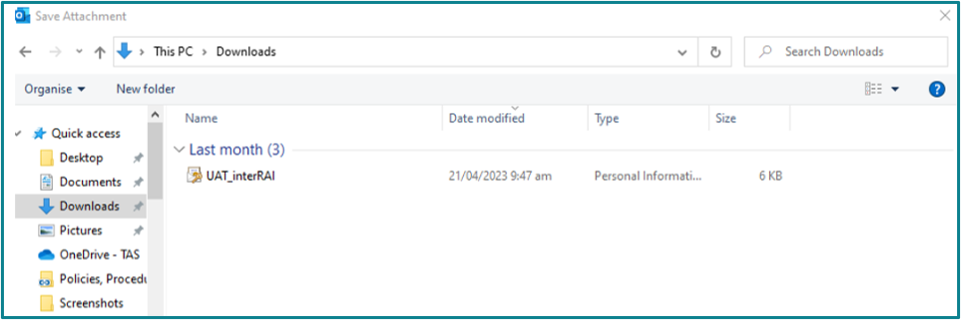
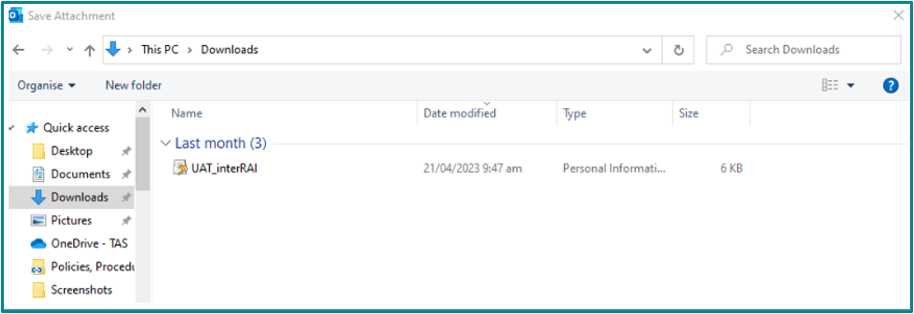
- Save the file to your device and make a note of where it has been saved.
- Have your phone ready with the text message containing the certificate password. You will need to enter this during the installation process.
Install the certificate
- Find the certificate where you have it saved.
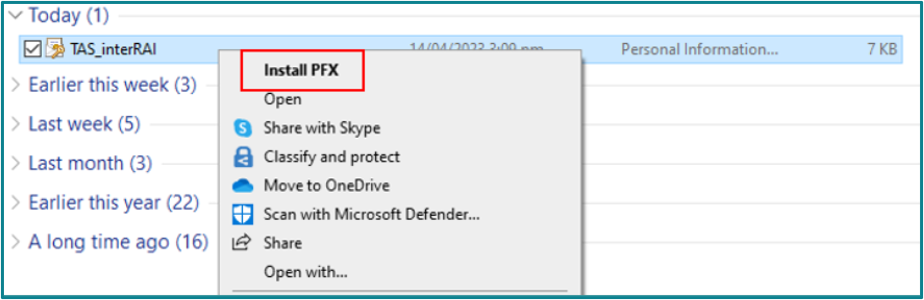
- Right-click on the certificate file, then select Install PFX to start the Certificate Import Wizard.
- Select Current User, then click Next.
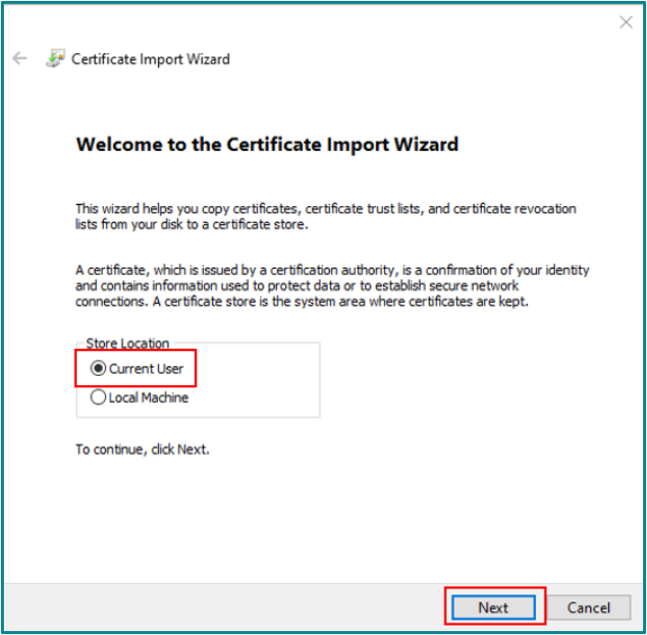
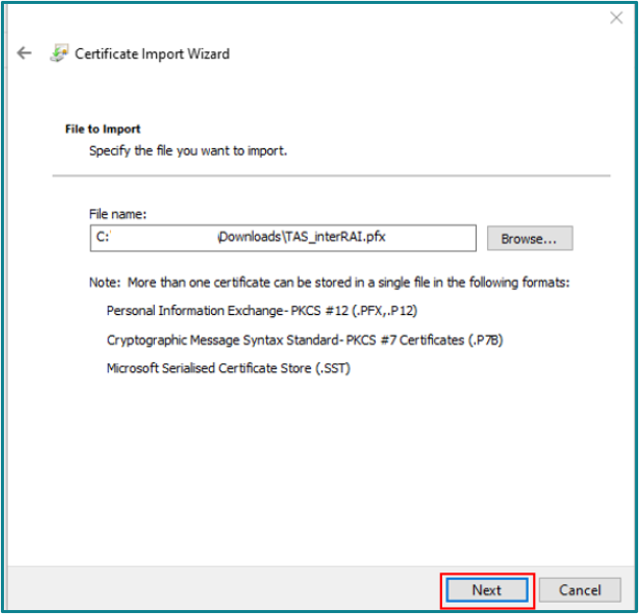
- Click Next again.
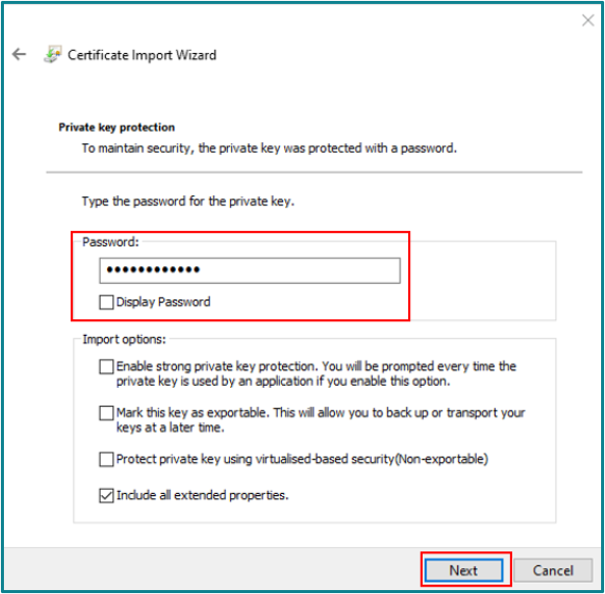
- Enter the password provided for the certificate, then click Next.
- If you are copying and pasting the password, make sure there are no spaces before or after the password.
- You can tick the ‘Display Password’ box to check that the password entered matches the one provided. Passwords are case-sensitive.
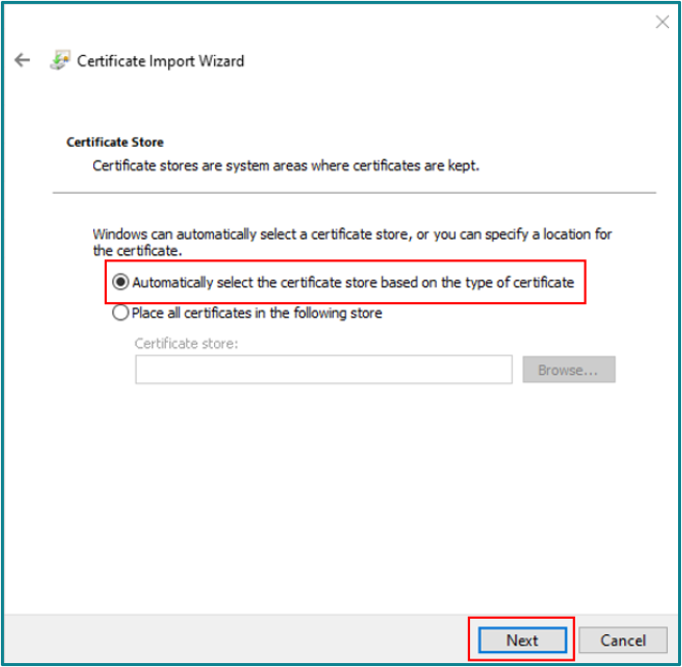
- Ensure the required option is selected, then click Next.
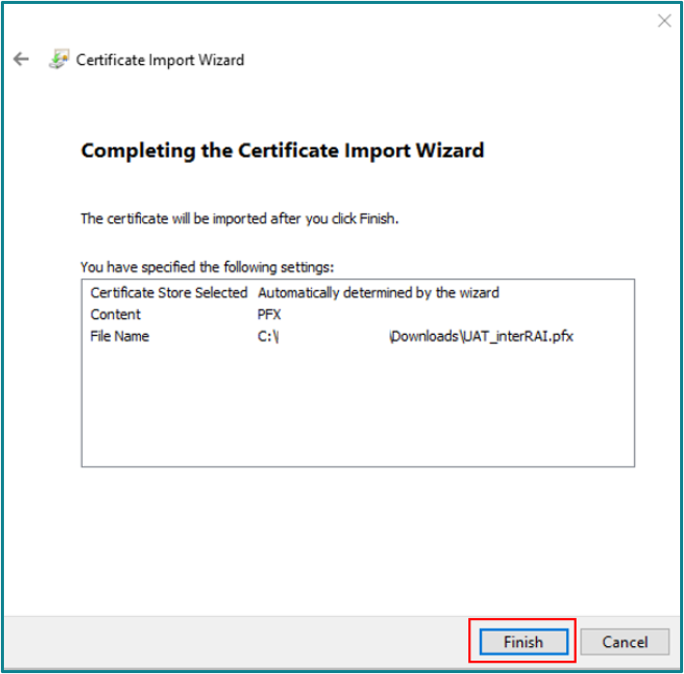
- Click Finish.
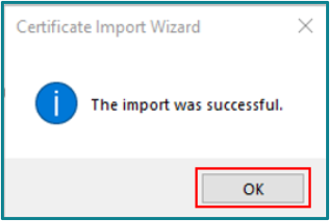
- A success message will appear. Click OK.
- You may need to restart your browser and/or computer to complete the certificate installation.
- After the Certificate has been installed, you should be able to connect to https://civicaprod.interrai.health.nz/production/
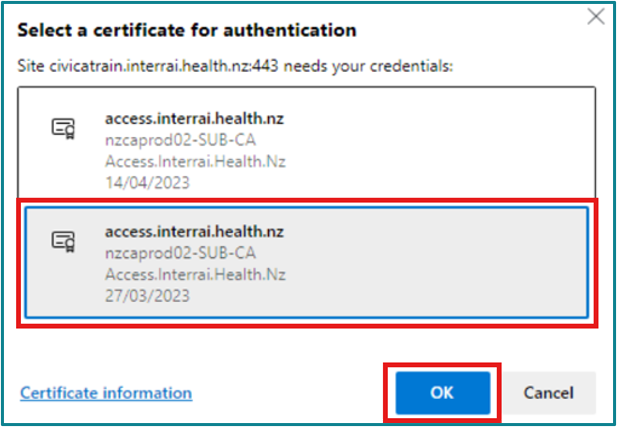
- When you access the URL, the browser will display your certificate before the iAS login page appears.
- Make sure the correct certificate is highlighted.
- In Microsoft Edge, you will need to click on the certificate to highlight it.
- In Google Chrome, the certificate is usually highlighted automatically.
- Click OK.
- The iAS log in page should now display.
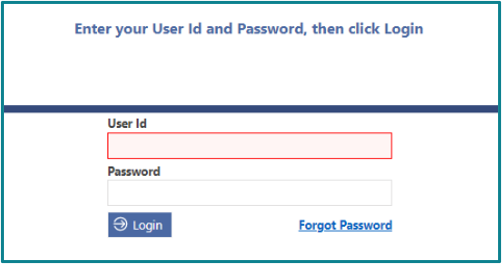
- If the login page does not display, try restarting your computer and accessing the URL again.
Mac Operating System – single installation
Note: Mac Operating Systems require a specific copy of the certificate. If you are using a MAC device, please contact us first to obtain the correct certificate before proceeding.Method 1
- Double click the .pfx file provided. You will be prompted to enter a password.
- Enter the Password you were provided.
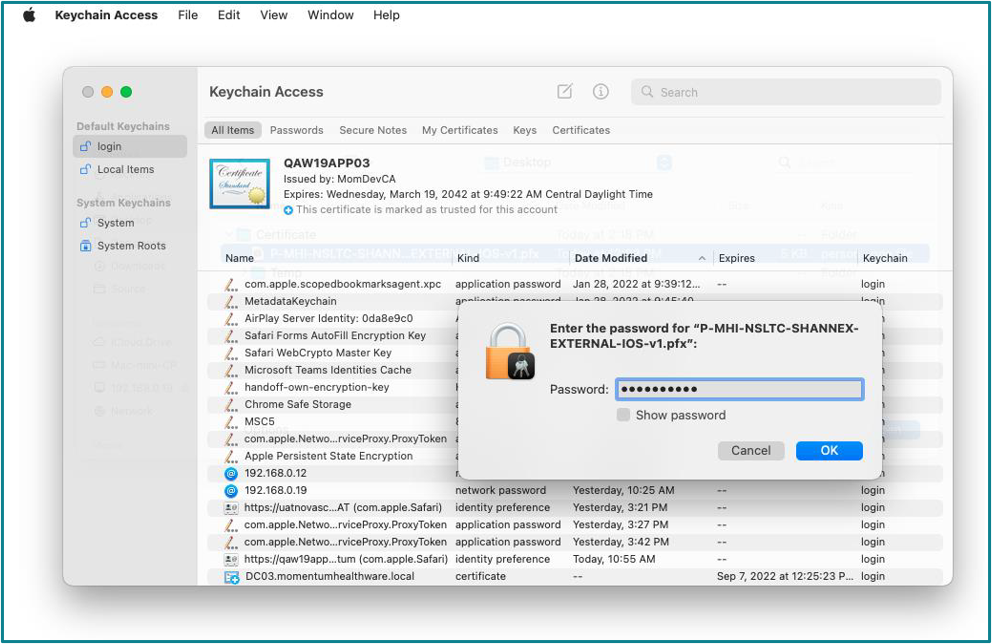
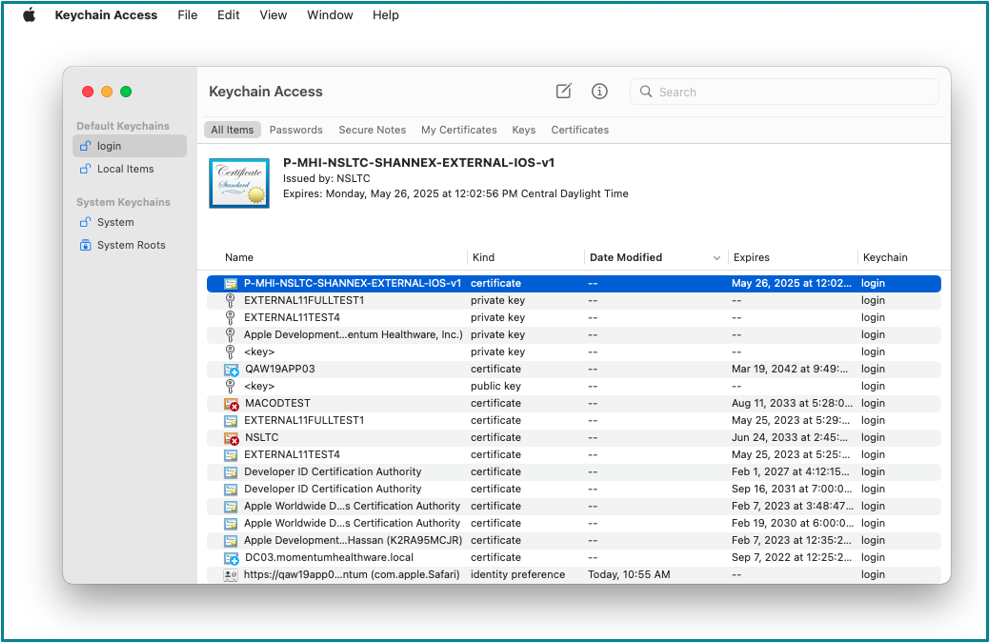
- The certificate is now installed and can be used for secure website client authentication.
- Launch your browser and access iAS.
- When prompted, select the certificate to gain access (example only). NOTE: Depending on your configuration, more than one certificate may appear in the list. You may need to complete this step more than once to properly connect to the interRAI Assessment Software. The screenshot below is an example only. The Certificate name will include interRAI and be similar to this: General_iOS_interRAINZ_26_Access_Bundle.pfx
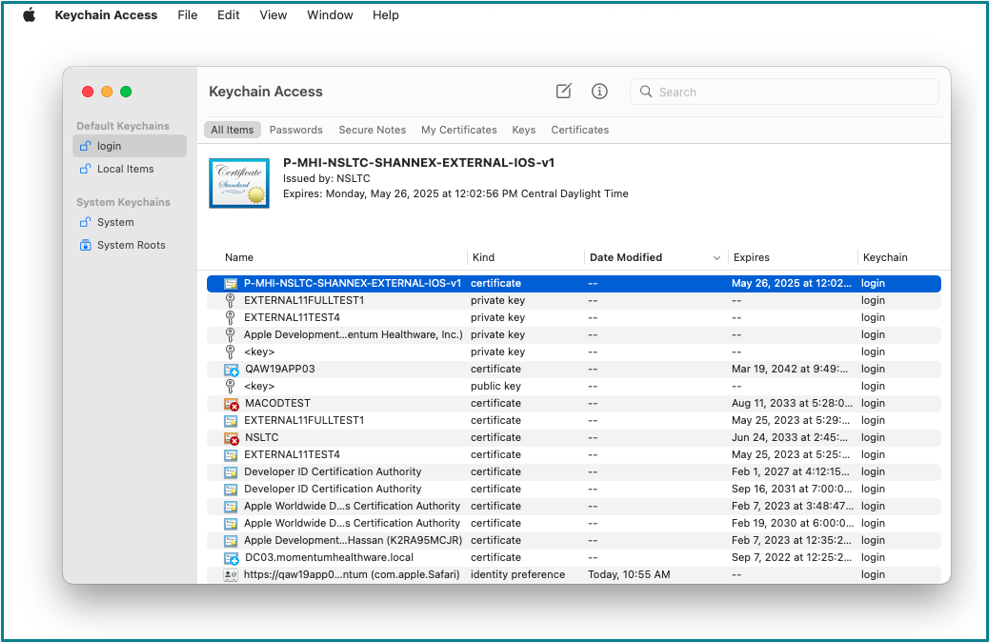
- Click the button to access the site. If successful, the iAS login page will be displayed.
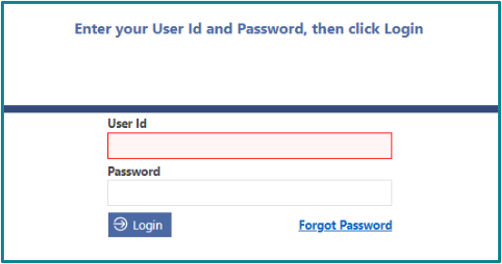
- NOTE: If you have reset the default Keychain password and reinstalled the certificate in both System and login keychains, you may be prompted to enter a password when accessing the site.
- If your recently updated password does not work, you may need to modify certificate access control setting to Allow all applications to access this item.
- If you are unsure, please contact your local IT support.
Method 2
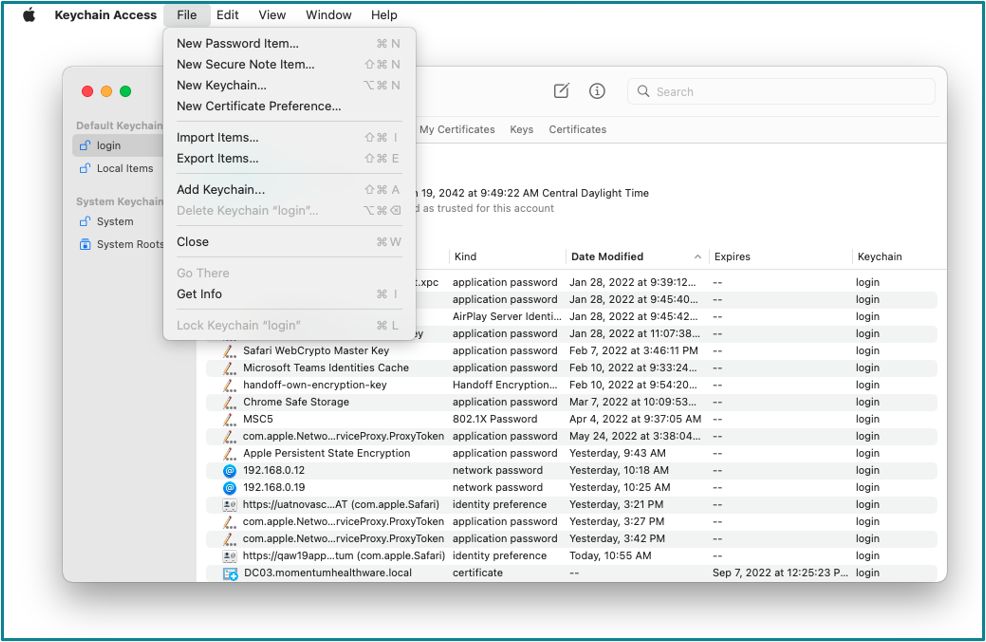
- If double clicking on the .pfx file does not open Keychain Access, search for Keychain in Spotlight and open it. In Keychain Access, select File, then click Import Items…
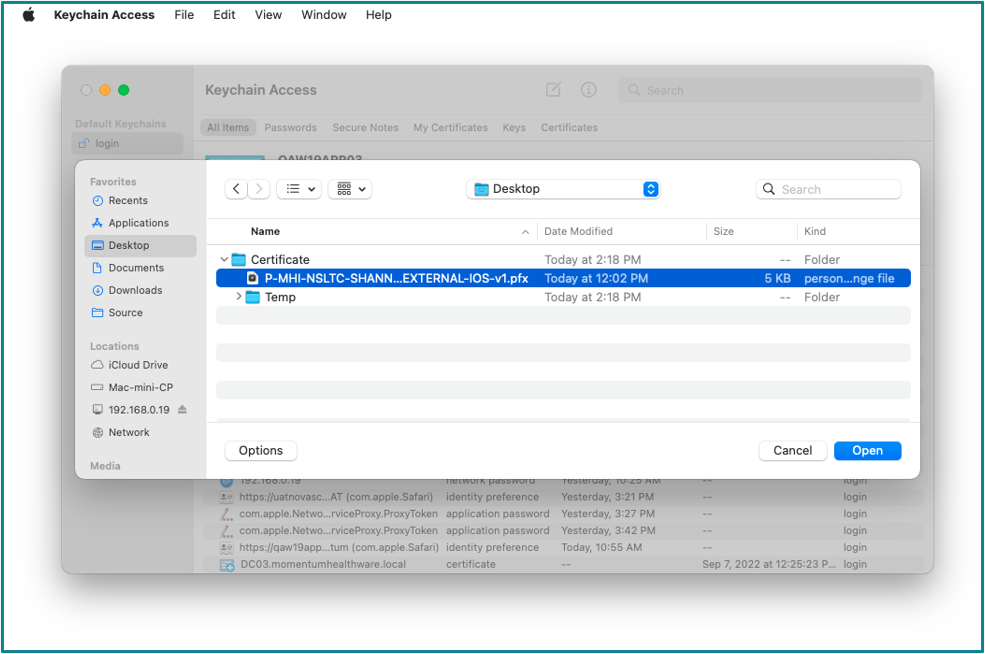
- Select the certificate you wish to import.
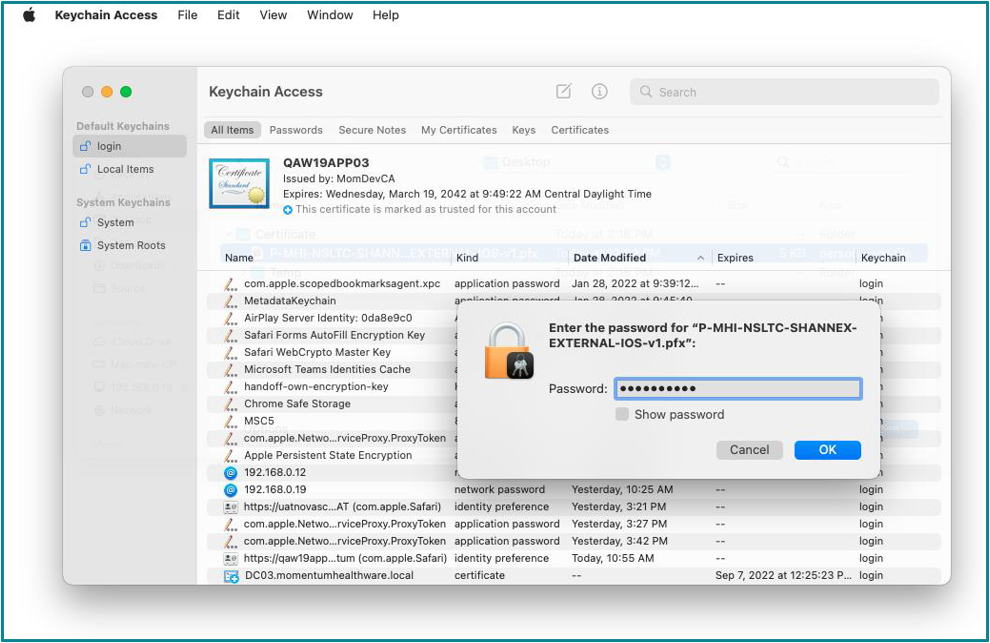
- Enter the password for the certificate, then click OK to complete the process.
- The certificate is now installed and can be used for secure website client authentication.
- Launch your browser and access iAS.
- When prompted, select the certificate to gain access (example only). NOTE: Depending on your configuration, more than one certificate may appear in the list. You may need to complete this step more than once to properly connect to the interRAI Assessment Software. The screenshot below is an example only. The Certificate name will include interRAI and be similar to this: General_iOS_interRAINZ_26_Access_Bundle.pfx
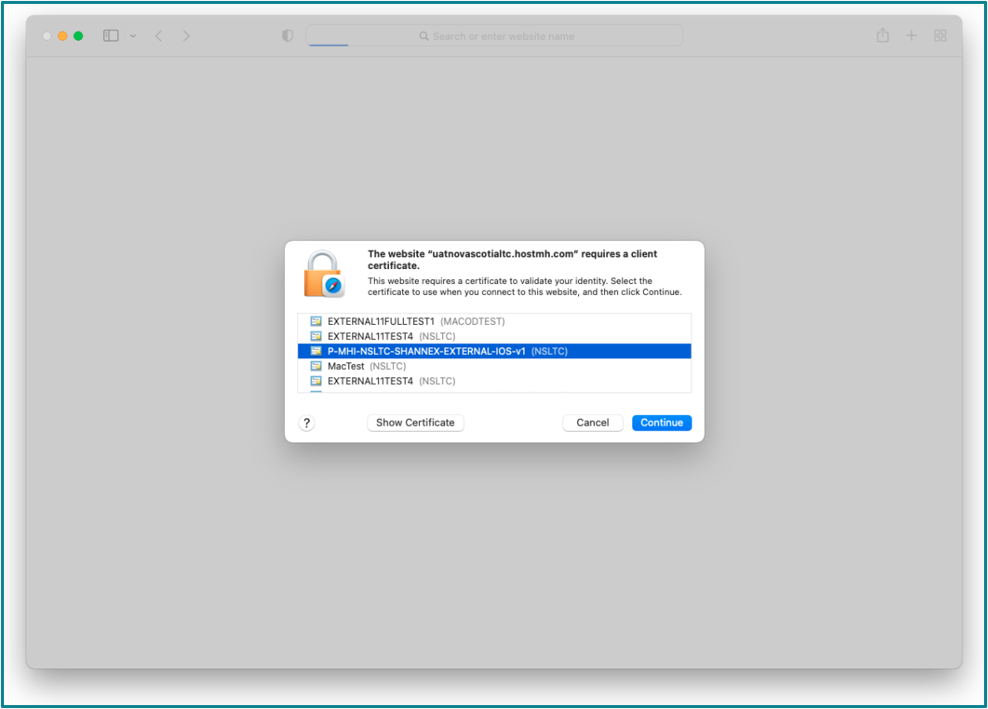
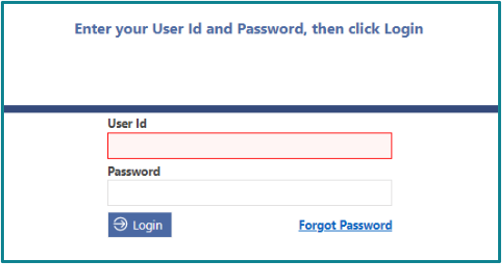
- Click the button to access the site. If successful, the iAS login page will be displayed.
- NOTE: If you have reset the default Keychain password and reinstalled the certificate in both System and login keychains, you may be prompted to enter a password when accessing the site.
- If your recently updated password does not work, you may need to modify certificate access control setting to Allow all applications to access this item.
- If you are unsure, please contact your local IT support.
Was this article helpful?
That’s Great!
Thank you for your feedback
Sorry! We couldn't be helpful
Thank you for your feedback
Feedback sent
We appreciate your effort and will try to fix the article