TABLE OF CONTENTS
If you have received one of the following the Errors and Warnings, then you need to follow this process to have the record transferred to your office.
ACC NHI number is a duplicate value in ZZ_Reference Office – ACC – National but must be unique within all Organisations… ’
ACC Claim number is a duplicate value in ZZ_Reference Office – ACC – National but must be unique within all Organisations… ’
Records with a different claim number will be archived so a new record can be added.
Checking record location and status
1: From the 'Home' page, select the 'Reports' module.
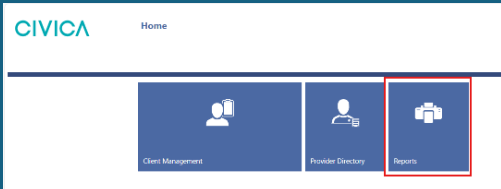
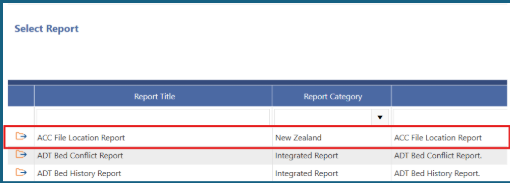
2: Select the report called 'ACC File Location Report'.
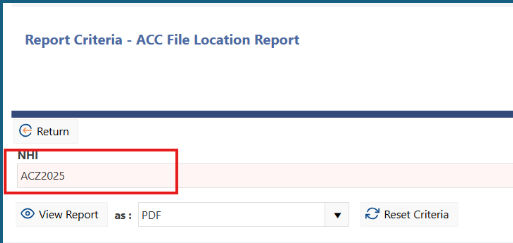
3: Add the person’s NHI into the NHI field.
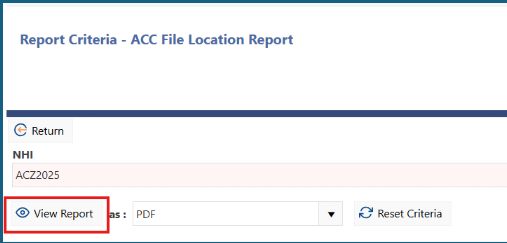
4: Click on View 'Report'.
5: The report will detail the current location of the record and whether the record is active or inactive.
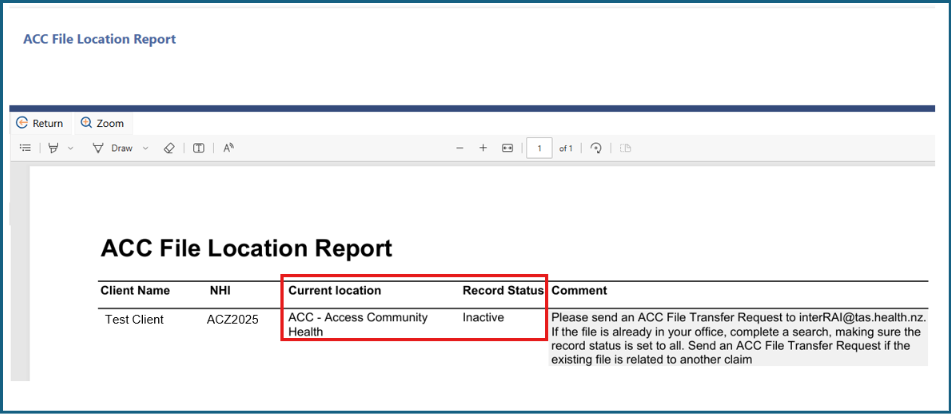
6: There will also be a comment to help you with next steps.
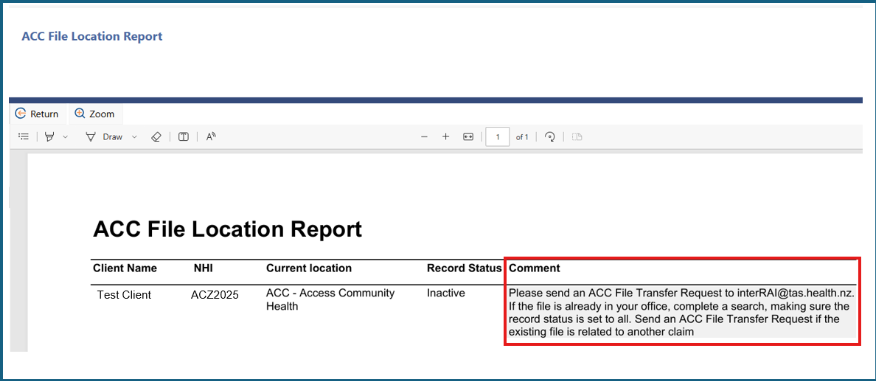
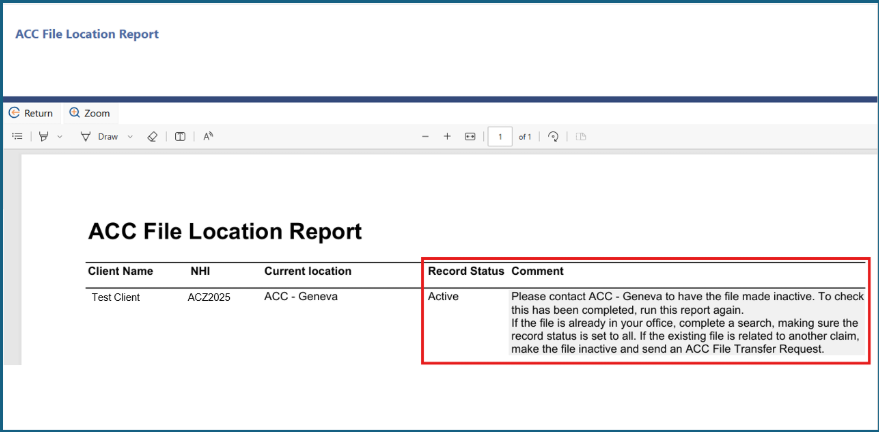
Actions based on report information
If the record is inactive and in another organisation:
- Send an ACC File Transfer Request
If the record is inactive and in your organisation:
- Check the Claim Number in the record
- Claim number doesn’t match: Send an ACC File Transfer Request
Claim number does match:
- Search for the client, making sure the Record Status is set to All.
- Open a new case.
- Add your assessment.
Record is active in another organisation:
- Contact that organisation to have the record made inactive.
- Run the ACC File Location report again to make sure it is inactive.
- Send an ACC File Transfer Request once the record is inactive.
Record is active in your organisation:
- Check the Claim Number in the record.
- Claim number doesn’t match: Make the file inactive and send an ACC File Transfer Request.
Claim number does match
- Search for the client
- Add your assessment.
Was this article helpful?
That’s Great!
Thank you for your feedback
Sorry! We couldn't be helpful
Thank you for your feedback
Feedback sent
We appreciate your effort and will try to fix the article