TABLE OF CONTENTS
- Before starting the care plan
- Locating the care plan
- Care Plan Structure
- Inside the Care Plan
- Activating the Care Plan
- Adding a Care Plan Review Date
- Printing the Care Plan
- Evaluating the Care Plan
- Reviewing and Updating the Care Plan
- Current Care Plan Summary View
Before starting the care plan:
The resident must be admitted into a bed
LTCF or Palliative care assessment has been completed
Information on planned interventions should be gathered and ready to add to the care plan
Locating the care plan
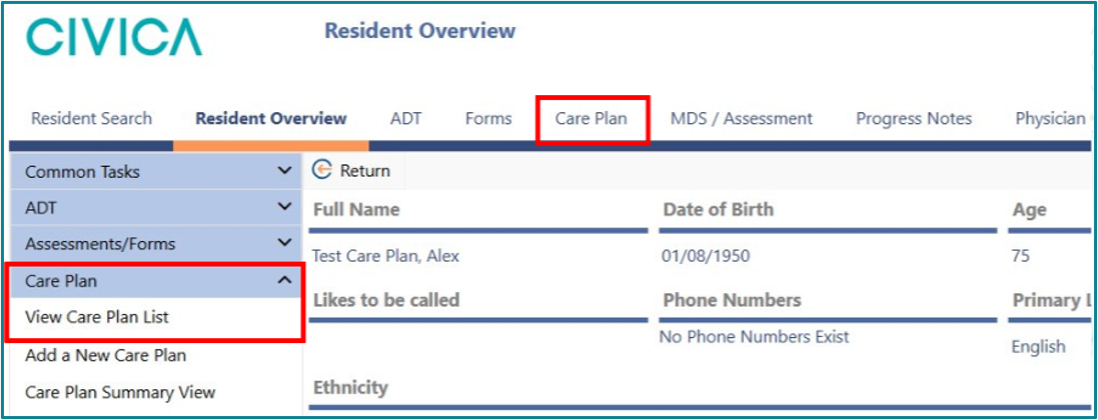
There are two ways to access the Care Plan in iAS.
- In the ribbon menu along the top of the overview select ‘Care Plan’
- In the Common Tasks menu on the left side select ‘Care Plan’, then ‘View Care Plan List’
Care Plan List Screen
On the Care Plan List screen:
- Next Care Plan Review is a manually entered date. This should align with the next assessment date.
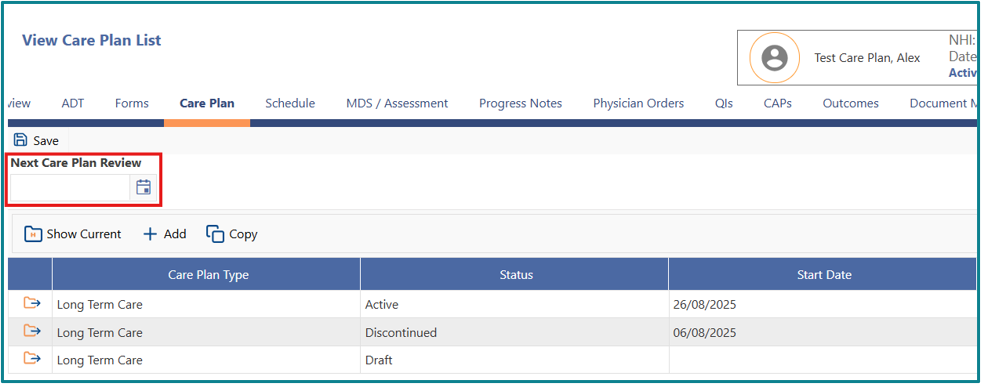
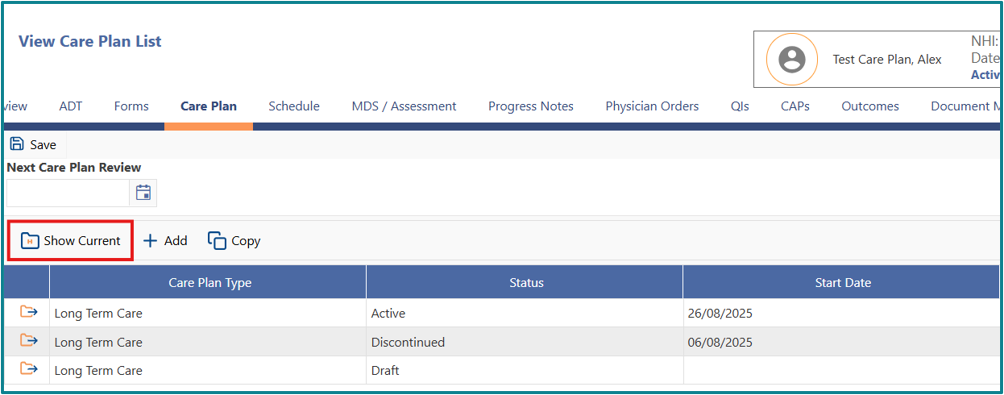
- Show Current reduces the list to active and draft care plans only
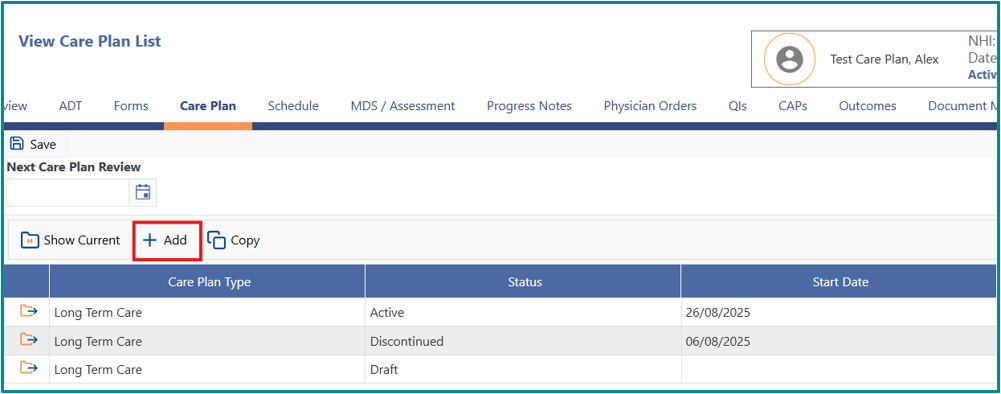
- +Add creates a new, blank care plan
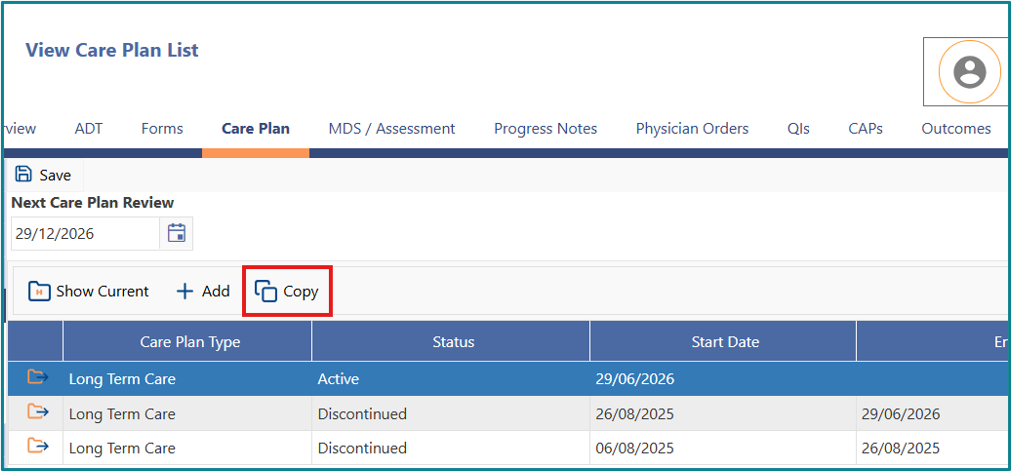
- Copy copies the selected care plan.
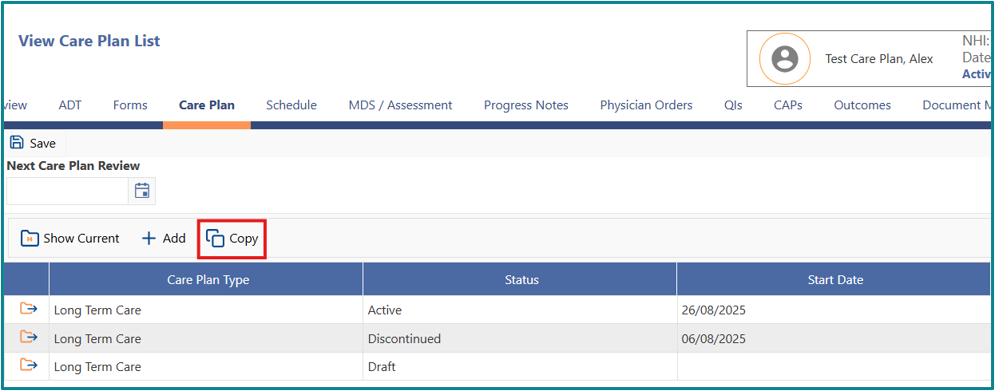
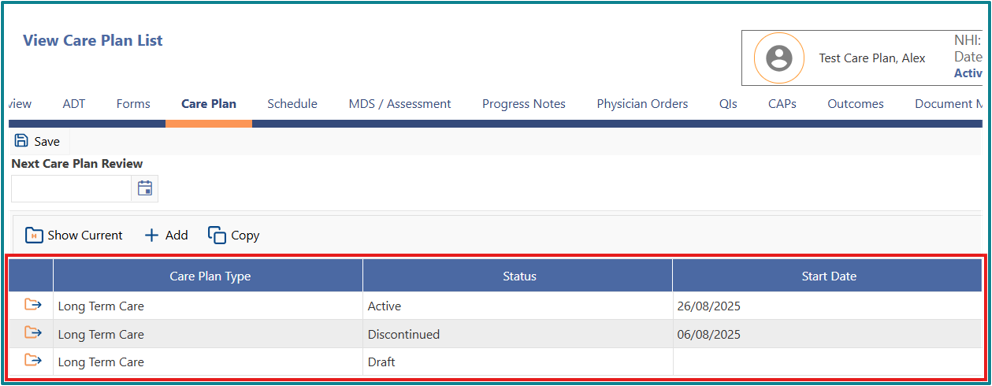
- All care plans are listed with their status, start, and end dates. There can only be one Active care plan. A currently active plan is automatically discontinued when a new care plan is made active.
Care Plan Structure
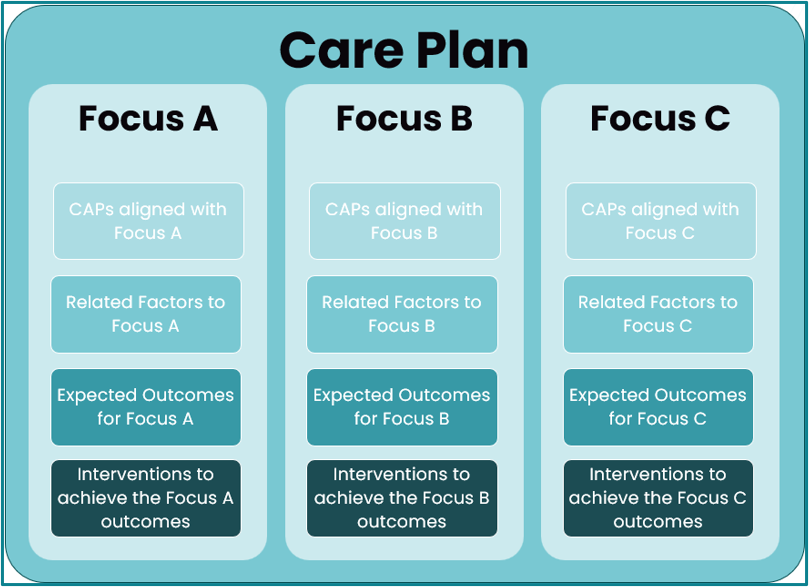
Key Terms:
Focus - an identified care need requires planned interventions. Examples include ADLs, activities, mobility, spiritual or cultural care needs
Related Factors – factors that affect persons care needs and are relevant to the selected focus. Examples include falls risk, anxiety, or a particular health condition
Expected Outcomes - The goals of care linked to the selected focus. Use good goal-setting principles when entering these
Interventions – The actions or supports planned to help achieve the expected outcomes.
Usual Care Plan Workflow:
The usual workflow is:
- Open the care plan area.
- Create or copy a care plan.
- Add one or more Focus.
- Add related CAPs, Related Factors, Expected Outcomes, and Interventions for each Focus.
- Make each Focus active.
- Make the whole Care Plan active.
- Add the Next Care Plan Review date.
- Print or review the care plan as needed.
- Evaluate and update the care plan when due.
Inside the Care Plan
On the care plan screen:
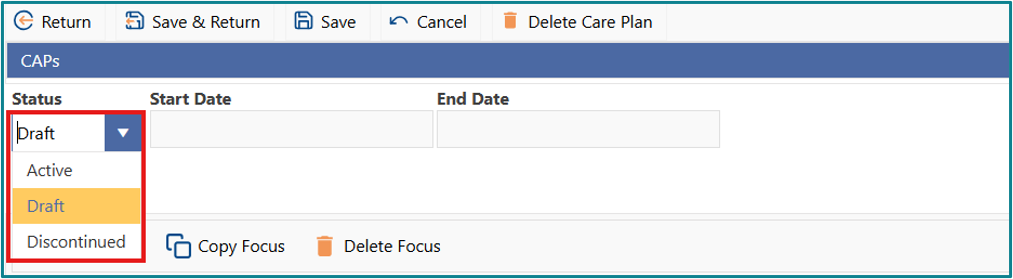
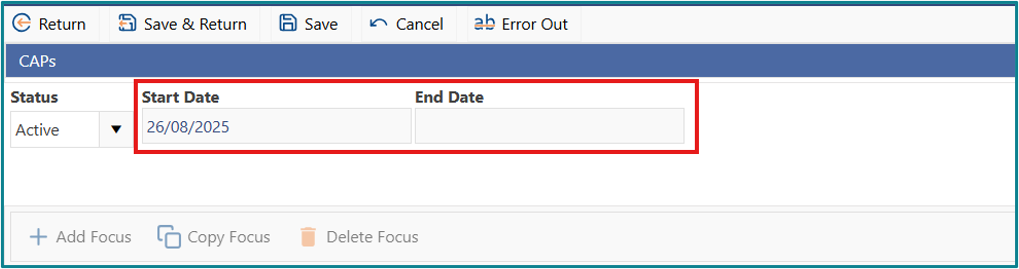
- Status shows the current state of the plan. Use the drop-down list to change the status. select the option needed.
- Start Date and End Date show the period that the plan covers. The end date is blank for active care plans.
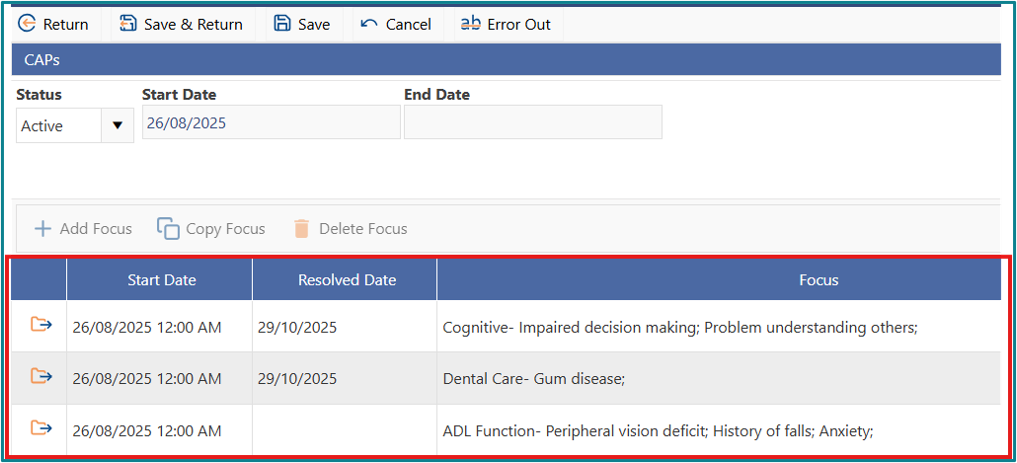
- Foci form the main structure of the care plan. Each focus records the care need, related factors, expected outcomes, and interventions.
Adding a Focus
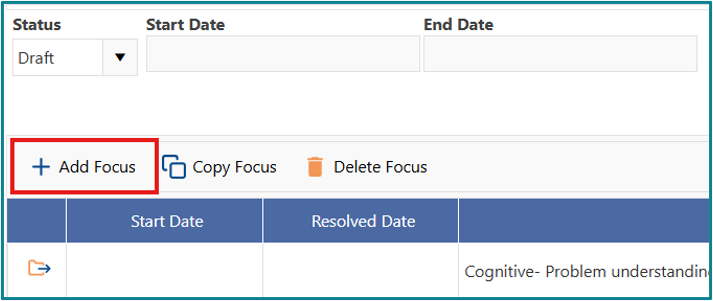
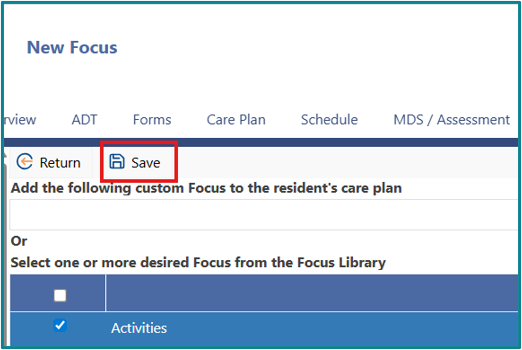
- Click on Add Focus
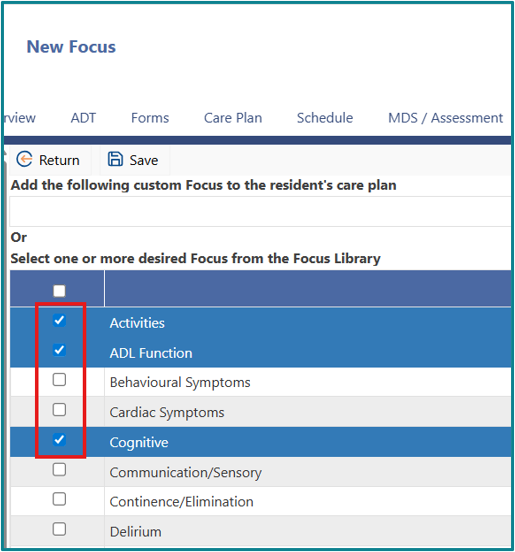
- Select one or more focus by ticking the checkboxes.
- Click on Save
- Adding a custom focus.
Notes on custom foci:
- only one custom focus can be added at a time
- use a custom focus only when a suitable library option is not available.
- Click on ‘Add Focus’
- Type in the name of the Focus and then click ‘Save’
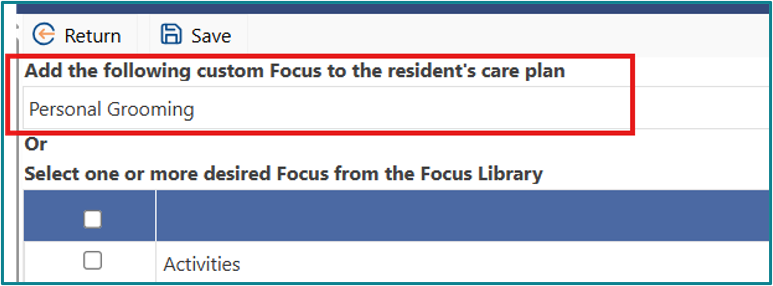
If only one focus is selected or created, you will be taken directly to that focus. If multiple foci are selected, they will appear on the Edit Care Plan page, where you can select the focus you want to work on.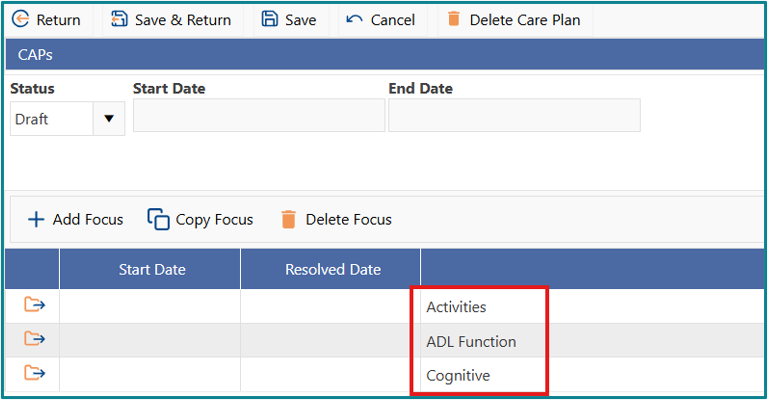
The Edit Focus screen
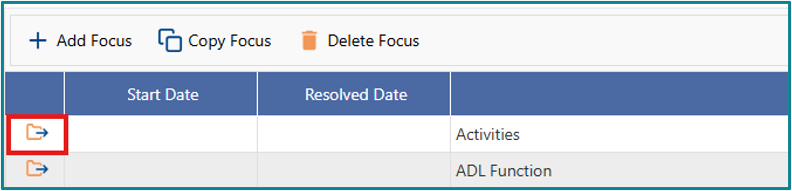
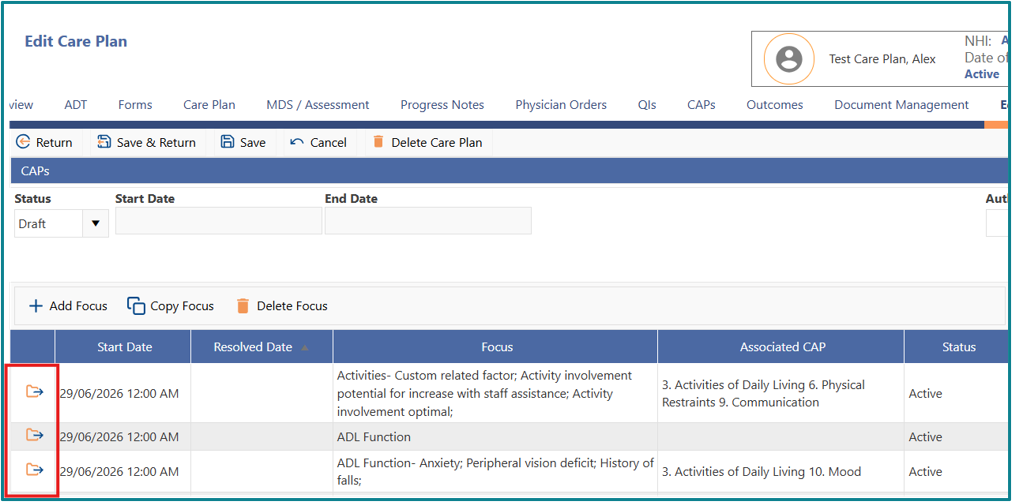
- Open the Edit Focus screen by clicking on the file icon on the left of the focus
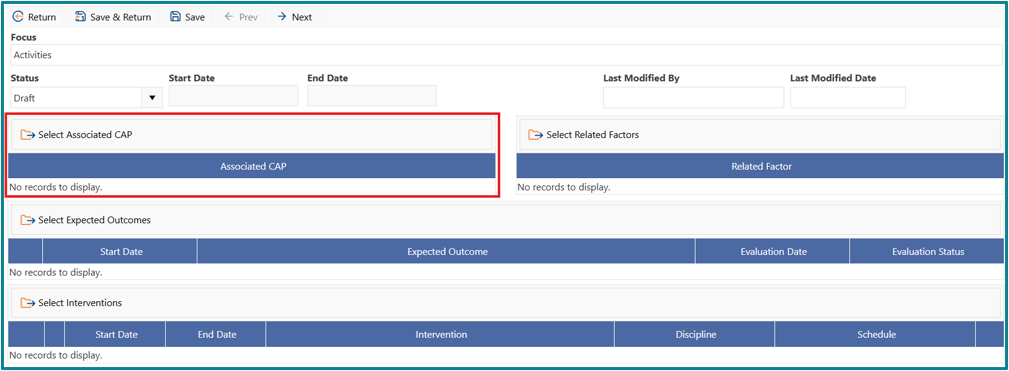
- Section for adding the CAPs from the assessment that are related to this focus
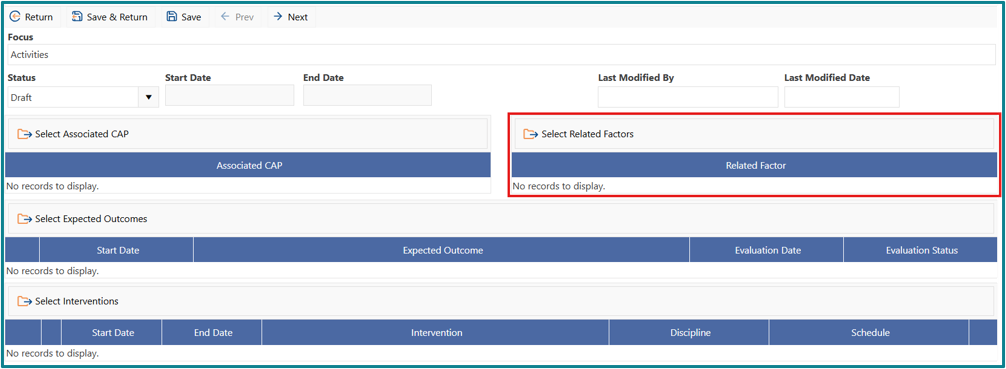
- Section for adding other factors that may influence the persons care needs related to this focus
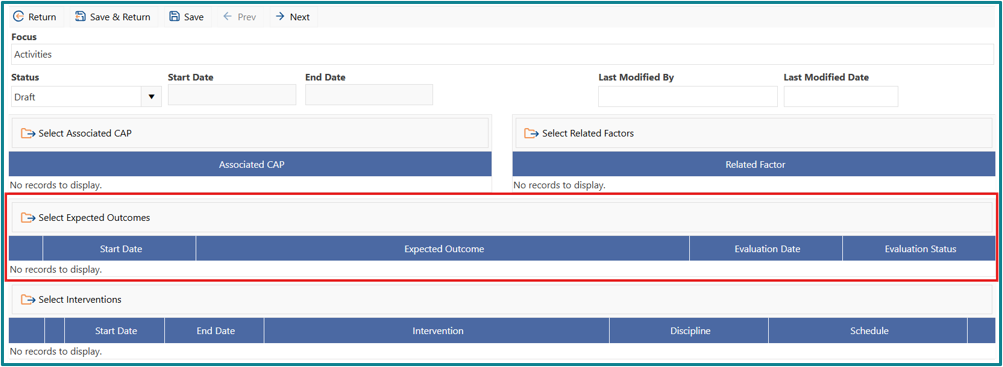
- Area for writing goals of care and evaluating them before the next care plan
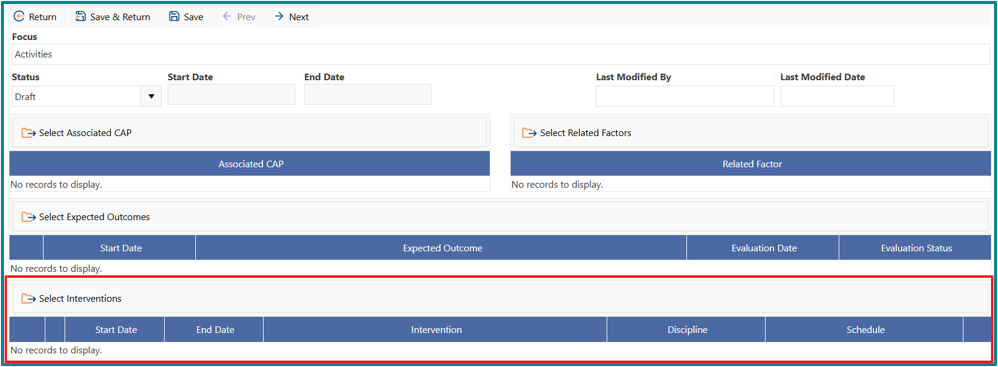
- Area for the interventions to be provided towards achieving the goals of care
Adding CAPs to your focus
- Click on the file icon to the left of Select Associated CAP.

- CAPs from the last completed assessment are displayed, triggered CAPs are highlighted in yellow.
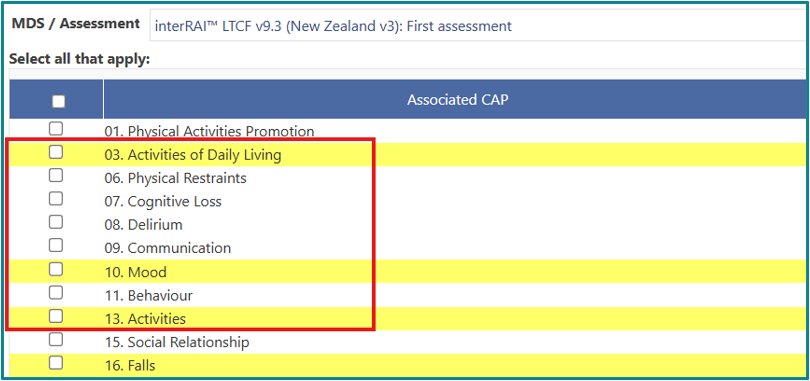
- Tick the CAPs that apply for the focus being care planned.
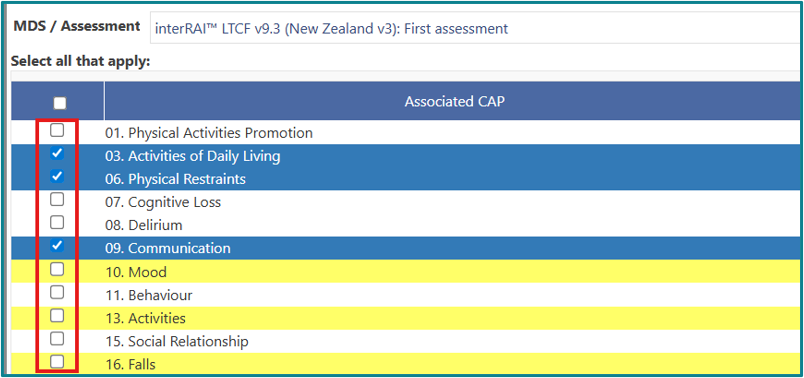
- Click on Save and Return.
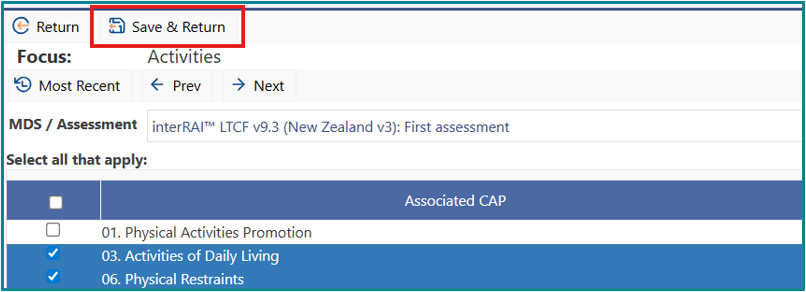
- Selected CAPs are now displayed on:
- Edit Focus Page.
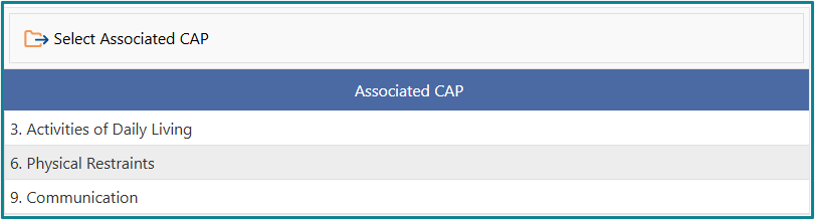
- and the Edit Care Plan page.

Adding Related Factors to your focus
- Click on the file icon to the left of Select Related Factors.

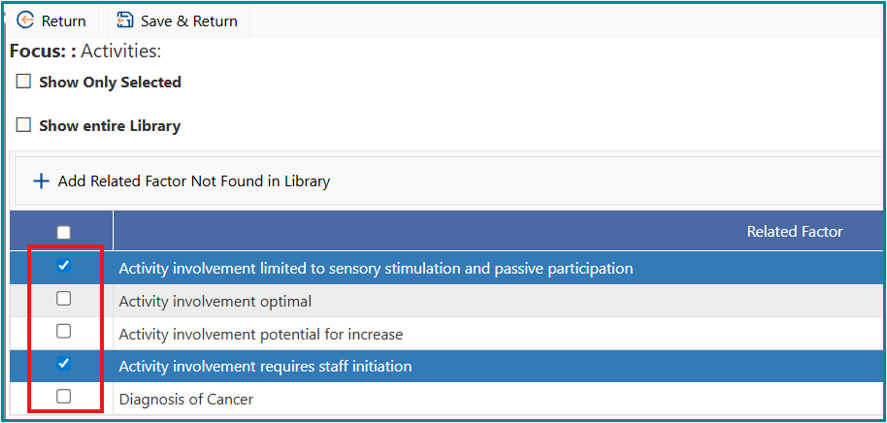
- Tick the Related Factors that apply to the focus.
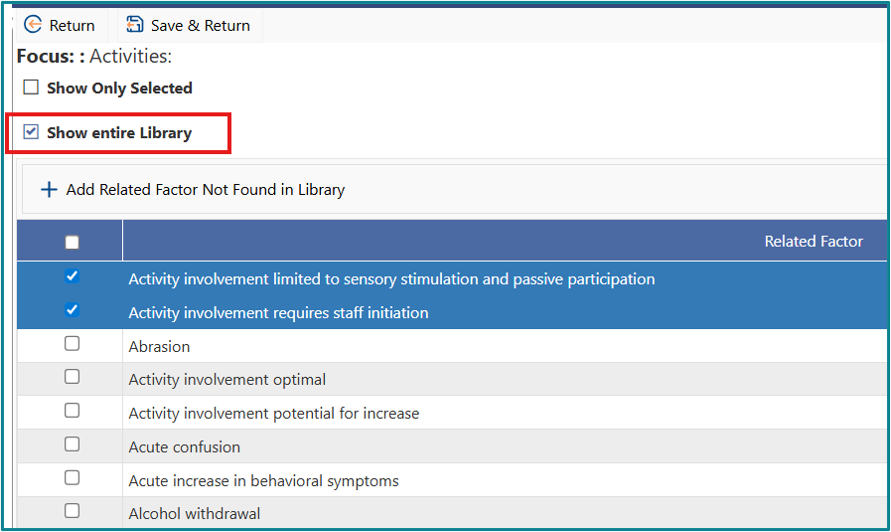
- Click Show Entire Library to display all available options.
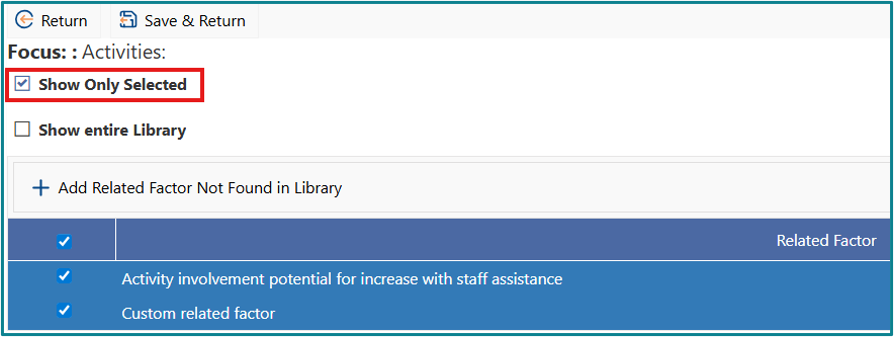
- Click Show only Selected to view only the related factors you have selected.
- To add a custom related factor:
- Click on Add Related Factor Not Found in Library
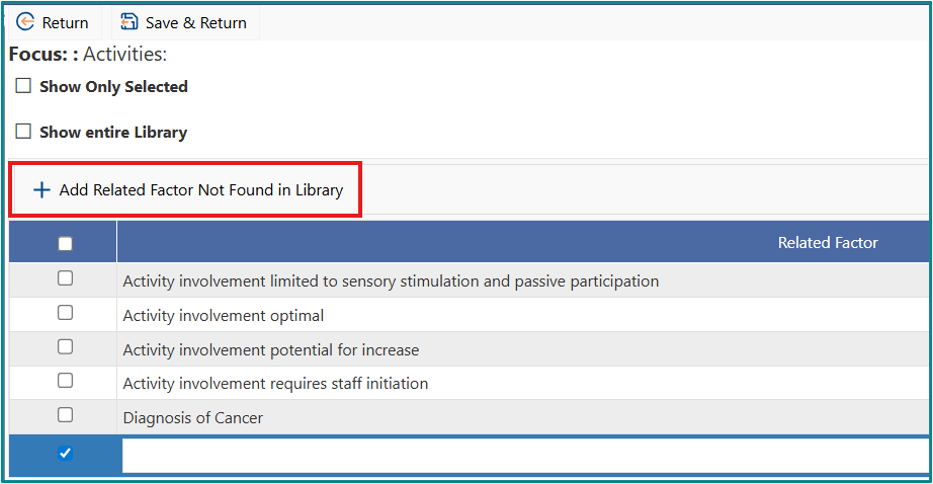
- Type in the custom Related Factor into the new field.
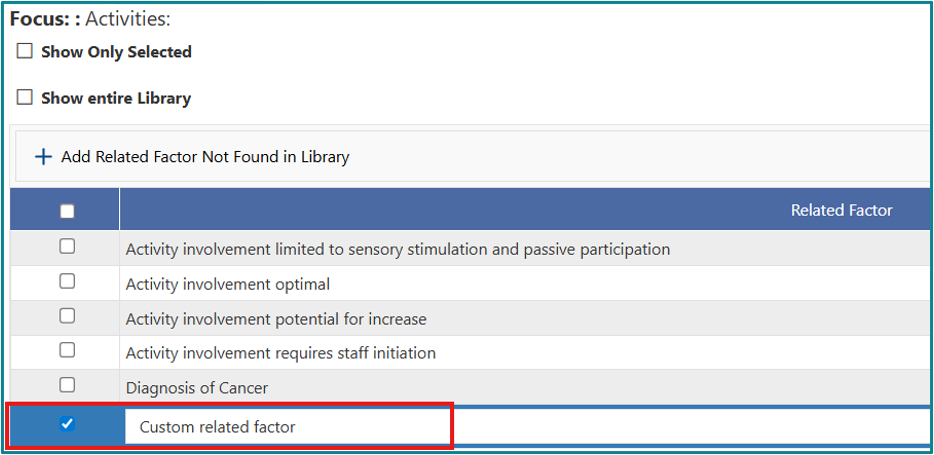
- Click on Add Related Factor Not Found in Library
- To edit an existing related factor:
- Click the related factor once to highlight it
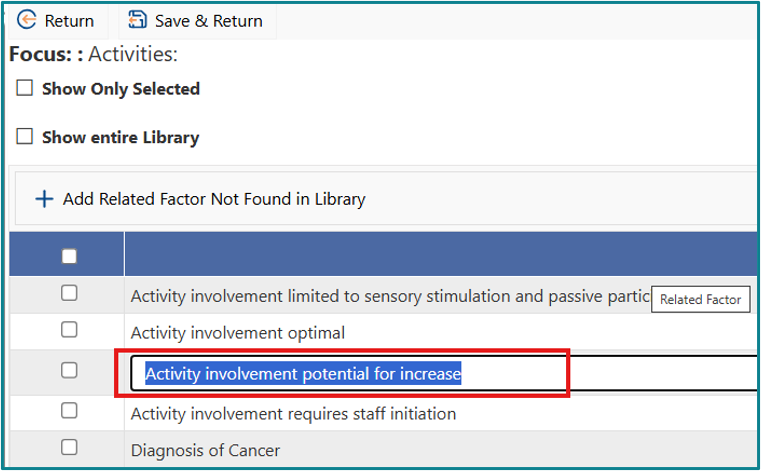
- Change the wording as needed
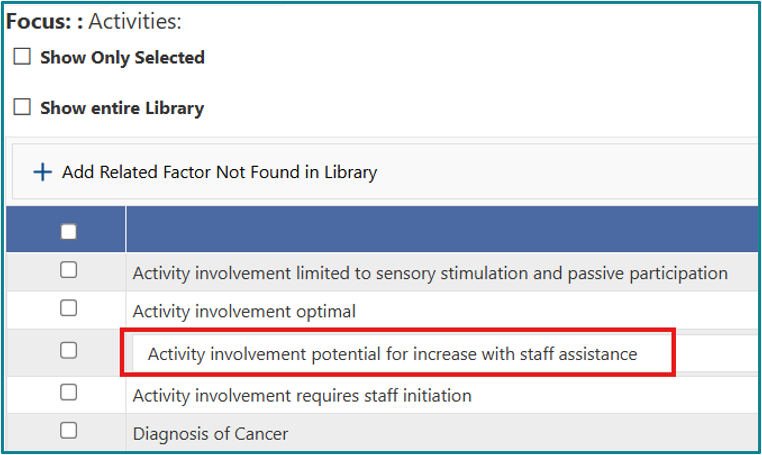
- Click the related factor once to highlight it
- Click on Save and Return.
Adding Expected Outcomes to your focus:
- Click on the file icon to the left of Select Expected Outcomes.

- Tick the expected outcomes that apply to the focus.
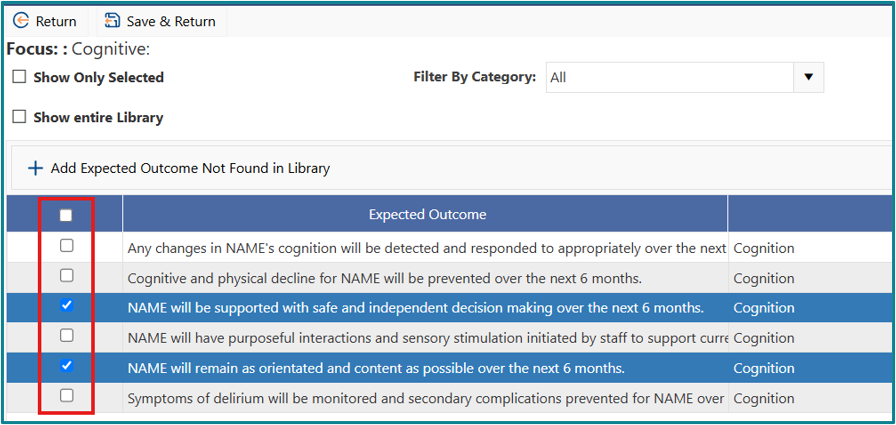
- Click Show Entire Library to display all available options.
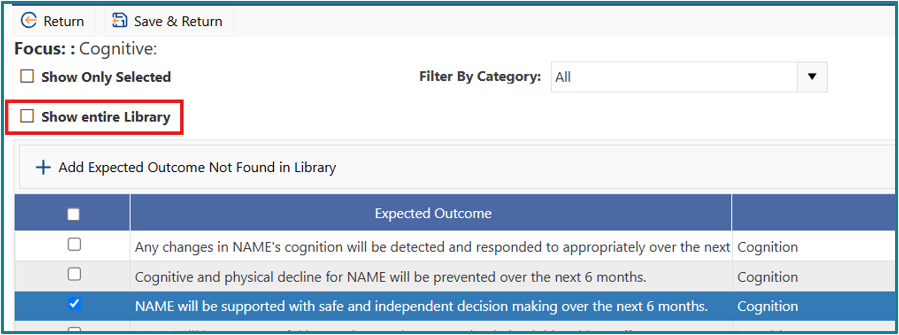
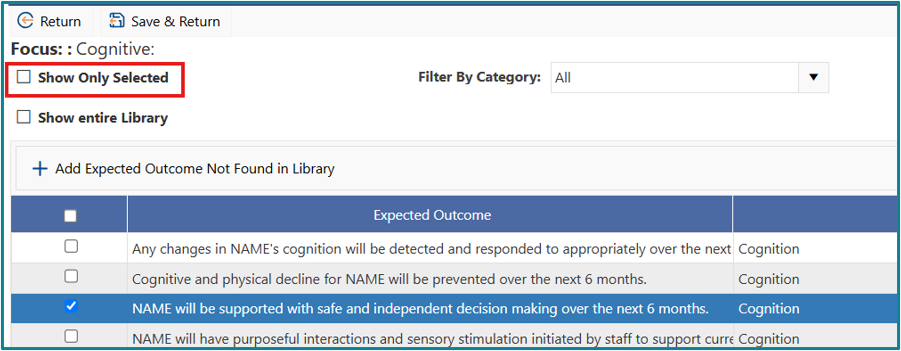
- Click Show only Selected to view only the expected outcomes selected.
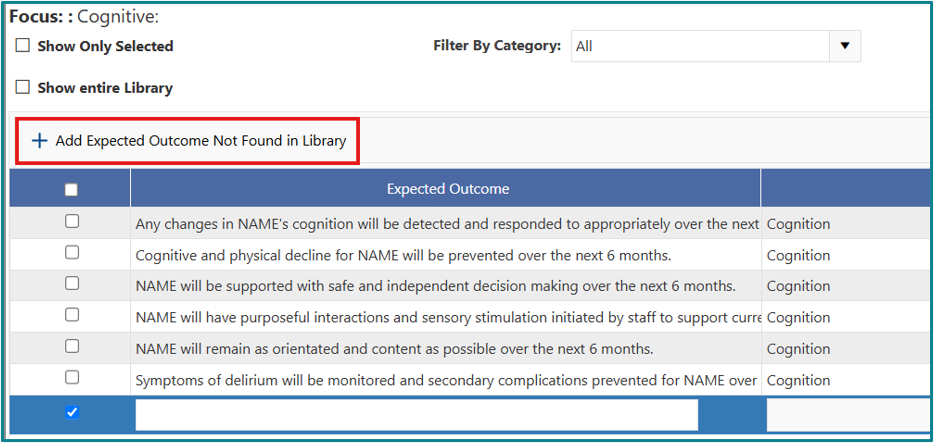
- To add a custom expected outcome:
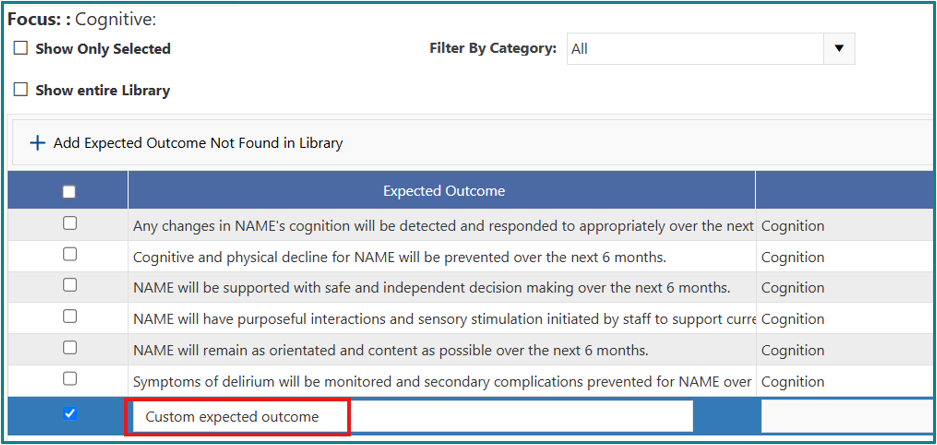
- Click on Add Expected Outcome Not Found in Library
- Type in the custom Expected Outcome into the new field
- Click on Add Expected Outcome Not Found in Library
- To edit an existing Expected Outcomes:
- Click the Expected Outcome once to highlight it.
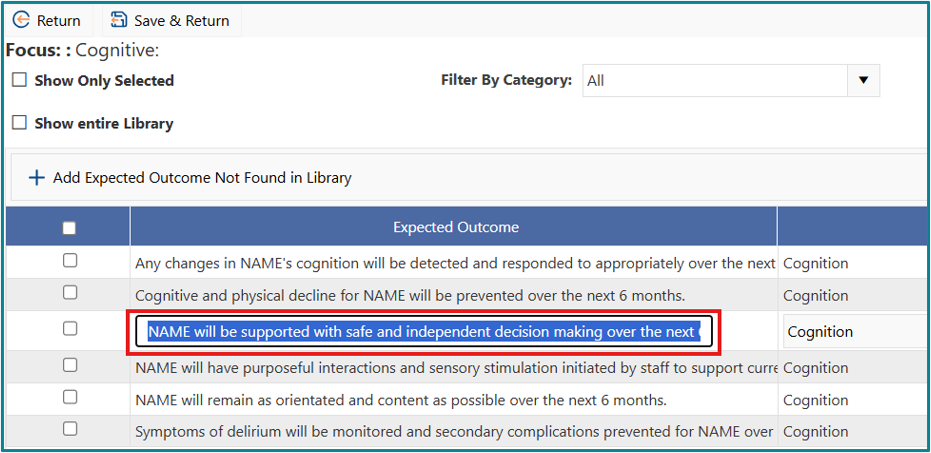
- Change the wording as needed.
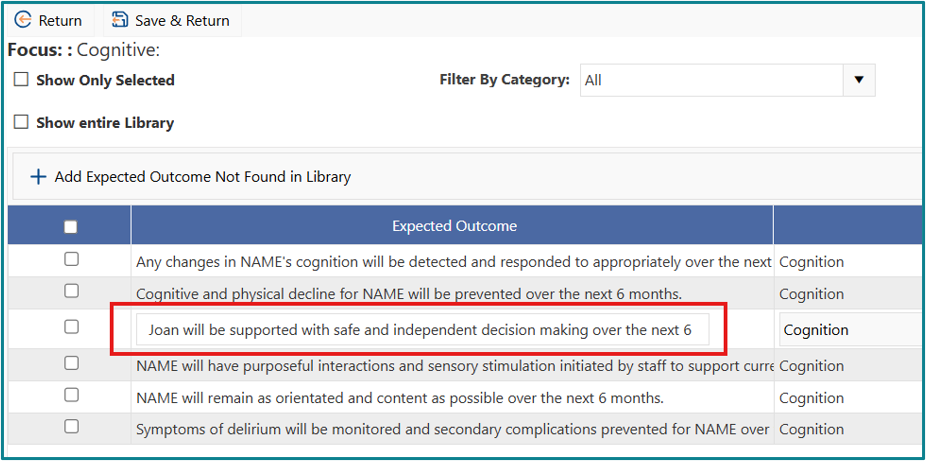
- Click the Expected Outcome once to highlight it.
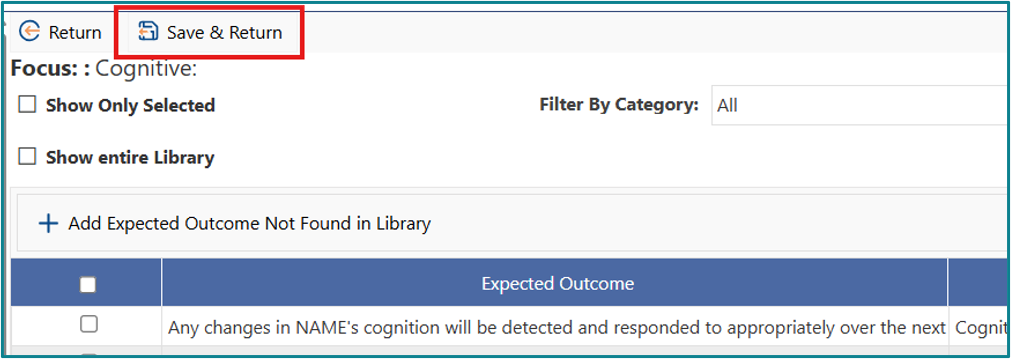
- Click on Save and Return.
Added Expected Outcomes are now listed on the Edit Focus screen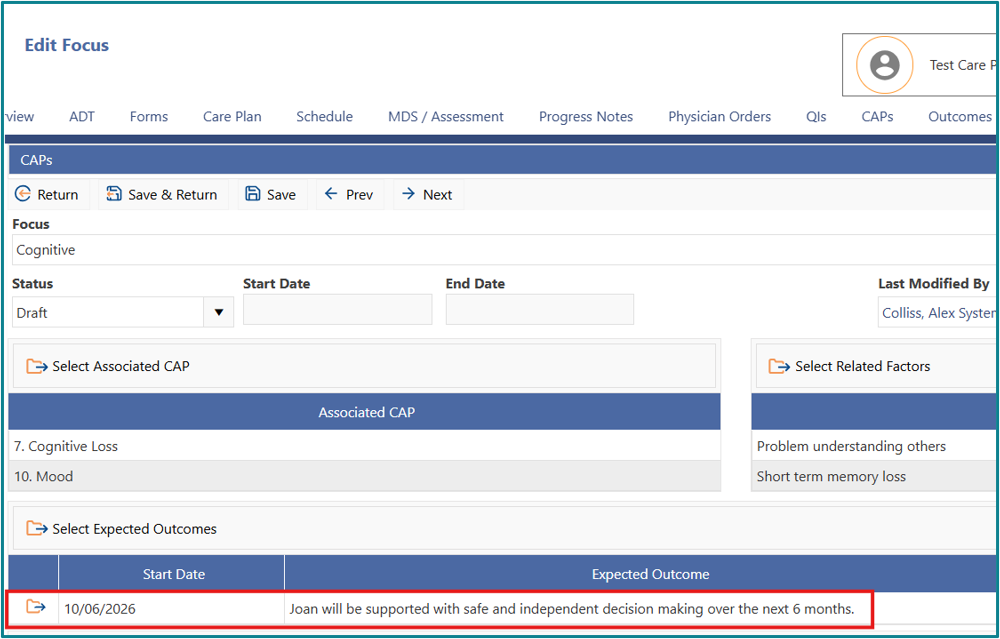
Classifying Expected Outcomes
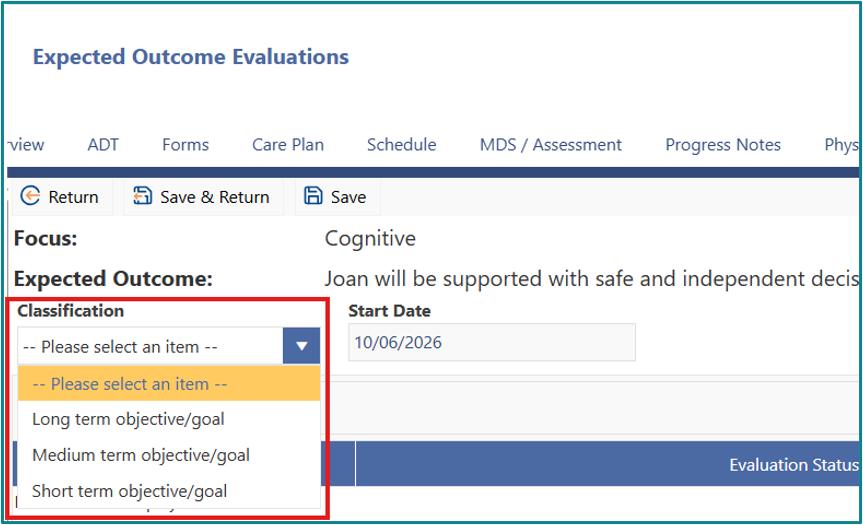
Once expected outcomes have been entered, classify each one as a long, medium, or short-term objective or goal.
- Click on the file icon to the left of each Expected Outcome.

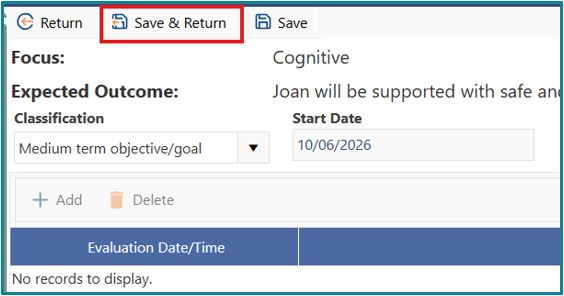
- Select either long, medium, or short-term objective/goal from the Classification drop down.
- Click on Save and Return.
Adding Interventions
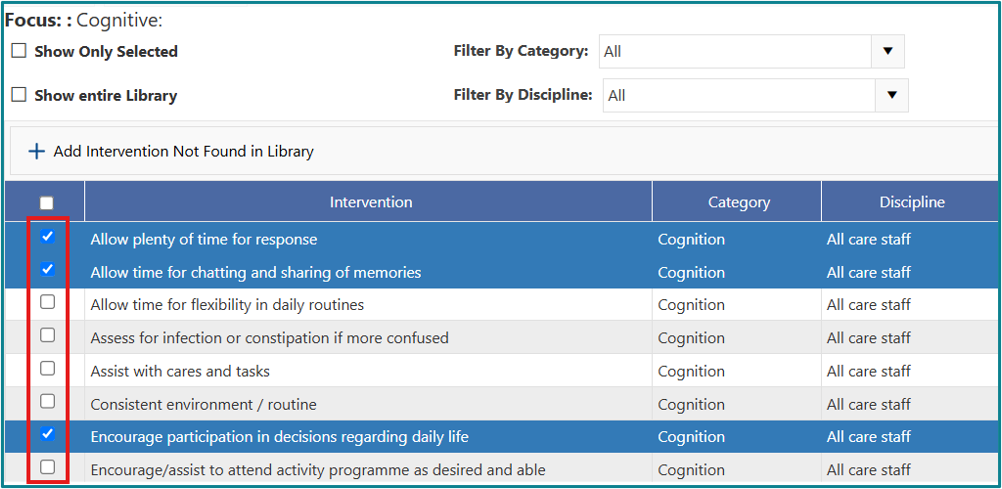
- Click on the file icon to the left of Select Interventions.

- Tick the Interventions that apply to the focus.
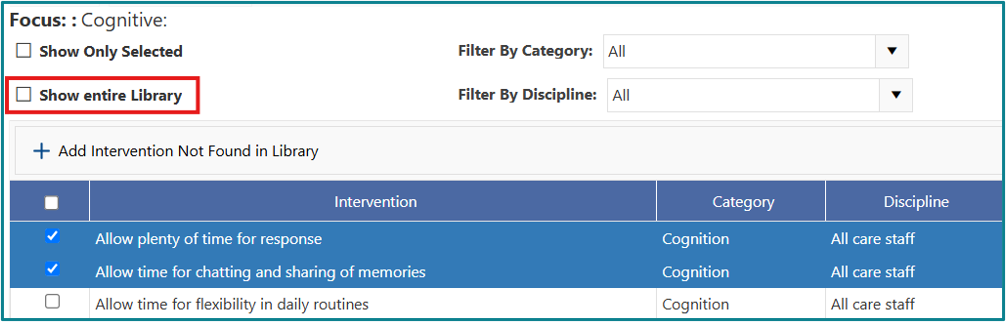
- Click Show Entire Library to display all available options.
- Click Show only Selected to view only the interventions you have selected.
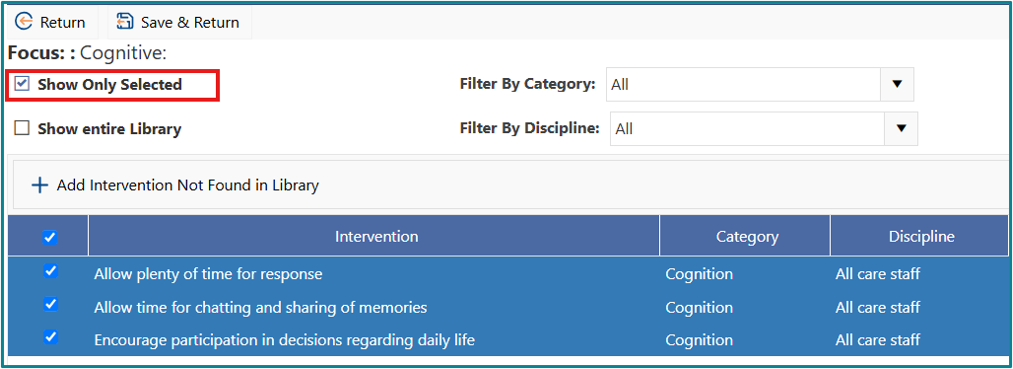
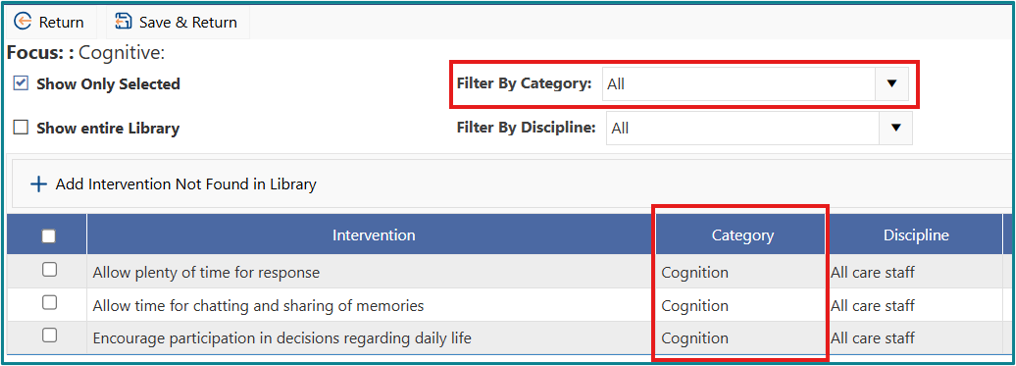
- Use Filter by Category to see only those attributed to a particular category.
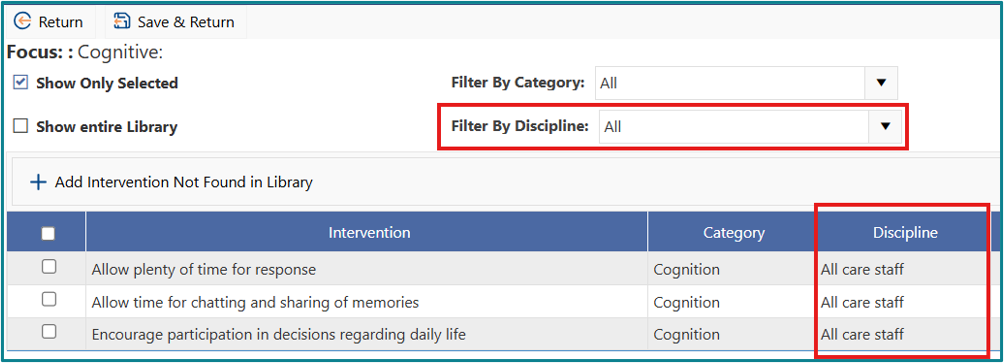
- Use Filter by Discipline to see only those attributed to a particular discipline.
- To add a custom intervention:
- Click on Add Intervention Not Found in Library.
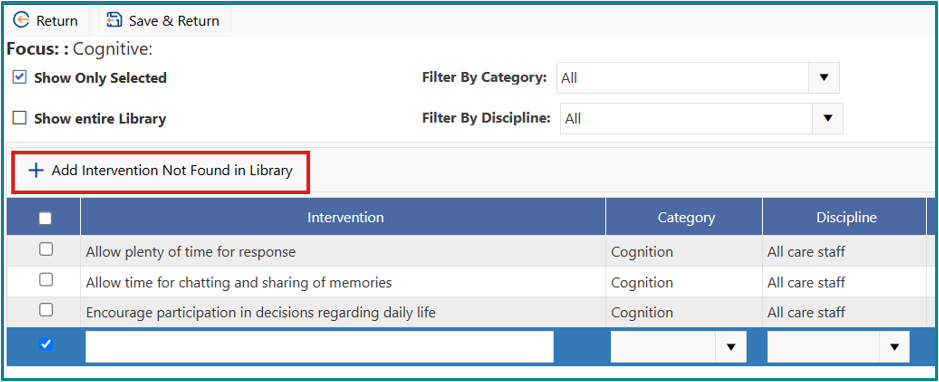
- Type in the custom Intervention into the new field.
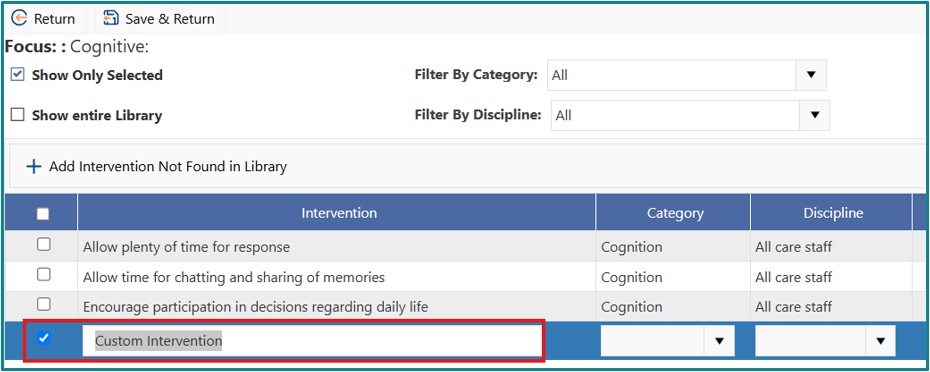
- Click on Add Intervention Not Found in Library.
- To edit an existing intervention:
- Click on the Intervention to edit once and it will be highlighted.
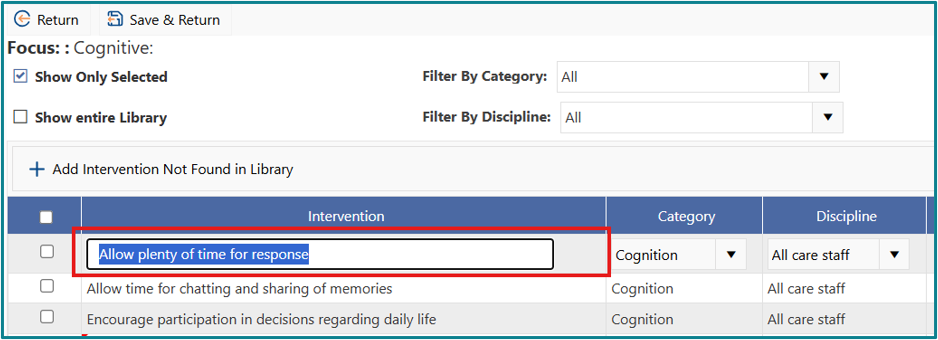
- Change the wording as needed.
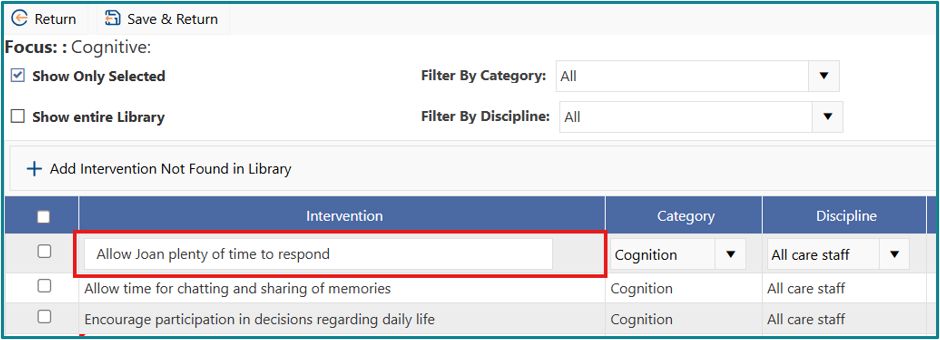
- Click on the Intervention to edit once and it will be highlighted.
- Click on Save and Return.
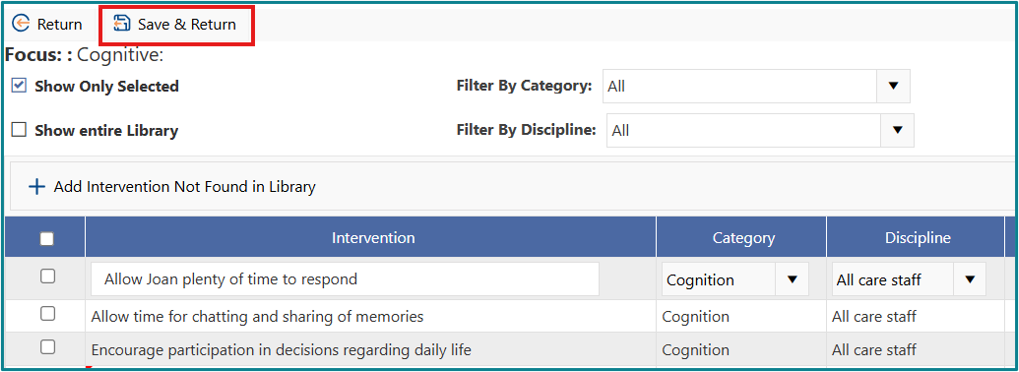
Added Interventions are now listed on the Edit Focus screen.
Activating the Focus
Once the CAPs, related factors, expected outcomes and interventions have been entered, the focus needs to be made active.
Each focus must be made active, before the care plan can be completed.
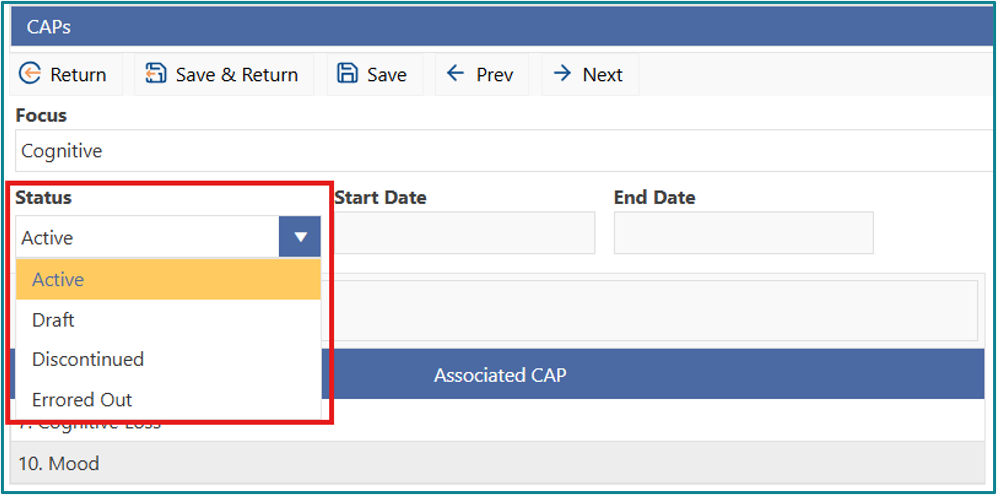
- In the Focus, select ‘Active’ from the Status drop down menu.
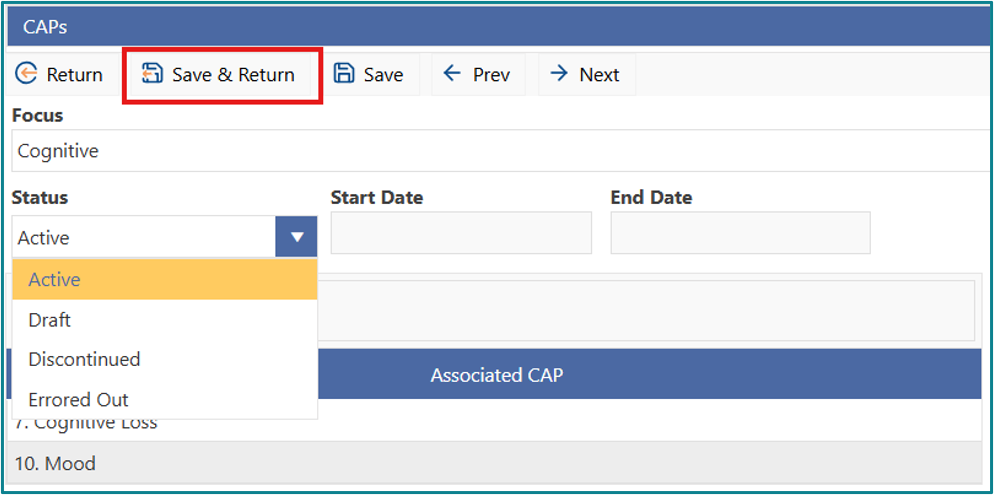
- Click on Save and Return.
The focus will now show as ‘Active’ on the Edit Care Plan page. Start date will be added when the whole care plan is made active.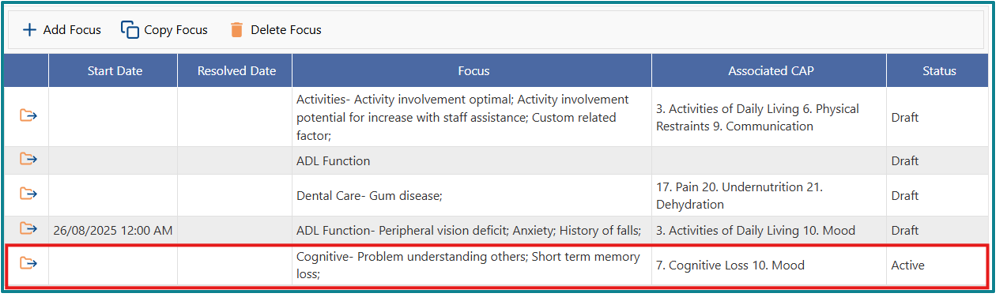
Activating the Care Plan
Once all foci have been entered and made active, make the whole care plan active.
- Only one care plan can be active at a time
- Any other active care plans will be automatically discontinued
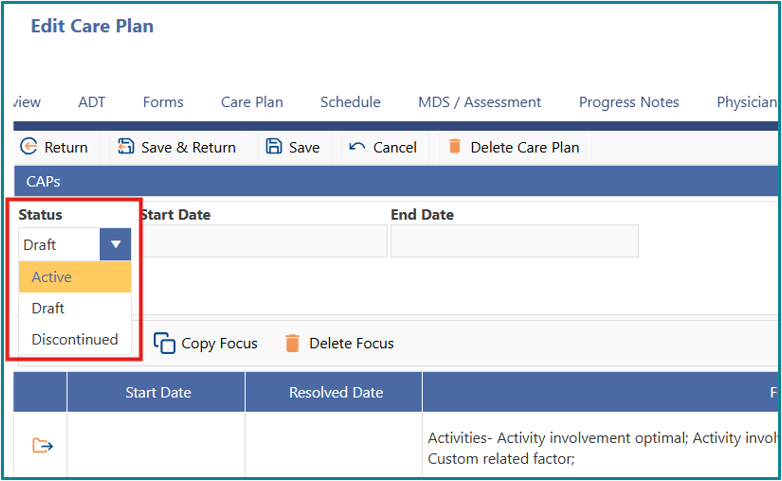
- Select ‘Active’ from the Status drop-down menu.
- Click on Save and Return.
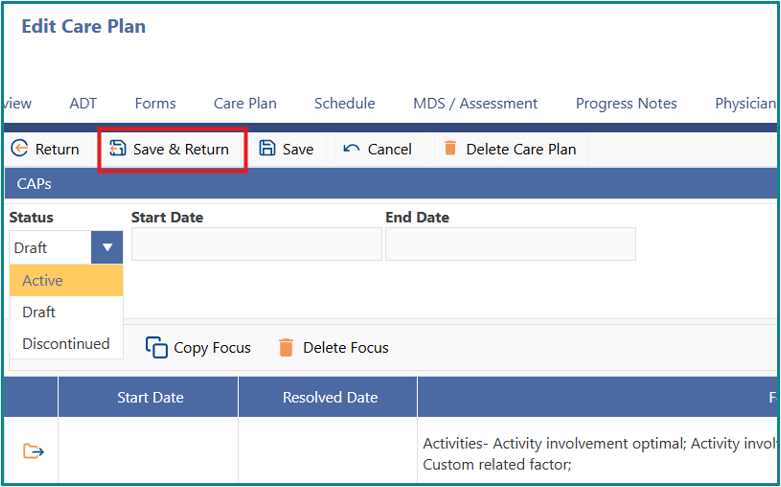
The Care Plan will now show as active in the View Care Plan List Page.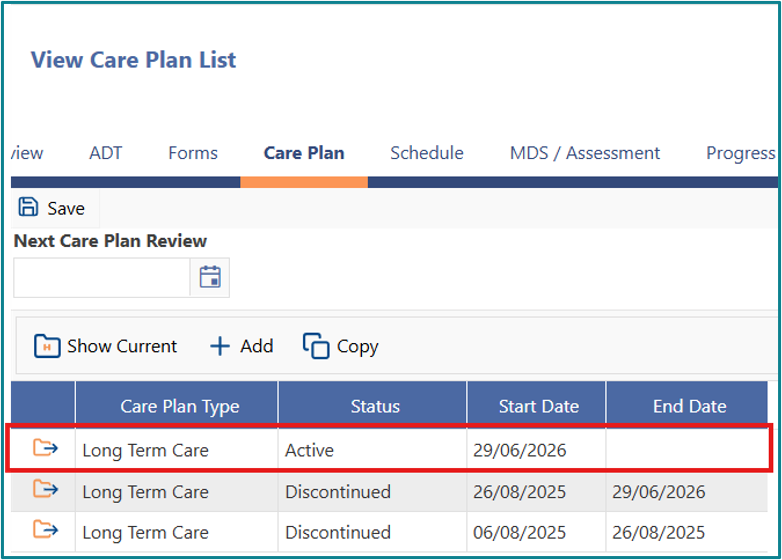
Adding a Care Plan Review Date
The care plan review date is added on the ‘View Care Plan List’ page. The care plan review date should align with your reassessment schedule.
Why this matters: Once your care plan is active, setting a review date ensures timely evaluation and updates.
- Enter the review date or use the date picker. You cannot enter a date in the past—only today’s date or a future date is allowed.
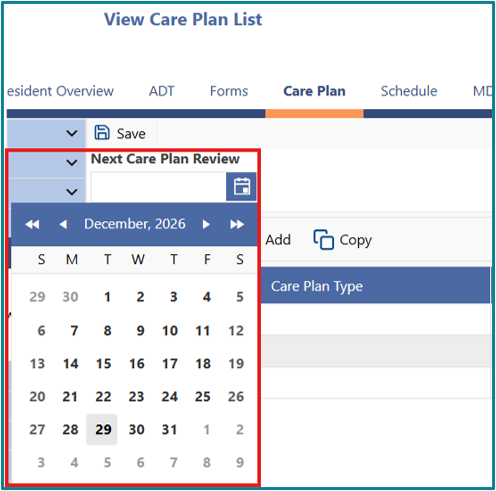
- Click on Save.
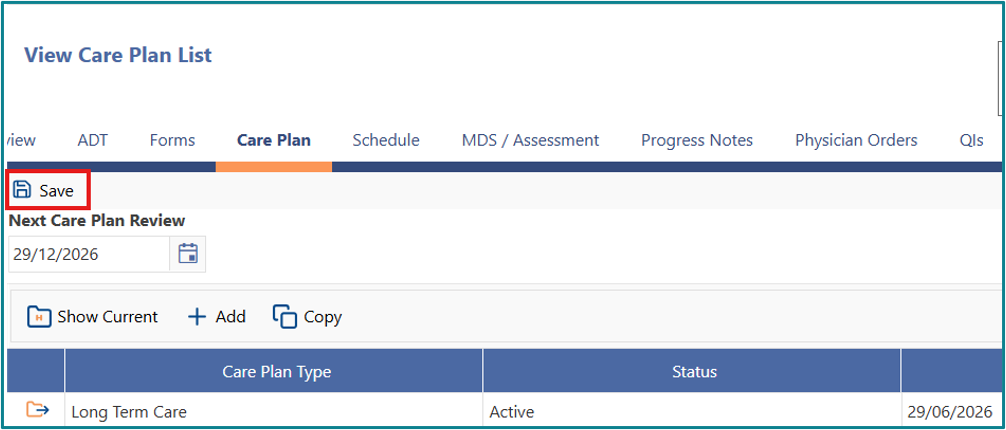
Once entered, the review date will populate onto the Client Overview Page.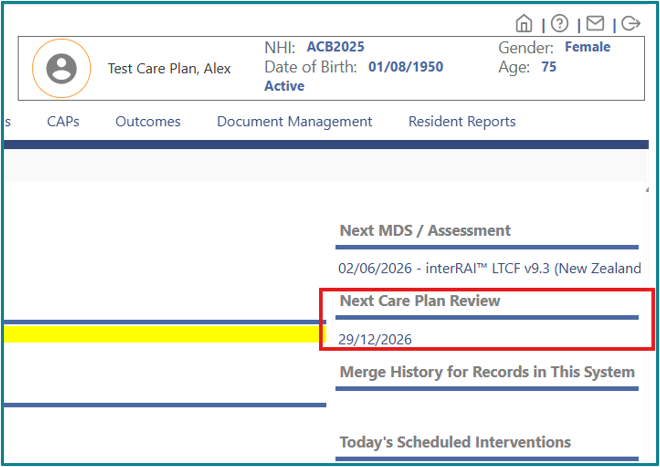
Printing the Care Plan
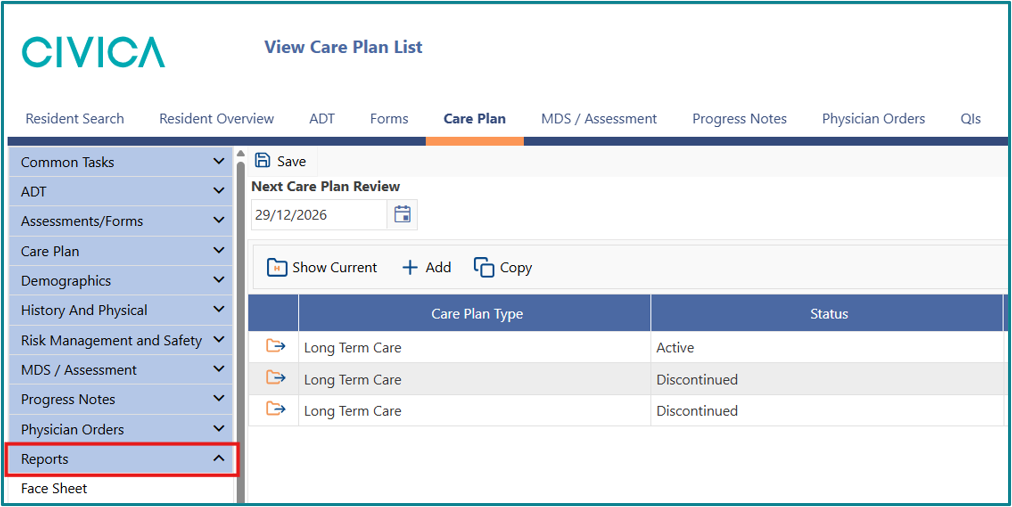
- Go to the Reports section of the left side menu
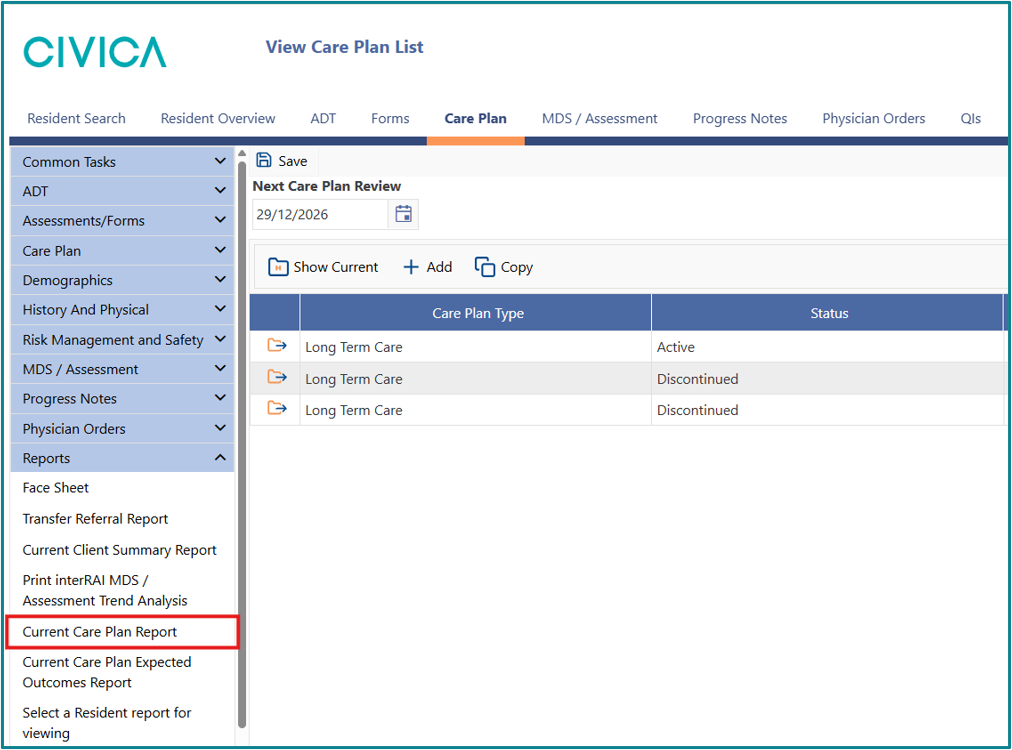
- Select Current Care Plan Report
Each Focus is printed with the Associated CAPs, Related Factors, Expected Outcomes, Interventions, Evaluation Dates and Status clearly recorded.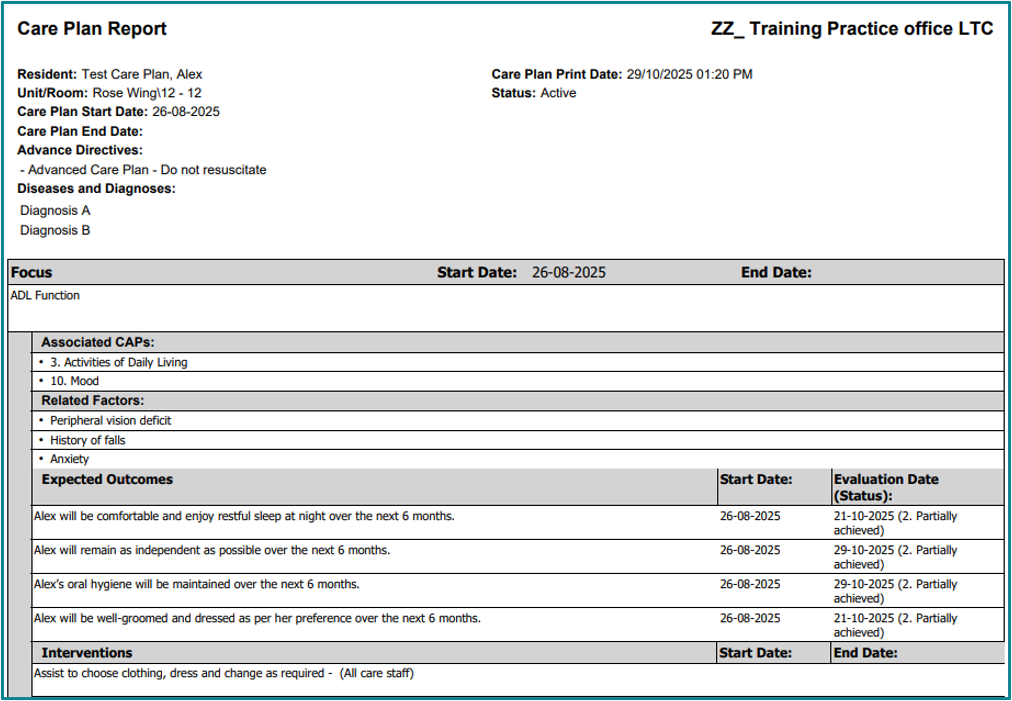
Evaluating the Care Plan
Each Expected Outcome should be evaluated in the active care plan before proceeding to updating the care plan.
- Click on the Care Plan tab and choose the Active Care Plan from the list.
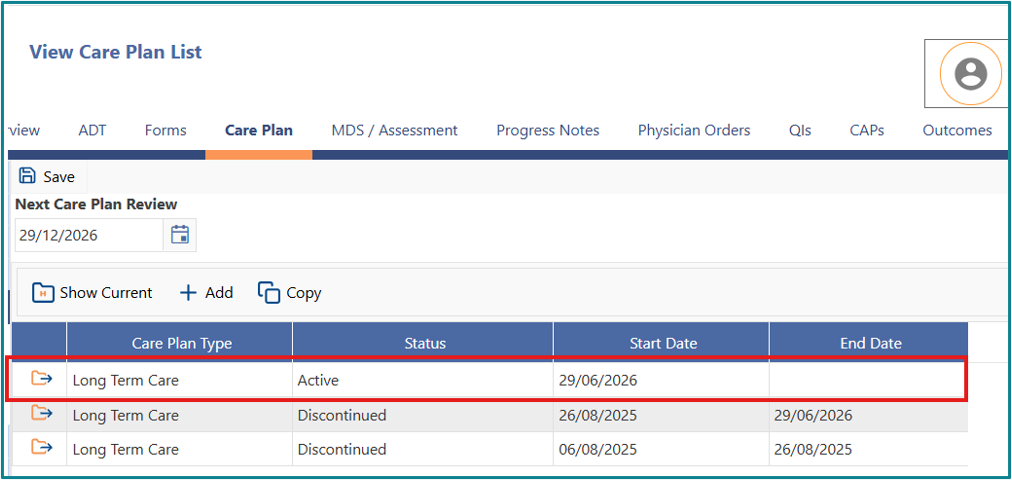
- Click on the file icon next to the Focus you wish to evaluate.
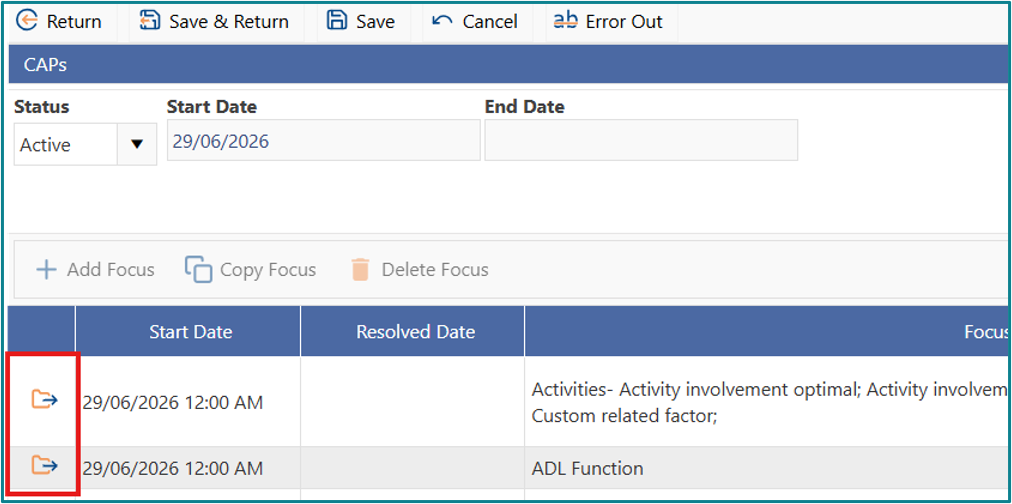
- Chose the Expected Outcome you want to evaluate using the File icon.

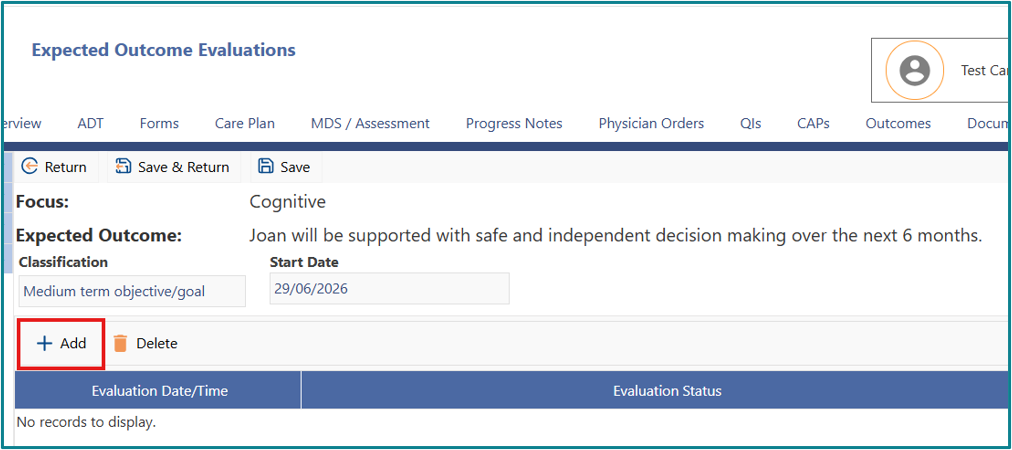
- Once in the Expected Outcome, click the Add button.
- Enter the date by typing it in or using the date picker.
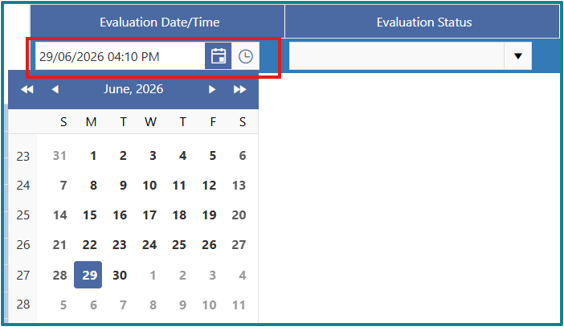
- Choose the Evaluation Status from the drop-down menu.
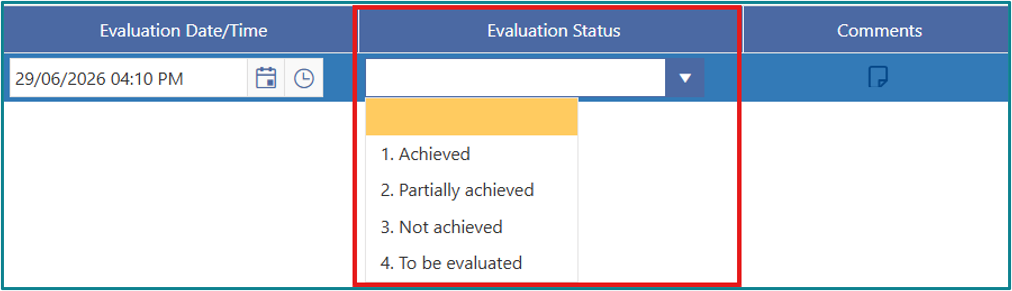
- Comments can be added by clicking on the sheet icon.
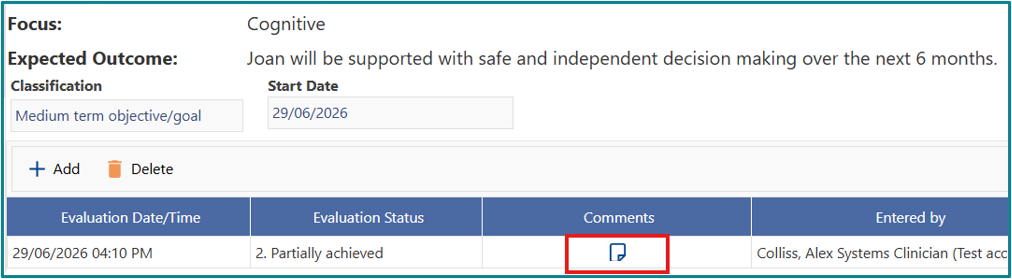
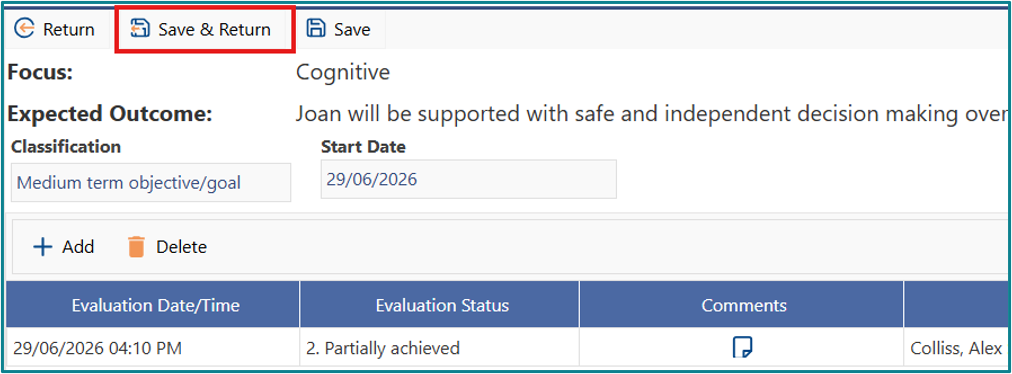
- Click on Save and Return.
Reviewing and Updating the Care Plan
An active care plan cannot be edited. To review and update it, you must copy it into a draft.
Once in draft you can:
- Add, remove, or change foci.
- Evaluate and update the care plan as needed.
- Delete the draft care plan.
Multiple draft care plans can exist at the same time.
To create a copy:
- Click on the active Long Term Care plan once to highlight it in blue.
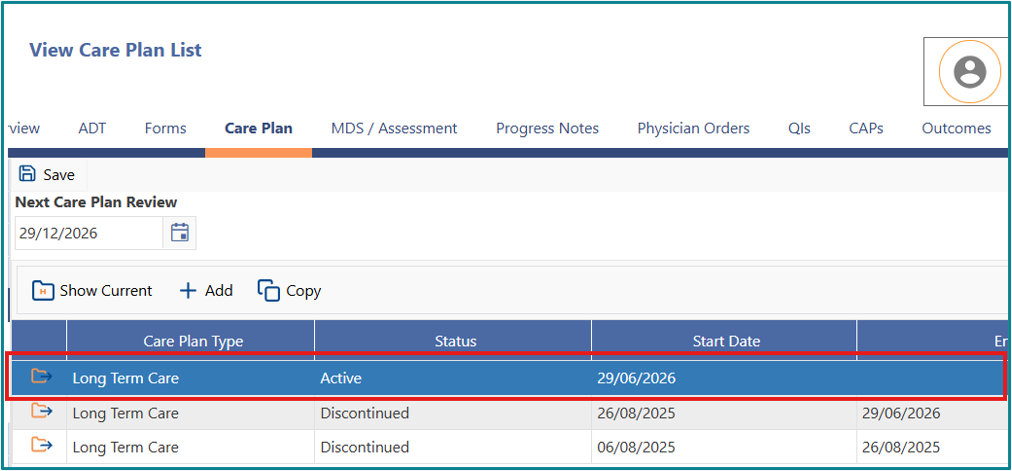
- Click Copy to create a draft version
- Once your care plan is in draft, each focus that is going to be edited must be changed to draft status. From the Edit Care Plan page select the focus you want to edit using the File icon.
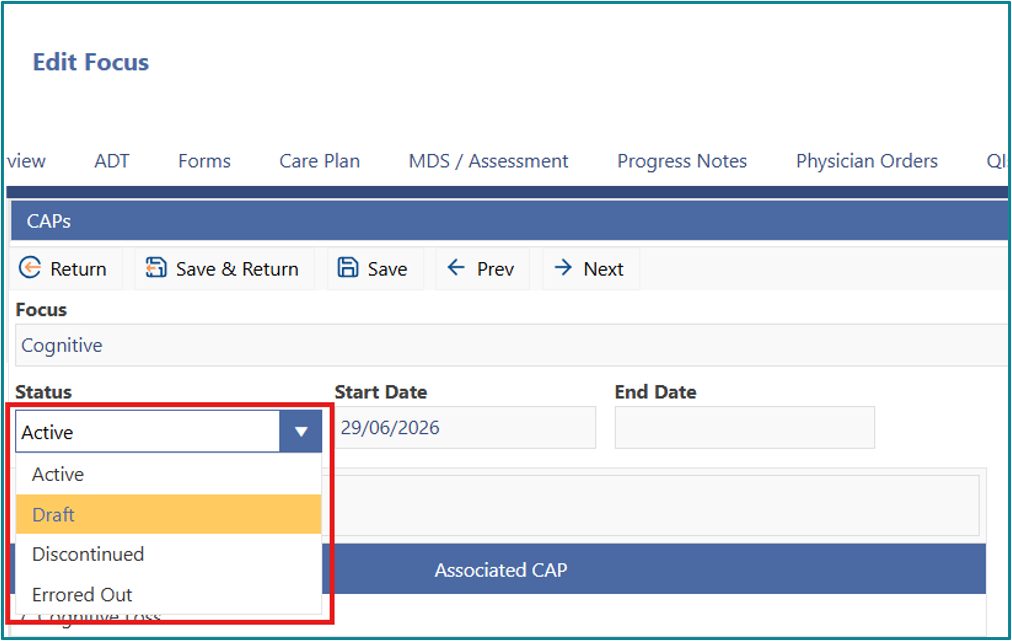
- Change the Status to Draft using the drop-down menu.
- Click Save to make the change.
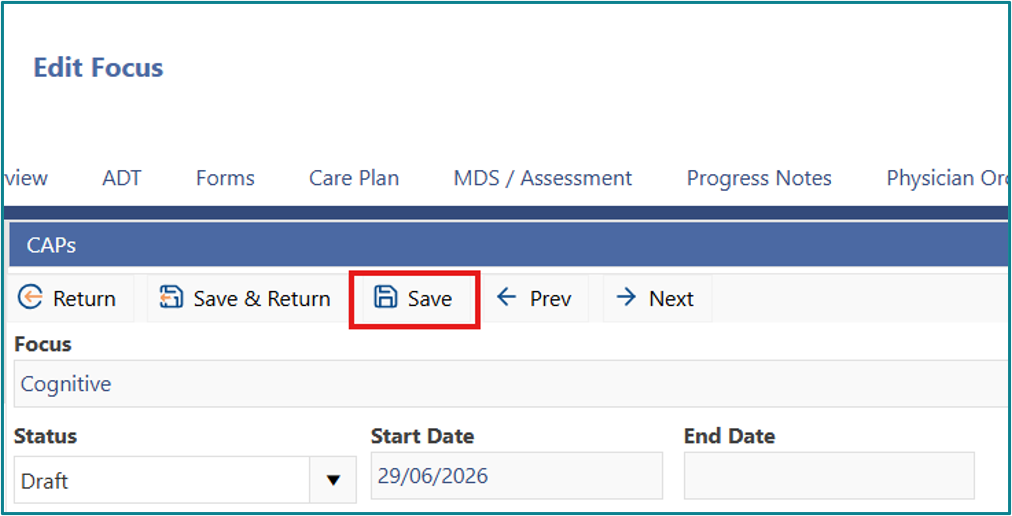
- Focus elements can then be edited, and then the Status returned to Active once editing is complete.
Current Care Plan Summary View
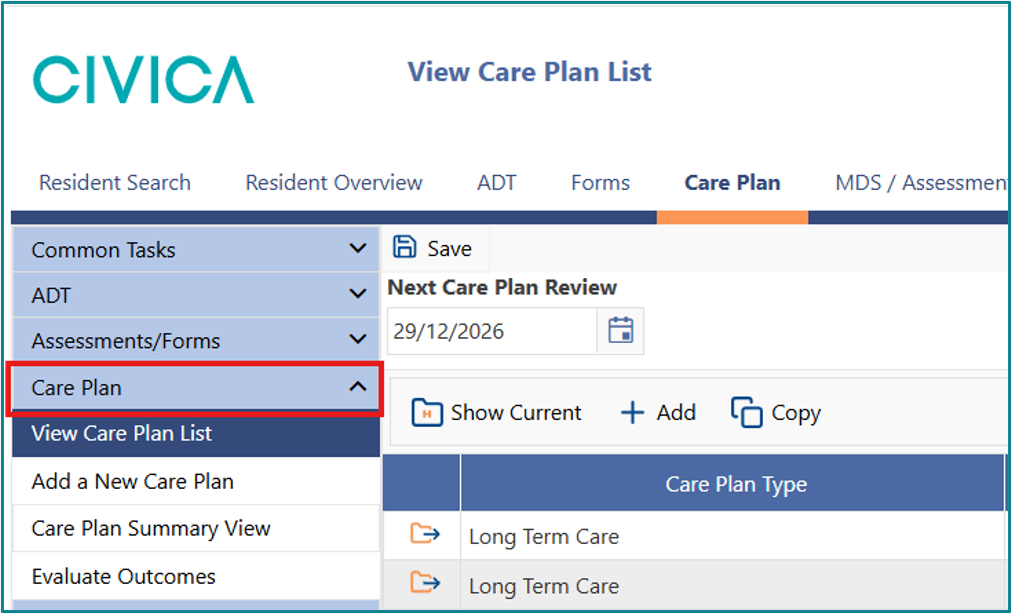
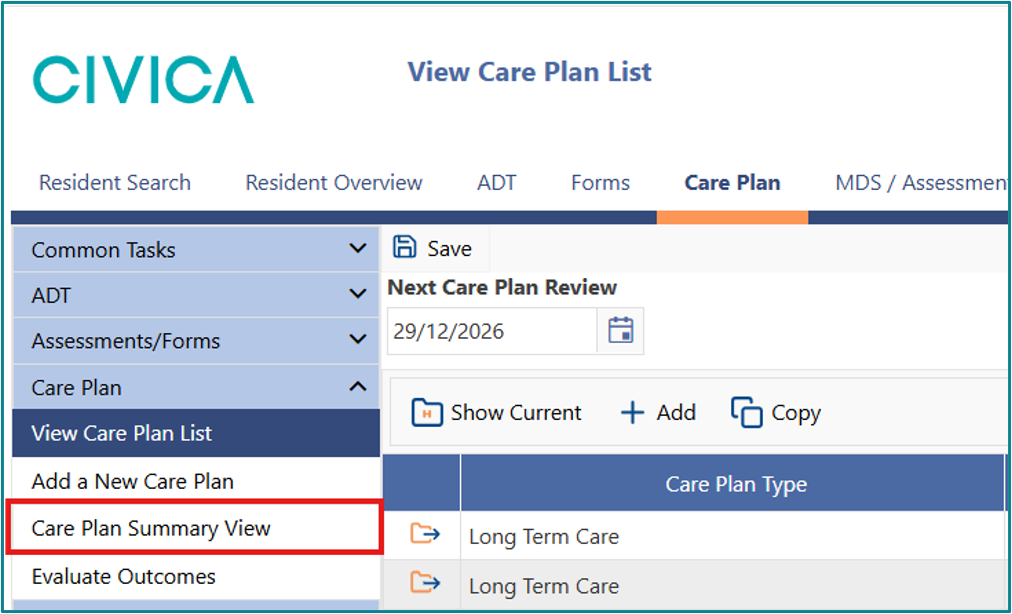
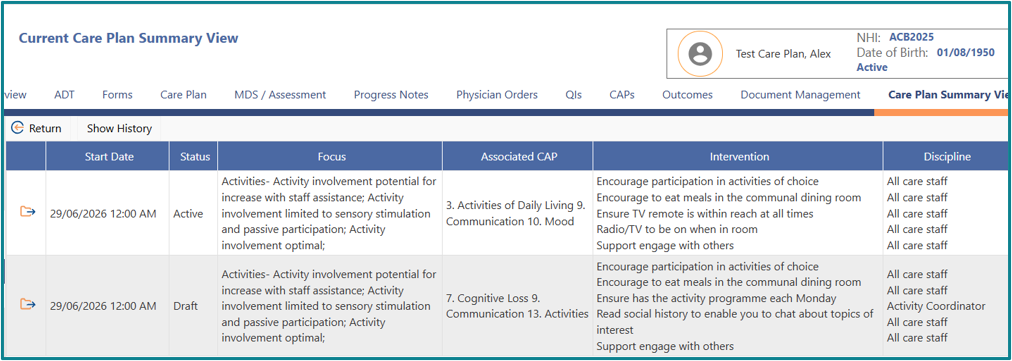
The Current Care Plan Summary View is located under Care Plan in the left side menu. This view displays all active and draft foci, making it easier to compare the current care plan with the draft version.
To access the view:
- Select Care Plan in the left side menu.
- Then select Care Plan Summary View.
- All active and draft foci are displayed to easily compare.
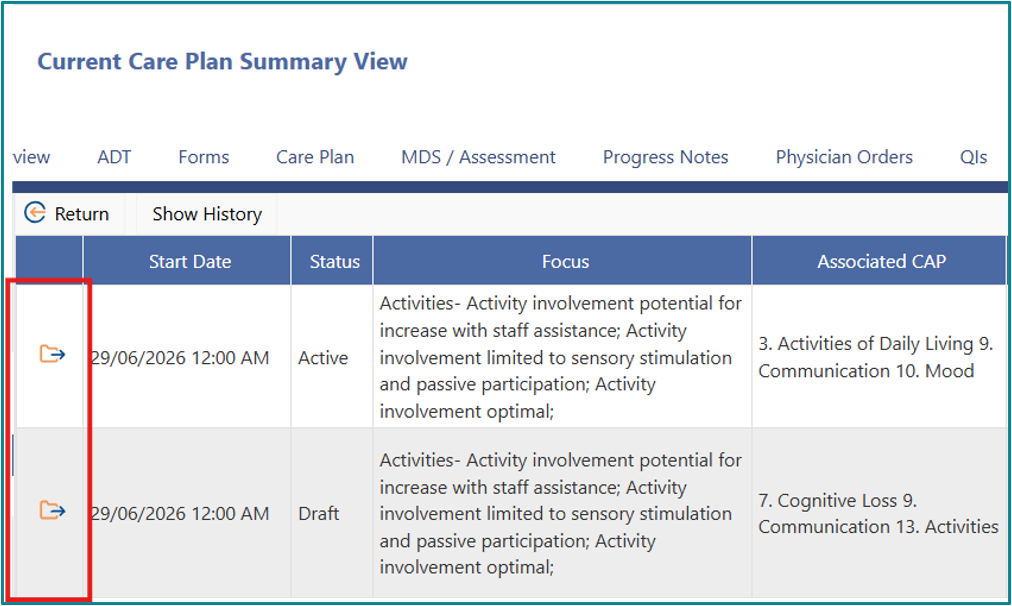
- Foci can be easily accessed by clicking on the file icon.
Was this article helpful?
That’s Great!
Thank you for your feedback
Sorry! We couldn't be helpful
Thank you for your feedback
Feedback sent
We appreciate your effort and will try to fix the article