TABLE OF CONTENTS
A resident will need to be admitted before an assessment is able to be added.
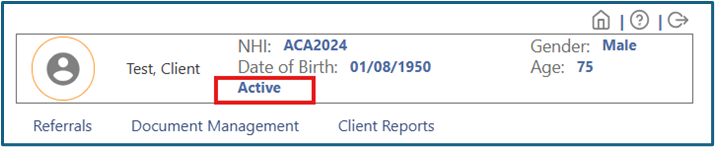
Whether your client’s record is active (admitted) or inactive is indicated in the top right side of the iAS screen.
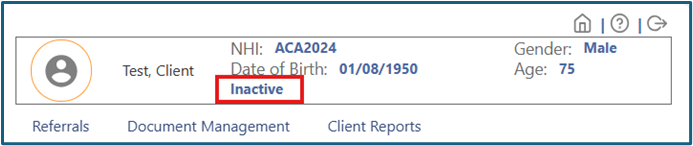
How to admit a resident
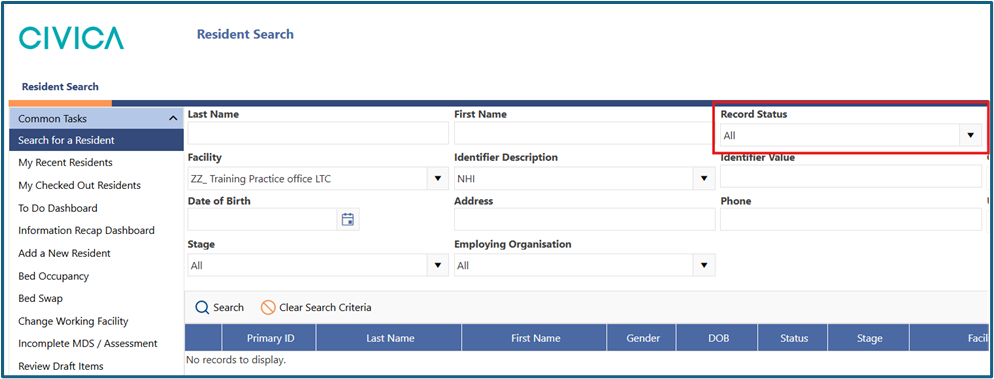
1: Search for your resident, making sure the 'Record Status' is set to 'All'.
Instructions can be found here if needed.
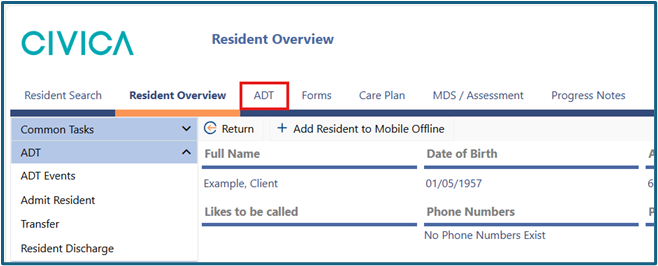
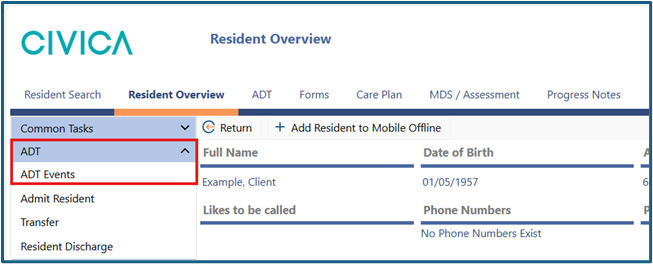
2: Open the 'ADT Events' screen.
- Using the ribbon menu along the top.
- Or using the left side menu
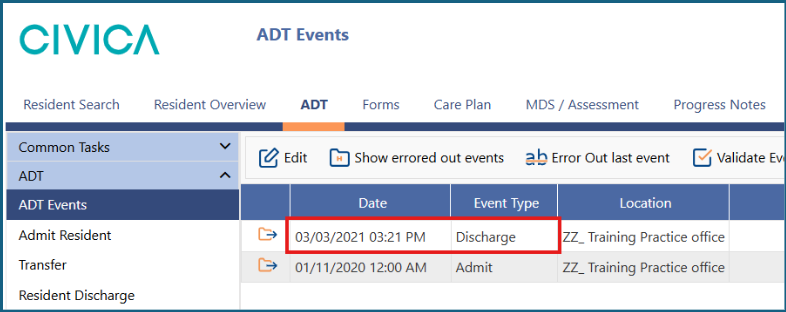
3: Note the date and time of the last discharge. All entries must be chronological, so your admission date and time must be after the last discharge event.
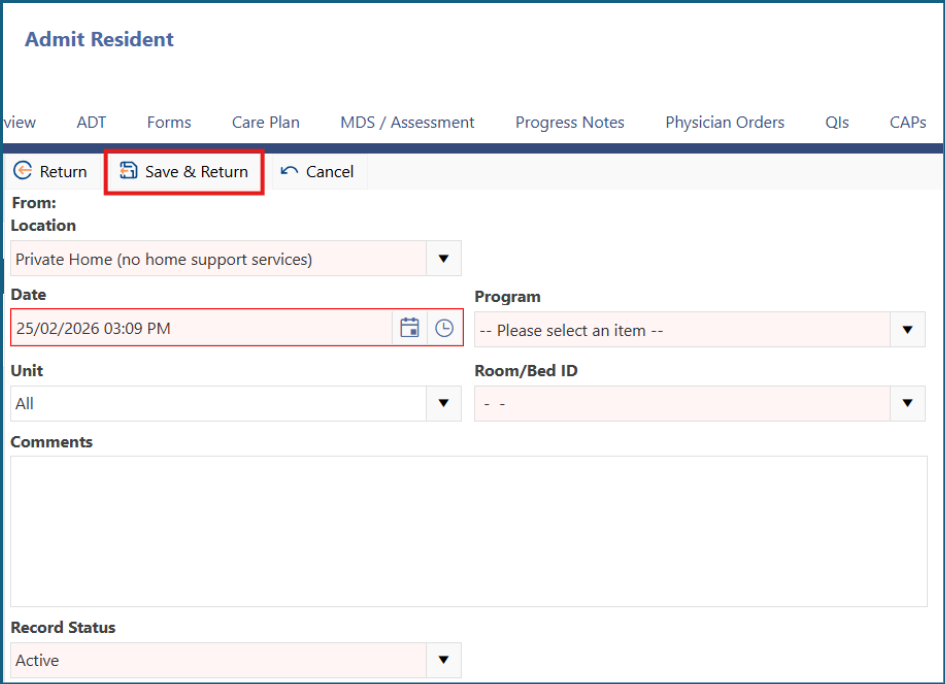
4: Select 'Admit Resident' from the left side menu. 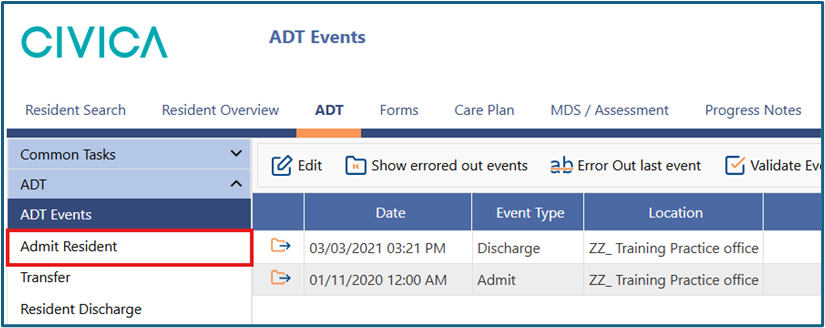
5: Use the 'Location' dropdown list to choose where the person is being admitted from. 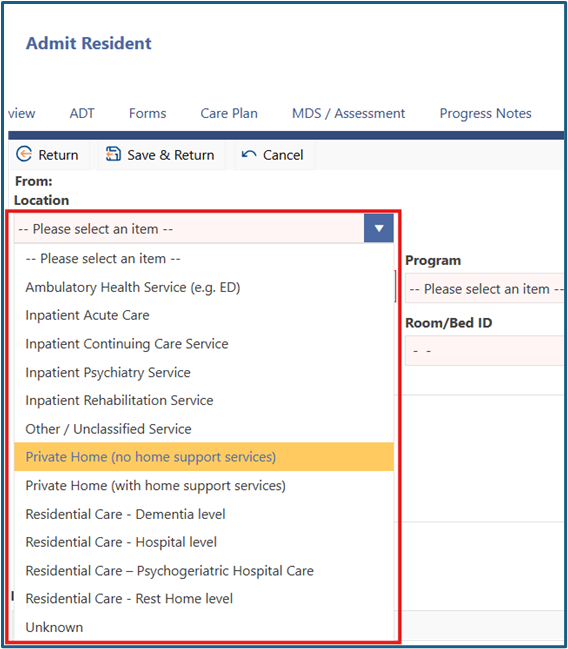
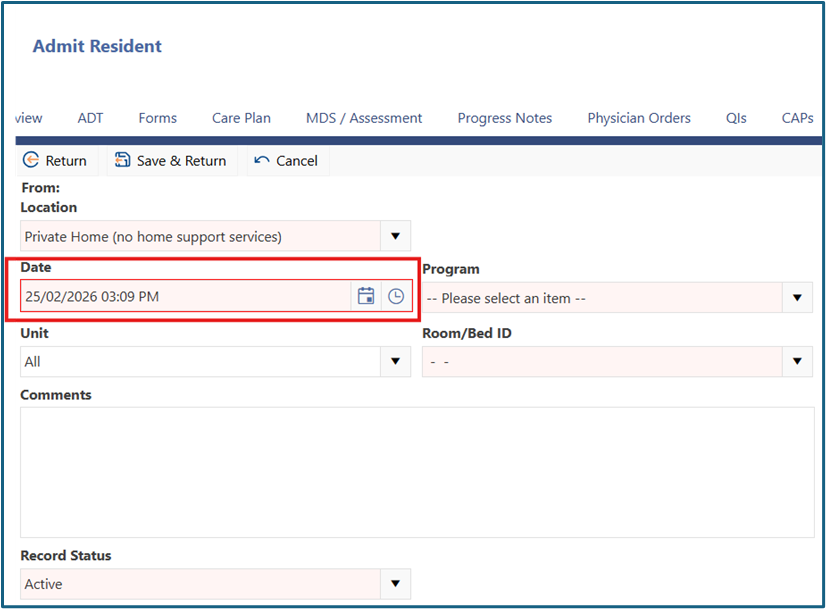
6: Use the date and time pickers to choose the date you want to admit the person. This should be the date they were admitted as a permanent resident in your facility (not respite/short term care)
- If it is the same date as the case was closed, you can pick a time after the time the case was closed
- If an incorrect date is used, the date of next assessment (21-day admission assessment) will be incorrect in the software.
- If the file was discharged after your admission date, use the earliest date that you can and add a note in the comments with the actual admission date.
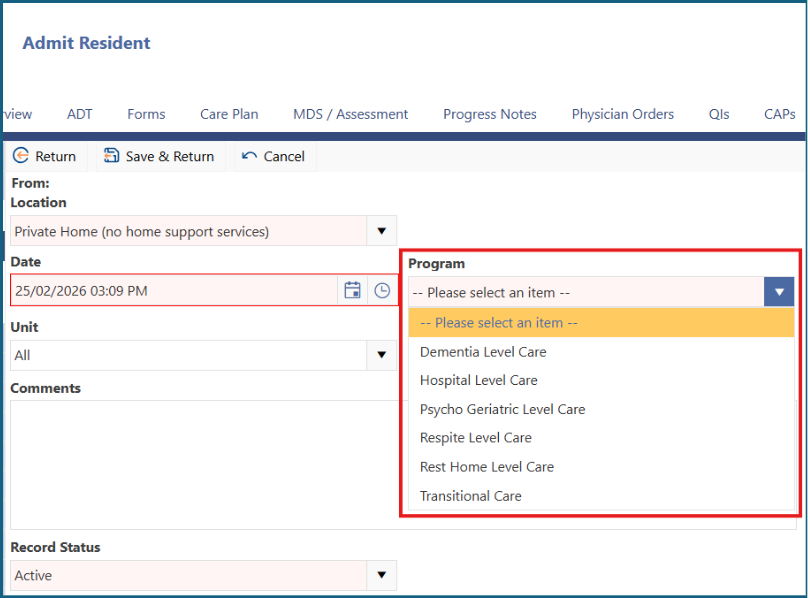
7: Select the resident’s level of care from the 'Program' dropdown list.
8: Choose an available bed from the dropdown list. You can filter the list of beds by also using the Unit dropdown.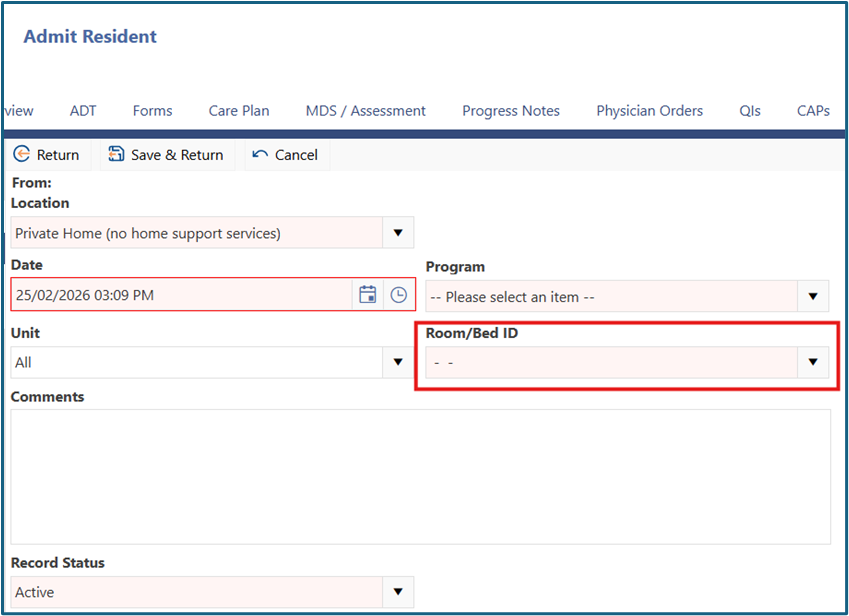
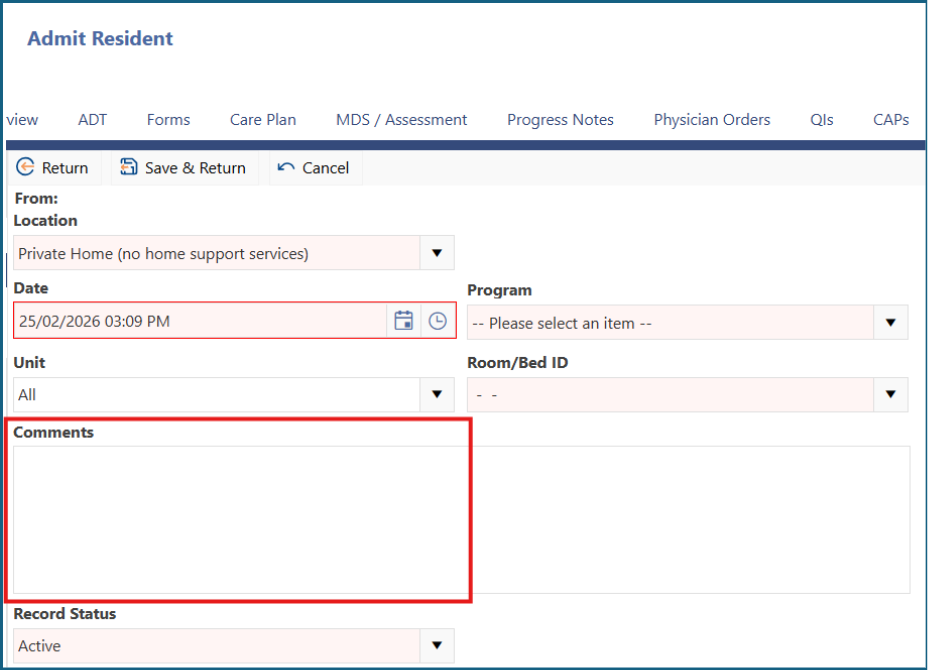
9: Add any relevant comments.
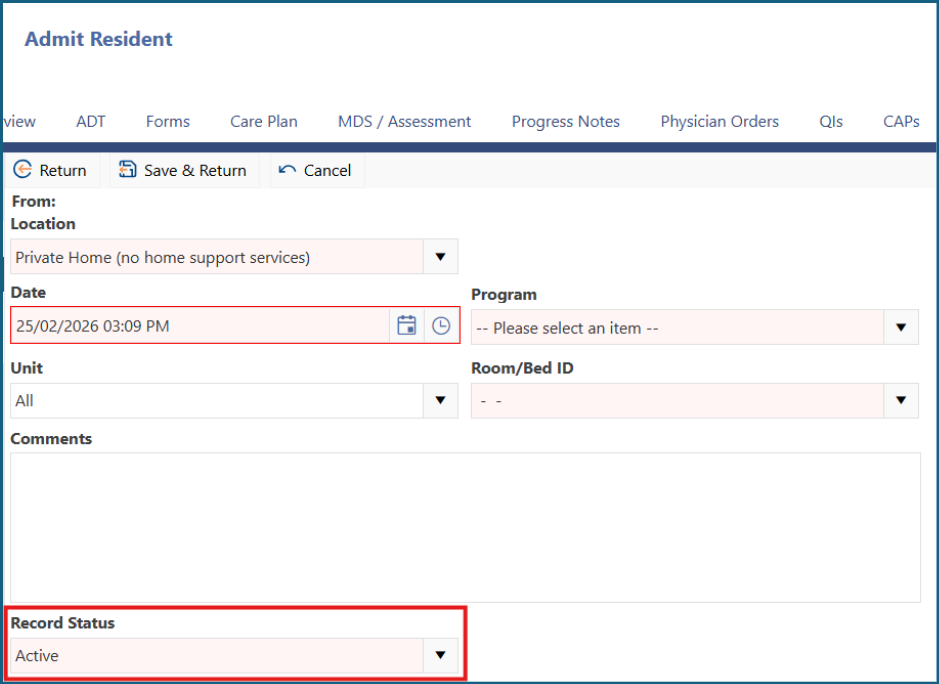
10: Leave the 'Record Status' as 'Active'.
11: Click 'Save and Return'.
12: The information in the top right corner of the screen should update to 'Active'.
Alerts
When you are unable to access the resident’s file
What you will see on the screen:
This record exists in an organization your account does not have security access to

Meaning: The person has a record in iAS, however it is in an office that you do not have access to.
Action: You will need to ask your local NASC to transfer the record to your office.
Open date/time is before last discharge
What you will see on the screen:
The current event must occur after last event date/time
Note: The error message will display the date and time of the last event
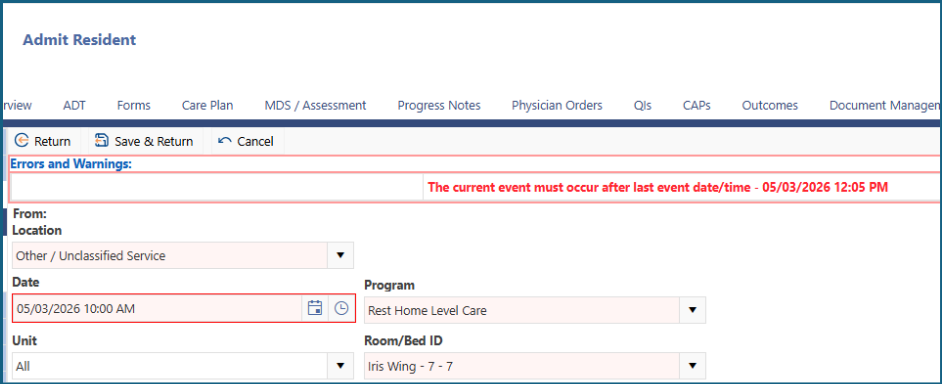
Meaning: The date and/or time selected is before the record was discharged in it's previous location.
Action: Change the date and/or time to be after the last date (which is displayed in the error message).
Was this article helpful?
That’s Great!
Thank you for your feedback
Sorry! We couldn't be helpful
Thank you for your feedback
Feedback sent
We appreciate your effort and will try to fix the article