Adding a photo is optional and is done from the Overview page.

Photos can be added for both residents and community clients using the same process. However, only photos for residents admitted to a facility will display on the Overview page.
How to add a photo to the Overview page
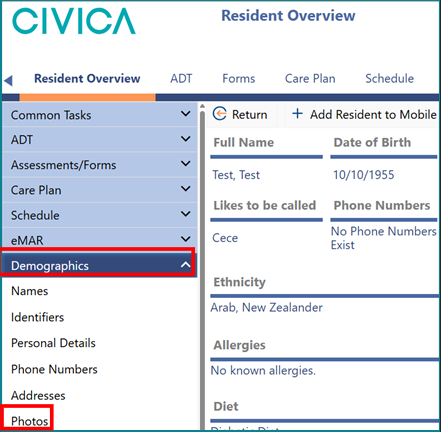
1: On the 'Resident Overview', click on the 'Demographics' item from the left-hand side menu.
2: Click on 'Photos'.
3: Click on 'Choose File' and select a photo saved in your system.
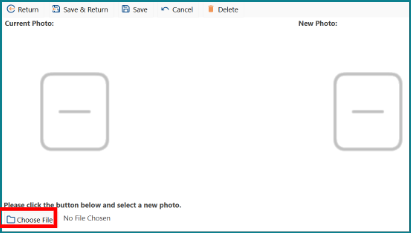
4: Once you have located the photo, either:
- double-click it, or
- click it once and then click Open
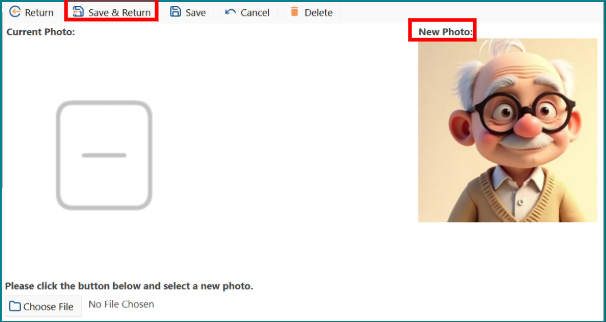
5: The photo will appear in the New Photo area for preview.
6: Check the preview, then click Save & Return.
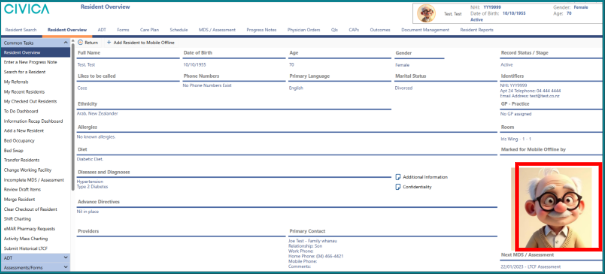
Where the photo will display
- For residents admitted to a facility, the photo will display on the Overview page.
- Photos can also be added for community clients using the same steps, but they will not display on the Overview page.
Important note
- Make sure the photo is the correct way up before uploading it from your phone or camera to your computer.
- If the photo appears sideways on the Overview page, it cannot be rotated within iAS.
Was this article helpful?
That’s Great!
Thank you for your feedback
Sorry! We couldn't be helpful
Thank you for your feedback
Feedback sent
We appreciate your effort and will try to fix the article