TABLE OF CONTENTS
You can record a General Practitioner (GP) for a client or resident on the Overview page.

The GP is selected from a list of GPs already entered in the interRAI Assessment Software.

If the GP you need is not available in the system, you can request that they be added.
Adding a GP
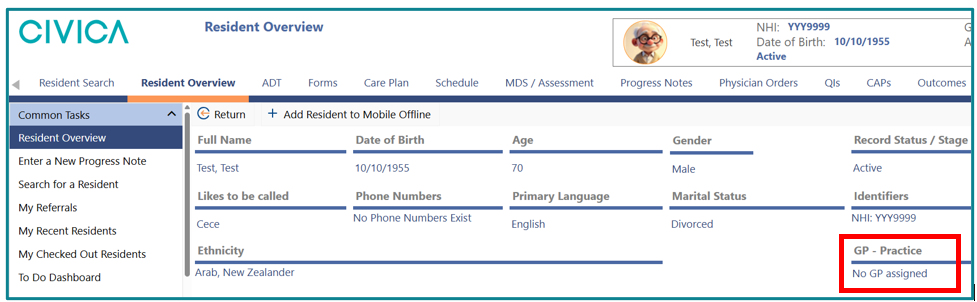
1: On the 'Resident' or 'Client Overview' page, click on 'GP – Practice'.
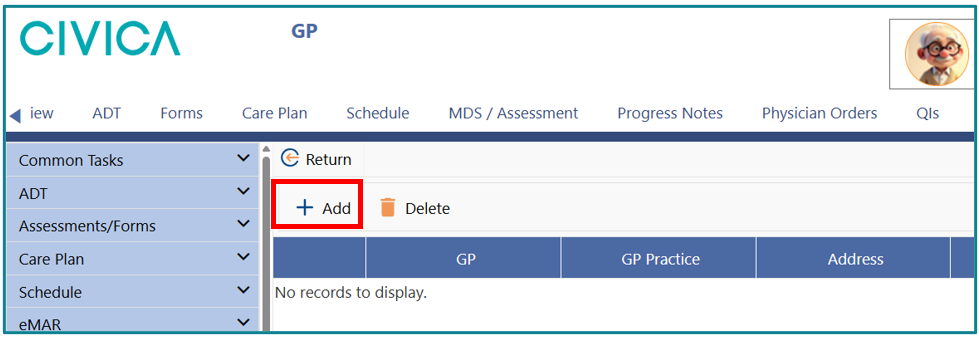
2: When the GP screen appears, click on '+ Add'.
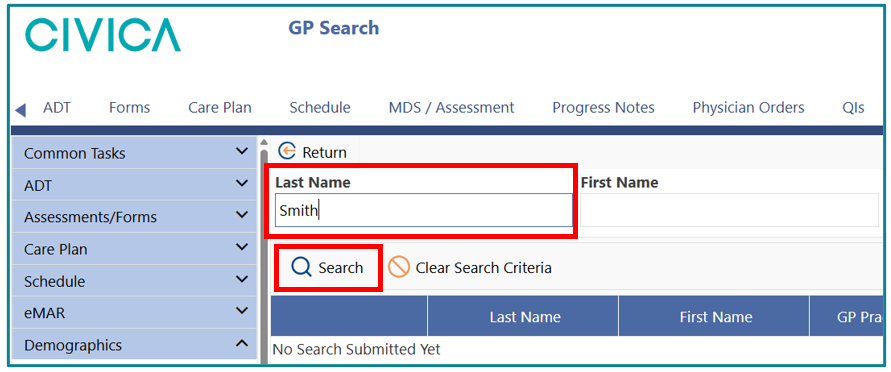
3: Enter the 'Last Name' of the GP you want to add.
4: Click 'Search'.
5: Click on the folder icon next to your chosen GP’s name to confirm your selection. 
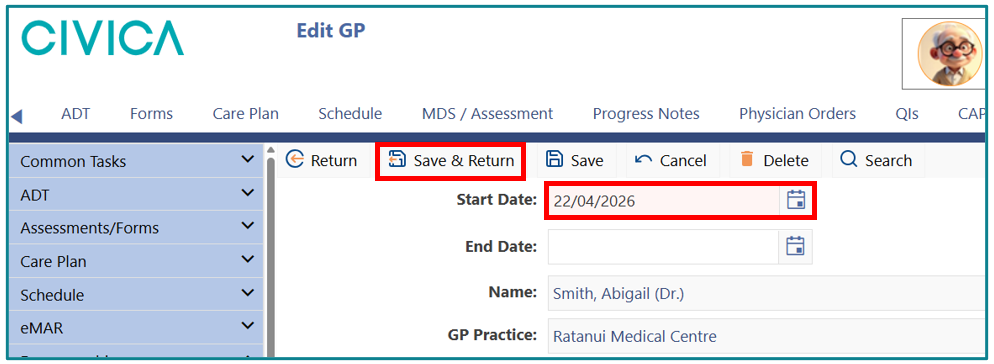
6: A 'Start Date' is automatically entered as todays date however you can change this if you wish.
7: Click on 'Save & Return'.
8: The selected GP will then appear on the 'Overview' page.
If the GP is not in the system
GPs entered in the interRAI Assessment Software are added by an interRAI administrator.
If the GP name you are looking for is not in the system, complete the request form by clicking the link below:
To complete the form, you will need:
- Health Centre or Practice Name
- GP or Nurse Practitioner Name
(this can include a Generic GP)
- Health Centre or Practice Street Address
- Phone Number
- Email Address
- This information helps ensure the correct GP or Nurse Practitioner is matched to the correct practice.
Changing a GP
If you need to change the GP name or practice that is recorded for a client or resident, follow these steps.
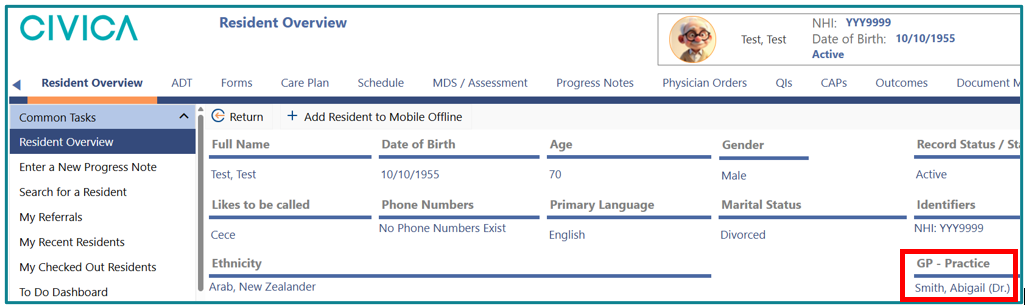
1: On the 'Resident' or 'Client Overview' page, click on 'GP Practice'.
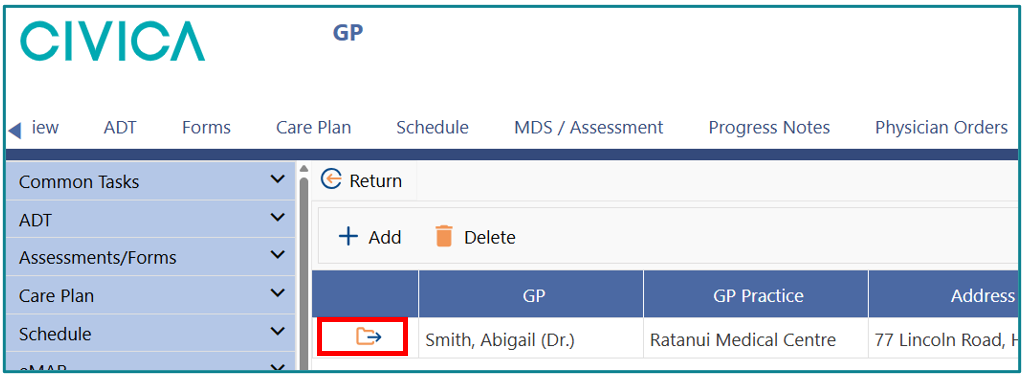
2: Click on the folder icon to select the old GP.
3: Enter an 'End Date' (or select a date using the drop-down date picker).
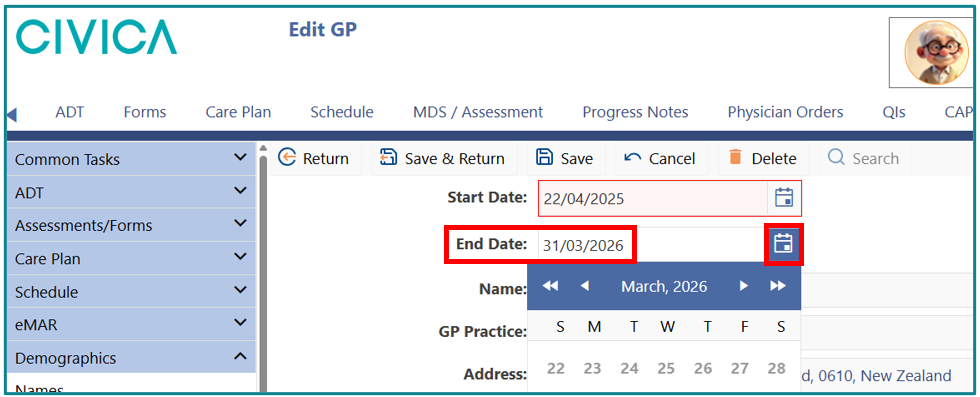
4: Adding an End Date keeps an historical record of GPs assigned to a client/resident.

Deleting an incorrect GP
If an incorrect GP has been added to the list of GP practices a client or resident uses, follow these steps to delete the incorrect entry. This process will remove the GP details from the client’s or resident’s record. The details will no longer be displayed on the 'Overview' page.
1: On the 'Resident' or 'Client Overview' page, click on 'GP Practice'.
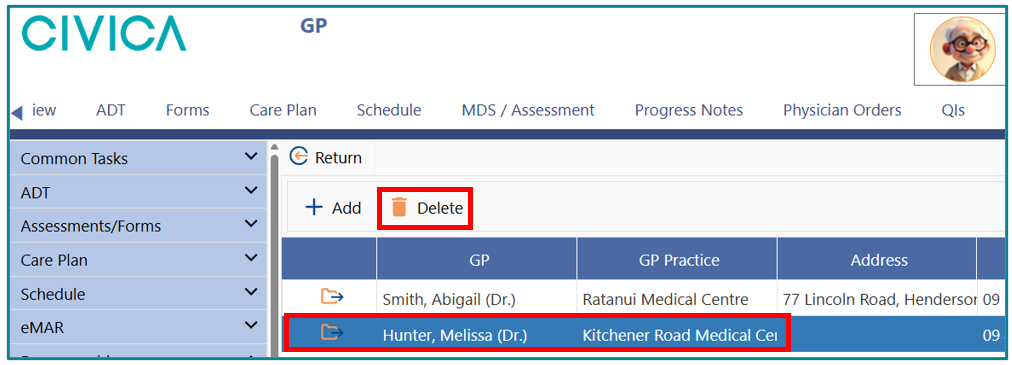
2: Click on the GP details to highlight them.
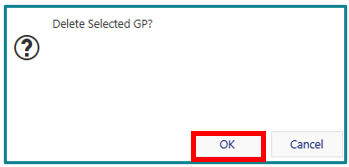
3: Click 'Delete'.
4: Click 'OK'.
Was this article helpful?
That’s Great!
Thank you for your feedback
Sorry! We couldn't be helpful
Thank you for your feedback
Feedback sent
We appreciate your effort and will try to fix the article