TABLE OF CONTENTS
- When a new assessment is needed
- Information that must be checked or re-entered
- Before you error out the original assessment
If you have marked an assessment as complete and then realise that a mistake has been made, such as incorrect coding or an incorrect note, the assessment can still be corrected within five working days of being marked complete.
Incorrect information in a completed assessment cannot be edited directly. To correct it, you must generate a new assessment and update the information there.
When a new assessment is needed
If the correction needs to be made within the assessment itself, you will need to generate a new assessment as you cannot edit the completed one directly.
When a new assessment is generated, most data and notes from the previous completed assessment are copied across automatically. However, some items are not copied and must be checked or re-entered.
Information that must be checked or re-entered
When generating a new assessment, the following items are not copied across automatically:
- Reason for Assessment
Code this the same as the previous assessment.
Important Note: The previously completed assessment will need to be errored out but only after you have created a new one.
- Date of Assessment
Enter the date the assessment was originally carried out. This should be the same as the date recorded in the previous completed assessment. - Consent
Code this according to the person’s response to the consent question in the previous assessment.
- Height and Weight
Enter the person’s height and weight recorded within 30 days of the assessment.
- Addressed in Care Plan tick box in the Assessment Summary
Decide whether this should be ticked based on the outcomes of the assessment.
Before you error out the original assessment
Error out only applies to an assessment that has already been marked complete. It can only be done by the assessor who marked the original assessment complete. Before erroring out the completed assessment you must first generate a new assessment then save the new assessment as a draft. Only then should you follow the error out steps below.
Follow these steps to correct the assessment:
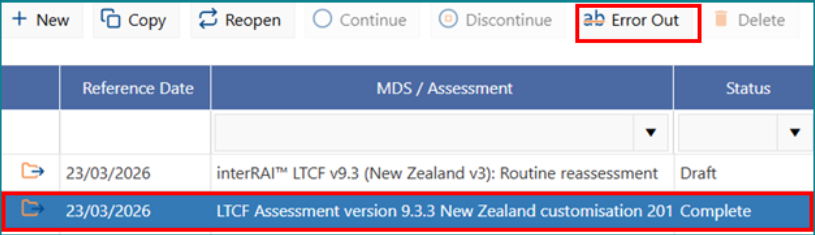
1: Click on the assessment mark 'Complete' to highlight it in blue.
2: Click on 'Error Out'.
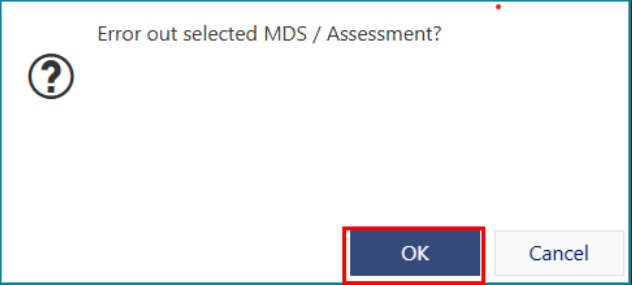
3: Click 'OK'.
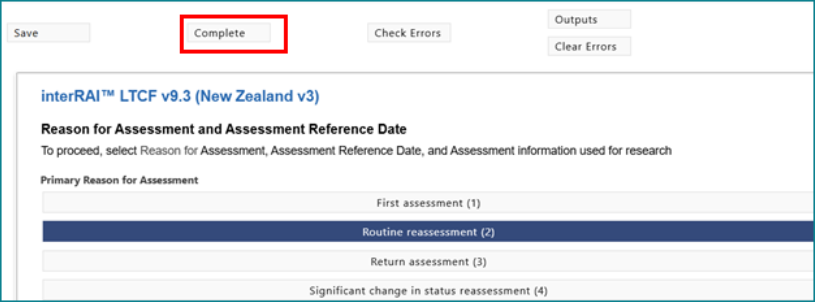
4: Make the necessary corrections to the new assessment, then click on 'Complete'. 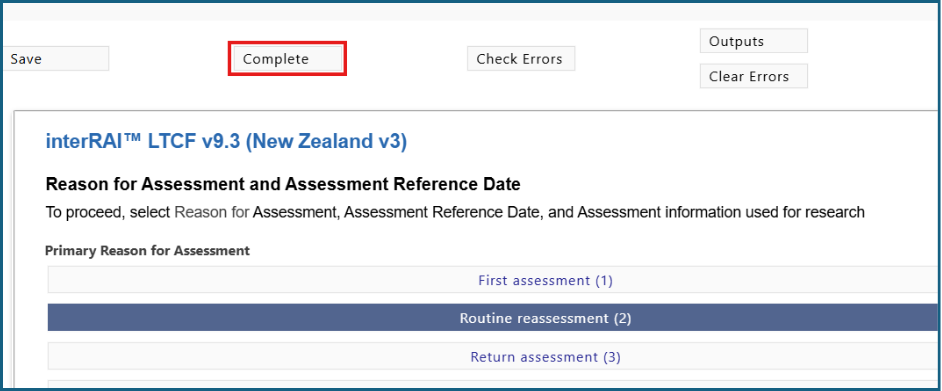
Important to note:
- Corrections must be made within five working days of marking the original assessment complete.
- A completed assessment cannot be edited directly.
- If a full correction is needed, create a new assessment first and then error out the incorrect completed assessment.
- Only the assessor who completed the original assessment can error it out.
Was this article helpful?
That’s Great!
Thank you for your feedback
Sorry! We couldn't be helpful
Thank you for your feedback
Feedback sent
We appreciate your effort and will try to fix the article